Add MobilityArena as a preferred source on Google
In this article, I’ll explore the step-by-step process of scanning QR codes on your phone. Whether you have an iPhone or an Android device, I’ll cover various methods and apps that allow you to scan QR codes. By the end of this article, you’ll be equipped with the knowledge to unlock the world of QR codes and access the valuable information they hold.
How Do You Scan A QR Code On Your Phone?
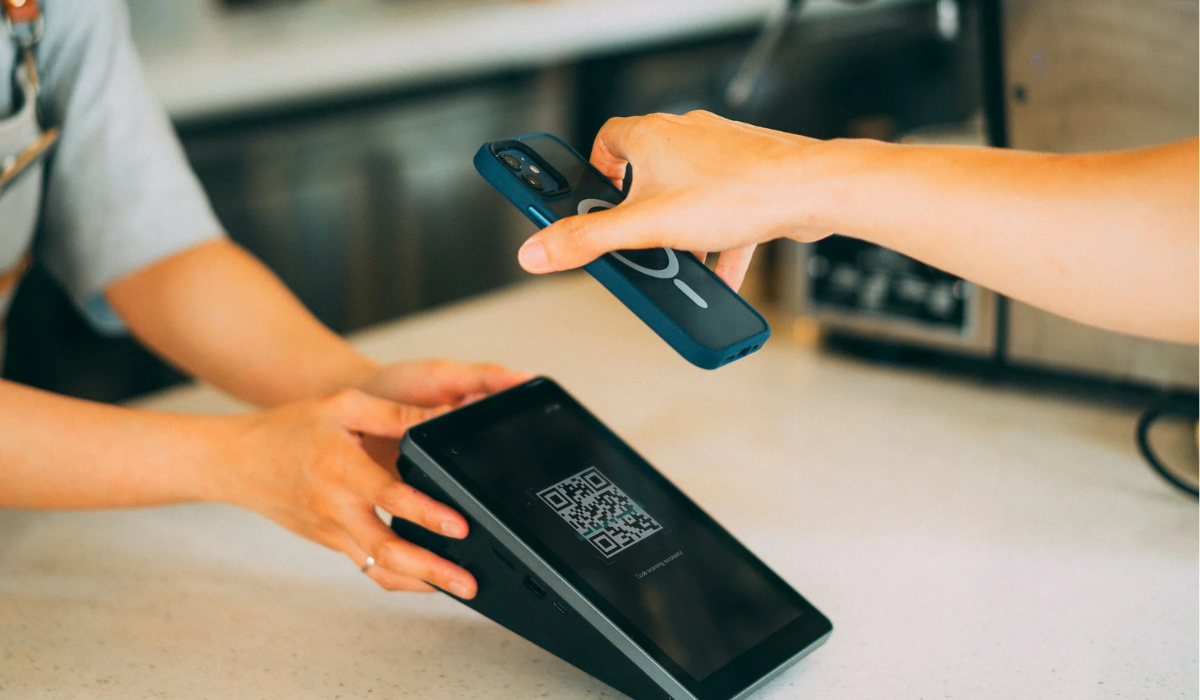
QR codes are two-dimensional barcodes that store information such as website links, contact details, or product information. Nowadays, these codes can be found on a wide range of items, from candy wrappers to billboards. By using your smartphone to scan these modern barcodes, you can quickly perform various actions like opening web pages, downloading apps, sending messages, and more.
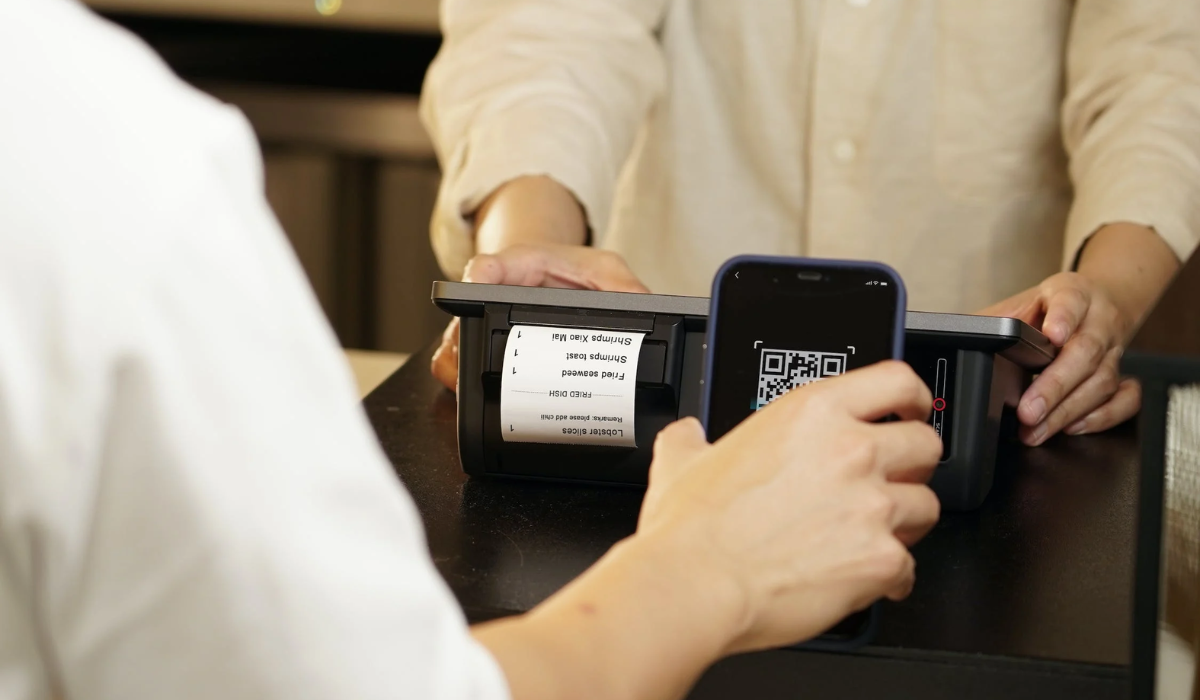
Notably, many restaurants and bars have started using QR codes instead of traditional menus, and some stores even allow contactless payments through QR codes. So how do you scan a QR code on your phone? Whether you have an Android or iPhone device, the process is quite easy, just follow the steps outlined in the sections below.
How to Scan a QR Code on Your iPhone
- Open the Camera app on your iPhone.
- Position your iPhone so that the QR code is within the camera frame.
- Wait for a moment, and your iPhone will automatically recognize the QR code.
- A notification will appear at the top of the screen, displaying the information embedded in the QR code.
- Tap on the notification to open the associated link or perform the specified action.
- If you don’t spot the banner or QR icon, double-check that you have the Scan QR Codes feature enabled. To do this, go to Settings > Camera and tap the slider next to Scan QR Codes . You’ll know it’s activated when it turns green.
How to Scan a QR Code on Your Android
You can quickly and easily scan a QR code on your Android phone using the built-in camera app and following a few easy steps . Here’s how to do it:
- On your Android phone, launch the Camera app.
- Make sure the QR code is in the center of the screen, and hold your phone steady.
- Wait for your phone to recognize the QR code, which may be accompanied by a beep or vibration.
- If you see a notification, click on it to launch the link associated with the QR code.
- If you don’t see a notification, open the Settings app on your phone and turn on QR code scanning . Try scanning the QR code again after that.
How to Scan QR Codes Using Google Lens
Google Lens is a tool integrated into your camera app that allows you to scan QR codes. It was initially available on Pixel phones but is now a standard feature on many Android devices. With Google Lens, you can do various things, like identify objects or translate text. But when it comes to using Google Lens to scan QR codes, there are a few ways you can do it. Here’s how you can use it to scan a QR code:
- Open the Camera app and tap the “ More ” (or three horizontal lines) button in the top left corner of the screen.
- Click on “ Google Lens ” and point your camera at the QR code you wish to scan.
- Google Lens should automatically recognize the QR code and notify you of the relevant link or content.
- To open the link or content, tap on the notification.
You can also use Google Assistant to activate Google Lens. Simply say “ OK Google ” to activate the assistant, then press the Google Lens symbol in the bottom right corner of the screen. No problem if this method doesn’t work on your phone. You can try the alternative method below.
- Start by opening the Google app from your app menu.
- Look for the camera icon, which can be found on the right side of the search bar. On the iPhone, you’ll see the Google Lens icon instead.
- Scroll down and select the image that contains the QR code you want to scan, or simply point your camera at the QR code.
- Google Lens can instantly identify the QR code and show you information about it in the search results. If the QR code has a webpage, you’ll find a button to visit it right at the top.
- Just tap on the button to visit the webpage.
Tip: It’s safer to use your phone’s built-in scanning features for QR codes to avoid malware. Third-party apps can be risky as hackers may hide dangerous code in them. Protect your personal info by using the native scanning features on Android or iPhone.
While third-party apps can be convenient and offer extra features, be cautious and ensure they are reputable and trustworthy. Generally, it’s advisable to use the built-in camera or official apps like Google Lens for scanning QR codes for security reasons.
To sum up, scanning a QR code on your phone is super easy and convenient. Simply follow the steps discussed above, and you’ll be able to scan QR codes effortlessly on both Android and iPhone devices. It’s a convenient way to access information and discover new things. Feel free to check out other useful resources to navigate smartphone usage easily.
Author:Joan Agie
Add MobilityArena as a preferred source on Google
Activating a T-Mobile SIM card essentially involves setting up your SIM card to work with T-Mobile’s network. It’s a crucial step that allows you to unlock the full potential of your mobile device. By activating your T-Mobile SIM card, you gain access to their amazing mobile plans and benefit from their extensive network coverage, as well as a wide range of data and voice options.
In this article, I’ll show you how to activate a T-Mobile SIM card easily Whether you’re upgrading your device or a new T-Mobile customer, this guide has you covered. Let’s dive in and get your T-Mobile SIM card activated in no time.
How to Activate a T-Mobile SIM Card
Activating a T-Mobile SIM card is a simple and easy process. It’s like giving your SIM card the green light to connect to T-Mobile’s network and service. This means you can make calls, send texts, browse the internet, and stay connected with your loved ones, no matter where you are. Here’s how to activate your T-Mobile SIM card for a seamless mobile experience:
Activate Your T-Mobile SIM Card on Your Phone
To activate a T-Mobile SIM card, the most popular method is to use your phone directly. It’s a simple process that involves following a few steps which I’ve outlined below:
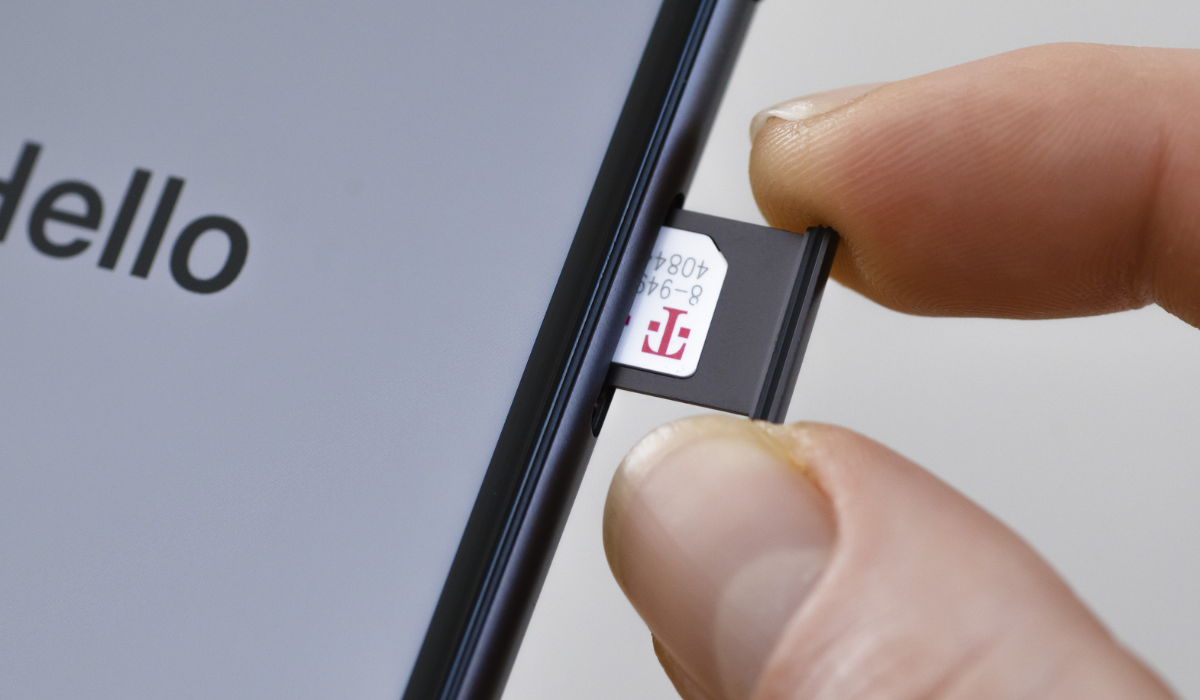
- Insert the SIM card: Locate the SIM card slot on your device and insert the T-Mobile SIM card into the designated slot.
- Power on your device: Turn on your phone or tablet to begin the activation process.
- Follow the on-screen prompts: Your device will guide you through the activation process. Follow the on-screen prompts, which may include entering your T-Mobile account information or verifying your identity.
- Wait for activation: Once you’ve completed the necessary steps, your T-Mobile SIM card will be activated. This process usually takes a few minutes, but it may vary depending on your device and network conditions.
- Test your service: After activation, make a test call or send a text message to ensure that your T-Mobile service is working properly.
Activate Your T-Mobile SIM Card Online
Activating a T-Mobile SIM card online is also super easy. Just follow these simple steps to get started:
- Visit the T-Mobile website: Go to the T-Mobile website using your preferred web browser. If you already have a T-Mobile account, log in using your username and password. If you don’t have an account, you can create one by clicking on the “ Sign Up ” or “ Register ” option.
- Navigate to the activation page: Once you’re logged in, navigate to the activation page. Look for an option like “ Activate SIM ” or “ Activate Device .”
- Enter your SIM card information: On the activation page, you’ll need to enter the required information from your SIM card, such as the SIM card number and personal details. You can usually find this information on the SIM card’s packaging.
- Follow the prompts: Follow the on-screen prompts to complete the activation process. You may need to provide additional information, such as your personal details and SIM card number.
- Confirm and wait for activation: After you’ve entered all the necessary information, review the details and click Confirm or Activate . It may take a few moments for the activation process to complete.
- Test the SIM card: Restart your smartphone after activation to apply the appropriate settings. You may receive a confirmation message once your SIM card is activated and ready to use, make a call, send a text message, or use mobile data to test the SIM card.
Activate Your T-Mobile SIM Card Via Phone Call
If you’d rather activate your T-Mobile SIM card by making a phone call, follow these simple steps:
- Insert the T-Mobile SIM card into your phone
- Dial T-Mobile’s activation number: Call T-Mobile’s activation number from another phone, which is usually provided with SIM card packaging or available on their website.
- Follow the prompts : Listen to the automated instructions and follow the prompts to activate your SIM card. You may need to enter your SIM card number and other details during the call. Make sure to provide accurate information
- Verify activation : Once you’ve completed the activation process, restart your device to ensure that the activation takes effect and test the SIM card by making a call, sending a text message, or accessing mobile data.
To sum up, activating a T-Mobile SIM card can be done easily by following the steps provided above. Whether you choose to activate it online or via phone call, the process is straightforward and ensures that your SIM card is ready to use. If you encounter any issues during the activation process, don’t hesitate to reach out to T-Mobile’s customer support for assistance. If you’d like more useful smartphone tips and recommendations, be sure to explore this category .
