Add MobilityArena as a preferred source on Google
<img loading=“lazy” src=“https://mobilityarena.com/wp-content/uploads/2024/08/Google-Play-Services-keeps-stopping-error-on-Android.webp" onerror=“this.onerror=null;this.src=‘https://blogger.googleusercontent.com/img/a/AVvXsEhe7F7TRXHtjiKvHb5vS7DmnxvpHiDyoYyYvm1nHB3Qp2_w3BnM6A2eq4v7FYxCC9bfZt3a9vIMtAYEKUiaDQbHMg-ViyGmRIj39MLp0bGFfgfYw1Dc9q_H-T0wiTm3l0Uq42dETrN9eC8aGJ9_IORZsxST1AcLR7np1koOfcc7tnHa4S8Mwz_xD9d0=s16000';" alt=“The “Google Play Services keeps stopping” error on Android. - 1”>
As an Android smartphone user, one of the issues that can pop up on your phone screen is an error that reads, “Google Play Services keeps stopping”. This error can be quite frustrating, as it very often pops up again after you have dismissed it. Thankfully, it isn’t something grievous and can be resolved, regardless of whether you are using a Samsung, Motorola, Google Pixel, or OnePlus Android smartphone. .
I have experienced this error once on one of my phones; I do not recall which it was any more. And I will present the solution that worked for me. But there are also a few common causes and solutions that others, including Google’s support pages, have listed, and I will start with those:
Insufficient Memory : One of the said causes is insufficient RAM. If your Android device is low on RAM, it can cause Google Play Services to crash. Try closing unneeded apps to free up memory. Personally, from what I understand of this error, I really doubt that this will help. Android smartphones and tablets manage RAM automatically and you really shouldn’t be fiddling with freeing up RAM to solve any problems.
Outdated Software : Next on the list of possible causes is outdated software. This is a plausible one. Check to see if there are any available software updates for your Android smartphone and for Google Play Services.
To update your phone software, go to Settings > System Updates. If there is any software update available, run it.
To update Google Play Services, open the Settings app and follow these steps:
- Tap Apps & notifications. See all apps.
- Scroll down and tap Google Play Services.
- Scroll down and tap App Details.
- Tap Update or Install.
After the update is installed, restart your smartphone and check to see if the error persists.
Incorrect Permissions : Google Play Services needs various permissions to function correctly. Check if it has all the necessary permissions by going to Settings > Apps > Google Play Services > Permissions.
Corrupted Cache/Data : Clearing the cache and data for Google Play Services can often resolve the issue. Go to Settings > Apps > Google Play Services > Storage > Clear Cache and Clear Data.
System Glitches : A simple restart of your device can sometimes fix temporary glitches causing the error.
Date and Time Settings : Incorrect date and time settings can also cause issues. Make sure your device’s date and time are set correctly.
None of the above causes and solutions were applicable in my own case when I experienced the error on my phone. That might be the case for you, as well. So, let’s look at what worked for me.
How I fixed the “Google Play Services keeps stopping” error
When I experienced the “Google Play Services keeps stopping” error, I found out that it was caused by some issue with the most recent update to Google Play Services. An update had been issued for it and it had been installed on my device, but the update had an issue, and the only way to fix the problem was to uninstall the update. Yes, sometimes, updates create problems.
So, I uninstalled the update to Google Play Services and the error went away, pronto! To uninstall an update, if you are reading this on your phone, click on this link: https://play.google.com/store/apps/details?id=com.google.android.gms . It should open the Play Store app on your smartphone and display the app information, including an “Uninstall” button. Hit the uninstall button. That should fix the problem and make the error go away if it was caused by an update.
If all of the above solutions fail, do a factory reset
If this doesn’t make the error go away, then the issue might be caused by one of the other causes listed. Where all else fails, what should work is a factory reset. Note that doing a factory reset will delete everything from your smartphone. It will wipe every file and setting and return your phone to the condition it was in when you first bought it.
PS : Also, if you have experienced and solved this error and your solution is not listed above, do leave me a comment with the solution, so I can add it up for the benefit of everyone. Thanks.
Author:Mister Mobility
Digital Skills and Communication Coach | Mobile Phone Connoisseur since 2001 | Tech Blogging since 2004
Add MobilityArena as a preferred source on Google
The Universal Fast Charging Specification (UFCS) is a next-generation fusion fast charging protocol that is jointly developed by a group that includes some Chinese companies to address the complexity and lack of compatibility among existing fast charging standards in the market.
The developers of UFCS is the Fast Charging Alliance , a collaboration between the China Academy of Information and Communications Technology (CAICT) and leading mobile phone companies such as Huawei, OPPO, Vivo, and Xiaomi.
UFCS aims to improve fast charging integration between different smartphone vendors, making charging facilities universal. That way, once you have a UFCS-certified charging brick, you can use it across multiple phone brands that support the standard.
Features of UFCS
The Universal Fast Charging Specification (UFCS) has a number of features that include the following:
- Universal Compatibility : UFCS aims to unify fast charging standards across different smartphone brands. Once you have a UFCS-certified charging brick, you can use it with multiple phone models that support the standard.
- Adaptive Voltage and Current : UFCS dynamically adjusts voltage and current based on the connected device’s requirements. This ensures efficient and safe charging without compromising battery health.
- Safety Measures : UFCS incorporates safety mechanisms to prevent overheating, overvoltage, and other potential risks during charging.
- High Power Output : UFCS supports high wattage charging, allowing for faster replenishment of battery capacity.
- Certification Process : UFCS-certified products undergo rigorous testing to ensure compliance with the standard.
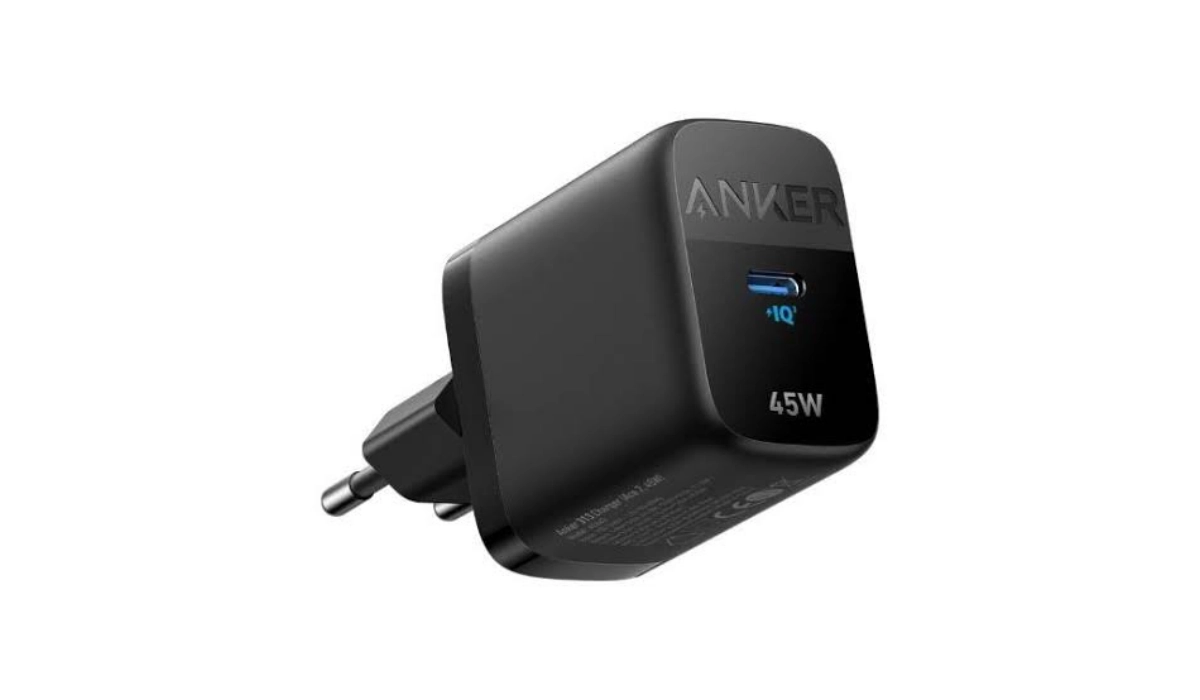
The Anker 313 Ace 2 45W USB-C UFCS Fast Charger
UFCS-certified products are already available in the market. At the last count, there were already over 38 UFCS adapters in the market. These include products from brands like Anker, Edifier, Baseus, Aukey, Huawei, Xiaomi, OPPO, and Realme, among others.
In August 2024, Realme unveiled a ground-breaking 320-watt fast-charging technology called “320W SuperSonic Charge”. This technology can charge a smartphone from zero to full capacity in less than 5 minutes. The 320W SuperSonic Charge power adapter supports UFCS alongside other charging protocols.
Thanks to the universality of the new technology, if any other phone maker implements up to 320W charging in their devices using UFCS, you will be able to use Realme’s adapter with those phones to get the maximum charging speed possible, and vice versa.
Author:Anna Makama
Gadget lover making my way through life one day at a time.

