Add MobilityArena as a preferred source on Google
Since it contains all of the shortcuts and bookmarks you’ve added to your home screen, you’ll agree that the App Library is a great resource for browsing all of the apps on your iPhone. However, it still typically takes a lot of swiping to open the App Library, especially if you have a lot of visible pages on your home screen.
Fortunately, there is a shortcut to getting to your App Library quicker on your iPhone device. In this guide, we’ll show you tricks that will help you reach your home screen faster. Some methods work better than others, so just read through this guide and choose what works best for you.
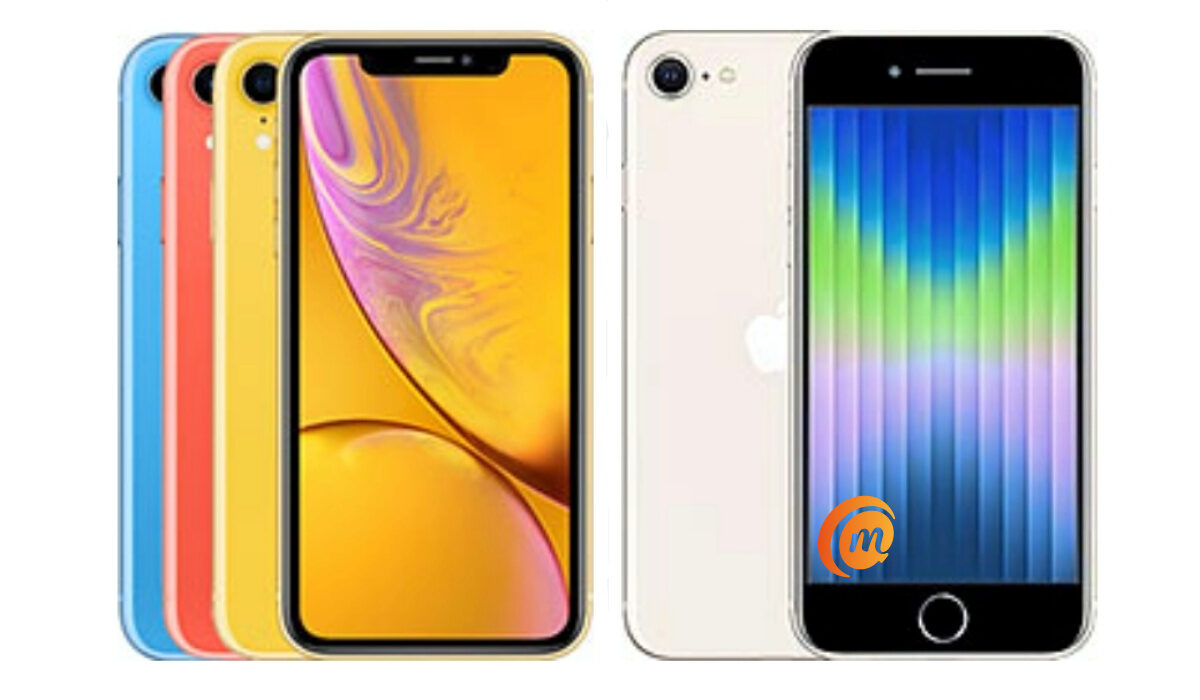
How Can I Access the App Library Faster on My iPhone?
On your iPhone, there are just four ways to access the App Library more quickly; we’ve described them here. Given that alternatives 1 and 2 need you to change the layout of your home screen, options 3 and 4 might be the best solution.
Method 1: Limit the Number of Home Screen Page
If you don’t mind altering your home screen’s layout, you can reduce the number of pages on your home screen, thus making it quicker to swipe to the App Library. If you prefer to have all of your apps on home screen pages, this may not be the best option. However, if there are only two active home screen pages, opening the App Library will only require two quick left swipes across the screen.
Method 2: Hide Some Home Screen Pages
This option produces the same result as the option above, essentially hiding home screen pages till you actually require them. If you frequently use the apps contained on your hidden home screen pages, this is also not ideal. However, if you prefer the App Library, you may make it accessible with a left swipe via this method and then reveal home screen pages as necessary or desired.
Method 3: Employ a Two-Swipe Gesture
Simply tap and drag the Search button (located above your dock) to the right, holding it there until you reach the last page of the home screen on iOS 16.0 (and later devices). Release your hold, and then swipe left to access the App Library.
On iOS 16.0 and later devices, or if you haven’t upgraded to an iOS 16 firmware already, you should see dots above the dock in place of the Search button, representing all of your home screen pages. To open the App Library on the last page of the home screen, swipe left after touching and dragging the highlighted dot to the right until it stops moving. In comparison to swiping the Search button, doing this is actually a lot quicker.
Method 4: Use Voice Control to Access the App Library
The Voice Control accessibility feature can unlock the App Library for you even if Siri can’t. So, if you don’t want to swipe, this method is pretty useful, even though it may not be as quick as the swiping alternatives above.
To activate and deactivate Voice Control , you have a variety of alternatives:
- Toggle Voice Control on or off by going to Settings -> Accessibility -> Voice Control . But you should note that this is just more swiping.
- Add it to your accessibility shortcut so that you may access it with a triple-click of the Home or Side button ( Settings -> Accessibility -> Accessibility Shortcut ). Select Voice Control from the drop-down menu if the shortcut has more than one option allocated to it.
- The Back Tap gesture can be used here, so simply assign it; go to Settings -> Accessibility -> Touch -> Back Tap . Then, touch the Apple logo located on the back of your iPhone twice or thrice.
- Use the Settings -> Accessibility -> Touch -> AssistiveTouch menu to assign it to an AssistiveTouch gesture. Long-press, double-tap, or triple-tap the AssistiveTouch symbol on your screen after turning on the function.
- You could also ask Siri. The fastest choice is definitely this one. Use words and phrases like “Start/stop Voice Control,” “Turn Voice Control on/off,” and “Turn Voice Control on/off,” to name a few.
- Voice Control cannot turn on itself, so when it is enabled, it is actually quicker to command it to switch off by uttering “Turn Voice Control off” or “Turn off Voice Control.”
You can use Voice Control to launch the App Library now that you understand how to activate and disable it. Speak one of the commands below after turning it on.
- “Open App Library”
- “Open the App Library”
- “Show App Library”
- “Show the App Library”
If it still doesn’t function, navigate to Settings -> Accessibility -> Voice Control -> Customize Commands -> Basic Navigation -> Open App Library . Once you get there, turn on the “Enabled” option.
In summary , these alternatives will help you reduce the amount of swiping gestures you make when trying to access the App Library on your iPhone device. Just follow the easy instructions we’ve provided here and you’ll be good to go.
Now, we’re sure you’ve benefited immensely from this guide, so we encourage you to recommend it to other iPhone users you know.
- Don’t miss our mobile phone reviews .
- Follow our news on Google News .
- Join our WhatsApp Group , to be notified of the most important articles and deals,
- Follow us on Instagram , Facebook , Twitter , and YouTube .
Author:Joan Agie
Add MobilityArena as a preferred source on Google
It’s hard to deny that most of us get all of our media from our smartphones. Even more than before, we tend to play audio over headphones, speakers, car sound systems, and a host of other devices using Bluetooth connections. Now, while this is already pretty great, it can get even better.
There are some Bluetooth modifications and undiscovered secrets that can enhance your music experience if you have a Samsung smartphone such as the Galaxy S9. In this guide, we’ll show you these Bluetooth modifications and how to use them to get an even more wholesome audio experience on Samsung Galaxy smartphones.
Different Ways to Improve Bluetooth Functions on Samsung Galaxy Smartphones
To achieve this, you’ll need to access your phone’s settings in order to enable the majority of these Bluetooth upgrades because they aren’t usually turned on by default. Fortunately, most of the settings are accessible without any difficulty. To help you get the best of Bluetooth functionality on your Galaxy, we’ve highlighted the top ones below.
Pair More than One Speaker for Extra Volume and Sound
You can get more of your favorite sounds by pairing more than one speaker or headphone to your Samsung Galaxy device through the Bluetooth connection. You should enable the Dual Audio setting on your phone if you wish to set this up and increase the audio output in your home. A Galaxy model that supports Bluetooth 5 or higher is required for Dual Audio, therefore you’ll need a Galaxy S8, Galaxy Note 8, or newer device.
Go to the Bluetooth menu under Settings, hit the three-dot menu button, and choose “Dual audio” to test it out. To activate the option, tap on the toggle located at the top of the “Dual Audio” page. If Media volume sync is enabled, you will be prompted to turn it off in order for dual pairing to function. Tap “Turn Off” to do this. You can now pair a second speaker or headset with your Galaxy mobile once that is complete.
It should be noted that depending on the Bluetooth versions of the two devices, the audio output may not play in perfect sync. For instance, if one speaker is using Bluetooth 4.1 and another is using Bluetooth 5, one speaker may trail the other by a small amount. If the speakers are in different rooms, this slight difference might not be noticeable much. However, it’s still something to think about.
Quick Access to Bluetooth Settings
Accessing the Bluetooth settings on your Galaxy has never been simpler thanks to the updated Quick Settings panel that came with Android Nougat. There are two additional ways to use this toggle, in addition to clicking the Bluetooth symbol to rapidly enable or disable the capability (as you most likely already know).
The Quick Settings page will change into a mini-menu where you can quickly connect to Bluetooth devices if you tap the term “Bluetooth” underneath the symbol. On the other hand, if you long-press the Bluetooth icon, you’ll swiftly access the complete Bluetooth menu in your device’s Settings , where you can carry out a variety of operations, such as pairing and modifying current Bluetooth connections.
Although the Bluetooth Quick Settings tile is prominently displayed inside the menu, you also have the choice of shifting it to a more convenient area that is more suited to your needs. To fully show Quick Settings , swipe downwards twice from your screen’s top edge. Then, hit the menu button beside the settings cog and choose “Button Order” from the menu that appears.
Move and drop the Bluetooth Quick Settings tile to the desired position in the menu at that point, and then press “Done” to confirm and finish the process.
Configure a Separate App Sound
The audio disruptions from other apps are one of the main inconveniences you’ll experience while watching media on your Bluetooth speakers or headphones. Every time you receive a notification, the music fades out for a brief period of time. Fortunately, your Galaxy phone can stop this by isolating one app from all the others and just playing that app’s music through your Bluetooth speakers.
It’s a creative setting. The general idea is that only the sound from one specific app will play over Bluetooth while you are connected to Bluetooth speakers or headphones. The built-in speakers on your phone will continue to play the rest of its audio as usual.
Go to your phone’s settings and select “Sounds and Vibration” to test it out. The setting is located here and is called Separate App Sound . When you are on that page, choose this option and then hit the toggle to enable the feature. To complete your choices, tap “Select” from the prompt that appears.
Next, choose the app you want to use with your Bluetooth device. Either press the desired app or add it using “Add application,” then choose “Bluetooth device” to connect it to your speaker or headphones.
After that, any sounds produced by your other apps won’t interfere with the Bluetooth stream because they’ll originate from your device’s speaker instead.
In summary , if you know the right tweaks to apply, you can get so much more out of your audio experience with some Bluetooth functions on Samsung Galaxy devices. Take a cue from the tips we’ve provided in this guide to benefit from these functions.
Also, we encourage you to recommend this guide to any Samsung Galaxy users you know so they can also share in the experience.
- Don’t miss our mobile phone reviews .
- Follow our news on Google News .
- Join our WhatsApp Group , to be notified of the most important articles and deals,
- Follow us on Instagram , Facebook , Twitter , and YouTube .
