Add MobilityArena as a preferred source on Google
Before we start things off and dive into the steps required to activate eSIM on your iPhone, we need to know what an eSIM is. What is an eSIM? You might already have a pretty good idea about what it is from the name itself. An eSIM is a digital SIM that gives you the ability to activate or use a cellular plan from a carrier without the need for a physical SIM card of any kind.
The eSIM is a great feature to use. It makes it easier for you to switch to different networks. Instead of having to physically acquire a new one you can do it with an eSIM from the comfort of your home. It also means you do not have to search the universe for an Ejector pin to remove a physical Nano SIM ever again.
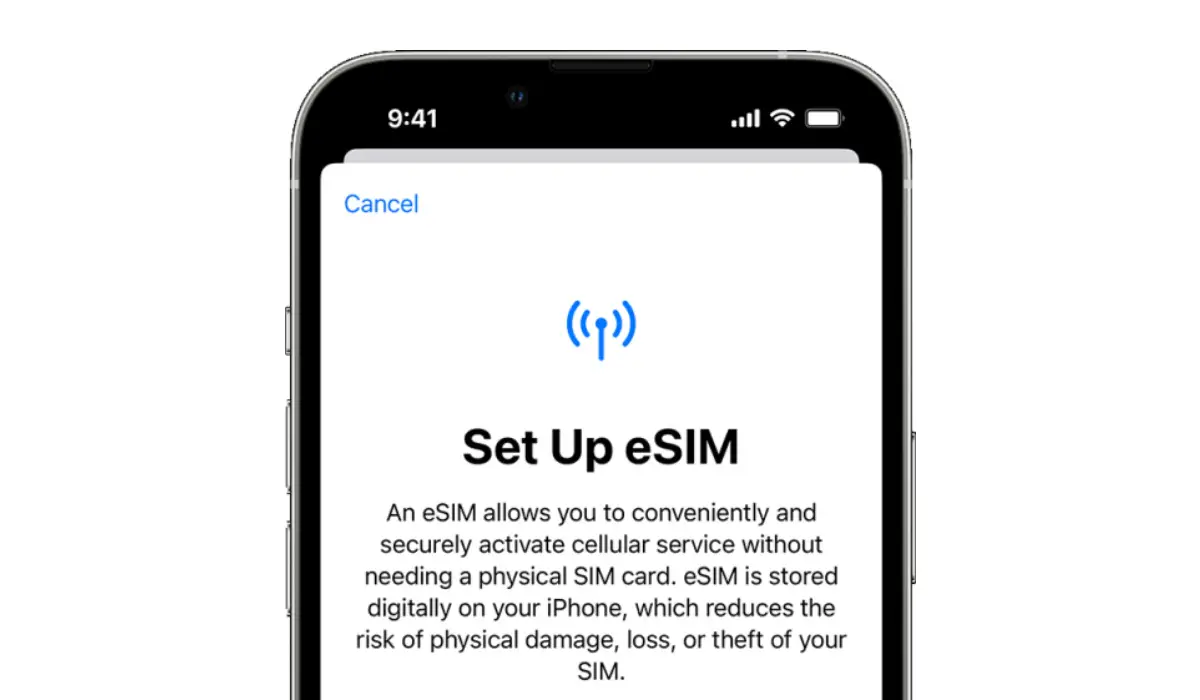
How to Set Up and Activate eSIM on your iPhone
To use the eSIM feature, you need to be using the iPhone XS version or later. Any iPhone model/version older than that does not support the eSIM feature. So, how do you activate eSIM on your iPhone?
It is usually quite easy to set up if you have recently acquired a new iPhone. When you newly turn it on, you will eventually see details about setting up an eSIM, as this will be displayed to you. Simply follow the instructions from there; they are rather easy. You can only do this if your carrier supports eSIM Carrier Activation or eSIM Quick Transfer.
How to activate eSIM on your iPhone using eSIM Carrier Activation
Several carriers and worldwide service providers can assign a new eSIM to your iPhone. This makes setting it up easier if you have an eSIM assigned to your device upon purchase. Simply turn your device on and follow the instructions displayed to activate your eSIM.
In the case of switching from an Android phone to an iPhone, contact your carrier to transfer your phone number to your iPhone through eSIM Carrier Activation or by scanning a QR code from your carrier. If and when you have contacted your carrier for an eSIM after setting up your iPhone, and they do set up an eSIM carrier Activation, follow these steps:
•A notification that says “Carrier Cellular Plan Ready to Be Installed” will appear, tap on it, and you can also access this in your settings.
•At the bottom of your screen, tap continue.
•Attempt a call on your device to check its cellular connectivity. If the call does not go through, contact your carrier.
•If the plan that you activated successfully replaces the plan on your physical SIM, you are clear to remove the physical SIM. When that is done, restart your iPhone.
How to activate eSIM on your iPhone using eSIM Quick Transfer
Some Carriers support SIM transfers from your former iPhone model to your new one without the need to contact them. Under Quick Transfer, you can also convert your physical SIM card to an eSIM. Although, you have to contact your carrier if you do not have access to your former iPhone.
While setting up your new iPhone, you might be asked to transfer your physical SIM or eSIM. If you need to transfer more than one SIM to your new iPhone, transfer your additional SIMs by following the steps below.
How to Transfer a physical SIM or eSIM on your previous iPhone to an eSIM on your new iPhone after setup
On your new iPhone:
•Head to Settings Cellular
•Add a Cellular Plan.
•Choose a cellular plan to transfer from another device. If you do not see a list of numbers, select “Transfer From Another Device”. This requires both devices to have iOS 16 or later.
•Check for instructions on your previous iPhone to confirm the transfer.
•To confirm, tap Transfer or, if asked for a verification code, enter the code that’s displayed on your new iPhone.
•Wait for the cellular plan to activate on your new iPhone. Your previous SIM is deactivated when the cellular plan on your new iPhone activates.
•When a banner appears on your new iPhone that says “Finish Setting Up Your Carrier’s Cellular Plan”, tap on it. You will be redirected to your carrier’s webpage to transfer your eSIM. If you need help, make sure to contact your carrier.
Convert a physical SIM to an eSIM on the same iPhone
Converting a physical SIM to an eSIM on the same iPhone is possible if your carrier supports it. Follow these steps:
•On your iPhone, head to your Settings app, and tap om Cellular.
•Tap on “Convert to eSIM”.
•If you don’t see Convert to eSIM, it means your carrier does not support this option. Contact your carrier to move your phone number from your physical SIM to an eSIM using eSIM Carrier Activation or by scanning a QR code.
•Select Convert Cellular Plan.
•Select Convert to eSIM.
•Wait for your eSIM to activate. Your previous SIM card is deactivated automatically when the cellular plan on your iPhone activates.
•Remove the physical SIM from your iPhone and then restart your iPhone.
How to Scan a QR code or use a carrier appto activate eSIM on your iPhone
If your carrier doesn’t support eSIM Carrier Activation or eSIM Quick Transfer, you can scan a QR code sent to you by your carrier instead.
To activate your eSIM while setting up your iPhone; When you get to the “Set Up Cellular” section, select “Use QR Code”. After that follow the onscreen steps. To activate your eSIM after setting up your iPhone. Contact your carrier to get a QR code. Follow these steps:
•Open the Camera app and scan your QR code.
•When the Cellular Plan Detected notification appears, tap it.
•select Continue, at the bottom of the screen.
•Tap on “Add Cellular Plan”.
•When you’re asked to enter a confirmation code to activate the eSIM, enter the number sent to you by your carrier.
•If your carrier supports activating eSIM using an app, download your carrier’s app from the App Store and follow the instructions.
Author:Flamez
Flamez loves basketball, art, gadgets and cars.
Add MobilityArena as a preferred source on Google
Having poor vision makes several aspects of living quite the challenge, including using a mobile phone. However, some cell phones offer a number of features that make them usable for those with visual impairments.
In this guide, we’ll show you which options are the best cell phones for the visually impaired. These phones simplify operations for visually impaired people through some unique features. So, if you’ve been on the lookout for the best cell phones for the visually impaired, pay attention to our recommendations in this guide.
- What are the Best Cell Phones for the Visually Impaired? MiniVision2+ Synapptic Smartphone Solution
What are the Best Cell Phones for the Visually Impaired?
When it comes to the best cell phones for the visually impaired, these are options that can be useful to persons with just about any sort or degree of vision impairment. We’ve described the best cell phones for the visually impaired below, so consider the following.
MiniVision2+
The MiniVision2+ is a straightforward cell phone with sizable tactile buttons, and it is one of the best cell phones for the visually impaired because it is completely accessible to people who are blind.
Everything written and displayed on the screen is typically read aloud by the phone. Although the MiniVision2+ is a simple cell phone, it has many smartphone-like functions. It has other features in addition to call and text capabilities, including a camera, an alarm, FM radio, color identifier, light detector, money identifier, recorder, calculator, flashlight, voice notes, weather, and a “where am I?” feature.
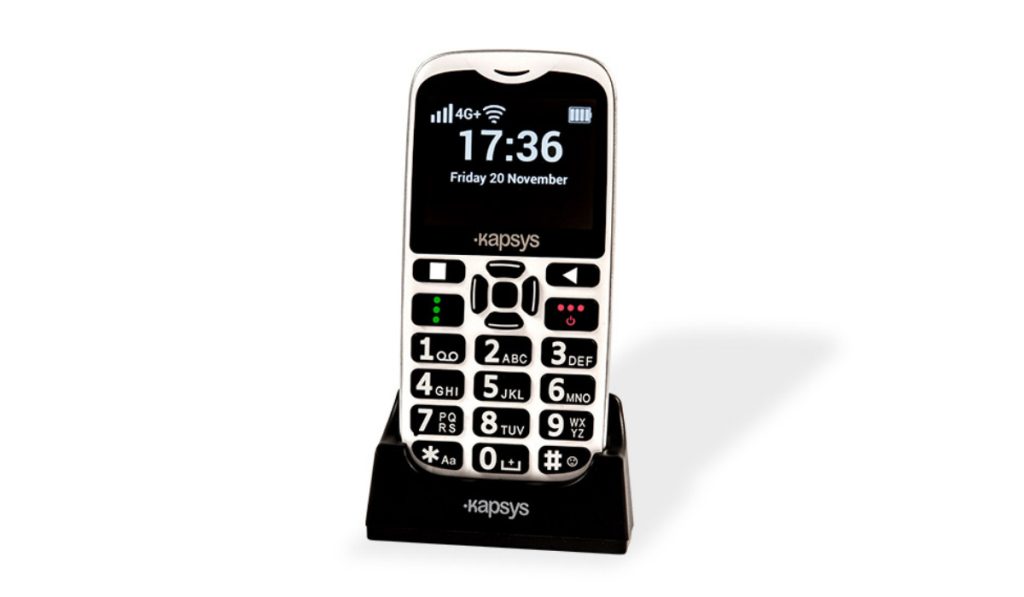
MiniVision2+
Compared to a regular smartphone, the MiniVision2+ is a little smaller. Its rounded corners and strong plastic construction make it feel comfortable in the hand. The keypad features big black buttons and big white lettering, and since the buttons are evenly placed, it’s easy to push the right key. Particularly tactile are the navigation buttons.
The OK button’s surface includes multiple tiny bumps that give it a distinct tactile feel. The OK button is surrounded by elevated navigation buttons. Additionally, the surfaces of the Call and Power buttons each contain three sizable bumps. The keypad of the MiniVision2 is also the most tactile when compared with other cell phones in expert reviews.
The voice guide is one of the features that make the MiniVision2+ completely accessible to the blind. Everything that is displayed on the screen and every button that is pressed is spoken by the voice guide. Additionally, it will voice the letters as the user types them in the reply. It also reports when the user deletes any letter during typing. The MiniVision2+ gives visually impaired people all the information they need to completely and independently use every aspect of the gadget., another reason why it is one of the best cell phones for the visually impaired.
The voice guide not only gives the blind user access to all features but also different kinds of information. It alerts the user when the phone is charging and speaks phone status information such as time, date, and battery life. Voice commands can be used to operate a lot of the MiniVision2fundamental +’s features including making calls, adding new contacts, and many other functions.
In essence, the MiniVision 2+ has a wide range of amazing features, including the ability to connect to 4G LTE networks, and it is safe to say it ranks high among the best cell phones for the visually impaired. The phone is a Aila le unlocked for AT&T, T-Mobile and other compatible GSM providers, such as Metro by T-Mobile, Cricket Wireless, MINT Mobile and Simple Mobile.
Synapptic Smartphone Solution
The Synapptic smartphone solution is a software that can be installed on most Android cell phones and tablets to make them into the best cell phones for the visually impaired. The Synapptic product is offered by RAZ Mobility for the Motorola Moto G Pure smartphone, so you can look at that device first.
The default Android user interface is replaced by Synapptic’s proprietary user interface, which is easier to use for people who are blind. It has a straightforward menu design where each menu screen is displayed as a vertical list. It is possible to expand the text size and make it quite enormous, bigger than on other standard Android devices.
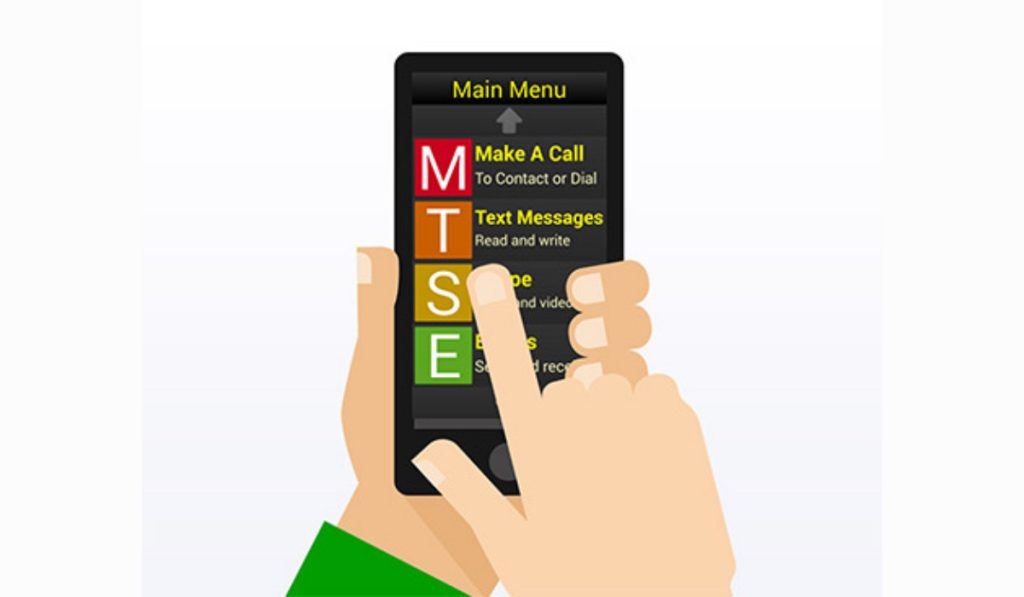
For people with limited vision who prefer to use their own eyes in place of a screen reader, Synapptic is a great choice because it allows you to change the text size and color schemes. There is also a very basic screen reader available for people who cannot use their vision at all, which most people can pick up fast.
The majority of the interface and menus of the device can be controlled by speech thanks to Synapptic. The user can voice-dictate, make calls, ask for different kinds of information, access applications, and manage different device settings. In general, Synapptic’s voice recognition does an excellent job of comprehending the user.
Based on all these features, the Synapptic software can essentially turn any regular Android cell phone into one of the best cell phones for the visually impaired. Both the MiniVision 2+ and Synapptic Smartphone Solution are products of RAZ Mobility, a d are designed from the ground up to make cellphones highly usable by visually-impaired people.
