Add MobilityArena as a preferred source on Google
Android 7.0 Nougat was a big leap for the Android series and it came packed with a lot of new features that helped the Operating system as fluid and seamless as possible. Part of the additions to the Operating System functions is the ability to divide the screen of your device into two equal halves and run two apps simultaneously.
Imagine you are running a bank app, and you use one of these budget devices that is poor at multitasking. You get to a point and you are required to input your OTP and the moment you leave the bank app to your SMS inbox, the bank app closes and you have to start all over again. Imagine the frustration. The Split screen function is also one of the most underrated functions on Android phones running Nougat and newer.
This function is also present on the latest Android 8.0 Oreo and newer versions of the Android operating system, but in a much more improved version. I recently met a friend and we were discussing and I talked about the split screen, and to my amazement, he couldn’t activate it. This prompted me to do an article on it.
Some Android phone makers have implemented it in their devices through their custom UI (user interface), but some others have not. If your Android phone does not have split screen function activated, you will have to do it yourself.
How to activate split screen function on your Android phone
Activating a split screen on an Android device running on Android 7.0 and above is a piece of cake if you know how to go about it, but an uphill task if you are a novice in that field. Here are some easy steps to activate and enjoy the function.
Step 1: First you need to activate the developer mode. This is not really compulsory, but it would help you force some apps that were not designed to work with the split screen function to work by force. To do this go to Settings > About this device > Build number. Once you are there, click on Build number a few times until you get a notice saying you are now a developer.
Step 2: Once in the developer mode, scroll down to the end of the page and enable the option that says “Force activities to be resizable”. Once you do this, restart your device to activate the option. Once you have restarted your device, even those apps that aren’t usually compatible with the split screen option will be able to run in split-screen mode.
Step 3: Click on the recent button and click and hold any open app, then drag it to the upper part of the screen. Once you do that, you would see the screen has been divided into two.
- Don’t miss our reviews .
- Join our WhatsApp Group , to be notified of the most important articles and deals,
- Follow us on Instagram , Facebook , Twitter , and YouTube .
Author:Kaykerry
Winto Online Casino Winto Online Lottery Winto Online poker Winto casino Winto Lottery Winto Poker Join Winto Join to Winto Winto Jackpot Winto Online Gaming Winto Online Gaming Winto Online Gaming winto sbobet winto sportbook winto slot winto pg soft winto pragmatic play winto saba sports winto pussy88 Winto Live Score Winto News Winto Slot Demo Winto 4D Live Draw Winto Live Draw Winto HK Lotto Winto Singapore 4D
Add MobilityArena as a preferred source on Google
Your pictures speak about you more than you may assume. As such, getting the best pictures out there is not just an option, it’s a necessity – if you want to create a good impression of yourself to the world. There are lots of Android photo editing apps that can help you make extraordinary, beautiful photos. And when I say lots, I mean literally thousands of apps on the Google Playstore can help you do this.
With your smartphone in your hands, you don’t have to take or post boring pictures on Instagram, Snapchat or any other social media. Photo editing apps help you to create more sensational photos that are guaranteed to keep your family and friends liking each of your photos.
I’ve collected some of the best photo editing apps for you from Play store. You can try others, though, but I believe you’ll find these very useful. I’ve included some with very straightforward editing features for those who don’t like going through much stress just to get the perfect photo they crave for. So, let me show you some of the best ones.
1.Picsart
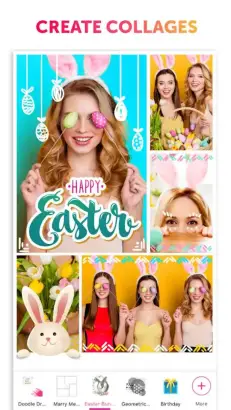
First on the list is Picsart. If you’ve already done a little search for the best android photo editing apps, there’s a good chance you’re already familiar with this app. It’s more than your usual Android photo editors. It comes loaded with powerful features that will help you get the best image out there. You can even use this app to remove unwanted backgrounds from your photos. And it’s totally free.
On the downside, though, you’ll need to spend some time mastering the various features of this app. It’s a very powerful editor, and you can literally give wings to your pictures once you learn how it works.
2.Snapseed
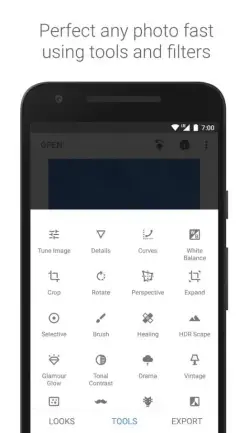
This app is a little tricky; its size is so small that people often think it’s just a bloat. But underneath the small size, it offers powerful features that resulted in Google purchasing it from its developers!
Snapseed is totally free, and you don’t have to worry about ads or in-app purchases because you’ll rarely find any of those. Go for Snapseed if you’re looking for an excellent photo editor that won’t consume a huge chunk of your SD card .
3.PhotoDirector
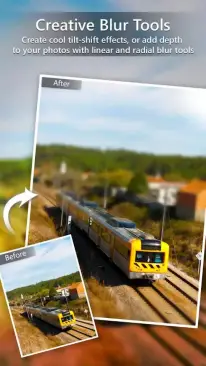
PhotoDirector is another photo editor every Instagram or Snapchat enthusiast should try out to up their game. If you’re tired of the traditional filters found in most photo editors, try PhotoDirector. It gives you more ability to control the amount of color and how a color should be applied to your photo.
4.Adobe Photo Editors
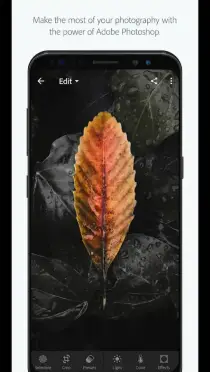
Remember Adobe Photoshop – the powerful PC photo editor? Well, they’ve released quite a number of powerful photo editors on Playstore. With Adobe photo editors you get the best photos by using either Adobe Express, Adobe Photoshop Mix or Adobe Lightroom.
Sure, it wouldn’t make any ‘SD card sense’ to install all of these apps on your phone as they take up huge space. So, I’ll recommend you go with the Adobe Photo Lightroom, which is the most powerful amongst all the other editors. Try others if you’re not satisfied with Lightroom.
5.Facetune
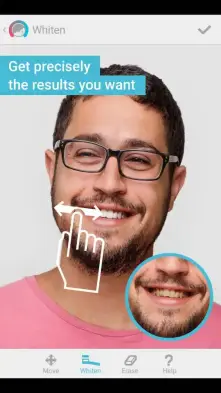
If you are the kind of person that loves taking selfies , you might want to go with Facetune – it tunes the face to the right rhythm.
With simple taps and clicks, you can easily whiten your teeth, remove red eyes, and even reshape your face. This is a powerful photo editor that makes everything simple for you. Though, it’s not available for free.
When it comes to Android Photo editors, you have a lot of options to choose from. But these are carefully selected apps that will give your photos the magic touch you’ve always desired.
- Don’t miss our reviews .
- Follow our news on Google News .
- Join our WhatsApp Group , to be notified of the most important articles and deals,
- Follow us on Instagram , Facebook , Twitter , and YouTube .
Author:Fouad
My name is Fouad Atitebi, and I’m the founder of NairaTechnology, an electronics blog in Nigeria.
