Add MobilityArena as a preferred source on Google
Apple Pay is great for making seamless payments for whatever you need online or in physical stores. It is now accepted at the checkout pages of many online stores, and it is great because you can pay without having to provide your card number.
However, before you can use this contactless payment method, you must first add a credit or debit card to Apple Pay on your Apple device. If you’re not sure how to do this, we’ve created this guide for you. Keep reading to find out how to add a card to Apple Pay on any Apple device you own.

- How to Add a Card to Apple Pay on iPhones
- How to Add a Card to Apple Pay on Macs or iPads
- How to Add a Card to Apple Pay on Apple Watch
How to Add a Card to Apple Pay on iPhones
iPhones are among the best Apple devices for using the Apple Pay service. After unlocking your iPhone, all you have to do to make a payment is tap the smartphone to the payment terminal.
Here’s how to add a card to Apple Pay on your iPhone:
● Open the Wallet app and select the + app button in the top right corner.
● Choose between the Debit Card and Credit Card options on the following page.
● The card information, including the number and expiration date, can then be manually entered or scanned using your iPhone’s camera.
After you enter that, Apple will instantly establish a connection with your bank to check whether your card is legitimate and eligible for Apple Pay. Check out this list from Apple to discover if your bank accepts Apple Pay.
How to Add a Card to Apple Pay on Macs or iPads
An iPad or Mac device can also be upgraded to support Apple Pay, so you can also use Apple Pay online with these devices. Apple Pay online allows you to rapidly import all your data, including credit card information so that you can complete transactions with just a few taps.
Note that your Mac has to have an in-built Touch ID before you can add a card to Apple Pay on it. Without it, you’ll have to make a purchase using Apple Pay on an Apple Watch or compatible phone. On your iPhone, navigate to Settings > Wallet & Apple Pay and select the Allow Payments on Mac option.
If, on the other hand, your Mac device is compatible, navigate to System Preferences > Wallet & Apple Pay . Then, click on Add Card and manually type or scan the information using your Mac’s webcam.
Go to Settings > Wallet & Apple Pay if you’re trying to add a card to Apple Pay on an iPad. Next, select Add Card .
How to Add a Card to Apple Pay on Apple Watch
Apple Pay is also accessible to anyone who owns an Apple Watch, just like it is on an iPhone, iPad, or Mac device. The tap-to-pay feature is shared by the wearable gadget and the handset. So, you can employ this entirely secure payment method and leave your credit and debit cards at home.
You can add a card to Apple Pay on your Apple Watch through two different methods.
First, you can just use the Apple Watch device itself:
● Click on the Wallet app by pressing the Digital Crown, then go down the page and click Add Card .
● Next, choose a credit or debit card. Afterward, Apple will determine whether the card is eligible for Apple Pay, just like on an iPhone.
● You will then need to type in the card information manually.
Alternatively, you can add a card to Apple Pay via your iPhone’s companion Watch app:
● Choose the My Watch tab after launching the app, then go down to Wallet & Apple Pay . You’ll have the option of adding a card or importing previously existing credit or debit cards on your iPhone.
● There’ll be two options when using a new card: you can manually enter the data or use your iPhone’s camera to scan the card.
In summary , adding a card to Apple Pay is a great option for making seamless payments. So, follow our helpful instructions to do so easily on whichever Apple device you own.
Author:Joan Agie
Add MobilityArena as a preferred source on Google
If you’re a Mac user, it’s possible that you’ll need to crop or annotate a screenshot at some point. Of course, there are a wide variety of apps for this purpose, but Preview saves you the time and effort of searching for them.
The editing functions available in Preview are simple but adequate. If you need to learn how to edit screenshots in Preview on a Mac, this guide is for you. Here, you’ll learn how to use Preview to crop and annotate screenshots on your Mac device.
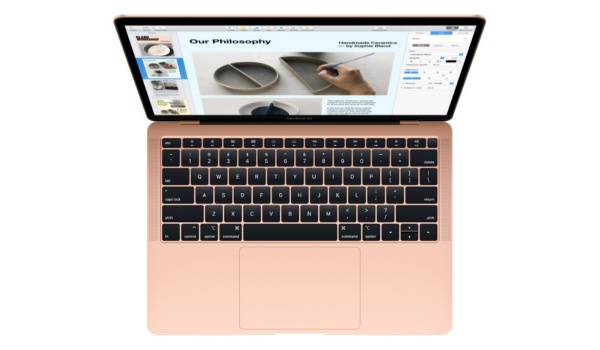
What is macOS’s Preview?
One of Apple’s standard Mac programs, Preview is the built-in picture viewer and editor on macOS systems.
Clicking on an image automatically launches it in Preview. It’s a modest but useful application with the ability to edit PDF files as well as photos. You can find Preview through the Spotlight search feature in macOS or in Launchpad.
How Can You Edit Screenshots in Preview on a Mac?
It’s easy to edit screenshots in Preview on a Mac. You’d just need to double-click the image to start, then carry on. Alternatively, you could search for the image in Preview.
Here are some activities you can carry out when editing screenshots in Preview on a Mac.
Cropping Images in Preview
One of the ways to edit screenshots in Preview is by cropping. Through this helpful technique, you can remove undesirable aspects from your photos or select a portion of a photo to save.
To crop photographs in Preview, follow these steps:
● Select a tool from the drop-down list that displays after you click on Selection Tools in the Markup toolbar.
● Depending on the way you’d like to crop your image, drag the selection tool across it.
● In the Markup toolbar, select Crop to Selection .
Annotating Images
This is yet another function you can perform when editing screenshots in Preview on a Mac. In Preview, annotating images is simple. On the app, you can, add text or shapes, draw, and even include your signature. These elements can also be altered after you add them. Depending on what they are, you can modify their shape, size, or color.
Simply click the Markup button in the top-left corner of the Preview app to display a toolbar with all these tools.
Combining Images in Preview
It’s also possible to combine images when editing screenshots in Preview.
Follow these steps:
● Launch Preview and select the photographs you want to merge. By following the steps in the previous section, you can display them in a single window.
● By hitting Command + C , select the area of the image you want to merge with another.
● Use Command + V to paste it into the other image.
● Drag the image’s corners and sides to make changes.
Resizing Images in Preview
Another way you may need to edit screenshots in Preview is by resizing. With this function, you can adjust your photographs to make them larger or smaller.
This is how it works:
● Choose the Adjust Size tool just below the Markup button, which is located at the top of the window. Alternatively, select Adjust Size by clicking Tools in the menu bar.
● You can resize your image by pixels, percentage, or any other stated dimension using the Adjust Size menu. Next, enter values for the image’s desired height and width.
Note that altering the image’s height will also alter its width and vice versa. Uncheck Scale proportionally or select the padlock icon next to Width and Height to prevent this.
● Click OK once you’ve finished resizing.
Moreover, it’s also possible to resize numerous images at the same time by putting them all in the same Preview window, choosing them from the sidebar, choosing Tools , and then choosing Adjust Size .
● Select Preview in the menu bar, then select Settings to show photos in the same Preview window.
● Within the pop-up menu, choose Images .
● Choose the option to Open groups of files in the same window .
You’ll now be able to view numerous images in one window when you select and open them in Preview.
In conclusion , editing screenshots in Preview on a Mac involves really simple processes. Just make sure to follow our helpful instructions according to the changes you’re trying to achieve.
