Add MobilityArena as a preferred source on Google
Keeping in touch with people in recent times can seem like a chore, especially considering how many other things we have going on in our daily lives. However, sending text messages doesn’t have to be so stressful.
You can automatically send texts on iPhones simply by creating a shortcut that lets you send automated text messages at a predetermined time. This way, you get to automatically send texts to as many contacts as you’d like.
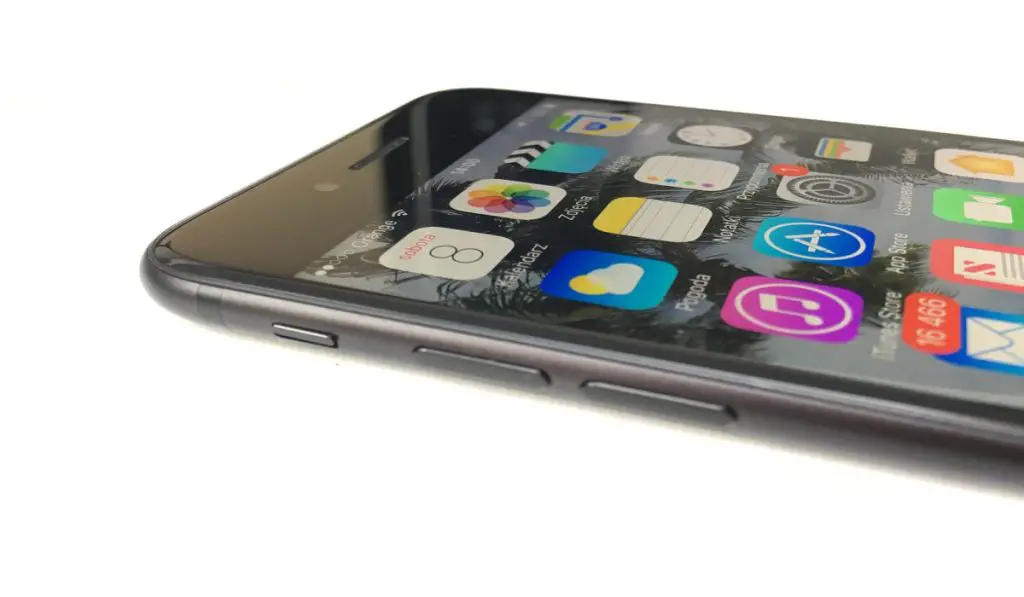
This works as an effective way to get in touch with people. It also works as a great marketing tool if you’re a business owner trying to reach out to more clients. Regardless of why you need it, we’ll show you how to automatically send texts on iPhones, so pay close attention to this guide.
- How Can I Automatically Send Texts on iPhones?
- Using Third-Party Apps to Automatically Send Texts on iPhones?
How Can I Automatically Send Texts on iPhones?
You’ll need to create a relevant shortcut if you’d like to automatically send texts on iPhones. We’ve described the steps to follow below:
Step 1 : Open Shortcuts on your iPhone
Launch the Shortcuts app on your iPhone to begin the process. You’ll need to download this app from the App Store if you accidentally deleted it or can’t find it on your device for some reason.
Choose Automation from the menu at the bottom once you’re in the app, then click on Create Personal Automation . This will begin creating a new automation for the iPhone shortcut automation.
Step 2 : Choose your preferred time and day
You can choose the time of day you’d prefer for this automation to take place once the menu has opened. You’ll therefore need to indicate the specific time and day that you want your iPhone to automatically send the text you’re setting up.
You can select the option to repeat daily, weekly, or monthly. After you’ve made your selections, hit Next to move forward.
Step 3 : Customize your message
When the time has been set, click on the Add Action button and choose Send Message . As a typical shortcut, Send Message could also be listed under Next Action Suggestions .
Next, you can customize your message and select the recipient from a list of contacts. Any contacts saved on the list can be selected. This is ideal if you typically use your iPhone for work because it allows you to distinguish between personal and professional contacts using groups.
Your phone will then automatically send a text at the specific time and day you chose after this is established, thus completing your automation. This shortcut lets you automatically send text messages on iPhones if your schedule is hectic or you frequently forget things.
Using Third-Party Apps to Automatically Send Texts on iPhones?
This is another great way to automatically send texts on iPhones. Follow the steps we’ve described below:
- Set up the Scheduled app on your iPhone after downloading it.
- If you want your planned messages to be sent automatically, select the paid Premium plan during setup. If you only want a reminder when the time to send your texts is near, use the free option.
- To add a new scheduled text, tap the “+” sign at the bottom of the Scheduled home screen.
- Enter the recipient(s) in the “To” field after choosing the messaging platform at the screen’s top. If you haven’t previously, you’ll need to give the app permission to access your contacts list at this point.
- Enter your message and any optional attachments, then click on Schedule date to choose the time and date at which it will be sent.
- The default choice is Don’t Repeat ; to generate a message that will send again, press Repeat and choose the proper option.
- You can now proceed by tapping Schedule Message at the bottom of the screen.
In summary , it’s a good idea to automatically send texts on iPhones if you typically have hectic days and you often forget to keep in touch. Feel free to use any of the two methods we’ve described in this guide to automatically send texts on iPhones with ease.
Author:Joan Agie
Add MobilityArena as a preferred source on Google
Since iOS 13 was introduced, iPhones gained access to a crucial accessibility feature known as Voice Control. iPhone users can use voice commands to start apps, modify texts, adjust volume, and even perform previously preset actions on their iPhones. Essentially, Voice Control lets you perform a ton of operations on your iPhone, and unlocking it is not exempted.
- How to Set Up Voice Control on iPhones How Can I Unlock an iPhone with Voice Commands?
How to Set Up Voice Control on iPhones
Before you can unlock an iPhone with voice commands you’ll first need to set up and configure Voice Control on your iPhone, especially if you’ve never used it before.
This is how you do it:
- Navigate to Settings , then select Accessibility .
- Your iPhone will install the required files when you tap Voice Control and then click on the option to Set up Voice Control .
- Voice Control will be configured and available for use once you click Continue .
At this point, Voice Control is all set up, so you can go on to learn how to unlock an iPhone with voice commands.
How Can I Unlock an iPhone with Voice Commands?
With the use of a personalized Voice Control command that will start an automatic gesture, you can unlock your iPhone using just your voice. It’s pretty simple to set up and it will enable you to quickly unlock an iPhone. The secret is to configure a unique gesture that will tap the screen precisely where your passcode’s digits would be.
We recommend choosing a four-digit passcode because longer passcodes can make it difficult to set up gestures. You can instantly modify your passcode if it is currently too long by using the Settings app. Furthermore, you’ll need to confirm that iOS 13 or a later version is installed on your iPhone.
The following instruction will help you unlock an iPhone with voice commands:
- Open the Settings app, then select the Accessibility tab.
- By touching the toggle button, select Voice Control and turn it on. Now that Voice Control is activated, you ought to notice a blue microphone in the status bar at the screen’s top.
- You will get a list of the voice commands that are already available when you choose Customize Commands . Now, click Create New Command .
- You’ll need to type the phrase you’ll use to unlock your iPhone into the Phrase text field. Use a phrase you can actually say rather than a generic command like “Unlock iPhone” or “Open phone,” which can compromise your security.
- Click on Run Custom Gesture from the Action menu after deciding on the phrase.
- You must now tap exactly where your passcode numbers would typically be on the New Gesture screen that will appear. To configure the gesture, tap on the appropriate parts of the screen in the order specified by your passcode. If your passcode is “4580,” you should tap in the area where “4” usually displays before continuing. Do the same with your passcode’s remaining digits. You might need to make a few attempts before you successfully configure the custom gesture.
- If you want to prevent swiping up while unlocking the screen, you can even add a swipe-up motion before the passcode digit gestures.
- After creating your custom gesture, tap Save before returning to New Command , then click Save again.
Note that if Face ID is enabled, you won’t be able to unlock an iPhone with voice commands because Face ID will unlock the phone before you can speak the command. After successfully configuring the custom voice command, it is advised that you turn off Face ID.
Once you’ve done that, you’ll be able to unlock an iPhone with voice commands by simply speaking the required phrase.
In summary , it’s pretty easy to unlock an iPhone with voice commands as long as you configure the right settings.
Keep in mind that the if you unlock an iPhone with voice commands, it’s not as safe as using Face ID or a passcode. However, having this knowledge could still come in handy at some point.
