Add MobilityArena as a preferred source on Google
Not all content on the internet is wholesome or useful, and so it becomes important to restrict access to these websites in some situations. Whether you’re a parent wanting to keep your child safe from harmful content online or you’re an employer looking to increase productivity in the workspace, blocking websites can be an effective solution.
In this article, I’ll show you how to block a website on Android. It’s an easy process, one that’s guaranteed to give you peace of mind because it’ll help your loved ones and colleagues browse the internet safely and responsibly.
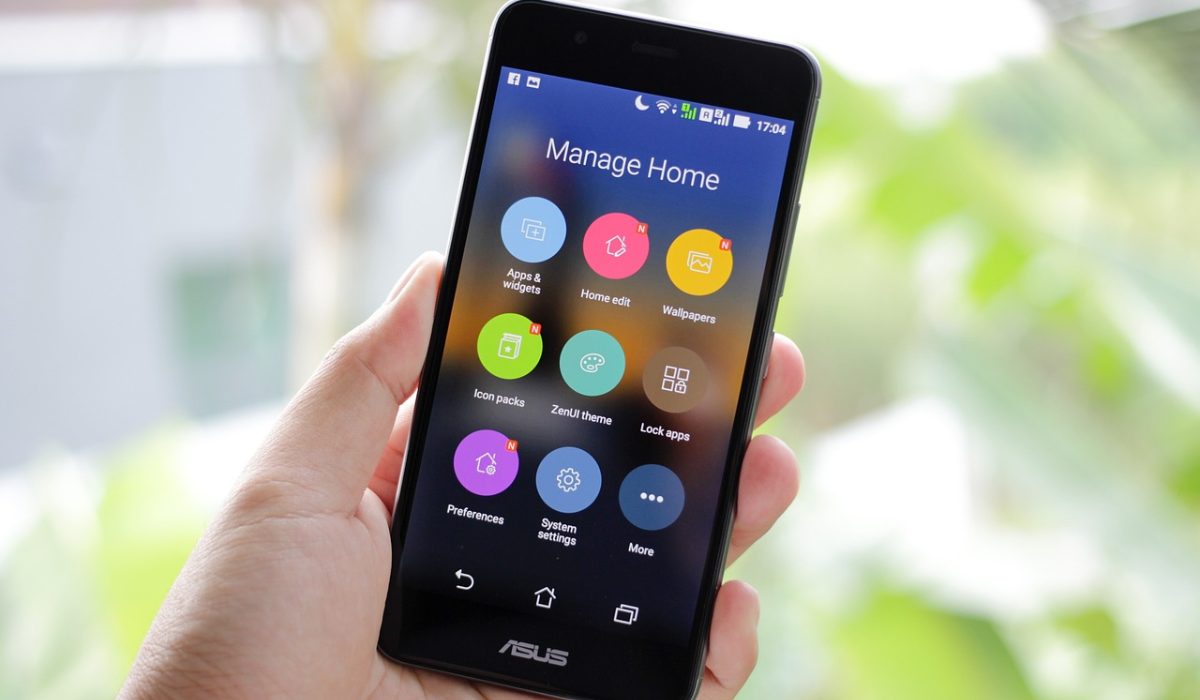
- How Can You Block A Website on Android? Block Websites with Built-in Parental Controls Block Websites Through your Browser Add-ons Use Custom DNS Servers to Block Adult Sites Block Websites on Android With a Third-Party App
How Can You Block A Website on Android?
Blocking websites on Android is important to prevent distractions and restrict access to inappropriate content. It’s also important to protect against viruses and theft of personal data. You can do this with or without a dedicated app. There are several ways to block websites on your Android device from built-in parental controls to third-party apps. With these tools, you can ensure that your device is being used responsibly and safely. Here are some of the most common methods:
Block Websites with Built-in Parental Controls
Many Android devices come with built-in parental controls that allow you to block specific websites, including adult content. To use this feature, go to Settings > Digital Wellbeing & Parental Controls > Parental controls > Set up parental controls . From there, you can choose which websites to block.
Block Websites Through your Browser Add-ons
The Chrome browser is installed by default on most Android smartphones, but it does not provide an easy option to block websites. Many browsers do not, but some, such as Mozilla Firefox, make it simpler with an add-on. You can download Firefox through the Google Play Store. After that, all you need to do to block websites is install the LeechBlock add-on.
- Start Firefox on your mobile device, and then go to Menu ( ⋮ ) > Add-on s.
- In the list of recommended browser extensions, click the + (plus) icon next to LeechBlock NG .
- After you’ve added it, you’ll find it under the Add-ons area.
- Tap Settings on the LeechBlock NG menu to begin blocking websites of your choice.
You can set up blocks for keywords or up to 30 sites to block and add individual website domains. Additionally, you can specify when and how to block them. It looks hard at first glance, and there will be a lot of manual work involved, but you’ll successfully block any site you choose.
Use Custom DNS Servers to Block Adult Sites
Use the free FamilyShield DNS servers from OpenDNS if you want to completely block websites with adult material, pirated media, and malware on your Android phone. These servers make sure that your phone doesn’t access certain kinds of local network websites.
Start by opening the Settings app on your Android device. By phone model, the specific procedures to complete the following process differ.
- Navigate to Settings > Connections > Wi-Fi .
- Tap the gear icon next to the Wi-Fi network to which you are connected to.
- Tap View More on the next screen that appears. Then click IP Settings and select Static .
- Type the following into the “ DNS 1 ” field: “ 208.67.222.123 ”
- Click the “ DNS 2 ” field and enter the following: “ 208.67.220.123 ”
- To save your changes, tap “ Save ” at the bottom.
Access to adult websites and other dangerous content will now be blocked on your Android phone by your custom DNS servers. Keep in mind that for each Wi-Fi network you use, you’ll need to set these DNS servers. Android won’t automatically apply these servers to all of your wireless networks.
Block Websites on Android With a Third-Party App
A free site-blocking app is an easy way to block a website on your Android phone. BlockSite (a free but ad-supported application) is one such program that allows you to restrict access to your designated websites on your web browsers at the desired time.
When you block a site on your Android with this app, it is no longer available in any of your web browsers. If you desire, you can unblock any of your blocked websites later.
- Download and install the free BlockSite app on your phone. Launch the app after that, go through the welcome screens, and provide it with every permission it requires.
- Choose Blocklist from the app’s main screen, then click the + (plus) button.
- Enter the URL (web link) of the website you want to block in the text field at the top of the Add Sites/Apps screen.
- When you’re done specifying the sites, hit Done in the top-right corner of the app.
- Click Done when prompted.
After specifying the websites you want to block, you may find that they are still accessible. This is because you need to set up a schedule for when the block will come into effect. Once you click ‘ Schedule ’ on the main screen and set your preferred days and times following the on-screen instructions, the specified websites will be blocked during the designated time period.
Note that on your Android phone, Google Chrome does not have a built-in feature to block inappropriate websites. You can, however, use an extension like BlockSite using the steps explained above. Google Family Link is another app you can try to block websites easily.
To conclude, blocking websites on your Android device can be an effective way to prevent unwanted content from appearing on your screen. By using one or more of the methods described here, you can block websites on your Android device and ensure that the device is being used safely and responsibly. Also, check out this category for more useful Android tips.
Author:Joan Agie
Add MobilityArena as a preferred source on Google
4K video is higher resolution video that can be best appreciated on the most advanced television, laptop, and smartphone screens. The S23 is one of the Samsung phones that can record 4K video and I have been using one for a while now. How do I record 4k video on my Samsung S23? When I first opened the camera, switched to video mode, I saw an “FHD 30” label displayed at the top of the video camera interface. I tapped on it and it displayed a total of six options, none of which said 4K. What is this? Reading up a bit solved the problem for me.
Two of those options had an “UHD” label. UHD (Ultra High Definition) is the technical term for 4K video. The S23 has two 4k video options: it can record 4k video at 60 frames per second (fps) or at 30 frames per second. That is why you will see UHD 60 and UHD 30 as options. Tap whichever you prefer to select it. Now you can start recording.
Samsung has hundreds of models selling in the United States, the United Kingdom, Canada, Australia, and in every country possible on the face of the earth. Only a few of them have the capability to record 4K video. To make things easier for you, I looked at the most recent models spanning 2022 and 2023, and drawn up three different lists of Samsung phones that can record 4K video – the very latest (released in 2023), the premium flagship models, and for budget hunters, the budget list.
- Latest Samsung Phones That Can Record 4K Video
- Premium Samsung Phones That Can Record 4K Video
- Budget Samsung Phones That Can Record 4K Video
- 4K video recording: 60 fps vs 30 fps
- The cheapest Samsung phone with 4k 60fps
- What was the first phone with 4K video recording?
- What phones have 4K video?
- Is 4K video the best quality?
Latest Samsung Phones That Can Record 4K Video
This list covers Samsung phones that can record 4K video that were released in 2023 only. They are the very latest. And you will find both premium flagship and budget models listed here. This list is for you if you want a model that was released this year.
- Samsung Galaxy S23 Ultra : this is the best phone for 4K video recording from Samsung, so if you are looking for the best option, just buy this.
- Samsung Galaxy S23+
- Samsung Galaxy S23 (read our S23 review )
- Samsung Galaxy Fold5
- Samsung Galaxy Z Flip5
- Samsung Galaxy A54
- Samsung Galaxy A34
- Samsung Galaxy F54
- Samsung Galaxy M54
Premium Samsung Phones That Can Record 4K Video
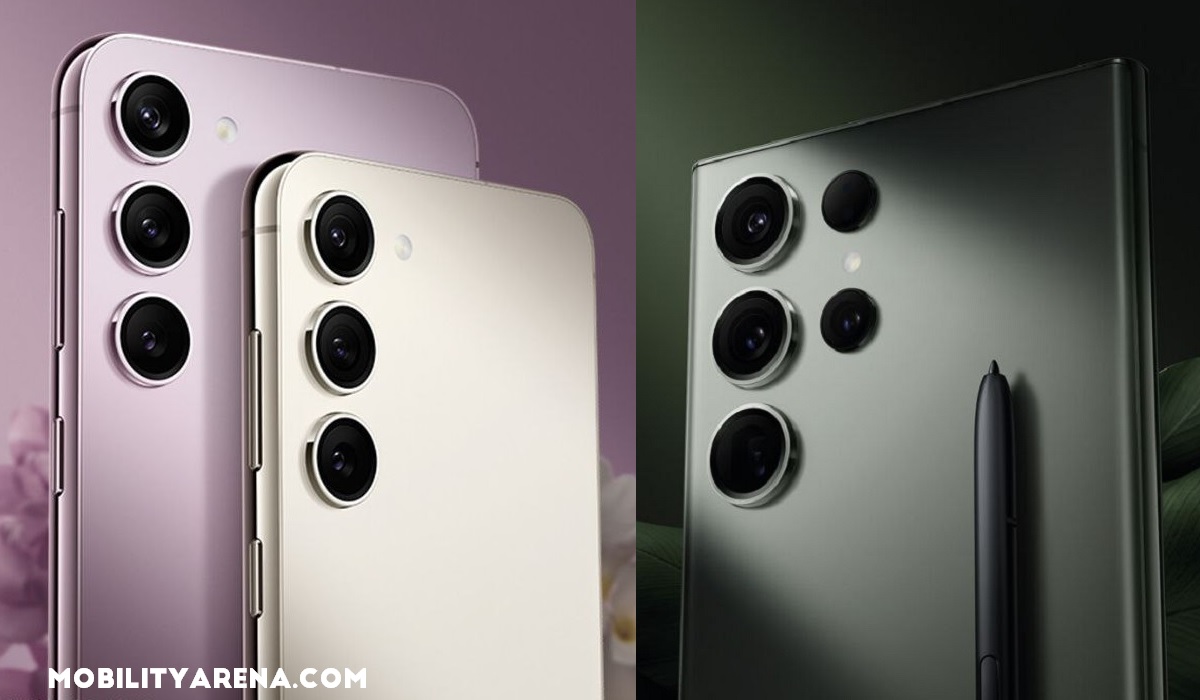
The S23 models are premium flagship Samsung phones with 4K video recording
Now, if you want a premium flagship Samsung phone that can record 4k video, and you don’t mind whether it is this year’s model or last year’s, this list presents you options to pick from.
- Samsung Galaxy S23 Ultra
- Samsung Galaxy S23+
- Samsung Galaxy S23
- Samsung Galaxy Z Fold5
- Samsung Galaxy Z Flip5
- Samsung Galaxy Z Fold4
- Samsung Galaxy Z Flip4
- Samsung Galaxy S22 Ultra 5G
- Samsung Galaxy S22+
- Samsung Galaxy S22
Budget Samsung Phones That Can Record 4K Video
This third list is for you if you want a Samsung smartphone that can do 4K video recording without wanting to spend more than about five hundred dollars. It includes budget Samsung phones released in both 2022 and 2023.
- Samsung Galaxy A54
- Samsung Galaxy A34
- Samsung Galaxy S21 FE 5G
- Samsung Galaxy F54
- Samsung Galaxy A73 5G
- Samsung Galaxy A53 5G
- Samsung Galaxy A33 5G
- Samsung Galaxy M54
- Samsung Galaxy M53
- Samsung Galaxy M33
- Samsung Galaxy F23
- Samsung Galaxy M23
- Samsung Galaxy Xcover6 Pro
- Samsung Galaxy S20 FE 2022
4K video recording: 60 fps vs 30 fps
Not every phone with 4K video recording has the 60 fps option. The more budget the phone is, the less likely it will have that option. It will likely only have 4K video at 30 fps.
if your phone has both options, choose 60 fps. Why? Generally speaking, 60fps provides better quality and watching experience, smoother viewing, and it has the most flexibility as well for post production. If you shoot your video at 60 fps, you can manipulate it for use in a 30 fps production, but you cannot upgrade a 30 fps video for use in a 60 fps project.
So, if you get a Samsung phone that can record 4k video and it has both 60fps and 30fps options, record at 60fps.
The cheapest Samsung phone with 4k 60fps
As far as I can tell, the cheapest Samsung phone with 4K at 60 fps is the Galaxy S21 FE 5G , released in 2022.
What was the first phone with 4K video recording?
The first 4k camera phone ever was the Acer Liquid S2 released ten years ago in 2013. Since then, every major smartphone brand has jumped on the train.
What phones have 4K video?
It is difficult to list all phones with 4k video recording in this article, but I can give you clear instructions. When hunting for a 4K camera phone, look at the high-end models from each manufacturer, whether it is Motorola, Google Pixel, Apple iPhone, OnePlus, Nokia, BLU, or some other brand. The best video recording features are found in the upper echelon of models.
Is 4K video the best quality?
Once upon a time, it was. Unfortunately, that time is in the past. 8K video is currently the highest resolution for video recording on smartphones. Of all the Samsung phones that can record 4K videos listed on this page, the three Samsung Galaxy S23 models, all the three S23 models, as well as Fold5 and Flip5 models also have 8K video recording . There are already phones from other brands that have 8K video recording as well.
I hope this article has helped you understand 4K video recording better and also helped you with shopping for a 4k camera phone from Samsung. All the best, and let me know if I can answer any questions you may have.
Author:Mister Mobility
Digital Skills and Communication Coach | Mobile Phone Connoisseur since 2001 | Tech Blogging since 2004
