Add MobilityArena as a preferred source on Google
Photos help us hold on to cherished memories, so losing photos can be sad, depending on the degree of importance. Fortunately, if you own a Samsung phone, there are several ways to bring back deleted photos, whether you accidentally deleted a photo or lost it due to a software glitch.
In this article, I’ll explore some of the most effective ways to bring back deleted photos on Samsung. So, if you’ve lost some precious memories and want to bring them back, keep reading to learn how to recover deleted photos on your Samsung phone.
How Can I Bring Back Deleted Photos on Samsung Phones?
Data loss occurs on all devices, including your Samsung smartphone. The loss of photos is the most common type of data loss problem. Fortunately, there are multiple methods for recovering deleted photos on Samsung. I’m sure you’ll find something that helps, regardless of the model you are using.
Use Samsung Cloud
You may be familiar with the built-in “ Samsung Cloud ” feature of your phone if you own a Samsung smartphone. This fantastic tool is primarily used to back up important data like pictures, videos, or other media assets. You can therefore restore your important photos from the Samsung cloud if you have backed them up there and the sync option is turned on.
Here’s how to use Samsung Cloud to recover deleted photos from your Samsung:
- Go to Accounts and Backup in the Settings app.
- Press Samsung Cloud and choose Backup and Restore .
- Select Restore data .
- Choose Gallery .
- Press Sync .
If you’re still missing essential photos, it’s possible that you deleted them accidentally without realizing it. Fortunately, Samsung Cloud includes its own trash folder. To get them back, go to Settings > Accounts and Backup> Samsung Cloud > Gallery > Trash . Select your photos and then tap Restore .
Use the Gallery App
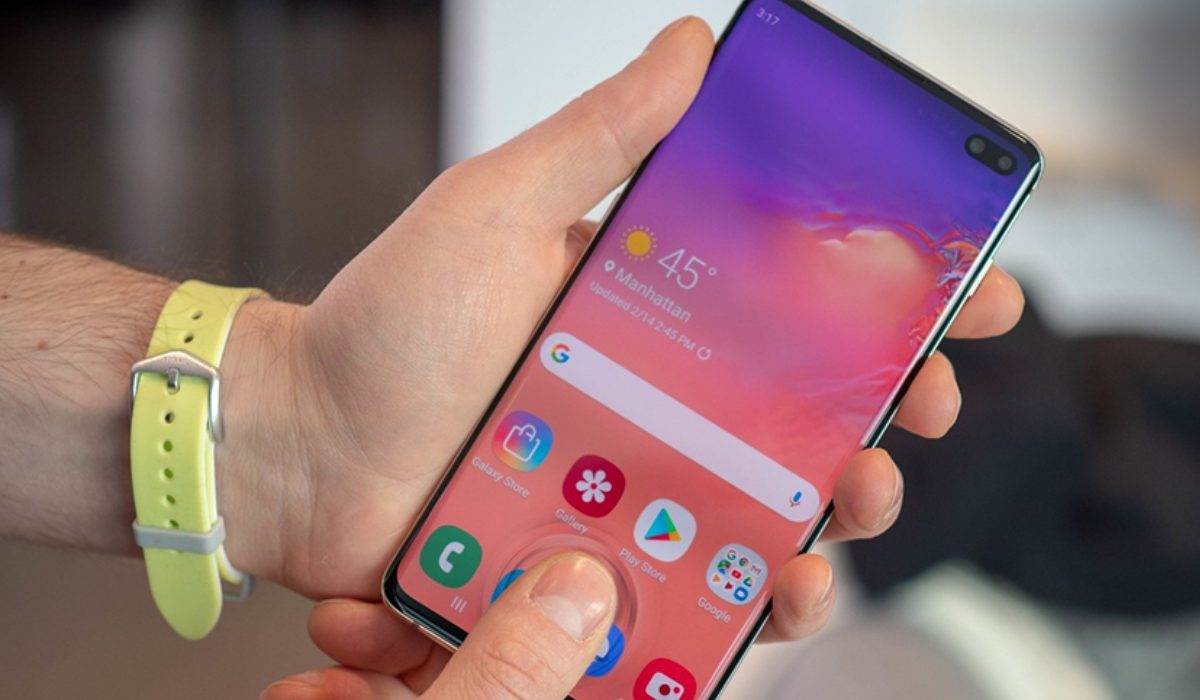
The default gallery app on Samsung mobile devices does a wonderful job of storing all deleted photos and videos for a period of 30 days in the Recycle Bin folder. Following that, the deleted photos are permanently removed from the device, therefore, you must act immediately and follow the procedures below to recover deleted photos on Samsung phones using Gallery:
- On your Samsung mobile, launch the Gallery app.
- In the top right corner of the screen, tap the three-dot menu icon.
- Select the ‘Recycle Bin ‘ option.
- Tap on the photos you wish to restore and select them.
- To retrieve the deleted photos, press the “ Restore ” button.
Use Google Photos
Another alternative for recovering permanently deleted photos from a Samsung phone is the Google Photo application. But in order to carry out Samsung Galaxy photo recovery using Google Photos, you must have the “ backup and sync ” feature enabled on your device. So, if you’ve previously activated this feature, follow the procedures below.
- Launch Google Photos on your Samsung device.
- In the top left corner of the screen, tap the three-line menu icon.
- Choose “ Trash ” from the dropdown list.
- Click on the photos you want to restore to select them.
- In the bottom right corner of the screen, tap the “ Restore ” button.
- The photos will be restored to thror original location in your Google Photos library .
It’s also important to note that Google Photos only stores photos for up to 60 days, so it’s best to restore your photos as soon as possible. Also, some photos may look like they disappeared because you are on a different account. Check your signed-in account.
Use Google Drive
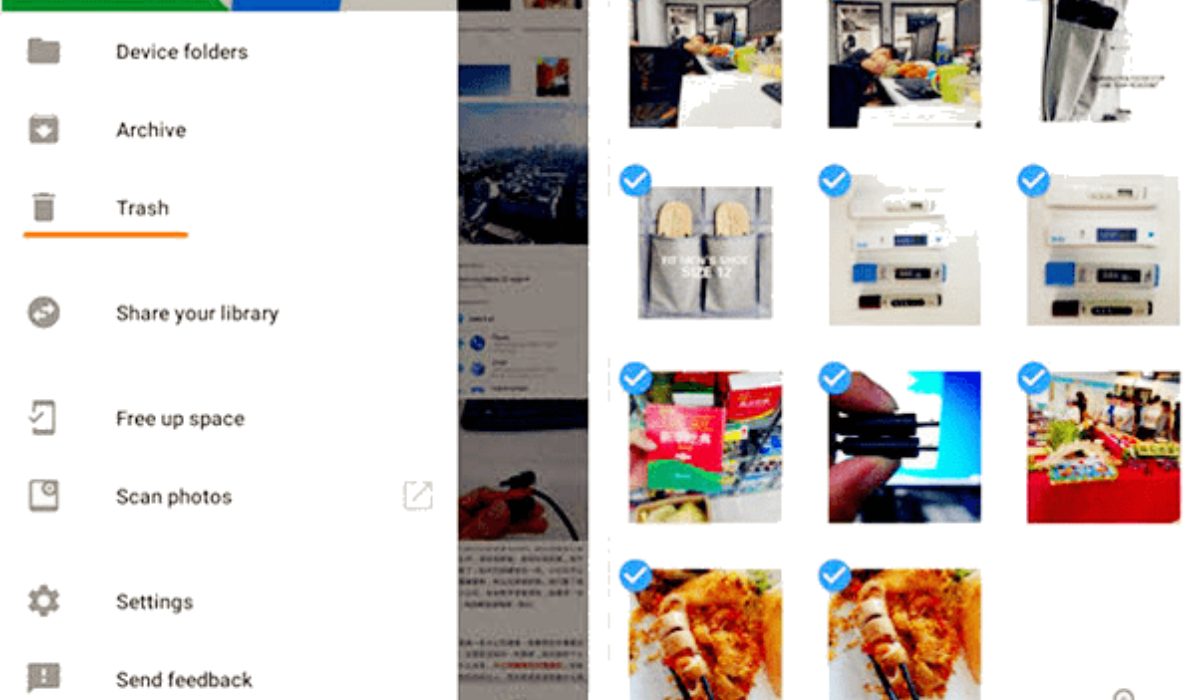
Google Drive is commonly used to keep files in the cloud, share media files, and sync them across devices. As a result, if you regularly upload media files to Google Drive, you can recover permanently deleted photos on your Samsung phone from there.
To try the instructions below, make sure you have a Google Drive application installed on your Samsung phone.
- Open the Google Drive app on your Samsung device.
- Sign in to your Google account , where you’ve previously created backup images.
- You will now see the pictures that you have uploaded or backed up.
- Select the images you want to recover and press the Download button.
Use Data Recovery Software
Using data recovery software, it’s often possible to bring back deleted photos on Samsung that are no longer in the Samsung Recycle bin. Such software can examine the internal storage of your mobile device and find deleted photos that haven’t been overwritten yet.
Here’s how to use data recovery software to recover deleted photos from a Samsung:
- Download reliable data recovery software such as EaseUS or DiskDigge r .
- Use a USB cable to connect your Samsung device to your computer.
- Open the data recovery software on your computer and select your Samsung device.
- Choose the file type you want to recover, in this case, Photos .
- Scan your device for deleted photos.
- Preview the deleted photos that were found and choose the ones you wish to recover.
- To save the selected photos to your computer, click the “ Recover ” option.
It’s important to note that data recovery software can’t guarantee the complete recovery of all deleted photos. The longer you wait to recover the deleted photos, the less likely you are to recover them. Therefore, it’s best to restore your photos as soon as possible.
To conclude, there are several ways to bring back deleted photos on Samsung phones. By following the steps above you can increase your chances of recovering your deleted photos successfully. It is also important to back up your photos regularly to avoid losing them in the future. Also check out this Samsung category to access useful purchase or troubleshooting guides.
Author:Joan Agie
Add MobilityArena as a preferred source on Google
Since you are reading this article, I imagine that you are looking for the best Chromecast to buy from among the available models. Having to sift between up to seven different options can be draining, so I came up with this guide to simplify things for you.
Let’s look at all the different models available and point out which is best for what needs. If you really do not want the details, you can skip to the last section of this article to see which model I recommend as the best Chromecast to buy.
- Chromecast 1st Gen
- Chromecast 2nd Gen
- Chromecast 3rd Gen
- Chromecast Ultra
- Chromecast with Google TV (HD)
- Chromecast with Google TV (4K)
- Chromecast Audio
- The Best Chromecast to Buy
Chromecast 1st Gen
Chromecast 1st Gen
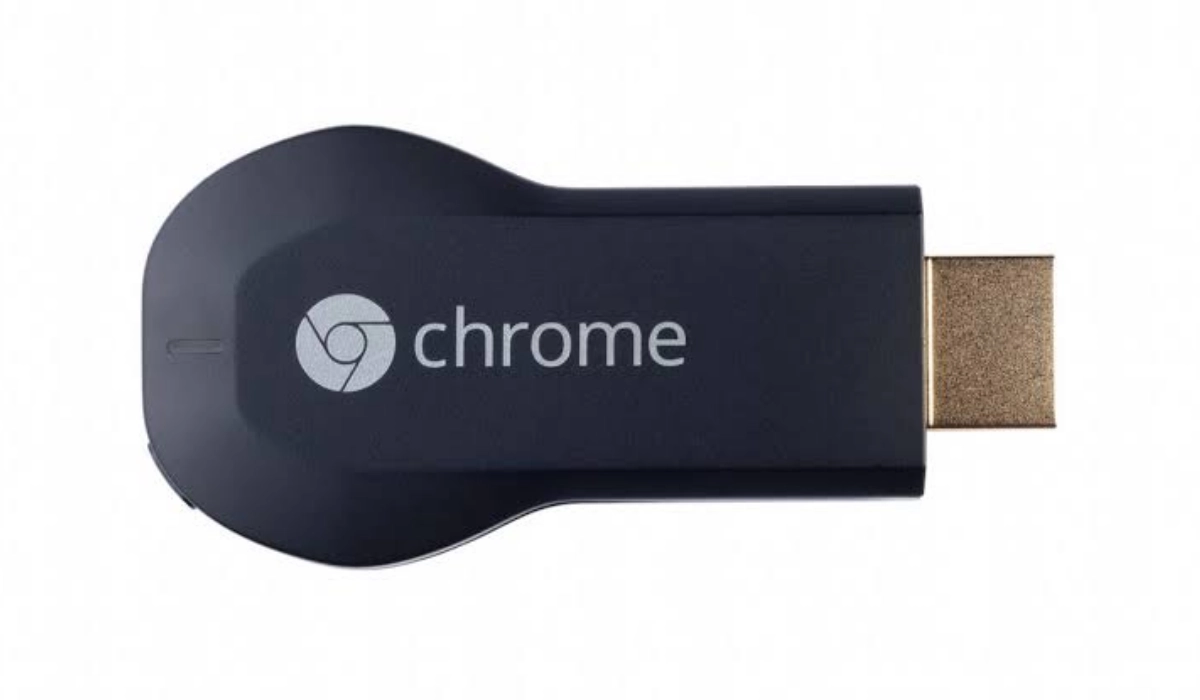
The original Chromecast dongle was released in 2013 and was revolutionary in that it was the first accessory to enable you cast your phone to a TV screen . It isn’t an option anymore, if you ask me. Google has ended support for it. That means, there are no more security updates coming for it and you won’t get technical support for it if you have any problems with yours. Don’t buy this for any reason. Skip.
Chromecast 2nd Gen
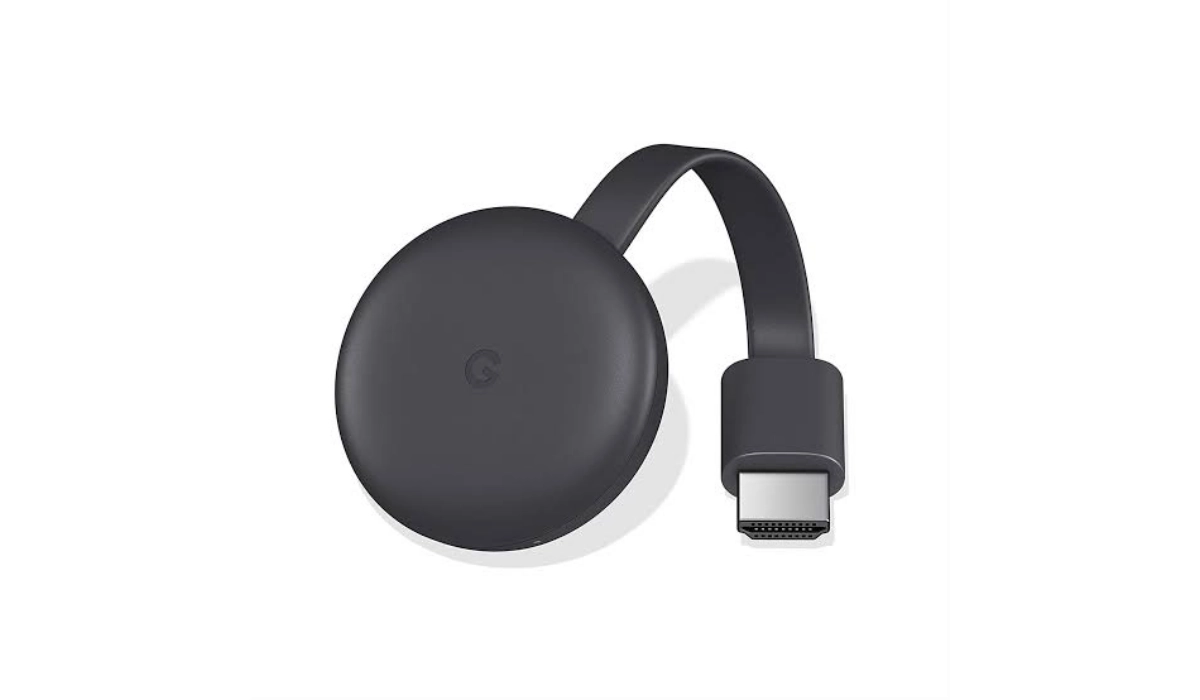
Chromecast 2nd Gen
The 2nd generation Chromecast is still quite a valid option. It gets the job done, if you absolutely have to use it, but its performance isn’t exactly what you want if you live on the cutting edge of digital technology.
I do not advice that you buy this Chromecast any more, unless it is the only model available in your market and you need one right away.
- 512 RAM
- 256MB storage
- Supports 720p at 60fps and1080p video at 30fps
- Supports only 2.4 GHz WiFi.
- No voice commands
- Ethernet, HDMI, and Micro-USB ports
- Price: $49.95
Chromecast 3rd Gen
The 3rd generation Chromecast looks pretty much like the 2nd generation model. But looks aside, it has some improvements. For one, this version supports 1080p HD streaming. Google also says it offers a 15% increase in speed over the 2nd generation model.
- Supports up to 1080p at 60fps
- Google Home app
- Voice commands
- Compatible with Google Assistant
- Supports iOS, Android, and Windows
- Micro-USB, HDMI, and Ethernet ports
- Price: from $37.90
Chromecast Ultra
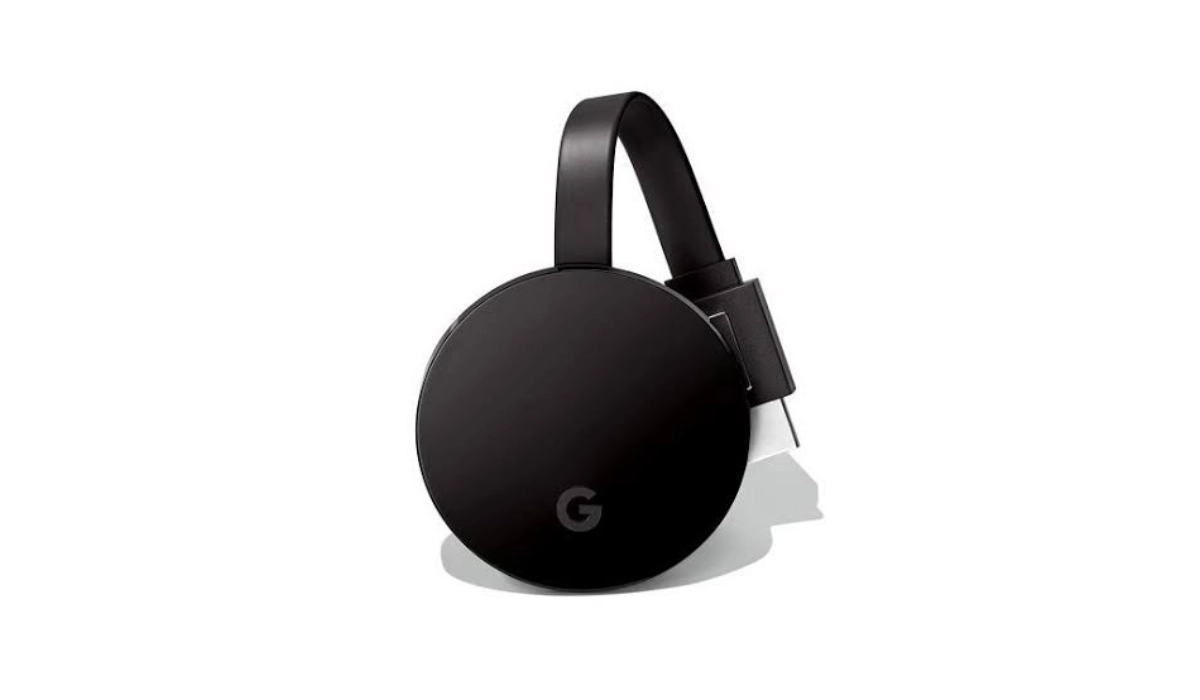
The Chromecast Ultra is a high-end option that supports 4K HDR streaming. It includes an Ethernet port for a more stable internet connection and supports a wide range of streaming services. However, it was discontinued for single sale, and was replaced by Chromecast with Google TV in 2020.
- 1GB RAM
- 4K and 1080p video resolution
- Dolby vision
- Google Home app
- Voice control for Youtube
- Micro-USB, HDMI, and Ethernet ports
- Price: $69
Chromecast with Google TV (HD)
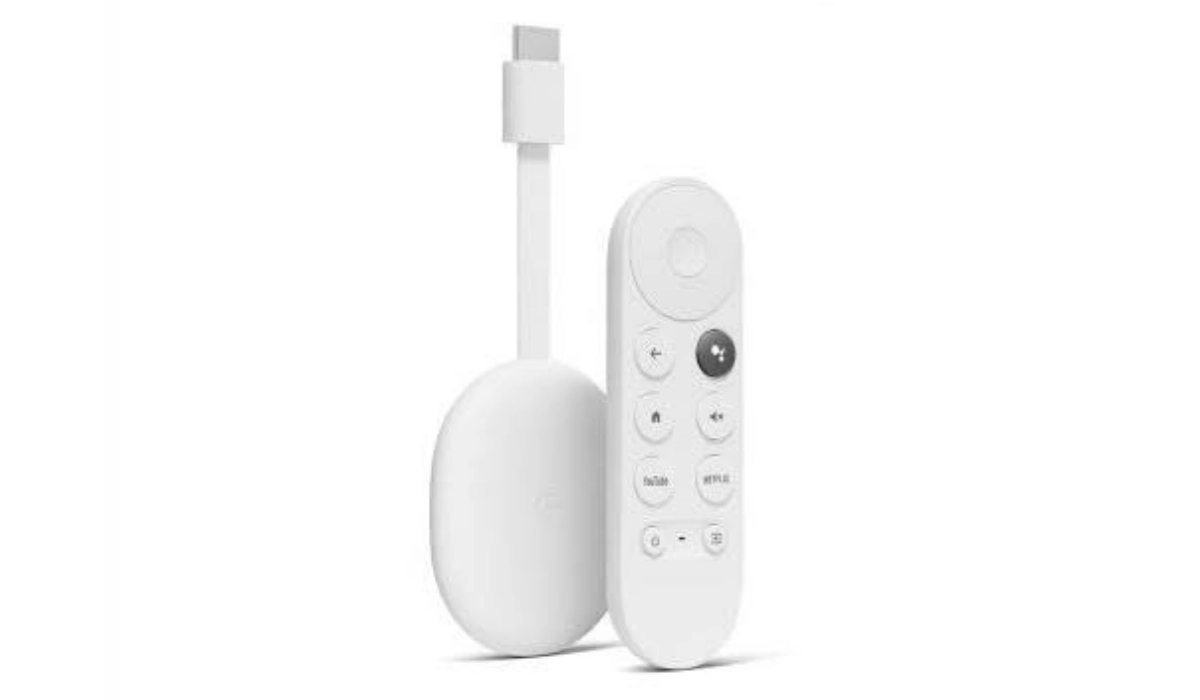
There are two variants of Chromecast with Google TV – one supports HD video and the other supports 4K. Most people do not own a 4K TV yet, so the Chromecast with Google TV (HD) is the more popular variant. This is best for you if you don’t have a 4K TV yet and have no plans to buy one soon.
- 2GB RAM
- 1080p HD at 60fps
- 8GB storage
- Voice remote control
- Google Assistant compatible
- Android OS
- Dolby Digital, digital plus, and atmos audio
- Price: from $29.69
Chromecast with Google TV (4K)
This Chromecast model looks like the Chromecast with Google TV (HD) too, but has more RAM and supports up to 4k video. Features of this model include:
- 4K HDR at 60fps
- Voice remote control
- Google Assistant compatible
- 2GB RAM
- 8GB storage
- Android OS
- Dolby Digital, digital plus, and Atmos audio
- Price: $50
As the name indicates, if you do not own a 4K television set, there is no point buying this Chromecast dongle. If you do own one, you really should get this. It is the best Chromecast to buy by owners of 4K television sets.
Chromecast Audio
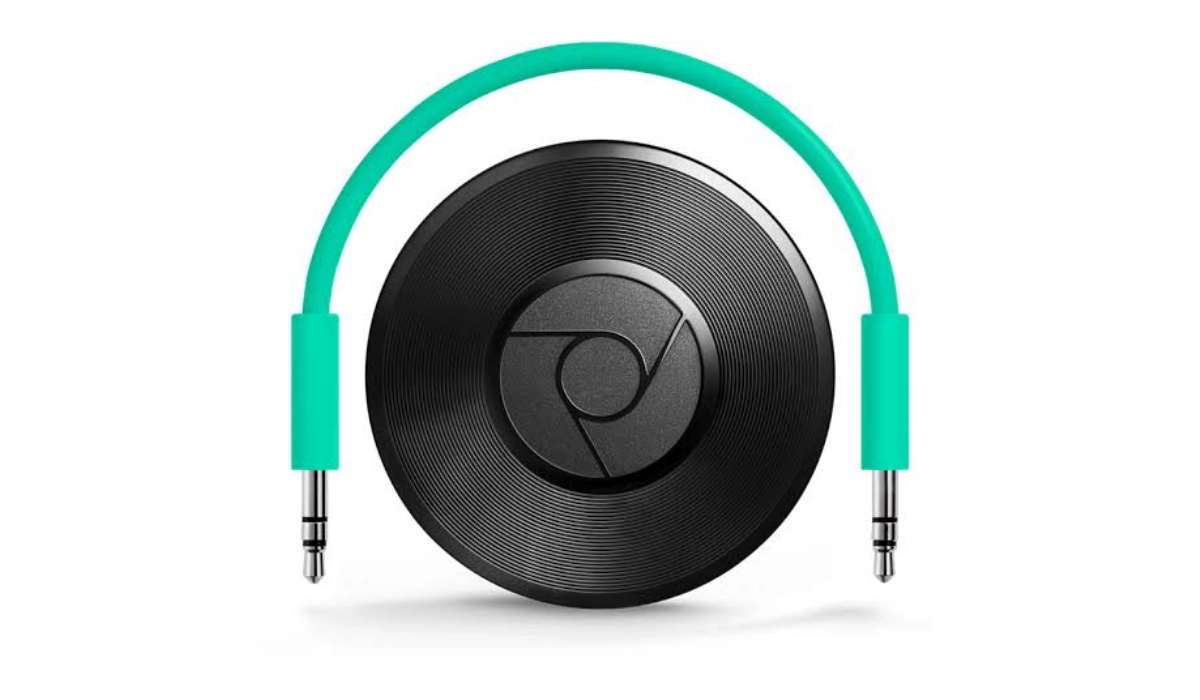
Chromecast Audio is the best Chromecast to buy for those who only want to stream music.
Chromecast Audio is a dongle that is designed to stream audio content to speakers or a stereo system. It supports high-quality audio streaming and includes a 3.5mm audio output. You cannot stream video with this dongle. Its specs include:
- Stream up to 96KHz/24bit lossless audio
- 3.5 mm jack with analogue and optical digital audio output
- Micro USB
- Colour: Black
- 2.4 GHz and 5 GHz Wi-Fi
- Supported audio formats include HE-AAC, LC-AAC, MP3, OGG Vorbis, WAV (LPCM), Opus, FLAC
- Price: $35
Chromecast Audio is the best Chromecast to buy for someone who just wants to stream music and nothing else. Note though that Google has stopped manufacturing it, though it is still supported.
The Best Chromecast to Buy
The best Chromecast to buy for video streaming depends on your specific needs, but having analysed all of the available models above, my recommendation is that the best Chromecast for you today in 2023 will fall between Chromecast with Google TV (4K), if you have a 4K, and Chromecast with Google TV (HD). If you can’t find either to buy, look for the Chromecast 3rd Gen. And if you can’t find that, well, just buy whichever one of the video options is available to you.
If, however, all you want is to stream music, the best Chromecast to buy is Chromecast Audio.
Author:Mister Mobility
Digital Skills and Communication Coach | Mobile Phone Connoisseur since 2001 | Tech Blogging since 2004
