Add MobilityArena as a preferred source on Google
It’s possible that you’ve recently become extra conscious of the content you surf on the internet, it happens to all of us at some point. Thankfully, it’s possible to browse the internet privately without leaving any digital footprints; you just need to know the right settings to tweak.
All four major web browsers—Chromium-based Edge, Google Chrome, Firefox, and Safari—include a private/incognito surfing option. Cookies, temporary internet files, site settings, browsing histories, and passwords will typically not be recorded when you browse in incognito mode using these browsers.

If you don’t know how to enable these settings and protect your privacy while you browse, we’ve created this easy guide to help you. So, keep reading to find out how to browse incognito mode on different major browsers.
How Does Private Browsing Work?
Nowadays, the majority of browsers feature a private surfing option that lets you browse the web anonymously while making purchases or stalking an acquaintance on social media.
It’s crucial to understand, however, that your information is not necessarily hidden simply because you’re browsing privately. For instance, Chrome’s Incognito mode will conceal your browsing history from other computer users, but it won’t stop your institution, place of employment, internet service provider, or the websites you visit from monitoring your browsing activity.
You should consider investing in a VPN if you want more complete security. To learn which services we suggest, check out our guide on the best VPNs .
How Do I Activate Incognito Mode in Different Browsers?
For all the most popular browser types, the instructions to activate incognito mode successfully will typically differ. Nonetheless, we’ve provided the necessary instructions below, so pay attention to the specific ones for your preferred browser.
Activating Incognito Mode on Google Chrome
Google Chrome will not save your browsing history or any other sensitive information as long as you are browsing the web incognito.
In Google Chrome, follow these steps to start a private browsing session:
- Choose New Incognito Window from the Chrome Menu (you should see three vertical dots) in the upper-right corner. Alternately, choose File > New Incognito Window from the Chrome menu. You could also press Command+Shift+N (if using a Mac device) or Ctrl+Shift+N (if using a Windows device).
- The Chrome Incognito mode’s description will appear in a new window.
- Select Open Link in Incognito Window from the context menu when you right-click a link (or Control+Click on a Mac).
- Note that you can close the browser’s window or open tabs to escape Incognito mode.
If you’re browsing Google Chrome on a mobile device:
- On an iOS device, hit Menu > New Incognito Tab to start Chrome Incognito Mode.
- Use the More > New Incognito Tab option on an Android device.
Activating Incognito Mode on Microsoft Edge
Through its InPrivate Browsing feature, Windows 10’s Microsoft Edge browser also supports anonymous browsing.
You can activate it following these instructions:
- Select the More Actions menu in the Edge browser after opening it (three dots).
- Choose Create New InPrivate Window . Use the Ctrl+Shift+P keyboard shortcut on a Windows PC to rapidly open an InPrivate Browsing window.
- A pop-up describing Edge InPrivate Browsing will appear.
- Right-click the link (or Control+click on a Mac) and choose Open in InPrivate Window to open it in Edge InPrivate Browsing mode.
On an iOS or Android smartphone:
- Choose the Tabs icon, then touch InPrivate to access Edge’s InPrivate Browsing mode.
Activating Incognito Mode on Firefox
Private Browsing mode is what Mozilla Firefox users use to browse incognito. Here is how to make the feature work:
- Choose New Private Window from the Firefox menu (you should see three vertical lines).
- It will launch a private browsing window for Firefox. On a Mac, use Shift+Command+P , and on a Windows computer, press Control+Shift+P to quickly open a Firefox Private Browsing window.
- Right-click the link (or use Control+Click on a Mac) and select Open Link in New Private Window to access it in Private Browsing mode.
On mobile devices:
- Hit the Tabs icon at the bottom of your iOS device’s screen, then tap the Mask icon to activate Firefox Private Browsing mode.
- Tap the Mask symbol at the top of the screen on an Android device.
Activating Incognito Mode on Safari
For macOS, Safari is the default browser. To activate Safari’s Private Browsing mode, follow these steps:
- On a Mac, launch Safari.
- Select File > New Private Window from the menu bar.
- To rapidly launch a private browsing window, use Shift+Command+N .
- A window with a search bar that is darker and a notice that Private Browsing is enabled will open at this point.
- Holding the Option key while right-clicking the link (or holding the Control and Option keys while selecting the link) will allow you to pick Open Link in New Private Window in Safari on a Mac.
On iPhones and iPads:
- Launch Safari.
- Select Tabs from the menu.
- To display the Tab Groups list, tap Tabs .
- Select Private , then select Done .
When Private Browsing is enabled, the Safari address bar is dark or black rather than white or gray.
Activating Incognito Mode on Opera
Private mode is the name of the incognito mode in the Opera web browser. This is how it works:
- On a Mac or PC, launch Opera.
- Select File > New Private Window from the menu bar. Press Ctrl+Shift+N on a Windows computer or Command+Shift+N on a Mac if you’d like to quickly open a private window in Opera.
- An informational popup about Opera’s Private mode should open at this point.
- Select Open in New Private Window from the context menu when you right-click a link in Opera ( Control+Click on a Mac).
When using the Opera iOS mobile browser, pick Private Mode from the More (three horizontal lines) menu by tapping it.
In conclusion , the instructions we’ve provided in this article will help you achieve privacy while you browse, just make sure to follow the correct ones specific to your browser.
Also, make sure you help someone else in need of this information by sharing or recommending it to them.
- Don’t miss our mobile phone reviews .
- Follow our news on Google News .
- Join our WhatsApp Group , to be notified of the most important articles and deals,
- Follow us on Instagram , Facebook , Twitter , and YouTube .
Author:Joan Agie
Add MobilityArena as a preferred source on Google
For a few years now, iPhone users have had no way to display a battery percentage indicator in the status bar of their phones. This started with the iPhone X . Blame it on Apple’s fixation with the wide notch, which robbed the status bar of space. The good news is that with the arrival of iOS 16, you can now show battery percentage on your iPhone.
Note that if you own an iPhone SE 2000 or the SE 2022 , the battery percentage indicator feature has been available for these models before iOS 16. The notchless nature of the display of these models mean that there is enough space for the indicator. If you own a different model, find below how to show battery percentage on your iPhone.
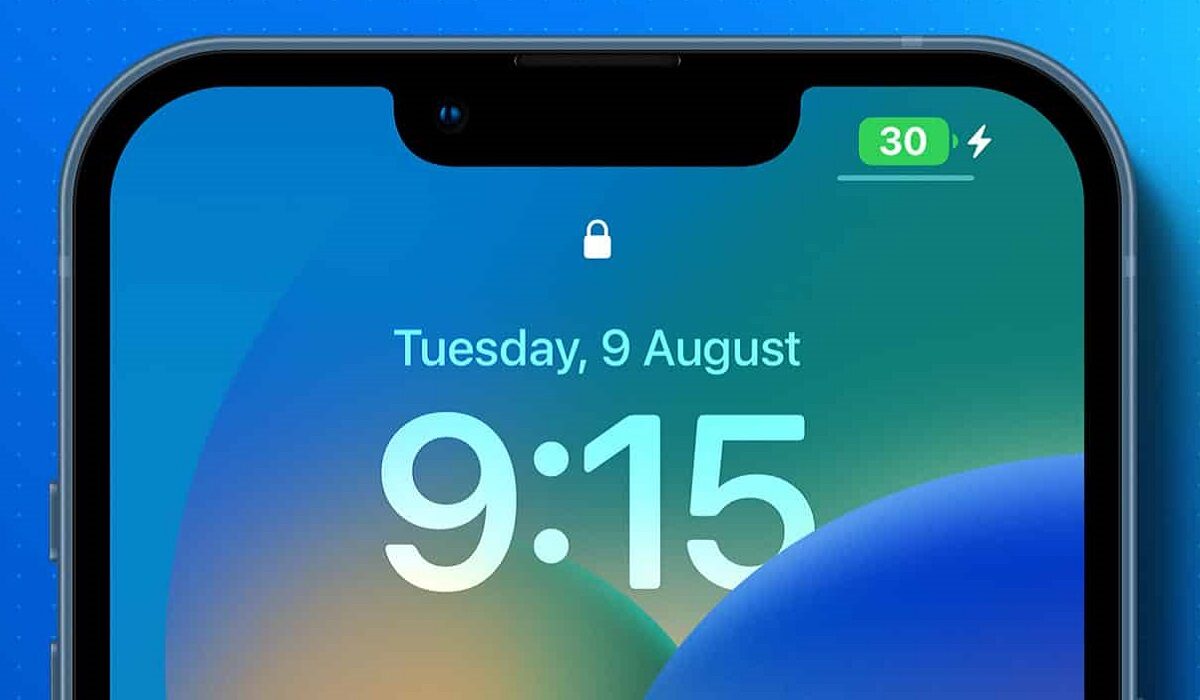
- To display battery percentage on your iPhone
- Not every iPhone will be able to display battery percentage indicator
- Display battery percentage on your iPhone with a battery widget
To display battery percentage on your iPhone
On your iPhone, go to: Settings > Battery > Battery Percentage, and toggle the option there. The percentage indicator showing how much battery you have left will now display in your iPhone’s status bar. That is it.
Not every iPhone will be able to display battery percentage indicator
Note though, that not all iPhone models that got the iOS 16 software update will be able to display the battery percentage in the status bar. Yes; you read that right. For some reason, the following – iPhone XR, iPhone 11, iPhone 12 mini, and iPhone 13 mini – are excluded from this new feature. They will not display battery percentage in the status bar. We have no idea why this is so. Bummer.
But you can still check the battery percentage on these excluded models by swiping down from the top right corner of your iPhone to display the control centre – and right there as well, you will see the battery percentage on display. Not as user-friendly as just glancing at your status bar, but half bread is better than none.
Display battery percentage on your iPhone with a battery widget
If your model is also one of those excluded models, one of the ways to show battery percentage on your iPhone is to use a widget. Follow the steps below to add a battery widget to your Home Screen.
- Touch and hold the Home Screen background until the apps begin to vibrate, wiggle or jiggle.
- Tap the plus icon at the top of the screen, then scroll down and tap Batteries.
- Swipe left and right through the widgets to view the size options.The different sizes show different information.
- When you see the size you want, tap Add Widget, then tap Done.
Now, you can check how much battery power your iPhone XR, iPhone 11, iPhone 12 mini, or iPhone 13 mini, has left by taking a glance at the Home Screen.
- Don’t miss our mobile phone reviews .
- Follow our news on Google News .
- Join our WhatsApp Group , to be notified of the most important articles and deals,
- Follow us on Instagram , Facebook , Twitter , and YouTube .
Author:MobileChic
That motivated, gadget-loving geeky chic who tries to stay on top of things. Unapologetic iFan.
