Add MobilityArena as a preferred source on Google
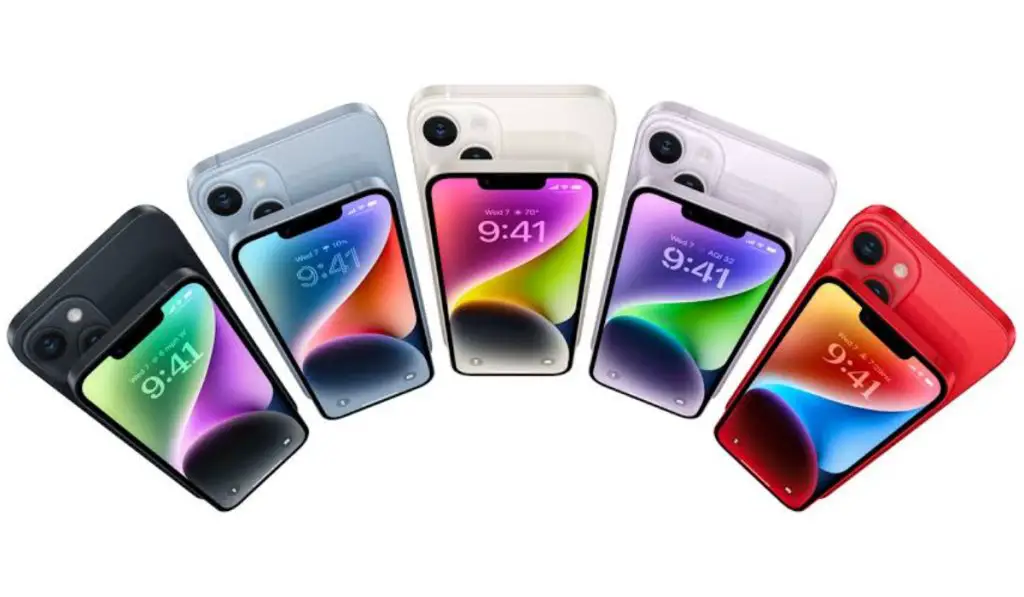
The iPhone 14 series was launched by Apple on the 7th of September 2022. The series consists of four models – iPhone 14, 14 Plus, 14 Pro and 14 Pro Max. Each of them has multiple memory configurations or variants, and prices.
All members of the series run iOS 16 out of the box. The basic iPhone 14 and 14 Plus use Apple A15 Bionic processor, while the 14 Pro and Pro Max use Apple A16 Bionic processor.
- Is iPhone 14 water-proof?
- How much is iPhone 14 in the USA?
- Is iPhone in America cheaper?
- How to buy iPhones for cheap
- Which state is the cheapest to buy an iPhone?
- Is iPhone 14 available unlocked or SIM-free?
- Where to buy iPhone 14 on a contract
Is iPhone 14 water-proof?
All four models in the series have an IP68 dust/water resistant rating. That means, they can stay submerged in water of up to 6m in depth for 30 minutes.
How much is iPhone 14 in the USA?
In the United States, the price of iPhone 14 starts at USD799. The 14 Plus starts from USD899. The 14 Pro and 14 Pro Max start from USD999 and USD1,099, respectively.
Is iPhone in America cheaper?
The price of the iPhone 14 in the US is the cheapest when compared to the rest of the world. It costs more in many other countries.
How to buy iPhones for cheap
If you are looking to buy iPhone models for cheap, a good way is to look for trade-in offers from your carrier. Carriers often offer as much as $1,000 value when you trade in an older device for a brand new one.
You can also buy refurbished units directly from Apple or refurbished iPhone resellers like Best Buy, BackMarket, Refurb.me, Gazelle, and others.
Which state is the cheapest to buy an iPhone?
Every purchase comes with an additional sales tax, which varies from one state to another. The states of Alaska, Delaware, Montana, New Hampshire and Oregon have no sales tax, which makes buying an iPhone in these states cheaper than it is in other states. Note that you actually have to be resident in those states to be able to buy goods without a sales tax.
Is iPhone 14 available unlocked or SIM-free?
The entire lineup of the iPhone 14 are available for purchase in their factory unlocked , SIM-free, state from Apple, retailers, and carriers across the United States. That means you can buy any model in the series and use it on any supported carrier.
If you want to buy an iPhone unlocked, your best bet is to buy directly from Apple. Walk into an Apple store or order from the Apple website. While some carriers offer it unlocked and SIM-free, if you buy an iPhone from a carrier, there is a chance that it will be locked to that carrier. Listed below are the prices of each model and variant when purchased directly from Apple.
iPhone 14 prices from Apple:
- 128GB: US$829
- 256GB: US$929
- 512GB: US$1,129
iPhone 14 Plus prices from Apple:
- 128GB: US$929
- 256GB: US$1,029
- 512GB: US$1,229
iPhone 14 Pro prices from Apple:
- 128GB: US$999
- 256GB: US$1,099
- 512GB: US$1,299
- 1TB: US$1,499
iPhone 14 Pro Max prices from Apple:
- 128GB: US$1,099
- 256GB: US$1,199
- 512GB: US$1,399
- 1TB: US$1,599
Where to buy iPhone 14 on a contract
You just might be able to snap up a great iPhone deal by buying it on a contract from a carrier. The big three carriers especially, AT&T, T-Mobile, and Verizon, often have deals to offer.
Author:MobileChic
That motivated, gadget-loving geeky chic who tries to stay on top of things. Unapologetic iFan.
Add MobilityArena as a preferred source on Google
Voice Control is a very helpful accessibility function on the iPad. Instead of using on-screen taps or gestures, Voice Control lets you speak commands to your iPad when using it. You’ll find this tool especially useful if your hands are full or messy, or if you’re simply not close enough to physically touch your iPad. You’ll also love that it doesn’t interfere with the iPad’s standard touch functionality.
If you want to learn how to use Voice Control Commands on your iPad, we’ve created this easy guide for you. You’ll learn how to set up and fully customize the Voice Control feature, and take advantage of it to control functionalities on iPad devices.

- How Do I operate my iPad using Voice Control commands? What are the List of Voice Control Commands you can use on your iPad? Using Screen Overlay on iPads Using Dictation Mode on your iPad
How Do I operate my iPad using Voice Control commands?
The first step to take when trying to control your iPad with Voice Control commands is to set up and customize the Voice Control feature on the device.
Locate Settings > Accessibility > Voice Control , enable Voice Control , and select your Language to configure Voice Control.
This screen has a number of configuration preferences. When the iPad receives a voice command, you can opt to have a sound or a visual confirmation play. You may also enable Attention Aware , which causes the iPad to wake up when you look at it and go to sleep when you don’t.
It is beneficial to enable Show Hints when learning how to use Voice Control for the first time. When you speak, a tiny bubble at the screen’s top flashes with voice command options relevant to your current action.
All commands are presented by category under the Customize Commands submenu, including Basic Navigation , Overlays , and Dictation . You can disable specific commands from their category if you want to restrict the commands that are available.
You can create a new command using your own phrase if a gesture or action isn’t included or you’d like to give it a different name. This may be a shortcut for inserting particular text, such as your name or email.
Additionally, you can designate which apps can use a particular set of recorded gestures. In the camera app, unique motions can be made to take a picture or operate the camera. You could learn how to make a command that opens your iPad, for example.
The most important thing here is that you’ll be able to control iPads with Voice Control after successfully completing this set up process.
What are the List of Voice Control Commands you can use on your iPad?
- “Open [app name]”
- “Take screenshot”
- “Go home” (this directs you to the home screen)
- “Go back” (this directs you to the previous screen)
- “Turn up volume,” “Turn down volume,”
- “Swipe left,” “Swipe right”
- “Scroll up,” “Scroll down”
“Make emergency call” and “Reboot device” are two extra commands you’ll find useful.
You can pronounce an item’s name or number when selecting it on-screen using the screen overlay, but it reacts best when you utter, “Tap [the name or the number].”
You can also drag and drop items by using “Drag this object” and “Drop this item,” as well as “Tap and hold.”
All these commands will prove very useful to you, and as a result, you’ll find it easy to control iPads with Voice Control.
Using Screen Overlay on iPads
The screen overlay is one aspect of Voice Control that distinguishes it from Siri, and it contributes to a satisfying user experience when you’re trying to control iPads with Voice Control.
Anything you can tap on the screen is labeled by the screen overlay. You can decide whether you want the items onscreen to be identified by names or numbers, or whether you want to use a numbered grid to divide the screen into zones.
The overlay will always appear over everything that is currently on the screen if you enable it. It is preferable to turn off the overlay because this clogs up the screen. When you wish to choose something on the screen, you can still use voice control by saying “Show item names” or “Show numbers,” respectively.
Using Dictation Mode onyouriPad
It is also possible to use dictation mode when you control your iPad with Voice Control. You can say “Insert [x] before/after [y]” to add a word or phrase to text you’ve already written. Say “Replace [x] with [y]” to alter a word or phrase.
“Bold it,” or “Bold [word or phrase],” are commands you can use to format words. This also applies to underlining and italicizing words. “Capitalize/lowercase [word or phrase],” or “Capitalize that” also work in a similar manner.
Anywhere you write, including Notes, Pages, and other writing programs, this dictation function will work effectively to control your iPad with Voice Control commands.
In summary , it’s very easy to control your iPad with Voice Control commands once you figure out how to set it up and master the right commands to produce the desired actions.
