Add MobilityArena as a preferred source on Google
Why would you need to Change country on a Samsung phone? Our location typically determines most of all of the services we can access online through our mobile devices. Service providers are required to filter out inappropriate content and only show us non-conflicting stuff while abiding by local laws and regulations.
If you frequently travel or you’ve bought a Samsung smartphone from a country where you don’t plan to stay permanently, you might experience some difficulties when attempting to access some necessary services. Thankfully, you can fix this by being familiar with a few simple adjustments that will enable you to quickly change your location on your Samsung device.
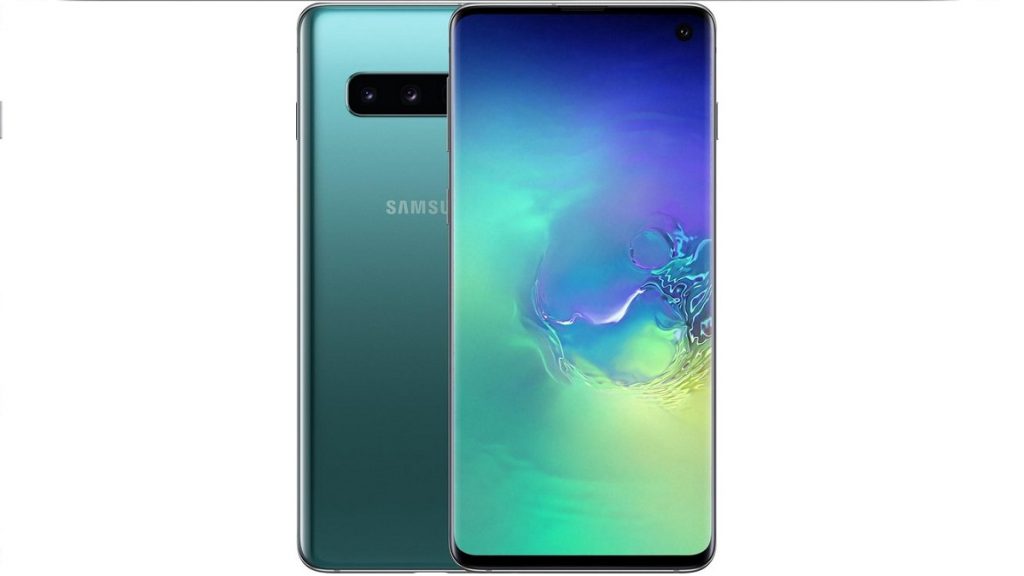
Why would you need to Change country on a Samsung phone?
We’ll show you the necessary steps to take in this guide so that you can conveniently change the location on your Samsung smartphone.
How Do I Change Country on a Samsung Phone?
You’ll need to set your region to the one you’re at right now to get the most out of Galaxy Stores, Samsung Members, as well as other Samsung applications. You should change your device’s region to the US to get the most out of it, for instance, if you live in the US but purchased the phone from Germany.
Unfortunately, there isn’t a switch in the software to speed up the procedure, so you’d have to perform it by hand. Note before moving forward that you’ll need to back up your data, so don’t forget that.
Follow these steps:
- You’ll need to enter a local SIM card, reset your Samsung device, and change your region.
- After obtaining and inserting a local SIM card, go to Settings , “General management,” and tap on “Reset.”
- Next, select “Factory data reset,” and then press “Confirm.”
The default country (of purchase) settings or the SIM card settings (for the country you’re in) should be available for loading after the phone has started. Select the latter, and all of your Samsung apps should now adhere to the laws of your current country location.
How Do I Change the Location Settings for Google Play Store?
Most of us get the majority of our apps from the Google Play Store, thus we’ll always need to switch the region whenever we travel. Google apps don’t require you to switch SIM cards in order to switch regions, unlike Samsung apps.
You would be set to go if you added a new payment method and verified your address. It’s important to note that Google Play only allows you to change your location in settings once every twelve months. Google requires that you reside in the new region or country in order to change your region or country, as well as to add a payment method from the new country.
- First, visit the Google Play Store, select “Payment methods” from the hamburger menu in the top-left corner, and then enter a new payment method.
- Disable the cards from your old country by going to “More payments settings.”
- To add a new payment method, scroll to the bottom of the screen after removing the cards.
- Click “Save” after entering your card information. Within 24 hours, Google should have altered your country accordingly.
If you already have several Google Play payment profiles, switching between them would not be too difficult. Note that after changing your region, you cannot change it back or to a different region for a full year. Therefore, be careful to change only when it is absolutely necessary.
Follow these steps to get it done:
- Start the Google Play Store app, select the hamburger menu in the top-left corner, then select “Account” to change your region.
- You ought to view the nations and profiles you’ve so far added under “Country and profiles.” Choose one to make it your default country.
It’s that easy! Just make sure to follow the instructions above carefully.
In summary , if you ever move from one location to another and need to change country on your Samsung phone, or change the location settings of Google Play Store, the instructions we’ve provided in this guide should help you do it easily. Remember to change these settings carefully and not do so without needing to since you can only change them once a year.
Author:Joan Agie
Add MobilityArena as a preferred source on Google
Most people would agree that phone calls can be annoying these days, especially since there are more convenient ways to communicate, including texts. As a result, most of the calls you get might be unwanted, typically from marketing campaigns. But calls from unknown international numbers, which almost often amount to nothing more than a money-grabbing ploy, are even more undesirable, almost to the point of being a nuisance.
Fortunately, it is pretty easy to restrict international calls on a mobile device. This guide will teach you about different options for tackling calls from unknown international numbers. The easiest way is to simply not answer any calls from unknown international numbers, but if you are getting spammed with them, you will need to implement some blocking. Keep reading to find out how to do that.
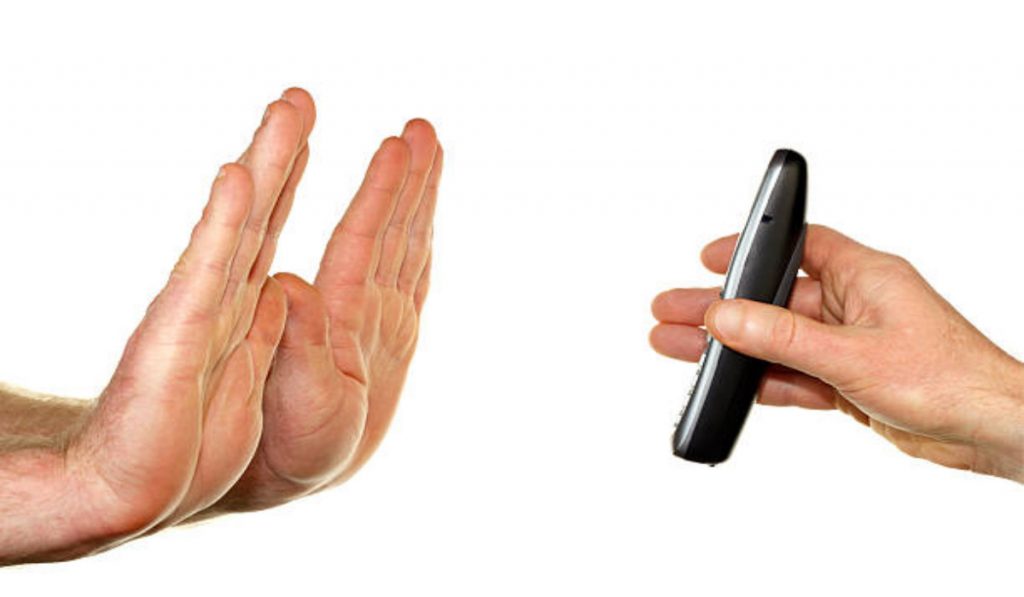
How Do I Stop Getting Calls from Unknown International Numbers?
There are different ways to achieve this on your mobile device. We’ve discussed each method below:
Block International Calls through Your Carrier
The majority of carriers, if not all of them, offer their customers ways to track unwanted calls. Scam calls have become a much bigger issue in recent years. However, the good news is that you can collaborate with your provider to stop receiving these calls from unknown international numbers.
While a turnkey solution is unlikely to be provided by your carrier (some might though), you can still block specific numbers or robocalls on most providers. You must contact your carrier’s help department or visit their online support page to get a complete breakdown of the options you have available. Additionally, you could try adding your phone number to the Do Not Call list. You can opt out of receiving telemarketing calls with this service. It is still a smart idea to use it even though it may not totally stop you from receiving unwanted international calls.
If the issue persists long enough and you have a US-based phone number, you can submit a complaint. Try to use this approach to locate a solution, since your alternatives are considerably more constrained if you’re on a landline.
Block International Calls from your Device
Your device likely has built-in call-blocking features if your carrier is unwilling to assist you or can’t go as far as you need them to. The steps you must take will be based on your device’s operating system because they vary somewhat depending on the platform. Below, we’ve given a brief summary of each.
Although the nomenclature for Android devices may vary slightly depending on your carrier, overall, it should be quite uniform.
- Locate the Settings menu.
- Find Call Settings next; it may simply be called Call on your device
- It’s possible that you’ll need to use your phone’s app to access the call settings because they may not be visible there.
- From the Call Settings menu, choose Block Numbers ; you may also see it tagged as Blocked contacts on your device.
- Here, you can either turn on the option to block all incoming calls or block certain numbers that you know will be unwelcome.
If you’re using an iOS device, follow these steps:
- On your iPhone, create a new contact. You can ban specific phone numbers by adding them to this contact. Add as many as you want because this contact’s associated phone numbers will all be screened.
- Tap on the green Phone symbol in the Settings menu of your phone.
- Tap Blocked , then Calls , as you scroll down.
- Now choose the contact you already made by tapping Add New . To keep track of the reason they are blocked, it’s a good idea to give this contact the name “International Numbers” or something similar.
You shouldn’t receive any unwanted calls from such numbers anymore after this setting.
Block Calls From Unknown International Numbers with Third-Party Apps
Employing a program made especially for call blocking is another option you have for blocking unwanted international calls. Due to the diversity of functions that apps can offer, including, in some cases, restricting country codes, many users will find that this option is the best.
Call Blacklist is one of the top Android apps for managing calls. This program lets you make a “blacklist” of phone numbers that will be blocked, as the name suggests. You can enter whole numbers as well as numbers that either begin with or contain specific numerical sequences. Effectively, you may ban all calls from a specific country by using this feature to screen out country codes. Password protection and other useful features are included in the software.
Call Control is a really good choice if you’re using an iOS device. This program has many of the same functionality as Blacklist, in addition to intelligent blocking tools that archive suspected numbers using lists maintained by the community. This program also allows you to do a reverse search to learn who is calling from banned numbers. In their respective stores, each of these apps is free.
In summary , you can choose from any of the methods we’ve suggested to restrict unwanted calls from unknown international numbers on your smartphone. Ensure to follow the relevant instructions carefully to achieve the desired results.
