Add MobilityArena as a preferred source on Google
If you are thinking about giving text on your phone a refined look, you need to learn how to change fonts on your Android — and it is much easier than you might think!
Words have a powerful effect on our day-to-day interaction as humans. Whether they present in the form of text, emails, memes, SMS, there is no doubt that your language shapes your attitude to life. But the characters that represent those words are equally important, which is why they should also look catchy.
Fonts could either make or mar your phone’s looks. For instance, if a small screen has a huge font, this will look as hideous as having a small font on a 6” screen.
To ensure your mobile device does not experience this kind of aesthetic epilepsy, this post will elucidate how to change fonts on your Android. And fortunately, no rooting is required to do this.
Ways to Change Font Style for Android
The font is a key aspect of every interface, whether digital or not, which plays a major role in the overall UI design on any mobile phone, including smartphones running Android and iOS.
Thanks to Android’s vast customization options, it is easy to change fonts on your mobile device. You can do this in two ways: Using your phone’s built-in option to change fonts and using a third-party launcher app.
We discuss these two techniques in detail below:
How to Use Built-in Feature in Some Android to Change Fonts
We have a slew of Android smartphones that provide a default option for changing fonts. If you are using a smartphone from brands, such as LG, HTC, and Samsung, you will find that changing fonts is something you can do effortlessly. These devices, however, typically have a small collection of system fonts which you can switch between.
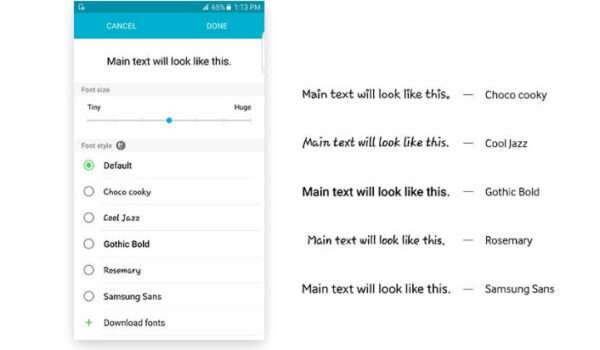
Changing fonts on your Samsung smartphone | Credit: Samsung Global Newsroom
Also, their default font is usually quite plain — and sometimes drab. You will be offered a handful of more quirky fonts to choose from.
The procedure for changing fonts may vary depending on your specific smartphone. But generally, you’ll usually find the option under Settings > Display . In this section, you can now modify your actual font and also change its size.
For instance, almost all Samsung smartphones running the Android OS let you change a font style. Also, apart from the default font, the company has pre-installed a couple of extra ones. There are even more online via the Galaxy Store, both free and premium, which you download for use on your Samsung mobile device.
To choose a font, simply go to Settings , tap Display , and then Font size & style . Immediately you press the name of a specific font, you will now be required to confirm that you want it your system font.
No need to restart the phone since font replacement occurs instantaneously, and you will see your chosen font displayed throughout your phone’s entire interface, including system menus, the time on your status bar, in addition to text messages.
How to Use Apps and Launchers to Change Fonts
If it is a tad difficult for you to change your font system-wide, you can install a custom launcher, which will replace your primary home screen.
The launcher app will affect other elements of the interface across your system as well.
Customizing your fonts in this way will enable you to modify how your smartphone looks.
However, if that technique seems iffy on your device or doesn’t even work at all, you can use third-party launcher apps. This software will allow you to manually change fonts on your Android.
Below, we have handpicked 7 of such apps that can help you out:
Apex Launcher
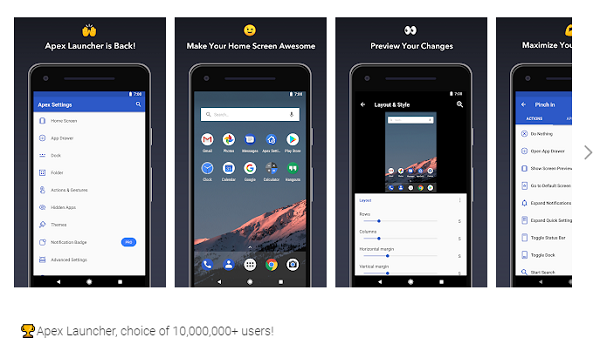
Apex Launcher is one of the third-party tools to change your phone’s font.
One of the most popular launcher apps around is Apex Launcher, which is designed by Android Does Team and which has enjoyed over 10 million downloads on the Play Store.
Apart from being an awesome launcher, it also effectively changes the font of your handset. But this will only change fonts within the launcher itself, not your whole system.
You can use this software to change the font on your Android as follows:
- Go to the settings of the app
- Hit the “Home Screen” icon
- Press the “Layout and Style” feature
- Tap the “Label Font” section and pick the best font you want to use on the home screen
You can also change the app drawer’s font on Apex Launcher; here is how to do so:
- Go to the settings of the app and select the “App Drawer” option
- Press the “Drawer Layout & Icons” feature
- Navigate down and hit the “Label Font” icon
- Now, choose the specific font that you to use for the app drawer
To change the font for your smartphone’s folder, here is how to do this with Apex Launcher:
- Go to the settings of the app and hit the “Folder” icon
- Navigate down and press the “Label Font” feature
- Now, pick your desired font that you would like to use for your folder
GO Launcher
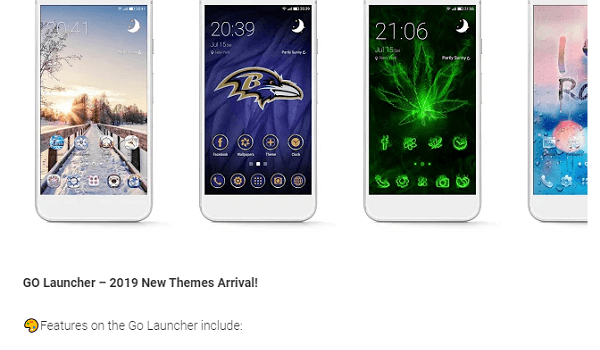
Go Launcher is one of the most popular launchers on the market
Go Launcher is yet another trendy launcher app, which has been downloaded on the Play Store over 100 million times. It offers you a range of customization options on your Android, one of which is changing fonts.
You can use Go Launcher for this purpose by following these steps:
- Copy the OTF/TTF font files to your mobile phone
- The next thing is to long-press anywhere on your device home screen and press “GO Settings”
- Go to Font and tap Select Font
- Pick the specific font you want to use, or press the “Scan” option to add files that are stored on your device
Like Apex Launcher, this procedure won’t change the fonts system-wide, only across the app, and the change will have an impact on most of the menus & apps you interact with regularly.
Smart Launcher 5
The Smart Launcher 5 app
This tool is the brainchild of the Smart Launcher Team, and it is also a cool option that allows you to choose new fonts for your mobile device.
You can do so by heading into the settings of Smart Launcher 5 and pressing Global appearance > Font .
A modest selection of fonts will crop up, which you can select from. Again, this font change isn’t system-wide.
Action Launcher 3
If the above apps don’t cut it for you, Action Launcher is a great alternative to try out. It will help you customize the font style in your app drawer as well as home screen.
The process to do this is a simple one; let’s you walk you through it:
- Start by swiping up to bring up the launcher app drawer
- Hit the “Action Settings” option
- Press the “Appearance” selection in the app’s Settings menu
- Still, in the “Appearance” menu, navigate down and press “Font”
- Pick one out of the custom fonts available within the app’s font menu
- Then, select one of the options and confirm your choice
- Lastly, hit the back button and return to the app drawer
The font used within this app drawer and on the home screen will now change based on your font choice.
iFont
iFont, which is developed by Diyun, is not a launcher app, unlike the ones mentioned above. It’s particularly used to change fonts on Android handsets.
A completely free tool, it works smoothly on many phones from Huawei, Samsung, Xiaomi Meizu, Sony, Motorola, along with HTC.
However, it has no support for the recently released Samsung One UI, featured on handsets, like Samsung Galaxy S10, Samsung Galaxy S10 Plus, and others.
On devices that are not rooted, use iFont’s Online tab to search for available fonts. This is how to use a font on the list:
- First head to Settings > Security and enable installation of apps from “Unknown Sources”
- Launch the iFont app and scroll to the “RECOM” or “FIND” tabs and search for available fonts
- Choose the specific font name to be installed
- Press the “Download” feature
- Tap “Set” and install the font
- Go to Settings > Display > Font Size and Style
- You will now see the newly installed font on the list
- Now, tap your new font so it to be set as the system font
Since no system reboot is necessary, the font will be applied immediately.
Apart from the apps above, if you are looking to give your phone’s interface a stylish look, you can try any of the two apps below:
Stylish Fonts
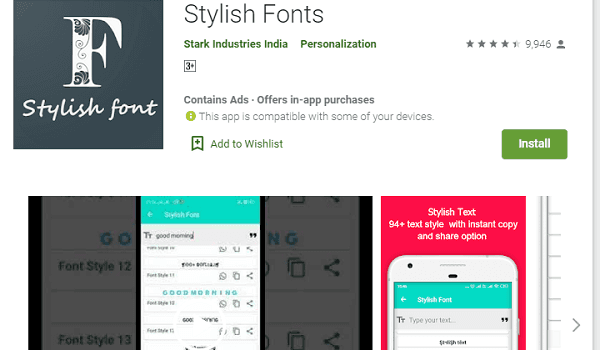
The Stylish Font app
This app is developed by Stark Industries India to offer your Android a stylish look, designed with text with attractive fonts and text style. The software comes with over 120 beautiful stylish text as well as art styles, in addition to 55 stylish fonts.
Stylish Text
With the Stylish Text, you can write stylish text anytime and anywhere you choose with your phone and send it to anyone without the need to open the program. Among other interesting features, this tool has 120 texts, 20 numbers as well as 60 arts styles.
Having gone through this post, we believe you now know how to change fonts on your Android. So, whenever the need arises, you can give your smartphone a refined and stylish look with a new font.
Author:Tijani Mustapha
Deji is a web content developer and tech writer, who is passionate about tech-related topics and issues. A graduate of Physics from the University of Ibadan, he loves writing, conducting research, playing football, and meeting people of diverse backgrounds and interests.
Add MobilityArena as a preferred source on Google
Over the years, Internet has become increasingly essential in our everyday lives, helping us to stay connected, buy and sell things, learn just about anything on the web, and carry out a plethora of other activities, whether mundane or not. This article is centered on how LTE is different from Wi-Fi.
In summary, both LTE and Wi-Fi are two different ways of gaining access to the Internet on modern computing devices e.g. laptops, smartphones, tablets, etc.
Wi-Fi, on the other hand, is a wireless tech, which lets many kinds of computing devices, such as your personal computer (PC) and smartphones, connect to a wireless network via a router.
How is LTE different from Wi-Fi? Owing to the importance of the Internet in our day-to-day lives, we examine this question in detail in today’s post.
- What Is Long Term Evolution (LTE)?
- What is WiFi?
- LTE vs. Wi-Fi — Availability
- LTE vs. Wi-Fi — Transfer Speeds and Range
- How to Use 4G LTE
- How to Use Wi-Fi
- In a Nutshell
What Is Long Term Evolution (LTE)?
LTE is a 4G wireless network tech developed on the High-Speed Downlink Packet Access 3G network protocol
LTE is a 4G wireless network technology that provides high-speed Internet on your phone via your mobile network provider. It has higher bandwidth, and that translates to greater connection speeds and improved underlying technology for voice calls (both VoLTE and VoIP ) as well as multimedia streaming.
LTE is more suitable for the heavier and bandwidth-demanding use on mobile devices.
LTE will only work on a mobile device that supports it, and you can check this on the specs sheet of your device. The naming of the standard is stated as 4G-LTE.
Furthermore, it isn’t all devices showing LTE in their specifications that can be relied upon because the acronym is now used as a tool for marketing, which could be misleading. A handful of manufacturers fail to meet customers’ expectations when providing LTE hardware.
What is now the way out of this conundrum? Before you buy your smartphone or other mobile devices, consider reading reviews, and checking testers’ verdicts.
As stated earlier, LTE is a 4G tech and is among the fastest few available as of now with 5G being the only tech with better connection speeds.
What is WiFi?
Wi-Fi is a wireless tech that lets many kinds of computing devices,
Wi-Fi, on the other hand, is a wireless tech, which lets many kinds of computing devices, such as your personal computer (PC) and smartphones, connect to a wireless network via a router.
It’s the most popularly used means of wireless data communication within a fixed location. Wi-Fi is a trademark of an international group of companies, called the Wi-Fi Alliance , which deals with wireless LAN technologies & products.
Wi-Fi is typically mistaken to be an acronym for “wireless fidelity” and is also occasionally written as WiFi, WIFI, Wifi, or wifi; however, all these spellings are not formally approved by the Wi-Fi Alliance.
The wireless network is also used as a synonym of the term, “wireless”. However, wireless is actually a much broader concept.
The primary requirement to use Wi-Fi is a device that is capable of transmitting the wireless signal, such as a smartphone, router, or PC.
What a router does is to transmit an internet connection that is coming from outside the network, such an Internet service provider (ISP), and then supply that service to devices, which are able to reach the wireless signal, within the vicinity.
Wi-Fi can also be used via a Wi-Fi hotspot, allowing a mobile phone or PC to share its wireless or wired internet connection, and this is similar to the way a router operates.
Having looked at the definition of LTE and Wi-Fi, we now expound the differences between both connection standards.
LTE vs. Wi-Fi — Availability
As of now, LTE technology is only supported by some mobile phones, providing 4G network access.
On the other part of the divide is Wi-Fi tech, which was introduced on the market with the launch of the 802.11b standard in 1999. The standard was designed for offering wireless networking functionality to mobile devices and computers. The Wi-Fi standards, unlike LTE technology, need a router to deliver wireless network connectivity.
LTE vs. Wi-Fi — Transfer Speeds and Range
LTE technologies offer data transfer speeds that lie in the region of 100 megabits/second – 1 gigabit/second. But the speeds of data transfer via Wi-Fi standards are in the range, 11 – 600 Mbps.
These transfer speeds can vary as a result of one or more conditions & situations, like network traffic, bad weather, and device capabilities.
The former standards support connected devices, having widespread network coverage (usually nationwide). But as for Wi-Fi, computing devices have to be within 300ft of a wireless router; if not, the wireless network connection will be lost.
How to Use 4G LTE
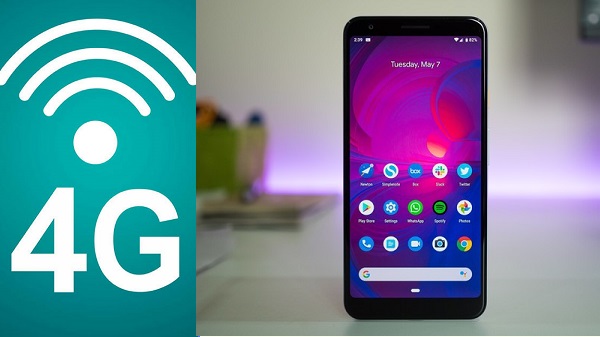
We have different ways to activate 4G on different phone brands
Different smartphones from different brands have various ways to turn on 4G, and this is why we have highlighted the specific steps to use 4G LTE on a handful of popular phone manufacturers.
Activating 4G LTE on Samsung Phones
- Head to the Settings menu
- Press the Connections option
- Navigate down to Mobile Networks and press it
- Tap the Network Mode selection
- A list of LTE network selections will now come up; choose the one suitable for your wireless network
Activating 4G LTE on LG Phones
- Head to the Settings menu
- Hit the Tethering & Networks feature
- Press Mobile Network
- Press Network Mode
- Tap on LTE if you see it listed among the network options
That’s all!
If you discover that the LTE network isn’t shown in the Network Mode section, take the following steps to activate LG on your device:
- Head to your phone dialer and enter ##4636##
- A menu should pop up
- Press Phone Info > Pick Prefered Network Type
- Tap the drop-down box and pick LTE
Activating 4G on HTC Phones
- Head to the Settings menu
- Press the Connections option
- Navigate down to Mobile Networks and press it
- Tap the Network Mode selection
- A list of LTE network selections will now come up; choose the one suitable for your wireless network
Activating 4G on Google Pixel Phones
- Swipe up on your home screen & press the Settings icon
- Press the Network & Internet option
- Press the Mobile Network menu
- Tap on the Advanced feature
- Pick the LTE option to turn on 4G access
Activating 4G on Tecno, Infinix, and iTel
Here is how to enable LTE on devices from these 3 Transsion Holding brands:
- Swipe up on your home screen & press the Settings icon
- Press the Network & Internet option
- Tap SIM cards
- Press the Mobile network selection
- Pick the specific SIM you want to use 4G on
- Tap Preferred network type
- Pick 4G from the menu that pops up
And you are good to go!
Activating 4G on Other Phones
You can use any of the sets of steps above to enable 4G LTE on your device if your manufacturer is not among those mentioned above.
How to Use Wi-Fi
The method to activate Wi-Fi is similar in almost all Android phones
The method to turn on Wi-Fi on most smartphones is similar, regardless of their brand.
Generally, here are the steps to take:
- Swipe down on the home screen
- Tap the Wi-Fi icon among the array of features you see
To switch it off, you can take the same steps.
How to Connect to a Wi-Fi Network
- Swipe down on the home screen and press the Settings icon
- Tap Wi-Fi or Wireless & Networks
- Pick a wireless network from the provided list
- Enter the network password if requested
- Hit Connect button
All things being equal, you should now be connected to the wireless network.
In a Nutshell
Going through this post, it now becomes as clear as daylight how LTE is different from Wi-Fi.
Basically, LTE is a 4G wireless network tech built on the High-Speed Downlink Packet Access 3G network protocol and offers high-speed wireless cellular network connectivity via your mobile computing devices.
However, Wi-Fi is a wireless tech, which allows several kinds of computing devices, such as your personal computer (PC) and smartphones, to connect to a wireless network via a router.
Apart from the differences between LTE and Wi-Fi, we have also laid the steps to use either tech on your smartphone.
Author:Tijani Mustapha
Deji is a web content developer and tech writer, who is passionate about tech-related topics and issues. A graduate of Physics from the University of Ibadan, he loves writing, conducting research, playing football, and meeting people of diverse backgrounds and interests.
