Add MobilityArena as a preferred source on Google
Renaming your iPhone is a good idea to personalize and make it distinct or to identify it easily when connecting to other devices or networks. If you have more than one device, changing the name of your iPhone can also help you to keep track of them all.
In this guide, I’ll walk you through how to change iPhone name step by step, so you can set it up exactly how you want it. You’ll also learn how to rename your device for AirDrop, Bluetooth, and Hotspot functions.
- How to Change iPhone Name in Different Settings How to Change Your AirDrop Name on iPhone How to Change Bluetooth Name on iPhone How to Change Hotspot Name on iPhone
How to Change iPhone Name in Different Settings
Your iPhone’s name is what appears when you connect it to other devices or networks, so it’s important to have it set up correctly. It’s especially useful when using services like iCloud, Find My, AirDrop, Personal Hotspot, and so on.
The steps below will show you how to change the name of your iPhone to make it more easily identified when connecting to other devices or networks.
To change the device name on iPhone, take these steps:
- Navigate to the Settings menu on your iPhone.
- Scroll to the bottom and select General .
- Select About .
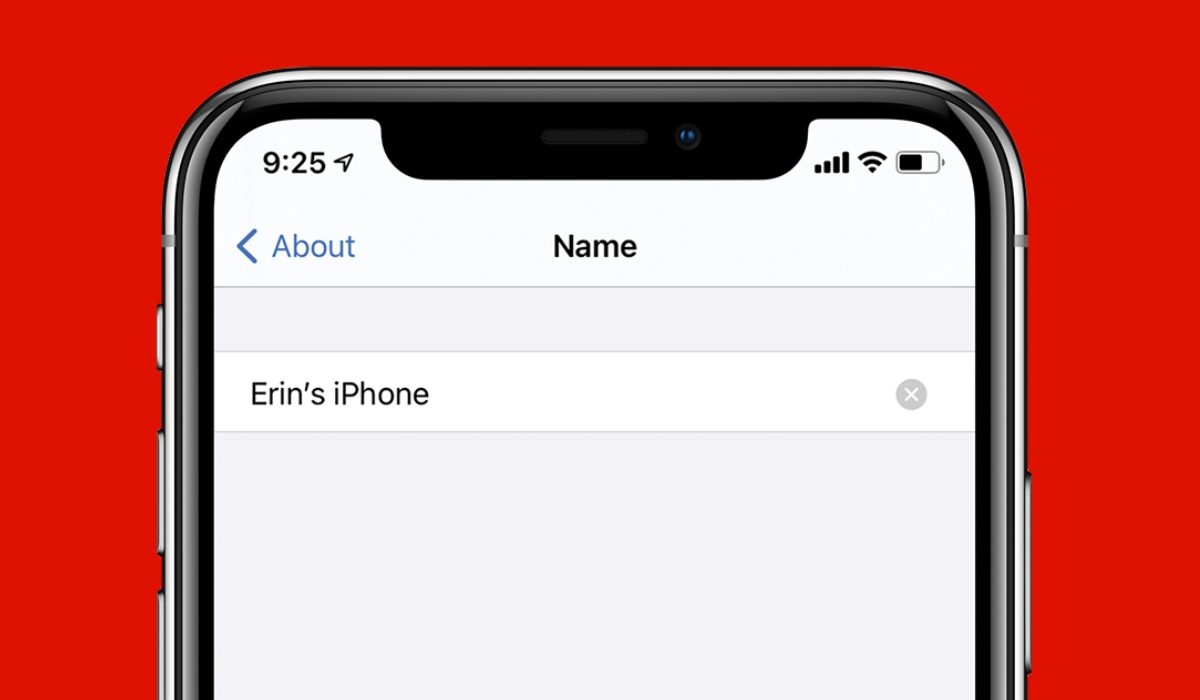
- Select Name .
- Enter the new name you choose for your iPhone.
- To save the new name, click the Done button. That’s all! Your iPhone has a new name.
How to Change Your AirDrop Name on iPhone
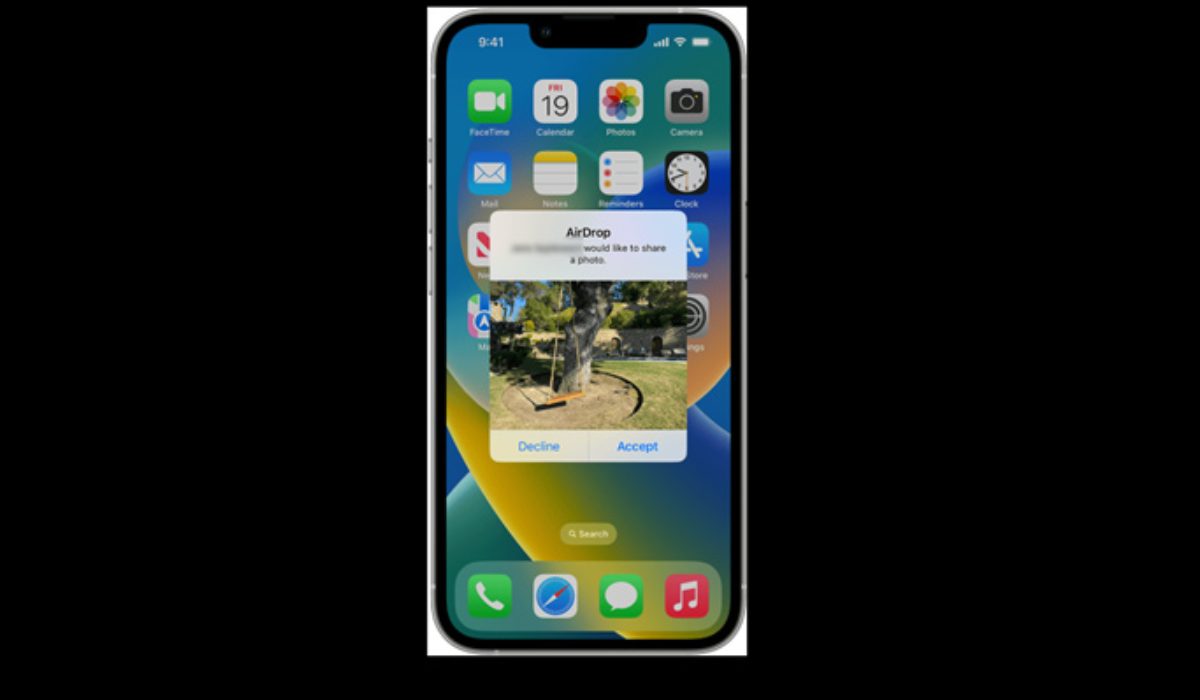
AirDrop can be quite useful for transferring files between Apple devices, but only if you can distinguish yours among the many that may be sharing the same WiFi space as you. To make sure that all of the files you wish to transfer go to the right device, you’ll need to change the name.
If you go to Settings > General > Abou t on your iPhone, you can change the name of your device, but you’ll see that your AirDrop name remains unchanged. This is because your AirDrop feature works with your contacts. Instead, you’ll need to change your contact card. Below is how it’s done:
- On your iPhone, launch the Phone app.
- At the bottom, tap Contacts .
- The contact card is at the top; tap it.
- Tap Edit in the top right corner.
- In the Name field, enter the name you want people to see when they AirDrop files to you. Click Done in the upper right to save the change.
Now, others will see the new name you’ve chosen as they try to AirDrop something to you. You may also add a profile photo to your Contact Card by pressing on Add Photo .
After making these adjustments, it can take some time for your device to show up in other people’s AirDrop choices. Reset your network settings by going to Settings > General > Reset if your new name doesn’t appear. Restarting your phone will make it visible in the sender’s AirDrop list.
How to Change Bluetooth Name on iPhone
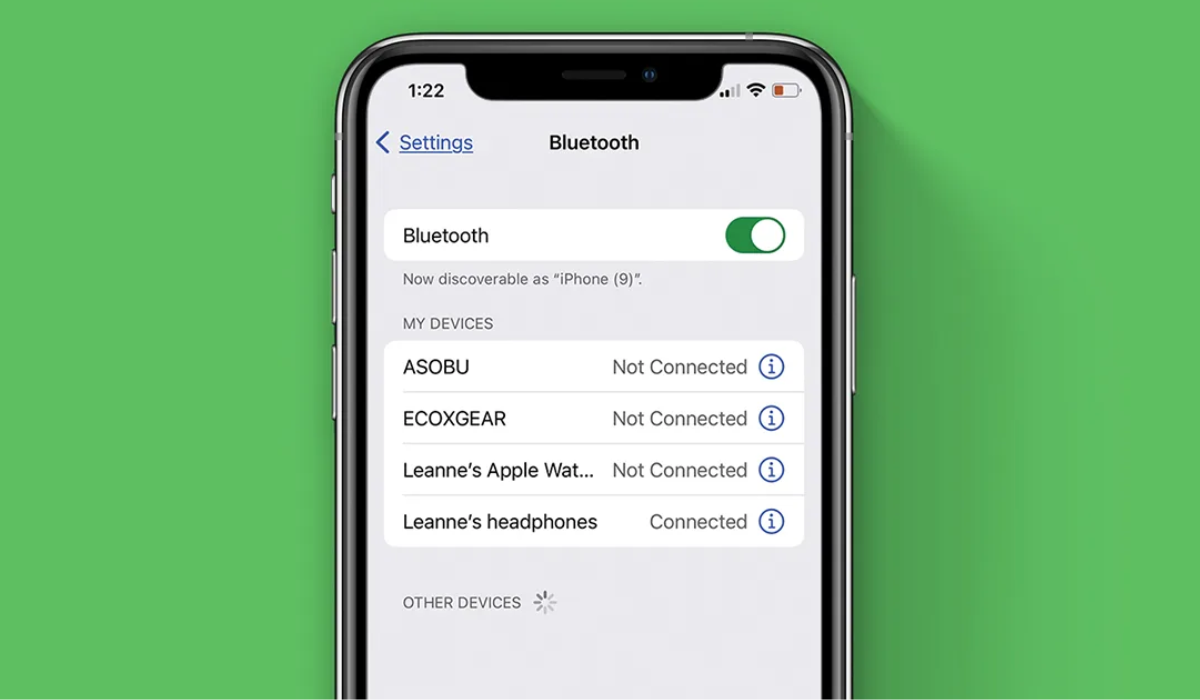
To change your iPhone’s Bluetooth name, follow these steps:
- Go to Settings > Bluetooth and enable it if it isn’t already.
- Tap the information ( i ) icon to change the name of the device.
- Next to the device’s name, tap Name .
- Change the name of the device in the same way you would change the name of your iPhone.
- When finished, press the Done button on the on-screen keyboard.
How to Change Hotspot Name on iPhone
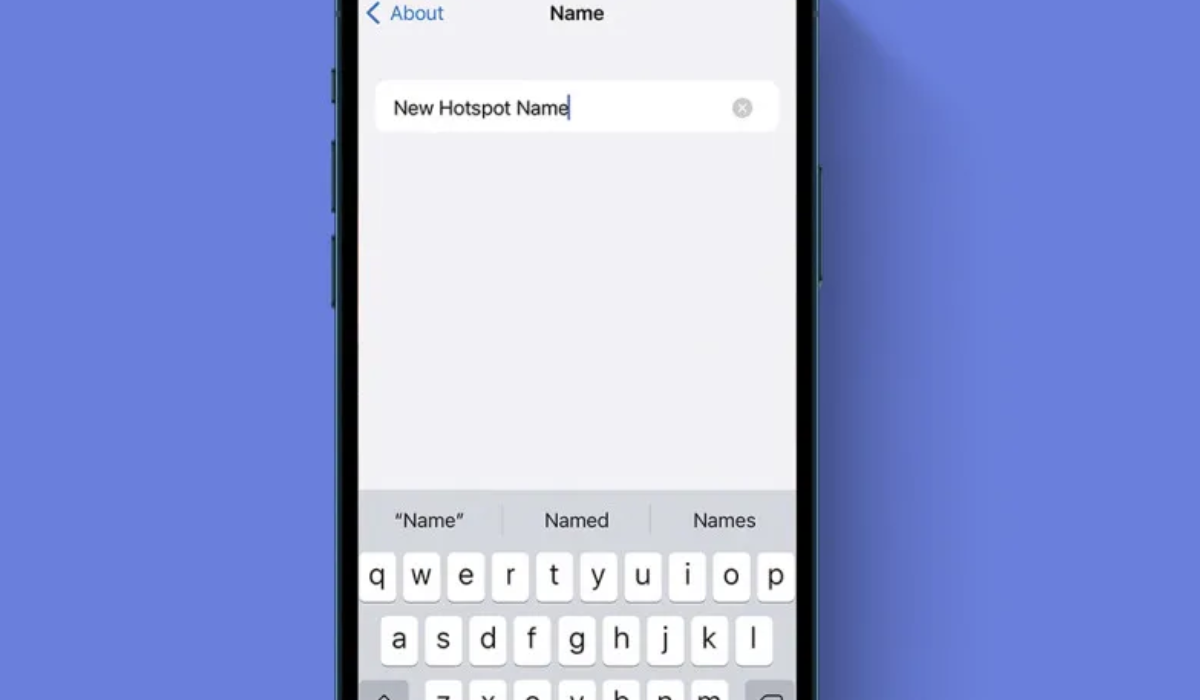
The name of your hotspot is by default set to the name of your iPhone, which is important to know. Therefore, by changing your iPhone name, your hotspot name will also be changed. To do this, simply follow the instructions above for changing your iPhone name.
You can also change the Wi-Fi hotspot’s password on your iPhone. Here is how to go about it:
- Launch the Settings app.
- Then select Personal Hotspot .
- Then click Wi-Fi Password .
- Change the password, then click Done .
To conclude , it’s not hard at all to change your iPhone’s name. You can also change your Airdrop and Bluetooth name through separate steps, all of which I’ve provided in this guide. Remember, your iPhone is yours to use, so feel free to customize its features to whatever you prefer. Need more customization tips on iPhone? Check out this guide .
Author:Joan Agie
Add MobilityArena as a preferred source on Google
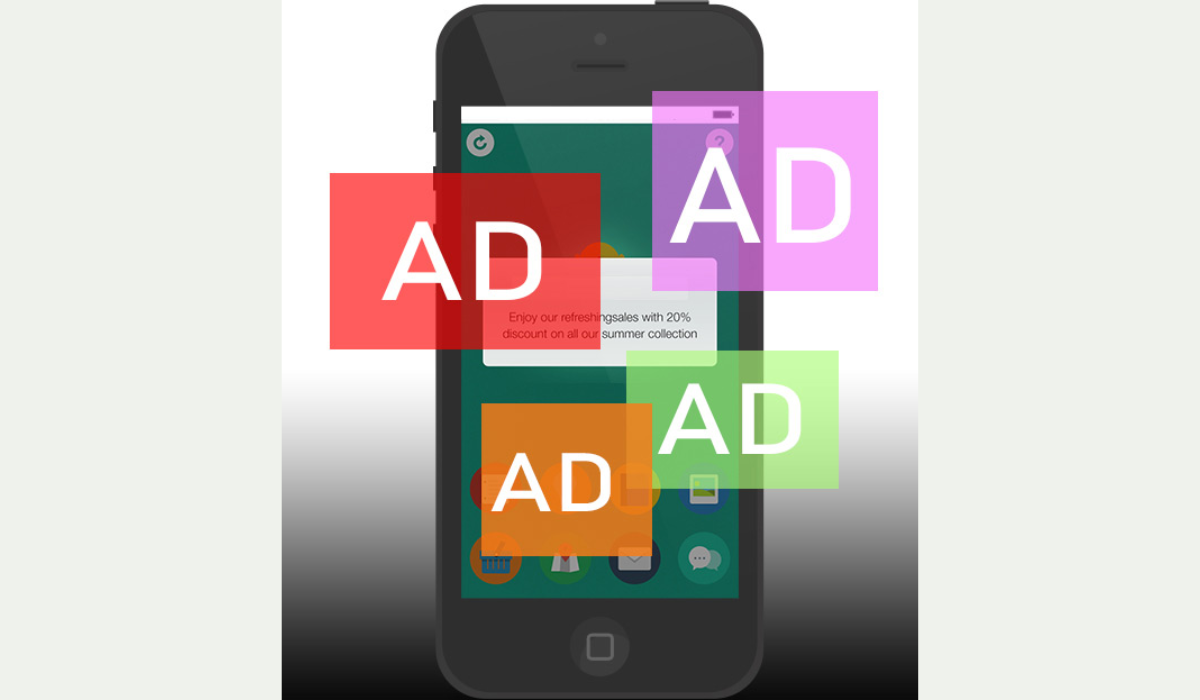
We’ve all been there – you’re browsing the web on your Android phone, and suddenly, a pop-up ad appears out of nowhere. Not only can these ads be annoying, but they can also slow down your device and use up your data. Thankfully, you can learn how to stop pop-up ads on Android phones.
In this article, I’ll explore some effective methods to help you get rid of ads on Android phones. This way, you can enjoy a smoother, more streamlined browsing experience.
How to Stop Pop-up Ads on Android Phones
Pop-up adverts may appear for different reasons. Here’s a simple way to figure out which app is causing the adverts and gets rid of them:
- Go to the Settings menu on your phone.
- Go to Apps & Notifications .
- Click on Advanced .
- Tap Special App Access .
- Click on Display over other apps . A list of all apps granted permission to show pop-up ads should show up here.
- Examine the list for apps you don’t want to receive pop-up notifications from or that appear suspicious. Tap the app’s name, then toggle the switch next to Allow display over other apps to the Off position.
How to Stop Google Ads on Android Phones
Google is one major source of intrusive ads, so it’s worth exploring how to stop these ads. Follow the steps below to disable personalized Google ads on your Android device:
- Navigate to the Settings menu on your device.
- Scroll to the bottom and select Google .
- Tap Ads under the Services section.
- Toggle the switch next to “ Opt out of Ads Personalization ” to the ”Off” position.
How to Stop Pop-Up Ads on Android Phones on YouTube
This is my favorite because I’m constantly watching something on YouTube and pop-ups tend to degrade the experience. Luckily, you can disable YouTube pop-up ads in your device’s Settings . To do this, follow the steps below:
- Navigate to the Settings menu on your device.
- Select Apps & Notifications .
- Tap See All Apps , then scroll down to YouTube .
- Tap Notifications in the YouTube settings.
- Toggle the switch buttons next to unwanted notifications to ”Off” . For example, you can disable notifications for recommended videos while still receiving notifications for live streams.
- To turn off all YouTube notifications, move the toggle button next to “ Show notifications ” to the ”Off” position.
How to Block Pop-Up Ads on Samsung
If you get pop-up notifications on your Samsung home screen, slide down after receiving a notice to bring down the notification panel. Then, long-press the notification to get App information. You can then uninstall the offending app.
If you don’t want to uninstall the app, you can remove pop-ups from recent apps in settings:
- Navigate to Settings and then Notifications .
- Select App Notifications .
- Filter the list by the Most recent, then disable notifications for any apps that are bugging you.
- You may also go to Advanced options to further modify your notifications.
How to Block Pop-Up Ads on Android in Chrome
Follow the steps below to stop pop-up ads in Google Chrome:
- Open the Chrome browser and select the three dots menu in the upper-right corner.
- Navigate to the Settings menu.
- Select Site settings .
- Access pop-ups and redirects .
- To stop pop-ups and redirects, move the toggle to the left.
Check Google Chrome Site Notifications
It’s not a good idea to enable real-time notifications on your Android tablet or phone for every website. Some websites may spam the notification center of your device with irrelevant partner content besides giving helpful notifications.
Here’s how to turn off notifications for unwanted websites on Google Chrome:
- To access the i button, long-press the Google Chrome app icon.
- Launch Notifications .
- Scroll down to the All Sites Notification s section.
- Examine the list of permitted websites and the number of alerts each website sends each week.
- Turn off notification permission for unknown websites from the list.
How to Get Rid of Pop-Up Ads on Android Phone’s Lock Screens
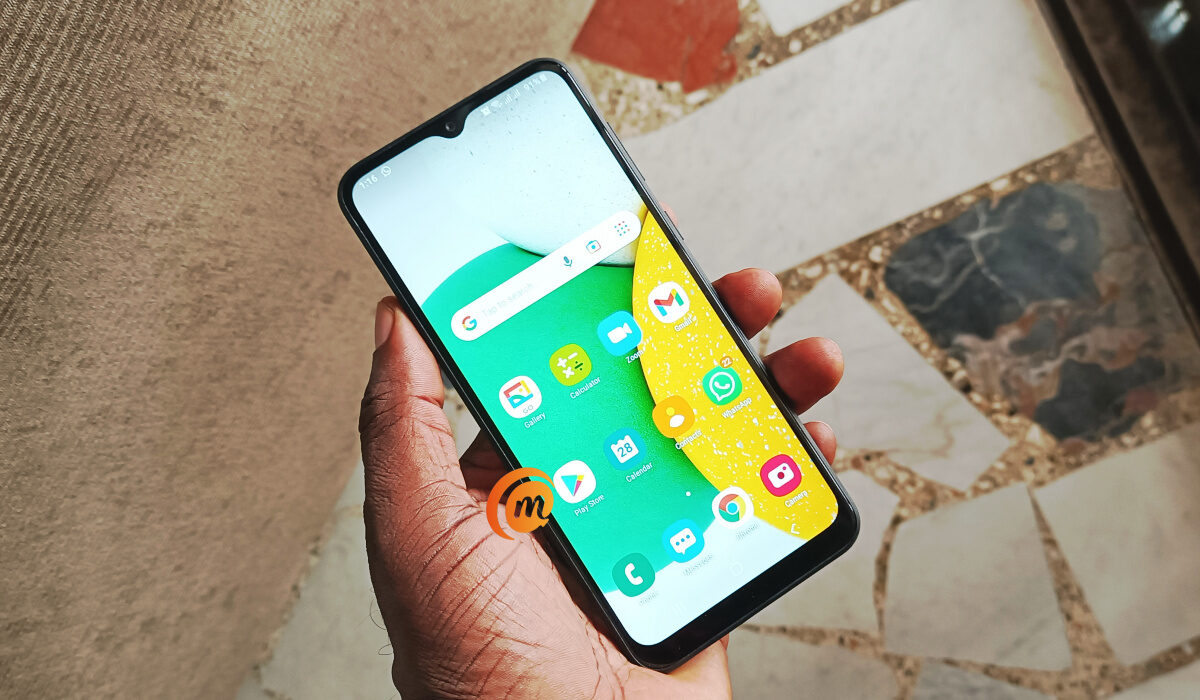
To function normally, Android permits app developers to request the Display over other apps permission. Apps such as Messenger and Truecaller require these permissions to display bubble chat heads and identify incoming callers.
However, some shady apps trick users into granting permission and then continue to deliver ads to the home screen. When you see such ads, check for the name of the app that sent them on your home screen. Once you’ve identified them, proceed to the steps below to disable the permission:
- Long-press the app icon to bring up the app details menu.
- Scroll down to Display over other apps .
- Turn off the Allow display over other apps toggle.
To conclude , pop-up ads can be annoying and disruptive while using your Android phone, but it is possible to block them. You can enable the pop-up blocker in your browser settings, and disable notifications from specific apps that show pop-up ads.
By following the steps above, I can guarantee that you’ll enjoy a smoother browsing experience on your Android phone. It could also be beneficial to install an ad-blocker app from the Google Play Store. In need of other useful Android tips? Check out this category .
