Add MobilityArena as a preferred source on Google
If you’re one to constantly change the background of your iPhone’s screen, you’d appreciate the ease of being able to automate this process. Prior to iOS 14, you had to set this up manually. That’s why it’s great that you can now set your iPhone to automatically change its wallpaper, opening up a world of customization options.
In this helpful guide, we’ll walk you through automatically changing your iPhone’s wallpaper. Pay close attention to the instructions, then you can apply the settings to your device and achieve the results you desire.
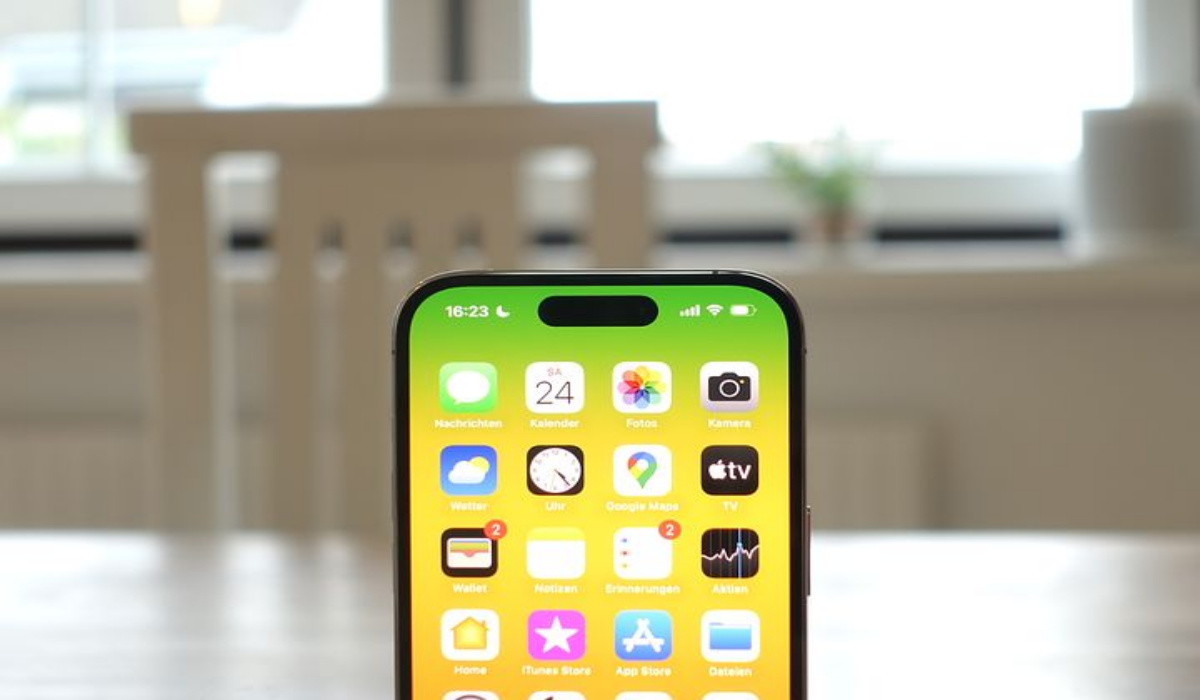
Change iPhone Wallpaper Automatically to Random Pictures
In iOS 14, when a certain trigger—like the time of day or battery level—is engaged, automations in the Shortcuts app can run in the background. You can also take advantage of this to automate your wallpaper change. You’ll have to create a shortcut that selects a random photo, and then an automation that executes it at a specified time each day.
Setting up the Shortcut
The first step is to develop a shortcut that carries out the following three tasks:
- Retrieve the specific Photos album.
- Pick a random picture from the collection.
- Make that image your desktop background.
To create a shortcut that changes the iPhone’s background image:
- Launch the Shortcuts app, go to the bottom menu, choose My Shortcuts , then All Shortcuts . Finally, hit the Plus icon in the top right corner.
- Near the center of the screen, tap the large blue Add Action button.
- Look for the action Find Photos .
- Tap on it when you come across it to include it in the shortcut. You can also drag it out of the list and put it onto the blank automation as an alternative.
- You’ll observe that this action has a few extra choices. To configure a certain album, tap Add Filter .
- Tap Recents , then pick the desired album from the list. You might wish to arrange your iPhone pictures so that you can make a specific album in Photos for wallpapers.
- Next, look for and include the Get Item from List action.
- The parameters will be filled out automatically using shortcuts such that it says “Get First Item from Photos.” You’ll need to change “First item” to “Random item.”
- Add your third action, then Set Wallpaper ; do this by looking it up.
- Make sure to select Show More and deselect Show Preview . The wallpaper on the Lock screen, Home screen, or both can also be changed at your discretion.
All that’s required are those three steps. The shortcut will launch and successfully change the wallpaper on your iPhone if you press the Play button in the lower right corner. Name your shortcut, for instance, Random Photo, at the screen’s top by tapping Next .
Setting Up the Time of Day Automation
In the Shortcuts app, automations are located in their own tab. If you’re creating an automation for the first time, the list will be empty when you tap Automation to access them in the bottom bar. Tap the Plus button at the top to begin.
Afterward, adhere to these guidelines to develop an automation:
- Click on “Create Personal Automation”
- From the list of triggers, select “Time of Day”
- Select “Time of Day” from the list of options you see next, then set the time to 12:00 AM.
- Afterward, select Daily in the Repeat section.
The blank Actions view that displays will look familiar to you because it is identical to the shortcut builder. The shortcut you just created could have been set up right here, within the automation.
Automations, however, are limited to the Automations tab. Because of this, they cannot be duplicated, reused, or shared—features of standalone shortcuts that you will likely grow to value over time.
Instead, you’ll only execute the automation’s shortcut. This is how:
- Choose Add Action from the menu.
- Look for the action called “Run Shortcut” and add it.
- In the action block, tap the vacant Shortcut field.
- Locate your Random Photo shortcut in the list that displays and click it.
There is nothing else to configure because everything has already been set up in the shortcut. On the screen, tap Next at the top.
An overview of your new automation will be displayed. There is one more crucial step left: deactivate the “Ask Before Running” option. You’ll see an alert that your automation will operate without your permission, which is what you want. To enable your wallpaper to adjust in the background, choose Don’t Ask .
To dismiss the display, simply hit Done . Automations are automatically identified and grouped depending on the trigger and actions; you won’t need to give them names or select icons.
At this point, you’re all done! Your iPhone will randomly select a new image to serve as your wallpaper each day at midnight.
In summary , it’s now pretty easy to change your iPhone’s wallpaper automatically. You’ll just need to create a shortcut and set up the time of day when you’d like the wallpaper to change. We’ve provided instructions for both processes in this guide, so follow them carefully to achieve the desired results.
We’ll also encourage you to share or recommend this guide to others; it’ll benefit them considerably, and they’ll have you to thank.
- Don’t miss our mobile phone reviews .
- Follow our news on Google News .
- Join our WhatsApp Group , to be notified of the most important articles and deals,
- Follow us on Instagram , Facebook , Twitter , and YouTube .
Author:Joan Agie
Add MobilityArena as a preferred source on Google
Things are not rosy all the time, and sometimes, we need a little help to get through tough patches. If you need free or extremely cheap meals in the United Kingdom, there are a number of free food apps you can turn to for help. These apps also help reduce food wastage. Industry experts say that one-third of food is thrown away each year. That is a lot of food going to waste, and we are not talking of spoilt or bad food here. Just food that isn’t needed any more.
The free food apps listed below help to solve the problem of food wastage by making available to others food that would otherwise be thrown away. You can download and install these apps to help you get food for free in the UK. They help to prevent food waste by providing a platform where people who need free meals can get free food from individuals and organisations that don’t want it.
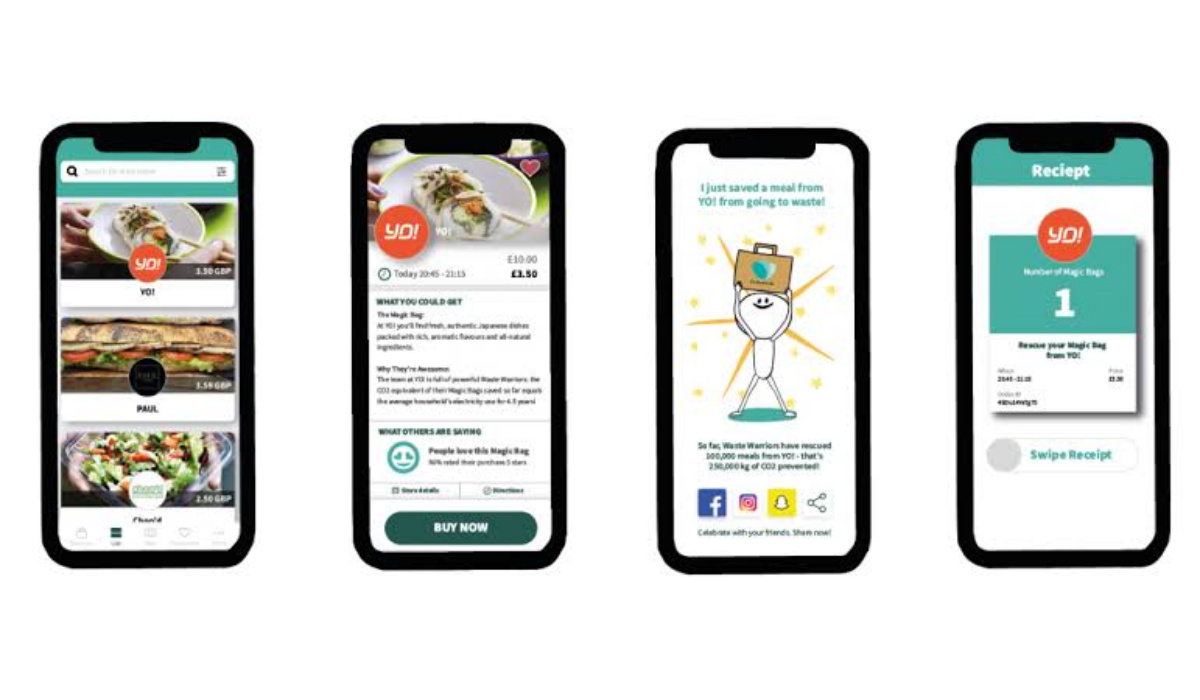
Tpo Good To Go is one of the available free food apps in the United Kingdom
Get Free Or Cheap Meals Using These Free Food Apps
- Olio – This is a free food apps that connects people who want to give away meals and other domestic items, and those who want them. On OLIO, millions of people give away food, groceries, and other household items to neighbours and strangers, at no cost whatsoever. If you are hard up and need a free meal, Olio is one of your very best options to get free food in the UK. all for free. Search for your needs, select them, submit your request, and arrange to pick it up. The app is free to use.
- FoodCloud – Another free food app, FoodCloud connects supermarkets with charities and community groups, such as homeless shelters and family support services, across the UK and Ireland. Restaurants, cafes and bakeries, and all kinds of food businesses donate their surplus food through this app. Supermarkets simply upload a description of the unsold food they have to an app and a local, linked charity gets a notification that food can be collected. This app is completely free to use.
- Too Good to Go – Restaurants, cafes and bakeries list leftover food that would otherwise be thrown away. Users get to browse this mobile app for free food available and around their locations and can pick up their choice at a fraction of the original selling price. Users can find cheap meals based on their nutritional needs. While the food is not free, it is quite cheap, and the Too Good To Go mobile app itself is free to download and use.
- Karma – Restaurants, bakeries, cafes, wholesalers, and other food establishments constantly give out food that would otherwise be thrown away, and the Karma mobile app is one place where they do it. The food is not completely free here, but rather cheap. The app lets you see what meals are available to buy at each outlet, at discounted prices. Like the others, the app is free to download and use.
- Don’t miss our mobile phone reviews .
- Follow our news on Google News .
- Join our WhatsApp Group , to be notified of the most important articles and deals,
- Follow us on Instagram , Facebook , Twitter , and YouTube .
Author:Mister Mobility
Digital Skills and Communication Coach | Mobile Phone Connoisseur since 2001 | Tech Blogging since 2004
