Add MobilityArena as a preferred source on Google
Did you know you could change the album cover on Samsung Music? Samsung Music is a mobile app that lets you access and play your offline audio tracks on your Samsung phone. Which is perfect for someone like me. You see, while the rest of the world has gone batshit crazy about streaming music, I am one of those who still keeps an offline library of music.
My library has thousands of tracks from hundreds of artistes, and finding the Samsung Music app made my day. One of the things I love doing is making sure my tracks have the appropriate album art, which means I need the ability to change them. And Samsung Music has that ability built in. Yippee! I share how I do it on the Samsung Galaxy S23 with you below.
- What to do to change the album cover on Samsung Music
- Does Samsung Music work on non-Samsung devices?
- Download Samsung Music app
What to do to change the album cover on Samsung Music
To change the album cover on Samsung Music app, launch the app, find the track you want and tap on it to open it.
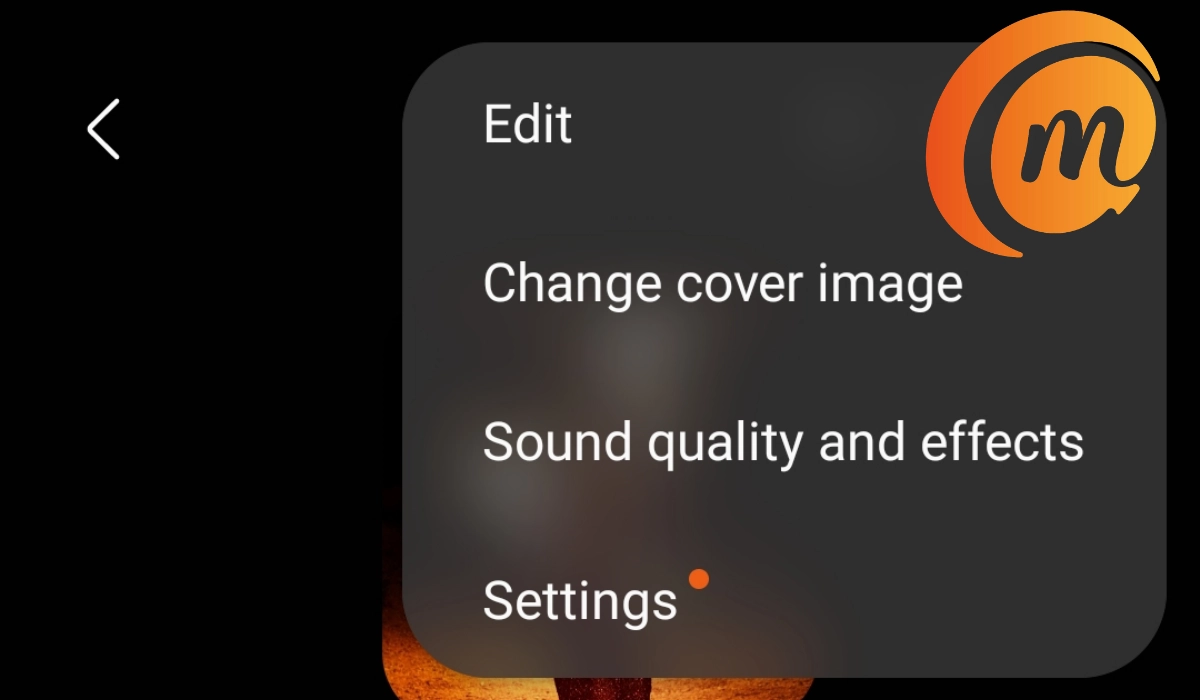
Next, tap on the menu icon (the vertical dots) in the top right corner of the app and select Change cover image in the menu that drops down.
The app will present you with the options to access the phone Gallery or camera to get an image. Choose Gallery if you already have the cover art you want on your phone. Choose camera if you will be taking a photo to assign as cover art.
Once you have selected and cropped the image you want, the app will ask you, Allow Samsung Music to modify audio file? That’s what you want; right? Grant the permission and the cover art/image is changed immediately. That’s all you have to do to change the album cover on Samsung Music app.
Does Samsung Music work on non-Samsung devices?
I was curious to find out if Samsung Music app will work on a non-Samsung phone, afterall, I don’t always have a Samsung smartphone handy. So, I fired up a few non-Samsung phones and tried to install the app.
When I tried to install it from the Play Store, I got an error message saying This app won’t work for your device . Bummer. So, I tried to install it through APKPure, a 3rd party Android App store . I found the app there, but attempting to install it returned an error about a missing shared library. Oh, well. Samsung Music lives up to its name as a music player for…yes…Samsung phones. You can’t say it wasn’t aptly named.
Download Samsung Music app
If you own a Samsung Galaxy phone or tab and need a music app that lets you change the album art, download Samsung Music here .
Author:Mister Mobility
Digital Skills and Communication Coach | Mobile Phone Connoisseur since 2001 | Tech Blogging since 2004
Add MobilityArena as a preferred source on Google
Renaming your iPhone is a good idea to personalize and make it distinct or to identify it easily when connecting to other devices or networks. If you have more than one device, changing the name of your iPhone can also help you to keep track of them all.
In this guide, I’ll walk you through how to change iPhone name step by step, so you can set it up exactly how you want it. You’ll also learn how to rename your device for AirDrop, Bluetooth, and Hotspot functions.
- How to Change iPhone Name in Different Settings How to Change Your AirDrop Name on iPhone How to Change Bluetooth Name on iPhone How to Change Hotspot Name on iPhone
How to Change iPhone Name in Different Settings
Your iPhone’s name is what appears when you connect it to other devices or networks, so it’s important to have it set up correctly. It’s especially useful when using services like iCloud, Find My, AirDrop, Personal Hotspot, and so on.
The steps below will show you how to change the name of your iPhone to make it more easily identified when connecting to other devices or networks.
To change the device name on iPhone, take these steps:
- Navigate to the Settings menu on your iPhone.
- Scroll to the bottom and select General .
- Select About .
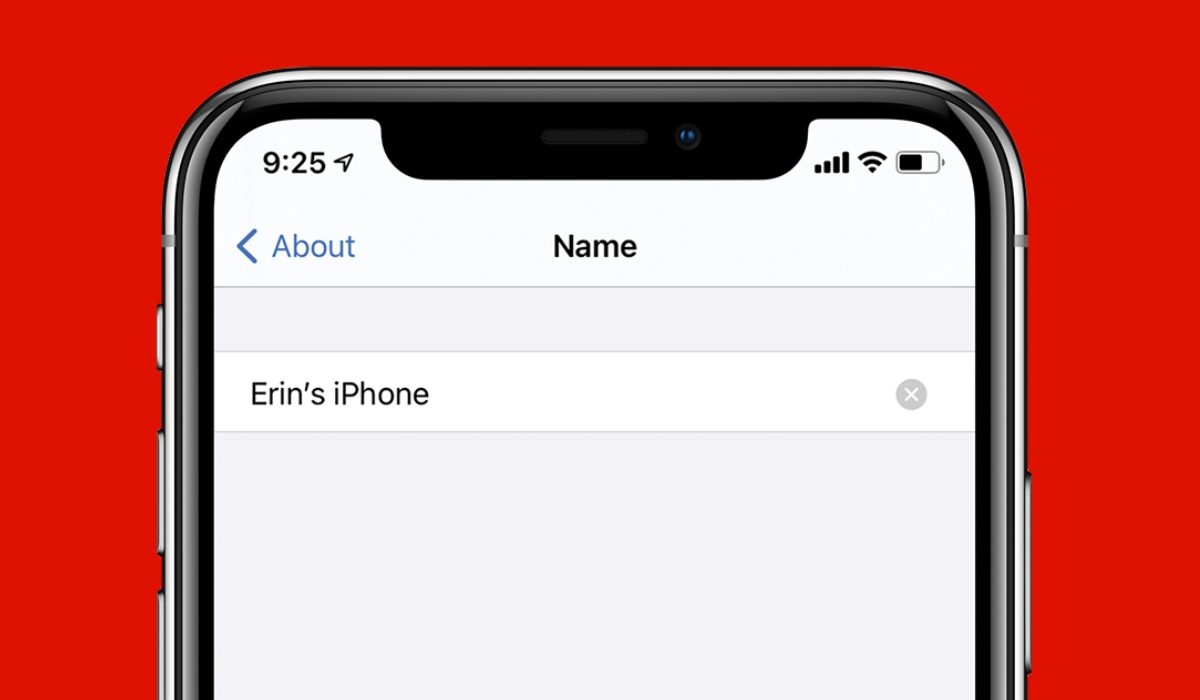
- Select Name .
- Enter the new name you choose for your iPhone.
- To save the new name, click the Done button. That’s all! Your iPhone has a new name.
How to Change Your AirDrop Name on iPhone
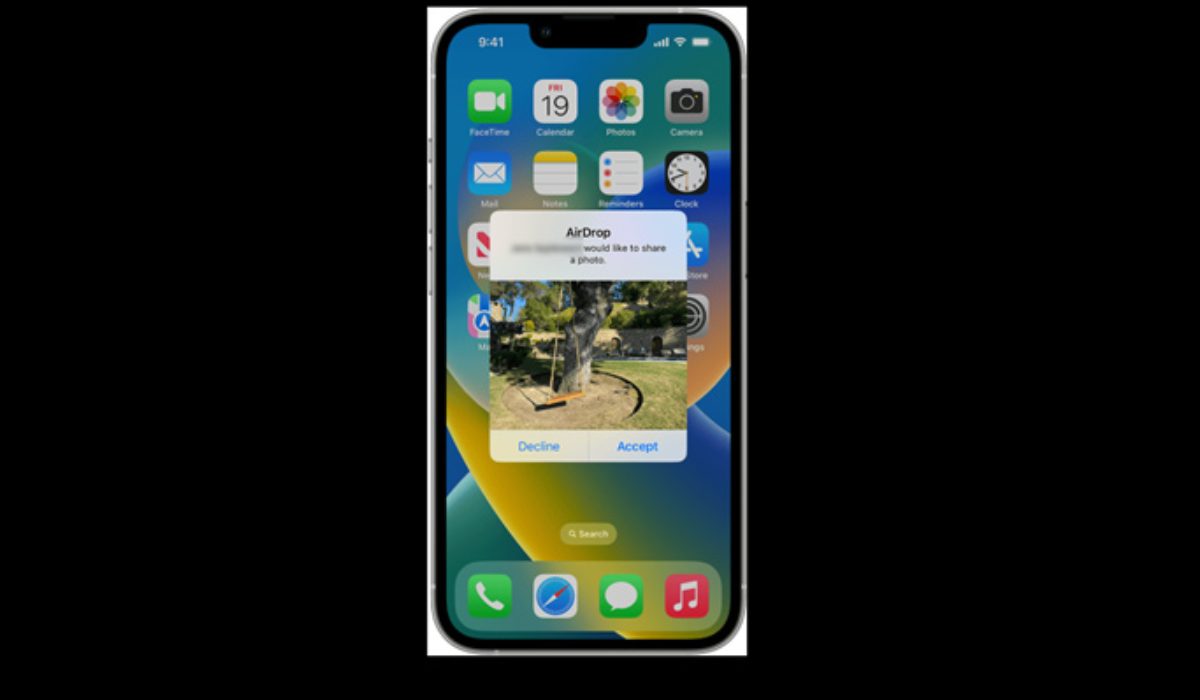
AirDrop can be quite useful for transferring files between Apple devices, but only if you can distinguish yours among the many that may be sharing the same WiFi space as you. To make sure that all of the files you wish to transfer go to the right device, you’ll need to change the name.
If you go to Settings > General > Abou t on your iPhone, you can change the name of your device, but you’ll see that your AirDrop name remains unchanged. This is because your AirDrop feature works with your contacts. Instead, you’ll need to change your contact card. Below is how it’s done:
- On your iPhone, launch the Phone app.
- At the bottom, tap Contacts .
- The contact card is at the top; tap it.
- Tap Edit in the top right corner.
- In the Name field, enter the name you want people to see when they AirDrop files to you. Click Done in the upper right to save the change.
Now, others will see the new name you’ve chosen as they try to AirDrop something to you. You may also add a profile photo to your Contact Card by pressing on Add Photo .
After making these adjustments, it can take some time for your device to show up in other people’s AirDrop choices. Reset your network settings by going to Settings > General > Reset if your new name doesn’t appear. Restarting your phone will make it visible in the sender’s AirDrop list.
How to Change Bluetooth Name on iPhone
To change your iPhone’s Bluetooth name, follow these steps:
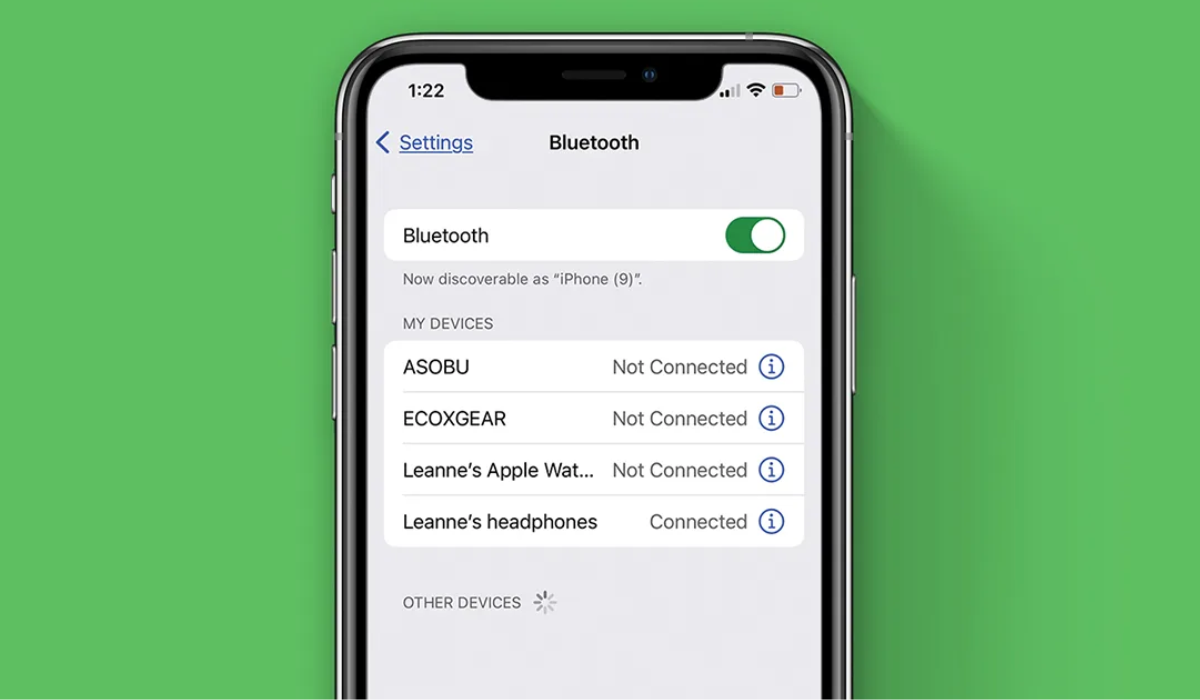
- Go to Settings > Bluetooth and enable it if it isn’t already.
- Tap the information ( i ) icon to change the name of the device.
- Next to the device’s name, tap Name .
- Change the name of the device in the same way you would change the name of your iPhone.
- When finished, press the Done button on the on-screen keyboard.
How to Change Hotspot Name on iPhone
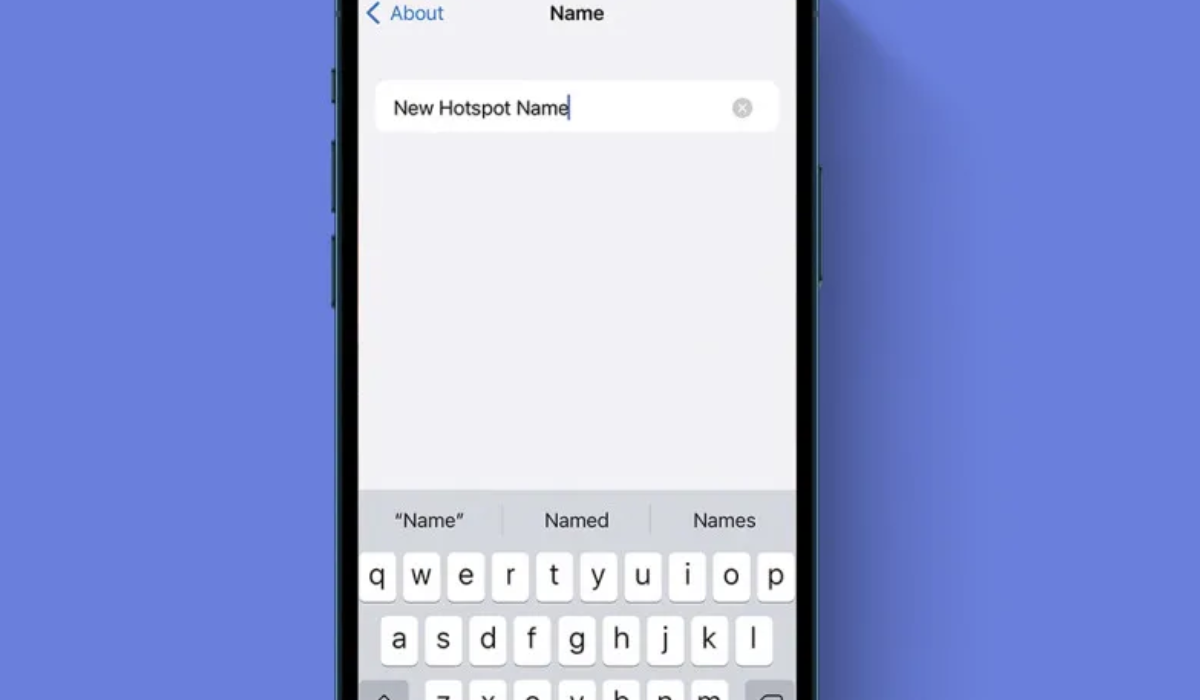
The name of your hotspot is by default set to the name of your iPhone, which is important to know. Therefore, by changing your iPhone name, your hotspot name will also be changed. To do this, simply follow the instructions above for changing your iPhone name.
You can also change the Wi-Fi hotspot’s password on your iPhone. Here is how to go about it:
- Launch the Settings app.
- Then select Personal Hotspot .
- Then click Wi-Fi Password .
- Change the password, then click Done .
To conclude , it’s not hard at all to change your iPhone’s name. You can also change your Airdrop and Bluetooth name through separate steps, all of which I’ve provided in this guide. Remember, your iPhone is yours to use, so feel free to customize its features to whatever you prefer. Need more customization tips on iPhone? Check out this guide .
