Add MobilityArena as a preferred source on Google
Your iPhone’s default web browser is the Safari app. Compared to many other competing software options, this browser performs better, according to expert tests of performance and efficiency, and it also uses up less energy.
Regardless of Safari’s efficiency and usefulness, though, some users may still be unwilling to use it, or simply prefer other browser options. For example, some people prefer to use Google Chrome on their iPhones to sync their bookmarks and history to Chrome on their Windows PC.
Fortunately, it is now possible to change the default web browser on an Apple iPhone. So, if you’d rather use an option such as Google Chrome or Firefox as your default web browser, there is a simple way to accomplish it. This article will walk you through the steps you need to change the default web browser on your Apple iPhone, so pay close attention.
- How Can I Change the Default Web Browser on my Apple iPhone?
How Can I Change the Default Web Browser on my Apple iPhone?
The process and steps required to change the default web browser on an Apple iPhone are pretty straightforward and easy to go through.
You should note though, that it is only possible to change the default web browser on an iPhone if you are using iOS 14 or a later version. As a result, the first step before getting started is to ensure that your iOS settings are up to current standards.
Here are the steps to follow when you want to change the default web browser on an Apple iPhone:
- In Settings > General > About , ensure your iPhone is running iOS 14 or later. If it isn’t you’ll need to update your device to the latest version of iOS
- Once the update process is complete, navigate to the App Store and click on the Search option in the bottom right corner.
- Search for your preferred browser in the top Search area. You’ll typically see browsers like Chrome, Edge, Opera, Firefox, etc among the top options from your search results. Examine the list of browsers and select the one that most appeals to you.
- Wait for it to be downloaded andinstalled onto your iPhone device
- Once the download and install is complete, launch the app from the App Store or your phone’s Home Screen.
- Navigate to the Settings app and scroll down to the newly installed app. Click on it once you find it to access further options.
- Select the Default Browser App option. On the screen that shows up next, click on the app that you just installed as your preferred browser. You should see the tick transferred from Safari to the new browser you selected to be the default choice
- You can now exit the settings by sliding the screen upwards or clicking on the home button of your device.
At this point, you have successfully changed the default web browser on your iPhone. Now, whenever you click a link, it will open immediately on your iPhone through the newly configured default web browser.
If you change your mind about the default browser you’ve set, you can always go back to having Safari as your default browser by repeating the instructions provided above.
Also note that changing the default web browser from Safari saves you the stress of having to copy and paste a specific URL into the browser of your choice. This way, instead of the link automatically loading through Safari, the browser you prefer loads it as soon as you click on any link.
However, keep in mind that many third-party iOS web browsers use Apple’s WebKit engine, so they can still be classified as one would with Safari, apart from the added layers and functionality included by the other developers.
In summary , as long as you correctly follow the easy steps we’ve provided in this straightforward guide, you’ll find it pretty easy to change the default web browser on an Apple iPhone.
Author:Joan Agie
Add MobilityArena as a preferred source on Google
The difference between computers and television sets is becoming increasingly blurry these days as more people watch their favorite movies and TV series through streaming platforms. However, even if you enjoy watching shows on platforms like Netflix, it’s likely that your large flat-screen TV will provide a superior viewing experience to your personal computer.
Thankfully, anyone can access content on the internet on a much larger screen; all you’d need to do is simply connect your Mac to a TV. You can also use a TV as a second monitor when using a Mac, which will increase the effectiveness of your job or the satisfaction of gaming.
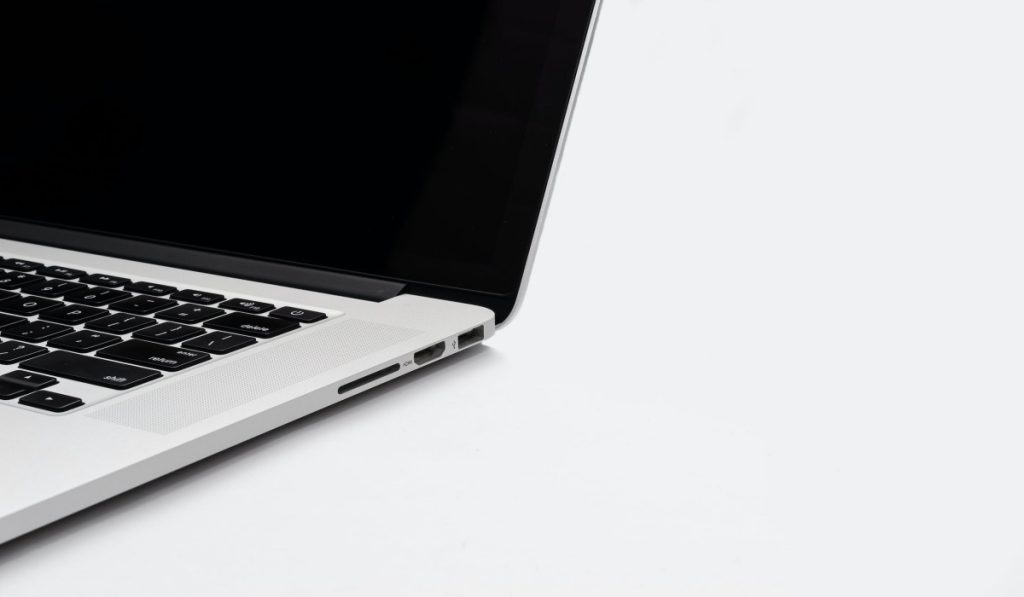
In this guide, we’ll show you how to use wireless screen monitoring or a wired cable to connect your Apple Mac to a TV. Pay attention to the instructions, so that you can enjoy a better viewing experience.
- How Can I Connect an Apple Mac to a TV?
- Connect your Apple Mac to a TV with a Cable
- Connect an Apple Mac to a Smart TV Wirelessly
How Can I Connect an Apple Mac to a TV?
There are different options available to connect your Apple Mac to a TV. You can either hardwire a cabled connection between your Mac and TV, or connect your Apple Mac to a TV wirelessly.
It’s possible to hardwire your Mac to most modern TV sets if you’re using an older Macbook device with a Thunderbolt or HDMI output; just keep in mind that if you use the Thunderbolt connector, there might be a need for a cable that converts to HDMI.
Connect your Apple Mac to a TV with a Cable
Follow the steps below to connect your Apple Mac to a TV through a wired connection:
- First, a video input on the TV has to be connected to the computer’s output.
- Select System Preferences by clicking the Apple logo at the top left corner of your Mac’s screen
- Next, click on Displays .
- In the lower-left corner, select the Display Settings option.
- As this will usually always be the best option, ensure that Default for display is chosen on the next window. By choosing “ Default for display ,” you can have your Mac choose the ideal monitor settings on its own.
- The majority of HDTVs can also transmit audio from a Mac device through HDMI. Select System Preferences after clicking the Apple logo located at the top left corner of the screen.
- Select Sound
- Select the TV that is connected. As long as the HDMI connection is constantly connected to both devices, you can view your favorite TV episodes and movies on your TV.
The speakers on your TV will now be playing the sound from your PC. Note that you might need to use a second cable to link the two devices to an audio input on older computers and/or TVs by using the Mac’s headset jack.
Once you can find the right cables to properly connect your Apple Mac to a TV, getting set up is exactly the same whether you have different outputs or inputs.
Connect an Apple Mac to a Smart TV Wirelessly
It’s also possible to connect your Apple Mac to a Smart TV especially if it supports AirPlay.
The steps to achieve this are simple and straightforward, and we’ve outlined them below:
- Click on System Preferences after selecting the Apple logo located at the top left corner of your Mac device.
- Next, click on Displays .
- From the AirPlay Display drop-down option, choose your TV.
You’re all done at this point and you should be able to see your computer’s screen on your TV.
Keep in mind that you can also use the Screen Mirroring capability to connect your Apple Mac to a TV wirelessly even if it doesn’t support AirPlay.
Follow these steps to get it done:
- On the top right of the menu bar, select Control Center , the icon with two toggles stacked vertically
- Next, select Screen Mirroring
- Choose the TV you want to connect to from the pop-up menu. The screen of your Mac will be automatically mirrored.
In summary , you can choose any method you prefer from the options we’ve described in this guide to connect your Apple Mac to a TV. So, make sure to follow the instructions carefully and enjoy a fantastic viewing experience.
