Add MobilityArena as a preferred source on Google
Despite Android’s customization flexibility, the options offered by stock Android are somewhat limited. Users are typically only able to completely customize certain UI elements with the aid of third-party apps. It’s also possible to change the status bar, another OS component, thanks to a new software.
In this article, we’ll show you how to take advantage of certain apps to change the appearance of the status bar on your Android smartphone. So, pay attention to all the tips and instruction we’ve outlined for you in this guide.
Android Smartphone
How Do I Change the Status Bar on an Android Device?
Only a small number of apps provide you the option to modify the status bar’s appearance. The best choice was QuickStar, a Good Lock collection program, although it is only available on a small number of Samsung Galaxy handsets. However, developers have plugged this gap with a mobile application that runs on any phone running Android 5.0 or later versions.
Follow the instructions we’ve provided below to change the status bar on your Android smartphone with dedicated apps:
Step 1: Super Status Bar is the app that performs all of these tasks, and it can be downloaded for free from the Play Store. For a one-time price of $1.99, you may upgrade to the pro edition of the software to make the most of it.
Step 2: A few initial setup pages will be displayed when you initially launch the program. Then, select “Start” from the main menu. You will find two toggles for the required permission on the new page. You can tap each one to be directed to the relevant Settings page. On these pages, look for Super Status Bar, and turn on the permissions.
Once authorized, you will see that the “Start” button on the app’s home page has changed to “Stop,” suggesting that the main service is active.
Step 3: Select “Status Bar” on the home screen of the application. Although you’ll need to pay to the pro version to make more substantial modifications, you can still make a lot of changes without spending any money.
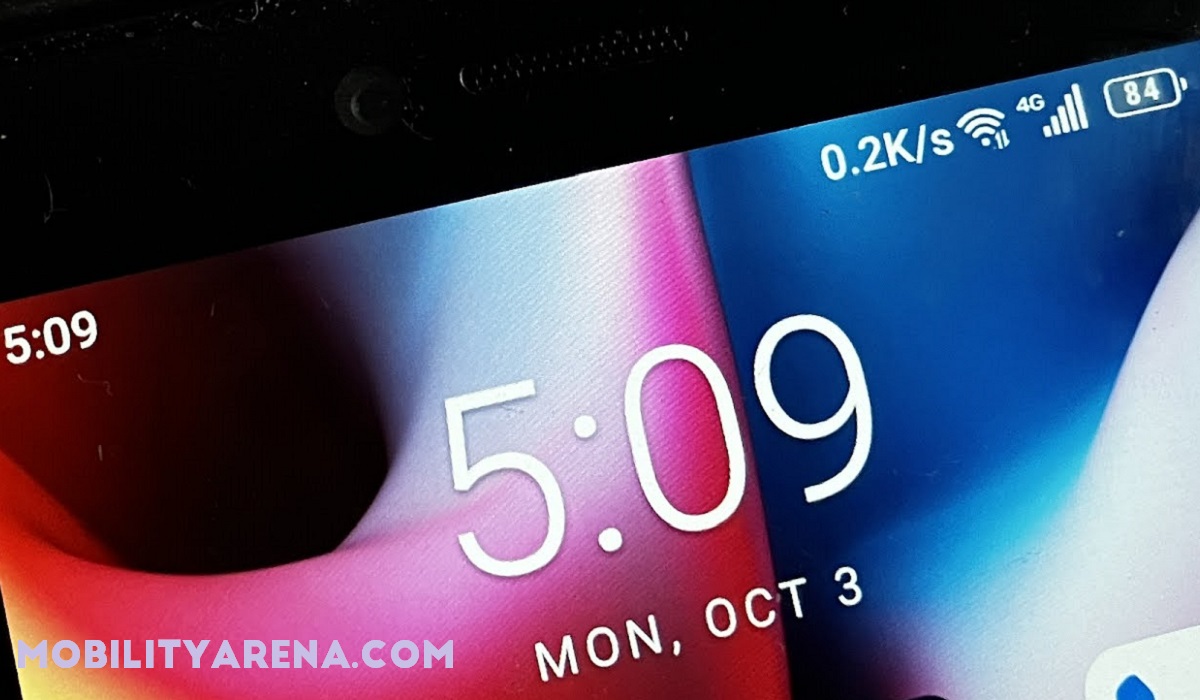
To access your customization options, turn to the Modify tab if you wish to keep the default status bar. A list of all the various icons that can be disabled can be found here. Additionally, you can enable hidden icons like “Network speed” and extend the clock so that seconds are seen. These settings rely on your phone and might not be compatible with all gadgets.
Returning to the Custom tab, you can do a lot more with the status bar by turning on “Enable custom status bar,” albeit the most of these features need the pro version. You can disable icons if you don’t want to spend money by choosing “system icons.” When the custom status bar is enabled, the color will also change to match the active app, in this case, green for the Super Status Bar app.
Step 4: Upgrade to the pro version of the Super Status Bar app if you’d like to get the most out of it. The first thing you need do with the pro version is turn on the “custom status bar” option under the Custom tab. The status bar icons’ look is then altered by “Style,” which functions similarly to a theme. You can currently replicate stock versions of Android, iOS, and MIUI, but more themes are coming soon.
With “Colors,” you can choose a stronger color or create a unique arrangement in addition to just matching the colors of the current app.
You can reorder the icons using “Item order,” which enables you to move the clock on your device’s screen to the right or center. The time can be positioned to the right or left of system icons by dragging it to the right.
Finally, since Android occasionally reverts to the default state, you can set the custom status bar to always be visible. Some apps will no longer function in full-screen mode as a result.
One thing to keep in mind is that the custom status bar presently only shows LTE and not 5G. This won’t be an issue for the majority of phones, but if you’re upgrading or intend to upgrade this year, the lack of an indicator may be an issue.
In summary, you can simply take advantage of Super Status Bar lets you reorganize the status bar on your Android smartphone as you please, so feel free to take advantage of this app if you’ve been seeking such a functionality on your device.
- Don’t miss our mobile phone reviews .
- Follow our news on Google News .
- Join our WhatsApp Group , to be notified of the most important articles and deals,
- Follow us on Instagram , Facebook , Twitter , and YouTube .
Author:Joan Agie
Add MobilityArena as a preferred source on Google
Do you want to make your own music by mixing songs from your phone’s music library? This blog post is for you if you want to learn how to mix music without investing in expensive equipment. You will need a music mixer app to help you mix audio files on your phone. It is a simple and inexpensive way to begin your mixing journey.
So, in this article, we’ve chosen music mixer apps for Android and iPhone, so you can play around with them and eventually pick the one you like for your daily use.
Music player
- Garage Band
- Edjing Mix App
- VirtualDj Remote
- Pacemaker
- Mixpad-Music Mixer Free
- Music Maker Jam
- Studio HD
- Cross DJ Free
Garage Band
The Garage Band Sound Mixer app is only available for iOS. This music mixer app for iPhone and iPad includes a live loop function that allows you to easily mix audio files. Aside from that, it is built with a collection of musical instruments that you will use to create and mix audio files. It includes a Remix FX option for creating DJ effect styles. You can also add sounds, free instruments, and loops to your mix by downloading them. It also lets you share songs online.
Edjing Mix App
Edjing Mix is another sound/audio mixer app that you can download for your Android or iPhone smartphone. You can remix over 50 million audio tracks with this cross-platform DJ mix app. So, if you’re looking for ways to shuffle music on your phone, this app is for you. This music mixer app is linked to Deezer, allowing you to listen to millions of songs. It allows you to download music from cloud storage and upload music from iTunes. You can also share your mix on social media.
VirtualDj Remote
Another popular music mixer app for smartphones is VirtualDJ Remote. This audio mixing app allows you to mix 3, 4, or 6 decks and broadcast your mix live. Furthermore, this sound mixer app allows for wireless communication between the VirtualDJ Remote and the VirtualDJ software.
Pacemaker
Pacemaker is an iOS app mixer that lets you combine two or more audio files. You can also listen to millions of songs on Spotify and easily share your mixes with your friends online. Pacemaker, on the other hand, does not allow you to change BPMs from track to track.
Mixpad-Music Mixer Free
MixPad-Music Mixer Free is another free sound mixing app for Android and iOS. When compared to Pacemaker, this application has more audio mixing features. You can use this music mixer app to combine multiple audio, sound, and music files and save them in the desired output quality. You can also record tracks, apply effects, create beats, and do other things. You can save your mix directly to the cloud. You can only import files from your phone, unfortunately.
Music Maker Jam
You can also use Music Maker Jam, an audio mixer app that lets you mix the sound on eight channels, adjust the music tempo, remix music, record music, and freely share your audio files. With this simple sound mixing app, you can make presets for your mixes as well as your own personal effects. You can remix tracks simply by shaking your phone. You can also use different loops in the same soundtrack.
Studio HD
Studio HD is the best music mixer app available on the market that is specifically designed for iPads. Studio HD allows you to work with 24 tracks, edit loop tracks, edit tracks, and arrange them in any order you want. It includes features such as the ability to automate the mix by adjusting the volume and automating with four effects, as well as exporting the mix to SoundCloud.
Cross DJ Free
Cross DJ free is credited as the best home DJ sound mixer available for download on your smartphone. This audio mixer app can detect precise BPM, automix automatically, split audio, and loop beats. In portrait mode, you can mix. The app is compatible with iTunes. The pad controls on the app are large.
- Don’t miss our mobile phone reviews .
- Follow our news on Google News .
- Follow us on Instagram , Facebook , Twitter , and YouTube .
Author:Moses Udah
Creative, teacher, web content writer, copywriter, and student.
