Add MobilityArena as a preferred source on Google
If you selected the incorrect language during the original setup or if you’re using a device that has already been set up, you might need to update it on Windows 10. It is possible to adjust the default language on Windows 10 at any moment, regardless of whether you unintentionally selected the incorrect language, merely want to switch to a new one, or your computer was already set up for you.
This process is also not as confusing as some might imagine. If you’d like to attempt changing the system language on your device, you’ll benefit from this helpful guide we’ve put together for this purpose.
How Do I Change the Default Language Settings on My Windows 10 Device?
Without having to reinstall Windows 10, you can change the system settings to configure the correct language if you happen to be using it incorrectly. There are other associated functions you need to alter to make sure the process works smoothly, so make sure to pay attention.
Deactivate Language Synchronization
Some of your choices (including language) on Windows 10 when logged in with a Microsoft account will sync across devices. Disabling the option to sync your language settings can help prevent the same settings from being changed on other devices if you only intend to make changes to a particular computer’s settings.
Follow these steps to stop Windows 10’s language preference sync:
● Launch Settings .
● Toggle to Accounts .
● Then select Sync your settings .
● Turn off the checkbox for Language preferences under “Individual sync settings.”
When you’re done, the other devices linked to the same Microsoft account won’t be affected when you change the language settings.
Change the System Language Settings
The following steps will guide you to change the settings of your system’s language:
● Select the top choice that shows in the search result after typing “Settings” into the Windows start menu.
● Select “Time & Language” from the Settings app, then select “Language.”
● Click “Add a preferred language” under “Preferred Languages,” then type the name of the language you want to use on your computer, starting with “Add a preferred language.”
● Click “Next” to install the language pack on your computer after selecting your favorite language.
● Make sure to select “Set as my display language” from the drop-down menu that appears next to the language you’ve chosen on the “Install language features” screen. The “Install language pack” option should also be checked.
● When done, click “Install,” and the pack will start downloading.
● You’ll be requested to sign out of your Windows 10 account after you’re done. Once you’ve done that, sign in again to see your new language.
The language of Windows 10 will switch once you’ve finished the procedure; this includes the Sign-in screen, Settings app, File Explorer, Desktop, programs, browser, and websites you visit.
Adjust System Region Settings
If you need to update the language settings because you are in a different region, it means that you will also need to change the region settings.
Follow these procedures to modify the Windows 10 local region settings:
● Launch Settings .
● Then select Time & Language .
● Select Region .
● Choose the current location using the “Country or region” drop-down menu under the “Region” section (if applicable).
● Choose the date and time formats for the area from the “Current format” drop-down menu under the “Regional format” section (if applicable).
● Select Language.
● From the “Related settings” column, choose Administrative language settings.
● Navigate to the Administrative tab, then click it.
● Click the Change system locale button located under the “Language for non-Unicode programs” section.
● With the “Current system locale” drop-down menu, choose the new system locale language.
● Choose the OK option.
● In the “Administrative” tab, hit the Copy settings button.
● Check the selections for the Welcome screen, system accounts, and New user accounts beneath the “Copy your current settings to” section.
● Choose the OK option.
● Once more, press the OK button.
● Select “Restart now” from the menu.
The adjustments will take effect once you’ve finished the steps outlined above, and the computer will then use the appropriate region settings.
On Windows 10, you typically don’t need to switch to other languages or install more languages. Changes to these settings might however be useful in businesses that work with people who have varied preferences and need to use different settings. Additionally, if you move to another location or purchase a new gadget that comes from another country, being able to match the locale settings is a useful tool.
Summarily , changing the system language on Windows devices is pretty easy, and the instructions we’ve provided in this guide should help you achieve this easily.
- Don’t miss our mobile phone reviews .
- Follow our news on Google News .
- Join our WhatsApp Group , to be notified of the most important articles and deals,
- Follow us on Instagram , Facebook , Twitter , and YouTube .
Author:Joan Agie
Add MobilityArena as a preferred source on Google
The Samsung S21 5G was released back in mid-January 2021. It, for the most part, has been a great experience for most of its users but like any other smartphone, flagship or not, it has a few problems that are common across different smartphone brands. Let’s take a look at some of these problems and how to fix them, as a Samsung Galaxy S21 5G user or a prospective user.
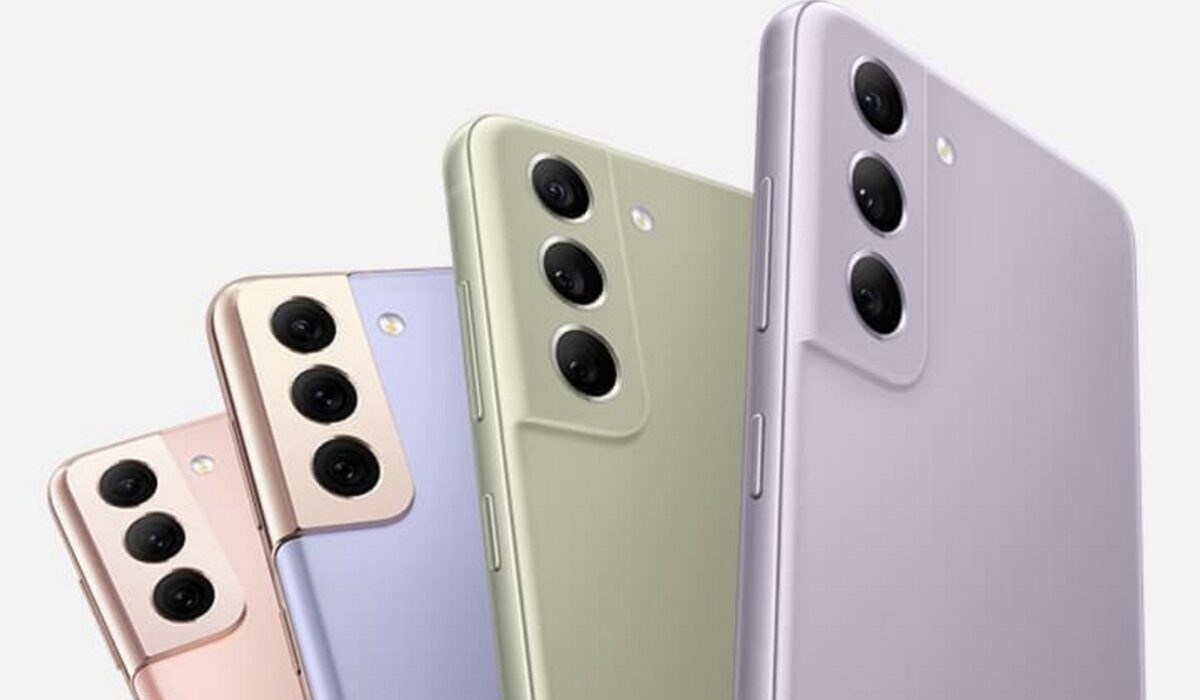
Samsung Galaxy S21 5G problem:Fast Battery drain
A couple of Samsung Galaxy S21 5G users have complained about how fast the battery drains. If you are facing this issue, here are some ways to fix it.
• Antivirus and Cleaning Apps
Having apps like phone cleaner or other antivirus-based apps on your device can drain your battery at an alarming rate. They run in the background and drain your device’s battery life. Make sure to uninstall these apps.
• Screen Brightness
Screen brightness is a factor that most smartphone users are aware of but some still set the brightness bar so high and wonder why their phone battery is getting drained. It does not just drain your battery it heats your smartphone too, and that can cause it to ultimately lag. Set the brightness low to avoid these problems.
• Live Wallpapers
Live Wallpaper on your Samsung Galaxy S21 5G might be beautiful and captivating to look at, I mean it is a cool feature to have on any smartphone but it will drain your device’s battery power faster than a normal wallpaper would because the processors on the phone are being engaged and having to light up bright images. So, you might have to sacrifice your precious live wallpapers if you want your battery to last longer.
• Multiple Running Apps
Another reason a lot of people aren’t aware of is leaving multiple apps open and running on your Samsung Galaxy S21 5G. Honestly, it does not come to mind to clear them all up but they do drain the battery the longer you leave them. Clear all your apps on the app tab from time to time and how much smoother it is to run apps and games.
Samsung Galaxy S21 5G problem:Overheating
There have been quite a few complaints from Samsung Galaxy S21 5G users saying that the phone overheats quickly. These have come from customers who say it was during casual use and those who say it was while gaming or doing something heavy. You will have to wait for future Samsung software updates for a significant change to the overheating problem. Here are things you can do for now to reduce it.
• Running background apps
Close apps that you have running in the background that you are not using. These open apps added to whatever activity you might be engaged in will work the processor heavily and cause it to heat.
• Connectivity features
Now, we see, again, just how important it is to put off connectivity options that are in use. They don’t just contribute to one problem but multiple. Leaving your Wi-Fi, GPS, hotspot, e.t.c. will not just drain your battery but overheat your Samsung Galaxy S21 5G.
• Gaming
One of the most common reasons that users gave for the Samsung Galaxy S21 5G overheating was gaming. They noticed how hot the phone got after a while of playing games. If you want to reduce how much the phone heats, then you might need to take breaks in between gaming hours or cut down the number of hours you spend gaming.
• Bulky phone case
To help your Samsung Galaxy S21 5G dissipate heat, get a phone cover that gives it room to do so and not a bulky, thick one.
Samsung Galaxy S21 5G problem: Laggy User Interface
The Samsung Galaxy S21 5G has top-notch processors and is fast to operate in its own right. Having said that it would take the device overheating for it to lag seriously. Other factors can cause overheating. Here are some ways to reduce lag on your Samsung Galaxy S21 5G.
•Reduce or limit the number of background apps in developer options.
•Try booting into safe mode .
and look for improvements. if the device performs better, limit the number of background apps. You can do this by force closing the ones you don’t use.
•Restart your device.
•Ensure you have enough space for your device to run smoothly on.
These are the most common problems users have been facing, follow these instructions and look out for updates and you will enjoy the company of your device just fine. If you have any problem that was not mentioned, comment down below and we will get back to you.
- Don’t miss our mobile phone reviews .
- Follow our news on Google News .
- Join our WhatsApp Group , to be notified of the most important articles and deals,
- Follow us on Instagram , Facebook , Twitter , and YouTube .
Author:Flamez
Flamez loves basketball, art, gadgets and cars.
