Add MobilityArena as a preferred source on Google
All of Apple’s services, including Apple Music, Apple Arcade, Apple TV+, and many others, are accessible through your Apple ID. In essence, without your Apple ID, you can’t fully enjoy all the benefits the Apple ecosystem has to offer.
As such, it’s important to safeguard your account, so you should change your Apple ID whenever you start using a new email address or if you ever misplace the one you were using. If you don’t know how to change your Apple ID email address, there’s no need to worry.
In this guide, we’ve discussed different ways to easily change your Apple ID email address if the need ever arises. It’s pretty easy, so keep reading to find out.
- Easy Ways to Change Your Apple ID Email Address Using the Website to Change your Apple ID Email Address Using your iPhone’s Settings to Change your Apple ID Email Address
Easy Ways to Change Your Apple ID Email Address
First things first, you need to log out of any Apple device connected to your Apple ID before you change your Apple ID email address. Additionally, make sure your iCloud backup is current to prevent losing crucial information like contacts or other relevant data.
You should also confirm that you know your email account’s password because you’ll also need access to it to verify the change.
Now, proceed to any of the methods described below to change your Apple ID email address.
Using the Website to Change your Apple ID Email Address
Follow the steps below if you choose to change your Apple ID email address via the website:
- On your iPhone, Mac, or PC, navigate to appleid.apple.com and sign in using your current Apple ID and password. If you can’t remember your Apple ID password, it’s simple to reset it.
- You can go directly to the Sign-In and Security portion of the website. To proceed, tap the Apple ID tab.
- Next, fill out the Change your Apple ID box with your new email address. If the email address you provided isn’t valid, it signifies that another Apple user is already using it. You’ll need to use an alternative email address or set up a new Apple ID if the person doesn’t remove that email from their account.
- You will be prompted to enter a verification number that was sent to your new email address after clicking Change Apple ID . Search for the code in your inbox, then type it into the corresponding fields. Make sure you are checking the correct email if you can’t locate the verification code. Try looking for the most recent email that “noreply@apple.com” sent.
- The dialog box will close after you enter the verification code, signifying that you have succeeded in changing your Apple ID email address.
- Using your new Apple ID, log in to all of your Apple products and services. It’s important to note that within 30 days of the previous modification, you’ll be unable to change your Apple ID email address.
Also note that only non-Apple email accounts, such as those with the @gmail.com, @hotmail.com, or @yahoo.com email domains, can have their Apple IDs changed. You won’t be able to change your Apple ID email address if it employs a proprietary domain such as @icloud.com, @me.com, or @mac.com.
You can check out and then sign in with another Apple ID if you simply want to move to another Apple ID account.
Using your iPhone’s Settings to Change your Apple ID Email Address
Through the Settings app on your iPhone, you can also change your Apple ID email address. This is how to get it done:
- Launch your iPhone’s Settings app.
- Click your name at the screen’s top portion, then access the Name, Phone Numbers, and Email area.
- From the Contactable At section, select Edit .
- After that, click Delete on the screen’s right side after tapping the red minus (-) sign next to your name.
- Select Continue to confirm that you wish to delete your current email and create a new one on the pop-up page.
- On the new screen that displays, type in or paste the email address you intend to use for your Apple ID.
- Use the email that Apple sends to your new Apple ID email address to confirm your new address.
You’re all done at this point, it’s that easy to change your Apple ID email address from your iPhone’s settings.
Summarily , using the instructions we’ve provided in this guide, it’s really easy to change your Apple ID email address. So, make sure to follow this guide correctly to get your desired results.
Author:Joan Agie
Add MobilityArena as a preferred source on Google
It is important to learn to activate an eSIM on iPhone, because in the United States, Apple has done away with physical SIM cards since the release of the latest iPhone 14, giving way to the virtual eSIM . At least, this is the situation in the United States. In other countries, iPhone models still support one physical SIM card and one eSIM.
Switching between networks or phones is simple with the eSIM, and since you can use an eSIM without having to buy a physical SIM card at a shop or online, we’re sure you’ll agree that it is a more practical option. It is difficult to imagine that actual SIM cards will remain in use for very long, especially with the degree of convenience that eSIMs promise. This is why it’s important to learn how to set up an eSIM on iPhones, because regardless of which country and continent you live in, you will need the knowledge soon enough.
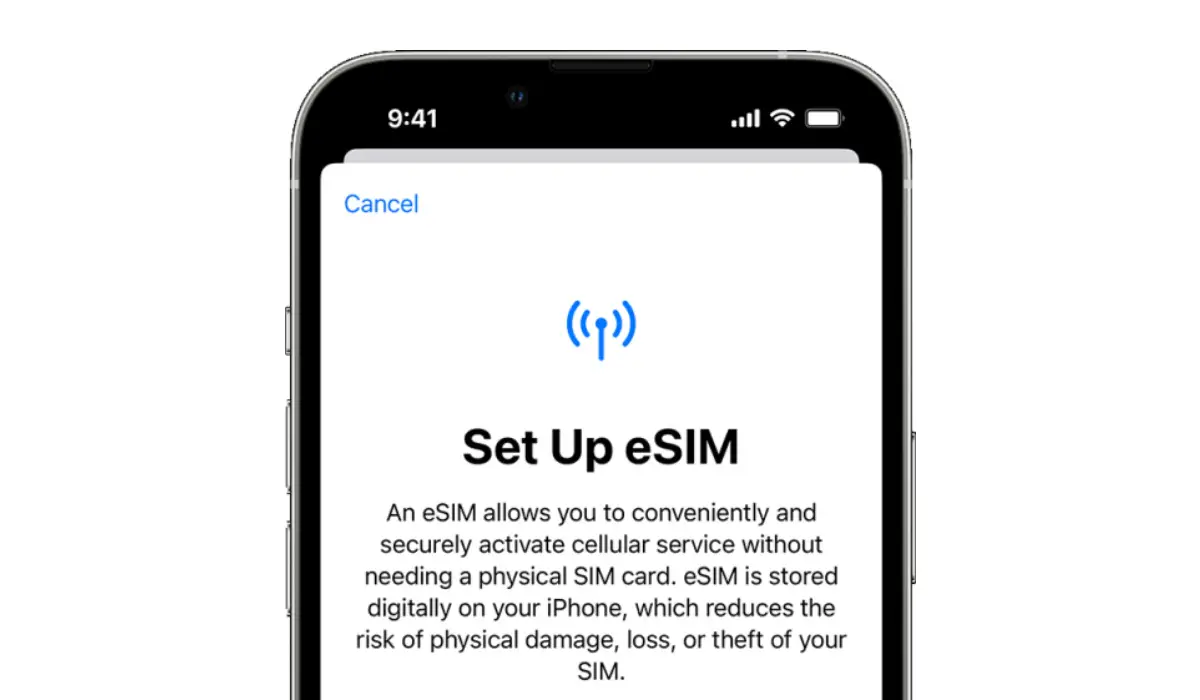
How do you set up an eSIM on iPhone?
In this guide, we’ve described how to install and activate an eSIM on iPhone in the simplest way possible. So, keep reading to find out how this is done, so you can do it without any hassles.
- What is an eSIM and How Does It Work?
- Which iPhones support eSIM?
- How do I install and activate an eSIM on iPhone?
What is an eSIM and How Does It Work?
Before attempting to set up an eSIM on iPhones, it is important to first understand how the technology works. An eSIM basically functions as a virtual SIM card. With an eSIM, you can add a new carrier to your iPhone by scanning a QR code rather than purchasing and manually inserting a SIM card.
This is useful if you’re trying to set up a new iPhone because it allows you to do everything from home, instead of having to go out to your carrier or mobile operator’s store. Additionally, you save time by not having to wait for an actual SIM card to be mailed to you.
In contrast to what obtains with CDMA devices, the eSIM capability allows you to add or remove networks at your discretion. When using a CDMA phone, you are locked into a single network. While this is acceptable if you’re in a country that supports CDMA, it is not beneficial to everyone and can be constricting.
Travelers benefit from eSIM because it allows them to use various phone networks in various countries. This also applies to folks who need a second number or have a business line. Besides being easier to set up, eSIM phones do not require a carrier to connect your phone to their network.
Which iPhones support eSIM?
It is possible to set up an eSIM on iPhones X, XS, XR, and all subsequent generations. Since all iPhone 14 versions in the US are currently eSIM-only, we can assume that all future iPhone versions will also follow this trend.
How do I install and activate an eSIM on iPhone?
It is pretty easy to set up an eSIM on iPhones. You must first configure your new iPhone and connect to a Wi-Fi network before you can set up an eSIM on iPhone 14 or any prior model that supports eSIM.
Open the Settings app on your iPhone, navigate to Cellular , and tap Add eSIM once you are connected.
Keep in mind that there are two ways to set up an eSIM on iPhones. You can first transmit the eSIM service from an iPhone that is nearby. If you’re switching to a new iPhone, we recommend that you pick this option. It will instantly transfer eSIM service to your new phone if Bluetooth is enabled and if your iPhone is operating the most recent version of iOS.
If this is the first iPhone you’re trying to configure with eSIM, you can enter the information manually or use a QR code provided by your carrier. Nowadays, most carriers will offer you an eSIM option and give you a QR code or other information.
Your iPhone will then add that new service once you have scanned the QR code. You should consider checking out Mint Mobile if you’re looking for a cheap carrier that accepts eSIM.
In summary , you don’t need a physical SIM card from your carrier to activate a cellular plan if your iPhone supports eSIM. If you’re a frequent traveller, you’ll also appreciate the ability to install numerous eSIMs on your iPhone. Essentially, your options are increased thanks to eSIM support, even on the cellular versions of the iPad and Apple Watch. So feel free to take advantage of the instructions we’ve included in this guide to successfully set up an eSIM on iPhones.
- Don’t miss our mobile phone reviews .
- Follow our news on Google News .
- Follow us on Instagram , Facebook , Twitter , and YouTube .
