Add MobilityArena as a preferred source on Google
Because we have individual tastes and preferences, thanks to our unique nature, being able to customize our smartphones is a big deal. One of the ways you can customize your iPhone is to change the name that appears when your hotspot is activated and other devices search for it. We walk you through the steps to change your iPhone’s personal hotspot name, so it can be easily found and connected to.
Every iPhone has the personal hotspot name listed as “iPhone” by default. This makes it difficult to differentiate yours when other hotspots are active around you, say in a public, crowded environment. The cool factor aside, customizing your iPhone’s personal hotspot name is a practical and sensible thing to do. Here is how to change the personal hotspot name of your Apple iPhone or iPad.
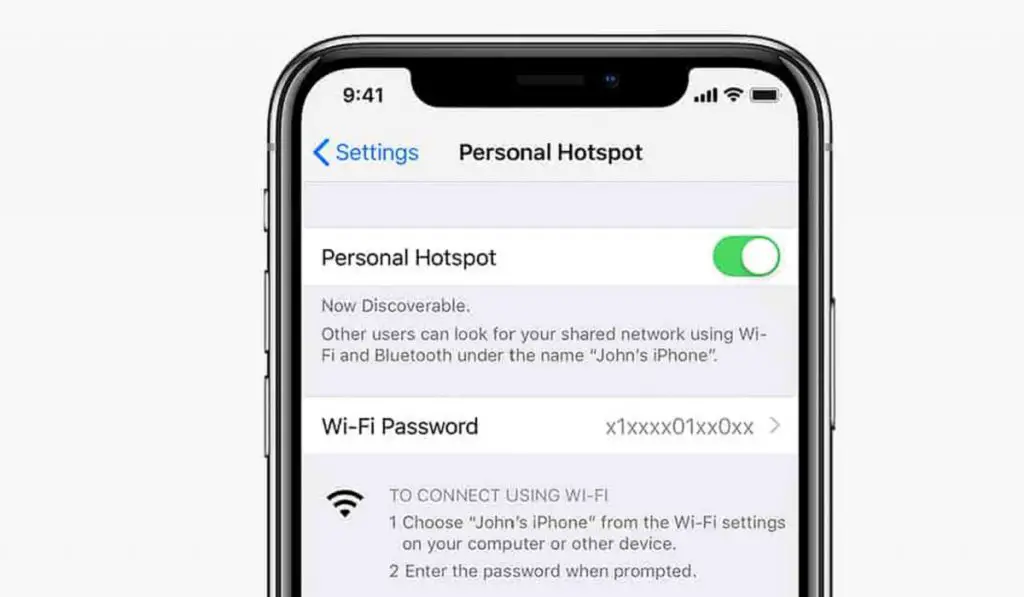
To change the hotspot name of your Apple iPhone is as simple as changing the name of your iPhone in general. The name change will reflect on your personal hotspot.
- To change your iPhone’s personal hotspot name
- How to change your iPhone’s personal hotspot password
- Choose a secure password for your personal hotspot
To change your iPhone’s personal hotspot name
- Open your iPhone Settings menu.
- Scroll down and select the General option.
- Tap the About button at the top of the screen.
- Tap the Name button at the top of the screen.
- Tap the small x button to the right of the current name, enter a new name, then tap the blue Done button on the keyboard.
Done. This new name you entered is now your iPhone’s personal hotspot name, and will make it easy for others to identify it when sharing your cellular data or Internet with others.
If you also need to set or change your iPhone’s personal hotspot password, that is easy to do as well. It is a great idea to secure your mobile hotspot so anyone cannot just connect to it when it is active and use your data subscription. Giving it a password that you can remember is also a convenience that you can enjoy. Have a look below for quick instructions on how to do it.
How to change your iPhone’s personal hotspot password
- Open your iPhone Settings menu.
- Tap Personal Hotspot .
- Tap the toggle switch to turn on Personal Hotspot.
- Tap Wi-Fi Password to change the Wi-Fi Password.
- Be sure to enter something that you can rememeber but that isn’t easy for others to guess.
That’s it. Your wifi hotspot is now properly secured. Again, it is important to spell it out that it is a good idea to have a strong password on your iPhone’s hotspot. If your password is easy to guess, if you have children, for example, they will likely figure it out and can easily exhaust your data subscription, if you are not on an unlimited data plan.
Choose a secure password for your personal hotspot
Secure your iPhone hotspot with a strong password. Also, make it a password that you don’t mind sharing with others on occasion. Which means, it is a bad idea to use a password that secures your bank account as your hotspot password. Get the idea?
Now you know how to change your iPhone’s personal hotspot name and password. Even if you upgrade your device to a newer model, the above instructions are valid unless Apple changes how it is done somewhere along the line. your iPhone’s hotspot has a unique name and a password you can remember.
Being able to share your mobile Internet for use on your PC or other devices can come in handy during trips and when you are out and about for work or relaxation. You will not always find a public hotspot, and even when you do, you have to be wary of most of them, for security reasons. Where you can, you should use the personal hotspot on your mobile phone to connect your laptop and tablet for urgent work.
Author:MobileChic
That motivated, gadget-loving geeky chic who tries to stay on top of things. Unapologetic iFan.
Add MobilityArena as a preferred source on Google
One of the worst experiences is losing one’s smartphone, especially in light of how much of our identities and activities are digitally stored on them. You might feel better if your phone had a passcode, but finding it could still be a bit stressful
By pinging the GPS location of your misplaced Android smartphone, there are clear services in place to help you find it. What happens, though, if your smartphone is turned off? To locate a lost Android phone that is powered off is a more challenging task, but it is not impossible.
In this guide, we’ll teach you some helpful ways to find a lost Android smartphone even if it is switched off. Note the instructions in this guide, and feel free to try as many methods as possible until you find the most helpful one.
How Do I Find An Android Smartphone that is Turned Off?
How long the phone has been off will determine how possible it is to find the lost device. When you turn off your phone, all GPS activity stops as well as communication with the mobile towers. You must therefore move swiftly if you want to increase your chances of discovering your phone.
You should keep in mind that reporting your stolen phone to the police may increase your chances of finding it using the IMEI number.
We’ve described below the best methods to employ when trying to locate a lost Android phone that is turned off.
Use Find My Device
Users can find any Android device that is linked to a Google account using Google’s Find My Device tool.It works in a similar manner to Apple’s Find My app and, in addition to pinging your misplaced Android device, allows you to lock or wipe its data.
- Go to the Find My Device page on a computer or a different phone.
- Connect to the same Google account that is associated with your lost or stolen phone.
- To the left, you’ll see compatible devices, and to the right, you’ll see the last known location of your missing Android phone.
If your phone is turned off, you’ll only be able to view the location where it last pings Google. If you lost your phone as opposed to it getting stolen, this might be sufficient. You may quickly lock, ping or factory reset your phone using Find My Device in case someone finds it and turns it on.
Trace your Steps With Google Maps Timeline
Another genius way to locate a lost cell phone is to examine your movements using the Google Maps Timeline. Given how frequently we use our phones to locate directions and commute, there is a strong probability that Google Maps maintains a thorough record of your phone’s travels—as long as Location History is turned on.
Google Maps Timeline shows every route you’ve taken and every location you’ve visited. This is a fantastic way to find your lost or misplaced Android device, despite the fact that this is not exactly what it was made for.
- Log into your Google account and launch Google Maps on a PC or mobile device.
- By selecting the menu button, select Your Timeline from the list of options. A timeline of your most recent outings will appear after clicking this.
- Use the drop-down menus to choose the day that your phone was lost to focus your search.
You might finally find where you dropped your phone by going back to your previously visited locations.
Use Third-Party Apps
If you don’t usually use Google Maps and have background data disabled for it, you might not be able to locate your smartphone using Google’s services. Some apps and services, thankfully, still regularly ping your last known location. One excellent example of this is Snapchat. If you have the option enabled, you may ask your acquaintances to check for your most recent whereabouts because Snapchat allows users to observe another user’s location.
You may access your most recent photos from another device and examine the image metadata for the place it was taken. This is a good option if you shoot a lot of photos and back them up with Google Photos. Once more, you must have the camera app’s location feature enabled.
Consider whether any other applications on your phone may have logged your most recent location. In desperate times such as this one, any bit of knowledge will be helpful in locating your device.
In summary , it can be distressing to find out you’ve lost your Android device while it is switched off, but there may yet be a solution. Try any of the options we’ve provided in this guide and you may still be able to locate the lost Android device. Remember that it’s important to act fast as this gives you a better chance of finding it.
Own an iPhone instead? Here are the Steps to Find a Lost iPhone Even When It Is Powered Off .
- Don’t miss our mobile phone reviews .
- Follow our news on Google News .
- Follow us on Instagram , Facebook , Twitter , and YouTube .
