Add MobilityArena as a preferred source on Google
As humans, we’re bound to be forgetful sometimes; it happens even to the best among us. This is why it’s not so uncommon to find yourself forgetting something as essential as your laptop charger, especially on a day when you have a lot of work to do.
This could happen when you’re on a trip and you suddenly realize you didn’t pack your charger. Maybe your charger even gets bad, with no way for you to fix it or get a new one immediately. Naturally, you’d imagine that such a situation can’t be salvaged, but what if we told you there’s a way to charge your laptop without its charger?
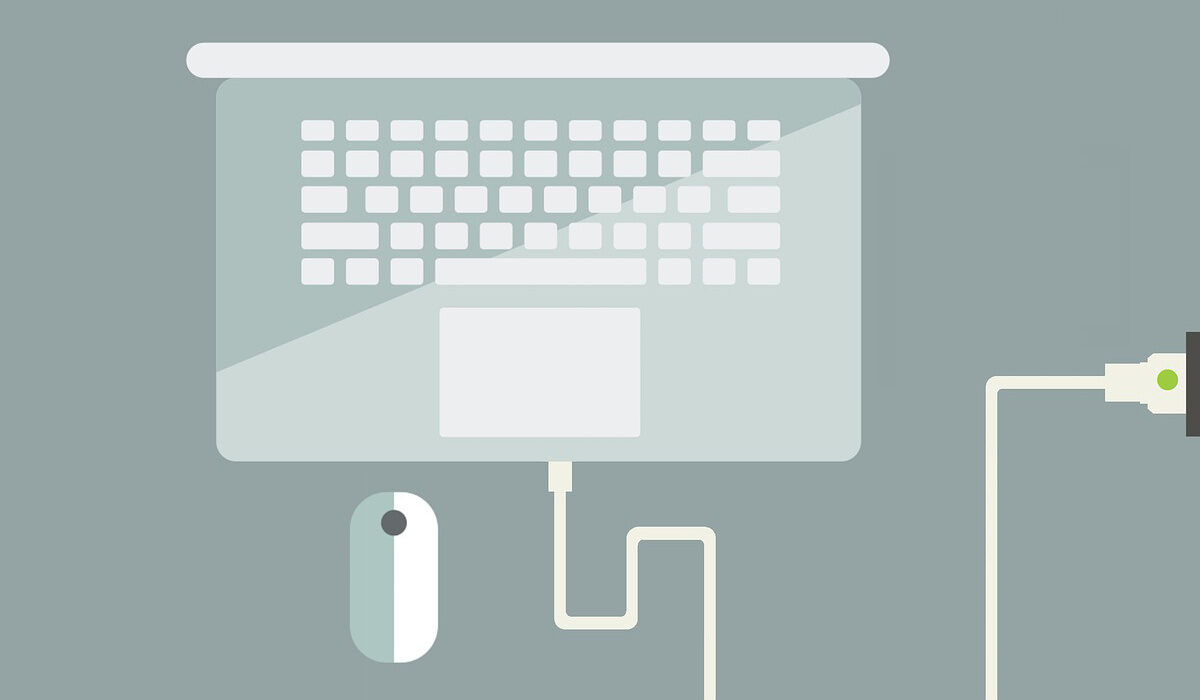
How to Charge a Laptop Without its Charger
Charging your Laptop without its Charger
The most efficient way to charge your laptop battery is probably with a laptop charger, but there are other options as well. You’ll only need:
- a power supply
- a means of connecting and supplying electricity to the laptop’s battery
We’ve described three methods below:
Using a USB-C Cable
You can use a USB-C cable to charge your laptop if it has an integrated USB-C port; just make sure the cable has a plug adaptor (the box-shaped plug at your phone charger’s end that can be plugged into an outlet). In fact, some computers’ primary charger is a USB-C cord.
Using a USB-C cable to charge your laptop is pretty easy, just follow these steps:
- Connect the first end of the USB-C cord to a power source.
- Connect the USB-C cable’s opposite end to your laptop.
It’s that easy! As long as you have access to a USB-C cord, you’ll be able to navigate this situation successfully. If you don’t, consider the other options below.
Using a Car Battery
Automobiles typically have power, and you can use the power they generate to your advantage when you need to charge your laptop. You’ll find this fix especially useful if you’re without your laptop charger and you happen to be traveling by road in your own car or hiring one when your flight lands (assuming you’re taking one).
The process of using a car to charge your laptop is quite simple. However, you’ll require the following two items:
- An AC Adapter (this typically has a USB Type A connector on one end and a USB-C connector on the other end). When you have the option to charge your laptop using a car, this USB Type A to USB-C adapter is ideal to make it work successfully.
- USB car charger
Once you’re equipped with these items, charging your laptop is simple. Simply follow these steps:
- Start your vehicle’s engine
- Connect the car charger to the vehicle’s charging port (you may not even need a car charger because many newer vehicle models have USB ports you can directly plug into)
- At this point, you should connect your laptop to the USB-C port.
Make sure never to leave your laptop unattended in plain sight if you choose to charge it using this method. That might increase its susceptibility to theft or harm from overheating.
Using a Powerbank
Using a power bank is perhaps the simplest of the three alternative ways we’ve described to charge your laptop without its charger.
In essence, a power bank is a laptop battery that is portable. You only have to attach the power bank to your laptop to get started. The best part about power banks is that they can charge your laptop without needing to be plugged into an outlet.
There are many different varieties of power banks, and they aren’t all made with the same charging capacity. With a USB Type A power bank, you can conveniently charge laptops with less power.
You’ll need access to a power bank with a USB-C port if you wish to power a more powerful laptop, such as a mobile workstation. Your smartphone or tablet can also be powered by USB-C power banks in addition to other USB devices.
If you’re charging a more powerful laptop, your power bank will most likely only have the juice to recharge the laptop once or twice.
It’s thus crucial to remember to recharge the power bank itself by plugging it into an outlet. You won’t be able to recharge your laptop using your power bank after it runs out of juice, so charge it so it has enough power to last you until you can get your laptop charger.
In summary , there’s no need to feel like it’s the end of the world if you’re somehow caught somewhere without your laptop’s charger. Obviously, the feasibility of the different methods we’ve described will depend on what items you currently have available, but try to make improvisations if need be.
We hope you’ve found this article helpful so don’t hesitate to recommend it to your loved ones and friends.
- Don’t miss our mobile phone reviews .
- Follow our news on Google News .
- Join our WhatsApp Group , to be notified of the most important articles and deals,
- Follow us on Instagram , Facebook , Twitter , and YouTube .
Author:Joan Agie
Add MobilityArena as a preferred source on Google
By storing temporary resources such as scripts, thumbnails, and video clips on your phone rather than downloading them from the internet every time, cached data helps to make apps load faster. However, the storage on your phone can soon become full of cached info. And when there’s a lot of cache data stored on your device, it might result in sluggish performance and you eventually run out of space on your phone, among other things.
Why should you need toClear the Cache on your Android Device
Many smartphone users don’t pay enough attention to their devices to understand how the presence of excess cache data can impact performance. On an Android device, clearing your cache can release significant storage space and fix problems with your phone’s speed, battery, and security. The speed issues caused by corrupted old cached data can be more severe.
Cache data from an earlier version may also cause conflict if a specific program is updated. Also, from a security standpoint, it’s not a good idea to store your private information for months in a browser cache where a cunning hacker can find it. Clearing cache info, both from your apps and browser, is quite important. Now that you’ve figured out why, let’s show you how to do it right.
Clearing App Cache
When you make the effort to clear app cache on your Android device, you can free up valuable phone storage and fix technical problems like app lag. Normally, some apps make the effort to keep an eye on their own cached data. For instance, Spotify regularly clears the quick-loading cache for albums to make them load more rapidly (any data relating to the fundamental features of the app will remain, such as downloaded albums).
Some other apps also typically protect features like bookmarks and game progress from cache removal as well. However, there will still be some poorly made apps that fill Android’s cached data segment with useless data, and these are the ones you’ll need to step in to deal with.
On your Android device, the following steps will help erase your app cache:
- Tap Storage after opening Settings .
- Select whether you want to clear the cache for games, photo & video apps, or another category. You can also tap Other apps to see a list of all your installed apps.
- To find out which of your apps is using up the most storage space, tap the three dots in the top right corner and select Sort by size .
- Tap Clear cache after choosing an application.
There, you’re done! Basically, the same instructions apply to deleting app data for every Android app. So if you wish to start an app with a clean slate, simply erase the app’s data or clear the app cache files of any programs you believe are causing a lag in your Android’s performance.
While some storage space will be returned to you, nothing that you have downloaded will be erased, so no need to worry. User data, such as your search history or preferences, may however be reset depending on the app.
Clearing Browser Cache
Caches undeniably speed up browser loading, whereas cookies save user preferences, fill out forms automatically, and record your browser history. Now, this data from your browser can accumulate as well, and so occasionally clearing your Android’s cookies is a smart device hygiene practice.
Here’s how to delete Chrome’s browser cache on Android:
- Launch Chrome on your Android device.
- To access the Chrome settings menu, tap the three vertical dots in the top-right corner of the screen.
- Click History .
- Select Clear Browsing Data .
- Check “ Cached pictures and files ” next.
- Select a time period next to “ Time range .” Your whole Chrome cache will be deleted if you choose All Time .
- To clear data, tap on the option.
By deleting cached data on Android, you can very easily enhance the efficiency of Chrome on mobile devices. Also, by selecting the box next to “ Browsing history ” in Step 5, you can also delete your browsing history if you want.
Keep in mind that these instructions we’ve provided above are specific for the Chrome browser, so make sure to confirm the procedure for deleting your browsing history in other browser types if you don’t use Chrome. An automatic browser cleanup tool will be beneficial to help erase your cache and cookies if you don’t want to be constantly on cleaning duty.
Also note that you may have bloatware if your phone is still sluggish after emptying the cache from a suspect app and clearing out your browser’s cache. In this case, you’ll need to get one of the top ad blockers for Android devices (there are many tools online) to remain one step ahead of the bloatware that can get onto your phone from sources like dodgy adverts.
In summary , there are many things that have the potential to get in the way of optimum performance on Android devices, and cache data is among the most common.
We’ve provided you with helpful instructions to bypass any negative impact that accumulated cache may be having on your Android’s performance, so make sure to follow these instructions carefully. Finally, we’re sure you’ve found this article helpful so don’t forget to share it with your loved ones and friends.
- Don’t miss our mobile phone reviews .
- Follow our news on Google News .
- Join our WhatsApp Group , to be notified of the most important articles and deals,
- Follow us on Instagram , Facebook , Twitter , and YouTube .
