Add MobilityArena as a preferred source on Google
Do you sometimes wonder about the RAM, CPU, motherboard, graphics processing unit (GPU), or other particular features in your computer? Occasionally, you might need this information, whether to understand what kind of things to look out for when upgrading your device or to get device-specific information in case you need to troubleshoot some functionality issues.
Whatever the case, you’ll learn in this easy guide how to check your computer specs on your Windows laptop or desktop. We’ve provided detailed instructions to that effect to make the process an easy one for you.
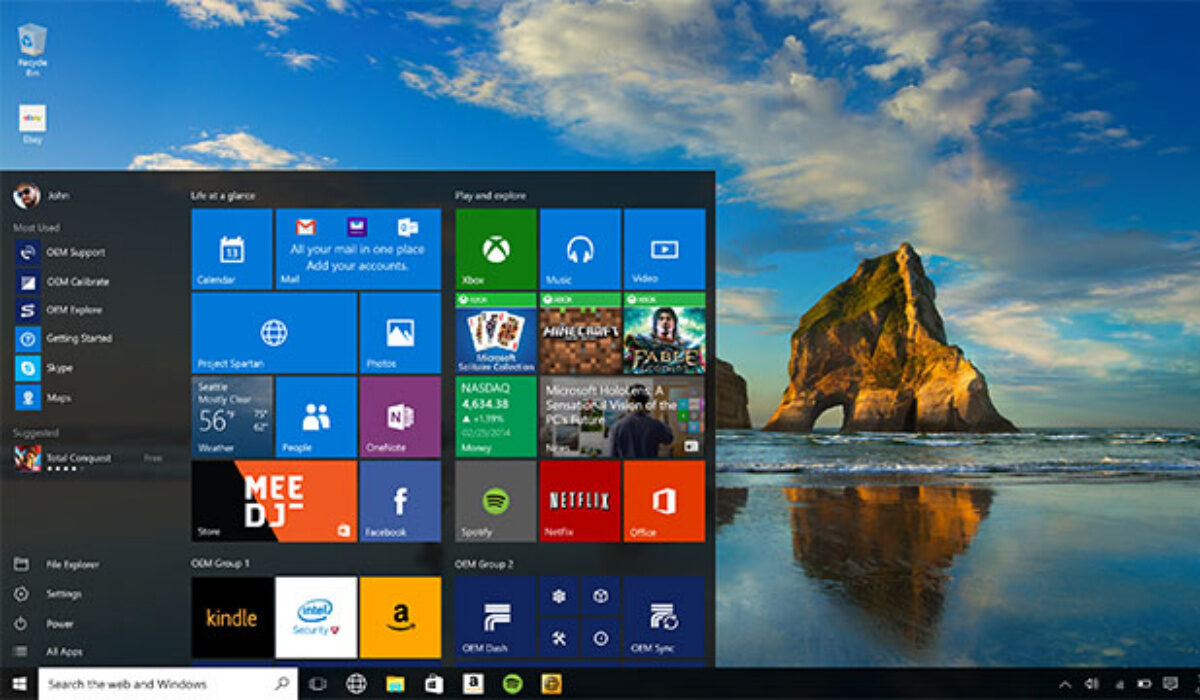
Checking the Systems Specs on your Windows Device
To find your device specifications, Windows offers several options. You can verify your CPU specs and learn other information using one of the following techniques, depending on the level of detail you require.
Use Windows System Settings
Checking the specifications of your system is simple and convenient thanks to your Windows system settings. We’ll walk you through doing this on Windows 10 first, then we’ll show you how to do it on Windows 7.
OnWindows 10 devices:
● Open your Settings by clicking Start , then select System . From the menu on the left, choose About . This will display your PC’s basic specs and the Windows version that is currently installed.
● Your specifications can be easily copied and pasted from this screen.
On Windows 7 devices:
● Select Properties after performing a right-click on the computer icon.
● Your available RAM, processor, some support numbers (depending on the PC manufacturer), and the version of Windows you’re using will all be listed in this basic list of specifications. The information provided here isn’t all that thorough, but it will suffice.
● To view specific details of devices, select Device Manager from the menu on the left side of the screen (we’ve provided instructions for this below).
Check Using the Command Prompt
You can also find out the specs of your device using a command prompt.
● Press Windows + R to open the Run window on your computer. Type cmd and click Enter to launch the Command Prompt window.
● Press Enter after entering the command line systeminfo. You can easily scroll through the results and you’ll find the details you need.
● Your computer will display all the specifications for your system, and you can note it down somewhere for future reference.
Check through Device Manager
Device Manager is the best option if you need to determine the exact name of a particular device, such as your graphics card or sound chip.
To accomplish this, right-click on your Windows menu and choose Device Manager . You’ll see your PC or laptop’s built-in features listed in the window that immediately follows. Check the device names for each item on the list as you go through it.
Device Manager typically lists each accessory or device connected to or built into your PC or laptop with its clear and complete name.
The device’s GUID (Global Unique Identifier) can also be used to determine some specifics if you’re still unsure or if the listing says “Unknown.” Double-click on the strange entry, such as Broadcom 802.11ac, in Device Manager. next click on Details. Select Hardware Ids under Properties. To find out more, right-click on one of the entries, copy the URL, and enter the term into your preferred search engine.
You can quickly discover the precise name of the unknown device on the internet using this information.
Check through System Information
System Information is the best and most complete built-in utility for examining your PC’s specifications. Click on the Windows menu and start typing “System Information” to access it. Windows will typically do the searching for you.
You can access system information by clicking it (or hitting Enter ). The tool that appears next is the most thorough but also the trickiest for determining your PC’s specifications. You can look up anything here, including the BIOS/UEFI version of your computer, the motherboard revision number, and all the drivers and software programs that are currently installed.
You can use this tool to achieve the following:
● To look up specific information : You’ll typically be able to use the Find what field at the window’s bottom to search for anything, including USB ports or graphics cards.
● Making a system report : To store and share all of this information in a convenient text file, open the File menu and select Export . When a service agent asks you for these facts or when you need to submit your device specifications on an online forum, this can be helpful.
In summary , you should also consider using a specialist spec-checking tool if you’re feeling overwhelmed by all the information in this guide. You may easily and quickly obtain the information you need by using the free program Speccy, which conveniently shows your computer’s specifications.
The information in this article will prove helpful to many PC users, so we encourage you to share it with your loved ones.
- Don’t miss our mobile phone reviews .
- Follow our news on Google News .
- Join our WhatsApp Group , to be notified of the most important articles and deals,
- Follow us on Instagram , Facebook , Twitter , and YouTube .
Author:Joan Agie
Add MobilityArena as a preferred source on Google
The Nokia G11 is a budget smartphone that was released in February 2022. The screen size of the device is 6.5″. It has a 13 MP + 2 MP + 2 MP main camera, and an 8 MP selfie camera. It comes with 3/4 GB of RAM and 32/64 GB of internal storage. The processor on the Nokia G11 is the Unisoc T606. It also has a massive 5050 mAh battery and comes with fast charging too.
Now, if you are looking to make your Nokia G11 run faster and smoother, here are some ways to make that possible.

Follow the tips below, to make Nokia G11 work faster and run smoother.
Delete Unused apps
The benefit of owning a Nokia smartphone, the G11 included, is that they do not come with bloatware and unwanted apps. Any smartphone user would love to have all their desired apps installed. This might lead to large amounts of apps piling up on the device, over time. It is important to form a habit of uninstalling unused apps and games. Having lots of these apps will hinder and slow down the performance of your device.
Especially when you have some of them running in the background. They also become so many and have so much data on each one of them, that there is barely any storage space left for your device to run as smoothly as you may have liked.
Clear App Cache
Cleaning the cache of the app on your Nokia G11 is important in terms of sending up your phone. Clearing the cache of an app can make that particular app run faster and smoother than it did before, and reduce possible lag. Clearing cache is also very important for entry-level devices too to help them improve their performance. As they are not as powerful as high-end devices. You can clear the cache of any app by long pressing the app icon, selecting App info , and then Storage . There will be an option to Clear the cache . Select that and you’re good to go.
Updates
It is important to keep your Nokia G11 updated. This is because, with every new update, there might be security enhancements (which are crucial) but there might also be performance improvements added to the update that can make your overall experience, and device speed, better.
Restarting your Device
It is well known that any device can perform faster and better simply off of a restart. The same holds for the Nokia G11. Doing this should address most of the performance issues, as it deletes temporary files to speed up the phone and clears the phone’s memory.
Use the Lite Version applications
Lite versions of apps are the shortened versions of these said apps. Apps Tit Tok, Facebook, e.t.c. The lite versions are usually limited in comparison to the actual applications and don’t offer as many features. These lightweight apps, that do not work your device as hard as the main ones, are designed for entry-level smartphones and designed for users who want to keep their apps simple or use something simple. They help boost the performance of your device and lower your data and charges.
Hard Reset
If you are looking for a simple method on how to Make Nokia G11 Run Faster, it may be the most effective. If you do a hard reset on your Nokia G11, then all the phone data will be deleted, and the phone’s storage will be clean. At the same time, the random-access memory of your Nokia G11 will start working like new again. However, you need to back up all the data before performing a hard reset.
The main reason for this is a hard reset because all the data in your Nokia G11 storage will erase. This will increase the performance of your Nokia G11 phone compared to its previous state before the reset. But it bears too much of a cost for some. If you are fine with having all your data lost, you can go for this option. It will certainly improve the phone’s performance and feel like you just bought a new phone.
- Don’t miss our mobile phone reviews .
- Follow our news on Google News .
- Join our WhatsApp Group , to be notified of the most important articles and deals,
- Follow us on Instagram , Facebook , Twitter , and YouTube .
Author:Flamez
Flamez loves basketball, art, gadgets and cars.
