Add MobilityArena as a preferred source on Google
By storing temporary resources such as scripts, thumbnails, and video clips on your phone rather than downloading them from the internet every time, cached data helps to make apps load faster. However, the storage on your phone can soon become full of cached info. And when there’s a lot of cache data stored on your device, it might result in sluggish performance and you eventually run out of space on your phone, among other things.
Why should you need toClear the Cache on your Android Device
Many smartphone users don’t pay enough attention to their devices to understand how the presence of excess cache data can impact performance. On an Android device, clearing your cache can release significant storage space and fix problems with your phone’s speed, battery, and security. The speed issues caused by corrupted old cached data can be more severe.
Cache data from an earlier version may also cause conflict if a specific program is updated. Also, from a security standpoint, it’s not a good idea to store your private information for months in a browser cache where a cunning hacker can find it. Clearing cache info, both from your apps and browser, is quite important. Now that you’ve figured out why, let’s show you how to do it right.
Clearing App Cache
When you make the effort to clear app cache on your Android device, you can free up valuable phone storage and fix technical problems like app lag. Normally, some apps make the effort to keep an eye on their own cached data. For instance, Spotify regularly clears the quick-loading cache for albums to make them load more rapidly (any data relating to the fundamental features of the app will remain, such as downloaded albums).
Some other apps also typically protect features like bookmarks and game progress from cache removal as well. However, there will still be some poorly made apps that fill Android’s cached data segment with useless data, and these are the ones you’ll need to step in to deal with.
On your Android device, the following steps will help erase your app cache:
- Tap Storage after opening Settings .
- Select whether you want to clear the cache for games, photo & video apps, or another category. You can also tap Other apps to see a list of all your installed apps.
- To find out which of your apps is using up the most storage space, tap the three dots in the top right corner and select Sort by size .
- Tap Clear cache after choosing an application.
There, you’re done! Basically, the same instructions apply to deleting app data for every Android app. So if you wish to start an app with a clean slate, simply erase the app’s data or clear the app cache files of any programs you believe are causing a lag in your Android’s performance.
While some storage space will be returned to you, nothing that you have downloaded will be erased, so no need to worry. User data, such as your search history or preferences, may however be reset depending on the app.
Clearing Browser Cache
Caches undeniably speed up browser loading, whereas cookies save user preferences, fill out forms automatically, and record your browser history. Now, this data from your browser can accumulate as well, and so occasionally clearing your Android’s cookies is a smart device hygiene practice.
Here’s how to delete Chrome’s browser cache on Android:
- Launch Chrome on your Android device.
- To access the Chrome settings menu, tap the three vertical dots in the top-right corner of the screen.
- Click History .
- Select Clear Browsing Data .
- Check “ Cached pictures and files ” next.
- Select a time period next to “ Time range .” Your whole Chrome cache will be deleted if you choose All Time .
- To clear data, tap on the option.
By deleting cached data on Android, you can very easily enhance the efficiency of Chrome on mobile devices. Also, by selecting the box next to “ Browsing history ” in Step 5, you can also delete your browsing history if you want.
Keep in mind that these instructions we’ve provided above are specific for the Chrome browser, so make sure to confirm the procedure for deleting your browsing history in other browser types if you don’t use Chrome. An automatic browser cleanup tool will be beneficial to help erase your cache and cookies if you don’t want to be constantly on cleaning duty.
Also note that you may have bloatware if your phone is still sluggish after emptying the cache from a suspect app and clearing out your browser’s cache. In this case, you’ll need to get one of the top ad blockers for Android devices (there are many tools online) to remain one step ahead of the bloatware that can get onto your phone from sources like dodgy adverts.
In summary , there are many things that have the potential to get in the way of optimum performance on Android devices, and cache data is among the most common.
We’ve provided you with helpful instructions to bypass any negative impact that accumulated cache may be having on your Android’s performance, so make sure to follow these instructions carefully. Finally, we’re sure you’ve found this article helpful so don’t forget to share it with your loved ones and friends.
- Don’t miss our mobile phone reviews .
- Follow our news on Google News .
- Join our WhatsApp Group , to be notified of the most important articles and deals,
- Follow us on Instagram , Facebook , Twitter , and YouTube .
Author:Joan Agie
Add MobilityArena as a preferred source on Google
This article was inspired by a story that I read earlier today on Nairaland[1]. And, no; this is not about any beef with YouTubers and other players in the gadget tech media. As a matter of fact, we also create unboxing videos and publish hands-on reviews both here and on our sister website. It is, however, imperative to point out certain factors that are inherent in unboxing videos and hands-on reviews.
The story is about a boy who had chosen a particular budget phone model because he had seen unboxing videos and hands-on reviews that spoke favourably of gaming on the phone. Weeks later, the boy was constantly complaining that the device was lagging terribly when he tried to run Call of Duty Mobile (that’s a game) on it. Any surprise? What was the problem? Let me explain it.
Why Unboxing Videos and Hands-on Reviews are inadequate for buying decisions
When a smartphone is new and not loaded with all the apps that the user needs on a day-to-day basis, any evaluations done in that state are unrealistic and not accurate. This is because the resources are barely stretched the way they would be after 60 apps have been installed, scores of photos snapped, and all that. Device performance drops as resources are used and stretched. This is a universal principle.
If I do not install all the 134 apps that I normally have on my phone on a device I am reviewing, setup my two email accounts, social networking apps, instant messaging apps, and all of the other services I use, and use the phone that way for an extended period, I am truly not getting a true picture of how well the phone performs.
This is why the standard period for our mobile phone reviews here at MobilityArena is 3 weeks. We put the devices to regular use for that period. In my 20 years experience of using and reviewing phones, it is the least period of time in which you can get reasonably accurate experience of a phone in order to make sound recommendations.
Sometimes, we have had a brand send in a phone for review and they ask that the review be ready in a few days. We proceed to explain to them that we would have to label such a review as a “hands-on, first impressions” review. It wouldn’t serve our readers, if we published a 3-day experience with a product as a proper review. Mobile phone specs do not tell the whole story, and neither do YouTube Unboxing Videos and Hands-on reviews. As a matter of fact, unboxing videos are better suited to product marketing, which is why most brands love and prefer them. They show off the shiny new gadget that has not been broken in. What does that mean?
To break in a pair of new shoes refers to that period after you start wearing a new shoe and it rubs against your tender feet, causing blisters and abrasions, until shoe and foot find a way to conform to each other in harmony. Unboxing a shoe is not breaking in a shoe.
It is the same way that unboxing a smartphone does not tell the full story of how it is in everyday use. Unless the unboxing video as includes a detailed review of the gadget after extended use.
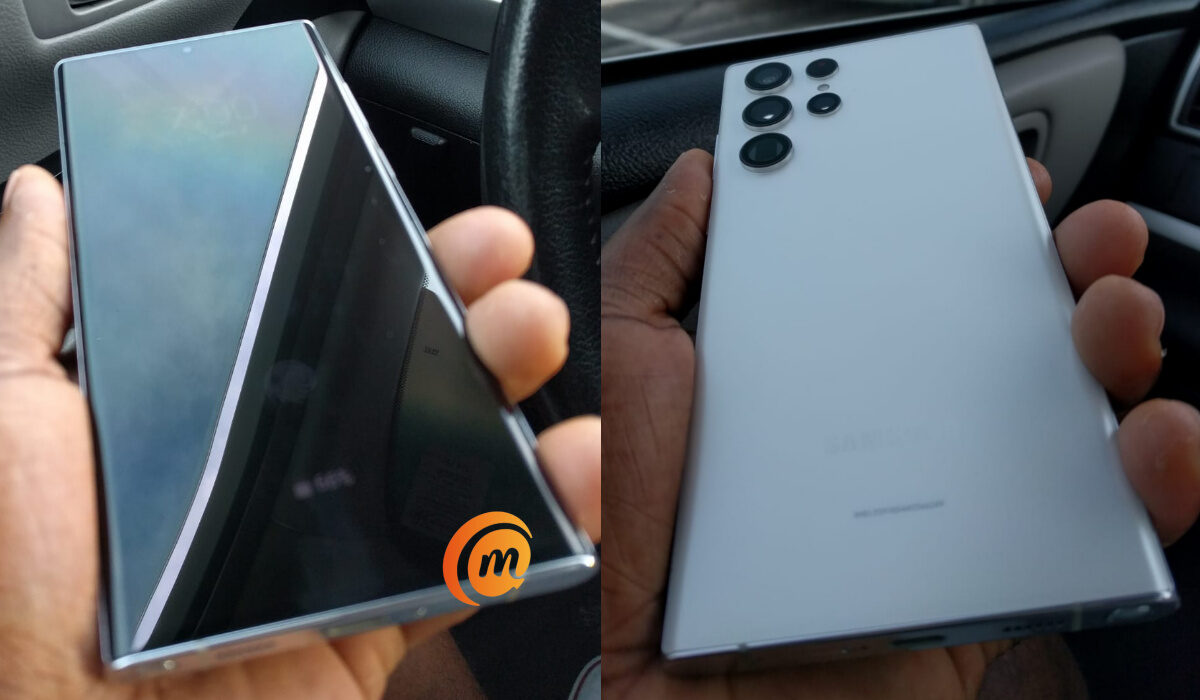
Hands-on review of Samsung Galaxy S22 Ultra 5G
Don’t Stop Watching Unboxing Videos and reading Hands-on Reviews
Does this mean that you should stop watching those unboxings and reading hands-on reviews? Not at all. Enjoy them all you want. They are great for showcasing a new phone and it’s accessories, and also often provide useful information about the specs of device. But if you are shopping for a new smartphone, they are often inadequate for telling you what to expect from using the device in every day situations. A more detailed review that is produced after weeks of daily use is what will provide the information that you need. And a long-term review, produced after months of usage, is even better for that.
Reference : 1. Nairaland article source .
- Don’t miss our mobile phone reviews .
- Follow our news on Google News .
- Join our WhatsApp Group , to be notified of the most important articles and deals,
- Follow us on Instagram , Facebook , Twitter , and YouTube .
Author:Mister Mobility
Digital Skills and Communication Coach | Mobile Phone Connoisseur since 2001 | Tech Blogging since 2004
