Add MobilityArena as a preferred source on Google
In certain situations, it may become necessary to clone your hard drive. One of such situations is when you need to switch from a 500GB to a 2TB hard disk for more storage. You could also just be interested in enhancing the performance of your PC by switching from your conventional hard-disk drive (HDD) to a solid-state drive (SSD).
Whatever the reason, cloning your hard drive is not an impossible task, as long as you have the right instructions at hand. We’ve put this article together with that in mind, to guide you through the process of cloning a hard drive successfully on a Windows 10 device.
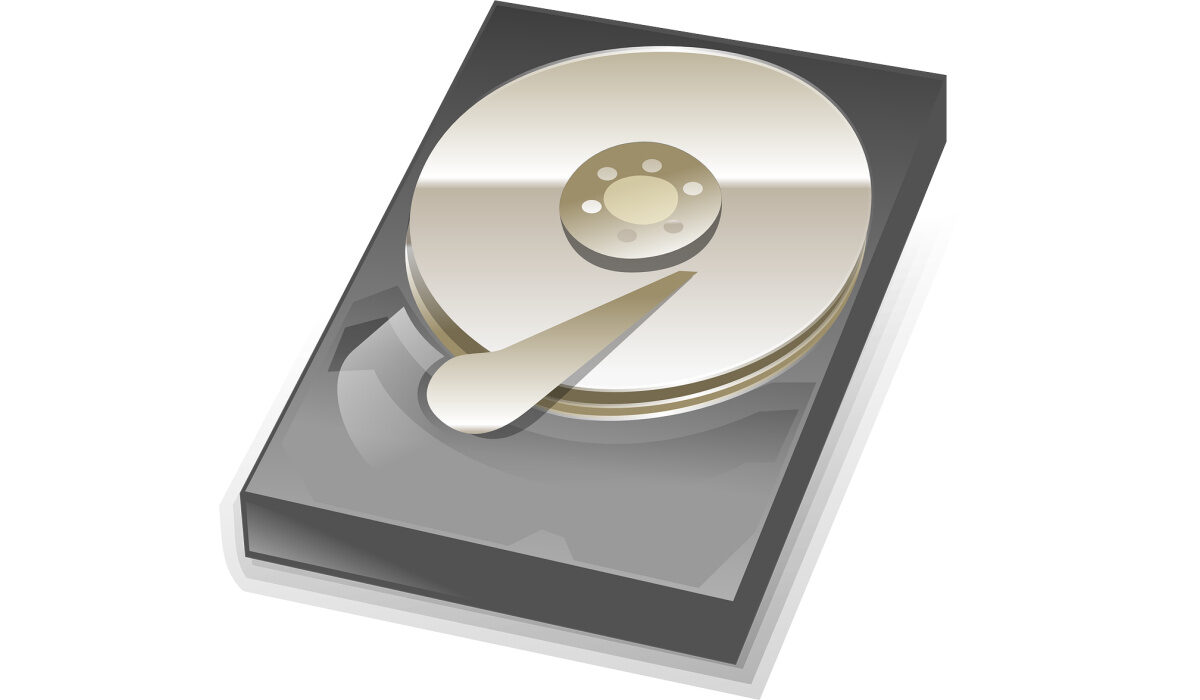
Before the Cloning
Before you start cloning your hard drive, you must take a number of crucial preparatory steps:
- You’ll need to back up crucial data to an external drive. This is important because, throughout the cloning procedure, all the data on your original hard drive will be overwritten. If anything goes wrong, you don’t want to lose your data.
- Make sure there is enough space on the hard drive you are copying to store all of your data.
- When the cloning is finished, you’ll need a screwdriver handy to open your device and replace the hard drive.
- Additionally, if your laptop only has one hard drive slot accessible, be sure to have a SATA to USB connection on hand to use throughout the cloning process to connect the new hard drive to your device.
The Cloning Process
Even though it may seem complex and a bit frightening, cloning a hard drive is a simple procedure. To make sure you do it correctly and avoid losing your data, there are a few procedures to follow. This is how it goes.
Launch the System Image tool or a Third-Party Software
A built-in tool called System Image is included in Windows 10 to assist with hard drive transfers. You’ll not be able to use System Image to copy hard disk partitions; it only functions when you are copying your entire hard drive to a larger hard drive. Additionally, a technique known as imaging is used, which differs from hard drive cloning in a number of ways. It does not make a 1-to-1 duplicate; instead, it creates a backup disk.
You might want to use an independent disk copying software in place of System Image due to these restrictions. As a result of the process’ simplification, less experienced PC users should find this to be a much better choice. There are a few good third-party drive cloning software solutions, like Macrium Reflect Free and AOMEI Backupper Standard.
Begin the Cloning Process
You can now begin the cloning procedure using either Macrium Reflect or AOMEI Backupper Standard. Make sure your laptop is plugged into an outlet and getting power, then start the process:
- Select your primary hard drive, this is also sometimes referred to as the “Source disk.”
- Next, choose the “Destination disk,” a fresh hard drive that you will use for the clone.
- In AOMEI Backupper Standard, click “Start Clone,” and in Macrium Reflect, click “OK.”
- Click “Finish” to wrap up the procedure once it is finished. The partitions on the new hard drive can, however, be resized before the process is finished.
Depending on the size of the drives, the operation can take several hours. Your PC needs to have sufficient power so that the cloning operation completes without any problems. Make sure to wait until the cloning procedure is finished before turning off your device.
Connect your New Hard Drive
You must manually swap out your hard disk after you have copied your data to it. To do this, open your laptop or desktop and insert the new drive into the available hard drive slot.
If this seems difficult, consider the following advice to make it much simpler: Before you remove your computer’s hard disk, take a picture of how it now appears inside. When connecting your new drive, this will help you understand where the wires should go.
You might want to keep your first hard drive attached if your computer has more than one hard drive slot. In the event that something goes awry and you need to reinstall a backup, this will be useful. You can accomplish this using an external USB device, which is what we advise keeping handy before starting the cloning procedure.
Change your Hard Drive’s Boot Priority
Adjusting the boot priority of the hard drive is the last step in successfully cloning it. This enables Windows and other programs to launch directly from your freshly cloned hard drive and it will also make this hard drive your primary drive.
To alter your system’s boot priority:
- Restart your computer.
- At startup, press the F2 key to access BIOS.
- Select the new hard disk as the first boot device once the BIOS has loaded by going to the boot option.
- To save changes, click on the F10 key.
- You can now exit
You should now have a hard drive that has been successfully cloned if you have followed this procedure exactly.
In summary , cloning your hard drive is not as complicated as it may sound, and your device will benefit a lot from the process in terms of extra storage space and improved performance.
Follow the steps we’ve provided in this guide correctly, and the process should be a breeze. If you’ve found this article helpful, don’t forget to share it with your loved ones so they also benefit from it.
- Don’t miss our mobile phone reviews .
- Follow our news on Google News .
- Join our WhatsApp Group , to be notified of the most important articles and deals,
- Follow us on Instagram , Facebook , Twitter , and YouTube .
Author:Joan Agie
Add MobilityArena as a preferred source on Google
If you’re a crypto novice, but you’re eager to learn, there’s a lot of questions to ask and answers to uncover.
One common query among new faces on the crypto scene is how to buy currencies, and what methods to use. So is it possible to purchase Bitcoin and its contemporaries from a smartphone? Let’s dive in and find out.
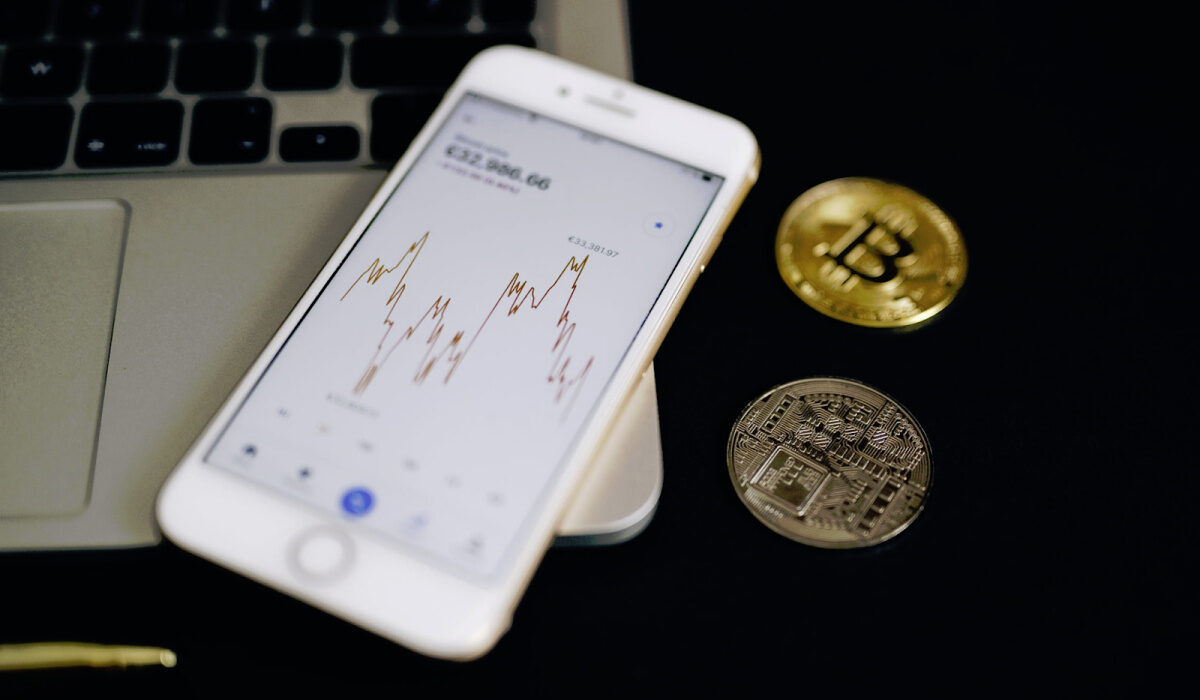
Image Source:Pexels
Mobile apps let you easily trade crypto whenever you want
When it comes to buying digital currency , a mobile device is arguably the most seamless and convenient option out there.
All of the major crypto exchanges have dedicated mobile applications which are available for customers to use when they’re at home or on the go.
The best apps offer all the same features and functions as you’d find from a desktop-scale, browser-based crypto trading interface, but adjusted to fit on a smaller screen and to work with touch controls.
This usually means being able to buy crypto using fiat currency through the conduit of a traditional payment card, as well as being able to trade one crypto asset for another at will.
Security is robust so long as you stick to best practices
Another point to make about using your mobile phone to buy crypto is that so long as you stick with an app from an approved exchange, the levels of protection you’ll receive as a customer will be significant.
This is partly to do with industry regulations, but also because these businesses are aware of how likely they are to be targeted by hackers.
Of course you also have a part to play in protecting your private data and your crypto assets, especially when using a smartphone.
Having a secure, memorable password is one thing that’s a must, and most crypto apps will enforce a minimum level of complexity in this area.
Another aspect is how you are connected to the web when carrying out purchases, trades or even just when you’re logging in to check on how your assets are performing. Using a public Wi-Fi connection for this is not sensible, since your data could be exposed.
Instead, if you rely on a password-protected home network, or your mobile coverage from your provider, you’ll be safer.
Your options are extensive
If you’re worried about being limited in terms of your choice of crypto assets to buy and trade when using a mobile, don’t be! From big-hitters like Bitcoin to all of the up and coming altcoin assets, there are hundreds of options available on exchanges.
Of course if you’ve already got a crypto wallet on another device, you can also create a mobile equivalent that’s tied to your smartphone, allowing you to transfer coins over and keep them with you as you go about your day.
Then there’s the ability to buy and store NFTs on your handset of choice. The rise of NFTs has been rapid, and it’s seriously appealing to be able to have instant access to digital files you own on your phone, since this makes them a breeze to show off to everyone you meet.
The bottom line
As you can see, buying crypto on a mobile phone is not just possible, but arguably the preferable way of engaging with this movement.
You’ll still need to do plenty of research before you decide on assets to purchase, and also be aware of the risks involved, both from a security perspective and in terms of the volatility of the market.
Once you’re up to speed, opening a crypto app will become second nature, and you’ll be on top of all your trades in one place.
- Don’t miss our mobile phone reviews .
- Follow our news on Google News .
- Join our WhatsApp Group , to be notified of the most important articles and deals,
- Follow us on Instagram , Facebook , Twitter , and YouTube .
