Add MobilityArena as a preferred source on Google
Connecting a game controller to your phone will improve your gameplay. You will be able to navigate around easily and dodge objects in the game, or change the game features with a few taps. It makes gaming on mobile devices easy.
In this article, I will show you how to connect your android devices and iOS devices to both PS4 controllers and Xbox One controllers.
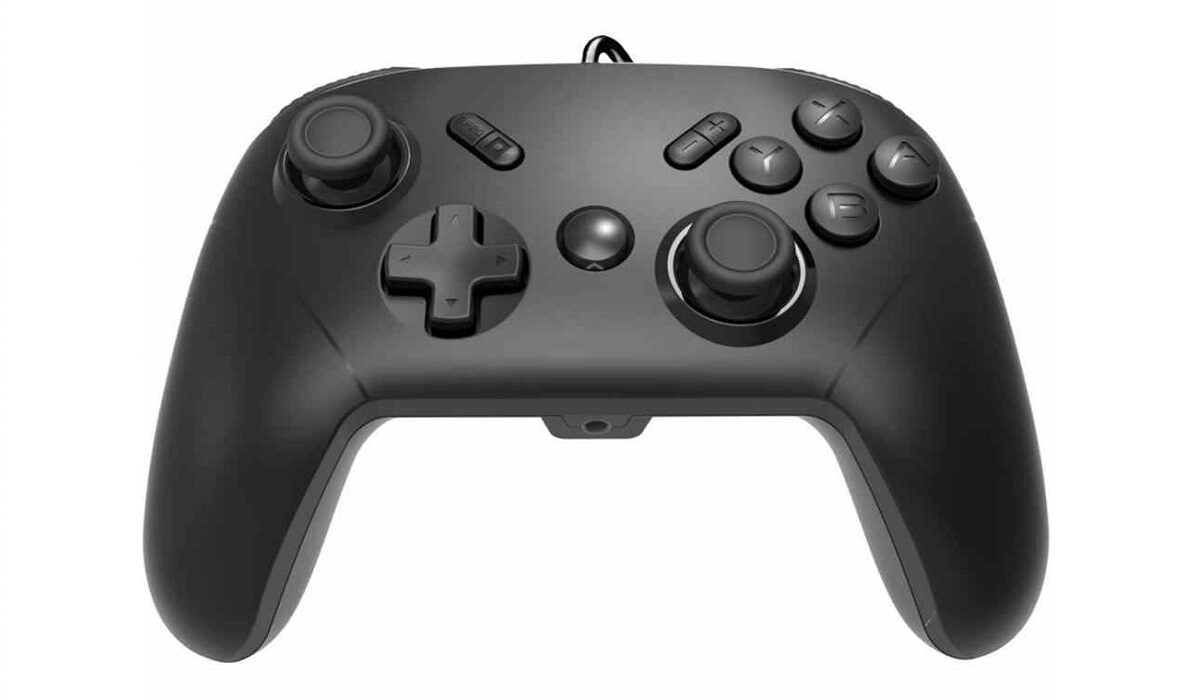
Connecting an Android device to a PS4 controller
It is very easy to connect these two devices. With this controller, you will be able to play games, and you will also be able to navigate around your Android device, such as making calls or sending text messages.
Steps to follow
- Unpair your controller from the console
It’s important you first unpair your controller from the console so it can pair to new devices.
To unpair, press and hold the “Share” button and also the “PS” button for a few seconds. When a white light starts blinking on the controller, let go of the buttons, because it has successfully unpaired.
- Switch on Bluetooth and pair
Next, you will switch on the Bluetooth of your Android device. Go to settings, you’ll see the Bluetooth options there. Switch it on.
Tap on the “pair new device”. Wait for a few seconds or minutes, until it sees your PS4 controller. When the controller appears, tap on it.
When the white light on your controller stops blinking, it means your Android device has been paired to it.
- Start navigating around
You can start using the controller to navigate around your phone’s interface, or launch a game and start playing it.
Connecting an iPhone to a PS4 controller
Apart from an iPhone, you can connect the controller to your iPad as well, and it is easy and straightforward like how you do it on an Android device. There is just one difference, and it is the supported iOS. Unlike on Android that doesn’t need the latest Android OS for it to work, on iPhones you need to be on iOS 13 upwards.
If you’re not yet on this iOS, you’ll have to go to your settings and navigate to Software Update to get your iOS device updated to the latest version.
The same steps used in connecting to an Android device are the same steps you’ll follow until your iPhone connects to the PS4 controller.
How to fix unresponsive controls on the PS4 controller
There is an issue you might face if you connect your mobile devices to a PS4 controller, and the issue is an interrupted connection between the PS4 controller and your mobile device, but I will show you how you can fix this inconvenience easily.
There is an app you will need to download, and this app is called Bluetooth Auto Connect. This app is designed to fix different issues related to Bluetooth connectivity, and for this issue, the option we will be using is known as “Continuous Connect”.
Steps to follow
• Download and install the app
• Launch it and make sure your phone is connected to the PS4 controller
• Go to “advanced options” then tap on “continuous connect”.
• Type in the number between 2 – 10 and tap on “OK”. If the numbers don’t work you can always change them.
Now, the connection between the PS4 controller and your mobile device will stop getting interrupted.
Connecting your iPhone or iPad to an Xbox One controller
With recent iPhone updates, you can now use different Xbox One controllers with your devices. You will have to update to iOS 14 if you want to enjoy varieties of features, such as the inclusion of more controllers like the Adaptive controller and Xbox elite controller.
However, not all games can be used with Xbox one controllers, but the majority of the popular games on the app store supports it, and games in the Apple Arcade too. A quick search online will let you know if a game supports the controller or not.
Steps to follow
Go to Settings and then Bluetooth
Turn on the Bluetooth and turn on the controller by holding the Xbox logo button.
Check the back of the controller, you’ll see a “wireless enrollment button”. Tap and hold it for a few seconds until a light starts blinking, which means you have unpaired it from the Xbox console. However, if it has been unpaired before now, then skip this step.
Check your iPhone or iPad Bluetooth options and tap on “Xbox wireless controller” among the available devices.
Once the light stops blinking, it means you have successfully paired to the Xbox One controller.
Connecting your Android device to an Xbox One controller
The way you connect your iPhone to an Xbox One controller is the same way you’ll connect it to an android device. Follow the steps above on how to go about the pairing.
It is worth mentioning that there have been some accessibility settings that often interfere with the functionality of the controller, especially on Android 11. Navigate to “Settings” on your phone, then “Accessibility”, now turn off “Magnification”. This should resolve the issue.
However, if the issue isn’t resolved, you’ll have to switch off all the accessibility settings, until you find the one causing the issue. This can be a bit time-consuming.
How to remap controllers buttons
PS4
If you have started gaming on your phone with the PS4 controller, you’ll notice that some of the controls aren’t well optimized, and it is making you not enjoy the game to the fullest. The cause of this is because the game you are playing hasn’t yet gotten full support for external controllers.
Thankfully, there is an app that can solve this issue. Download and install “ Octopus “. It is a remapping app that lets you change what a particular key does on your phone. With this, you’ll be able to customize the controls in a way that aligns with the PS4 controller.
Xbox
If this issue is also occurring after connecting your Xbox One controller to your phone, what you first have to do is update the Xbox One controller firmware. You will need a computer to do this. Plug the controller into the computer and start downloading the Xbox Accessories app.
You’ll see a three-dot menu in the Xbox Accessories app, click on it. To know if it needs a firmware update, check the info at the top left corner. If an update is required, click on the button there to start downloading it. After the firmware update, you might have to reconnect your phone to the controller.
Conclusion
The wireless connection of game controllers to mobile devices tends to get interrupted and this can be annoying, so I made sure to include fixes in this article that you can follow easily. Whenever you face such issues, you can always refer to this article to help you out.
You are reading Mobility Arena .
- Don’t miss our reviews .
- Join our WhatsApp Group , to be notified of the most important articles and deals,
- Follow us on Instagram , Facebook , Twitter , and YouTube .
Author:Mukhtar Sadiq
Add MobilityArena as a preferred source on Google
In the absence of a computer, you can use your phone as an alternative to cast your contents onto the projector screen. You can connect a phone to a projector wirelessly over Wi-Fi, as well as via an HDMI or a USB cable.
You will need a wireless display dongle to connect your phone to the projector wirelessly. It is an inexpensive device that can be got at any online store or electronics store. With a display dongle, you will be able to connect your phone to other devices like your TV, speakers, among others.
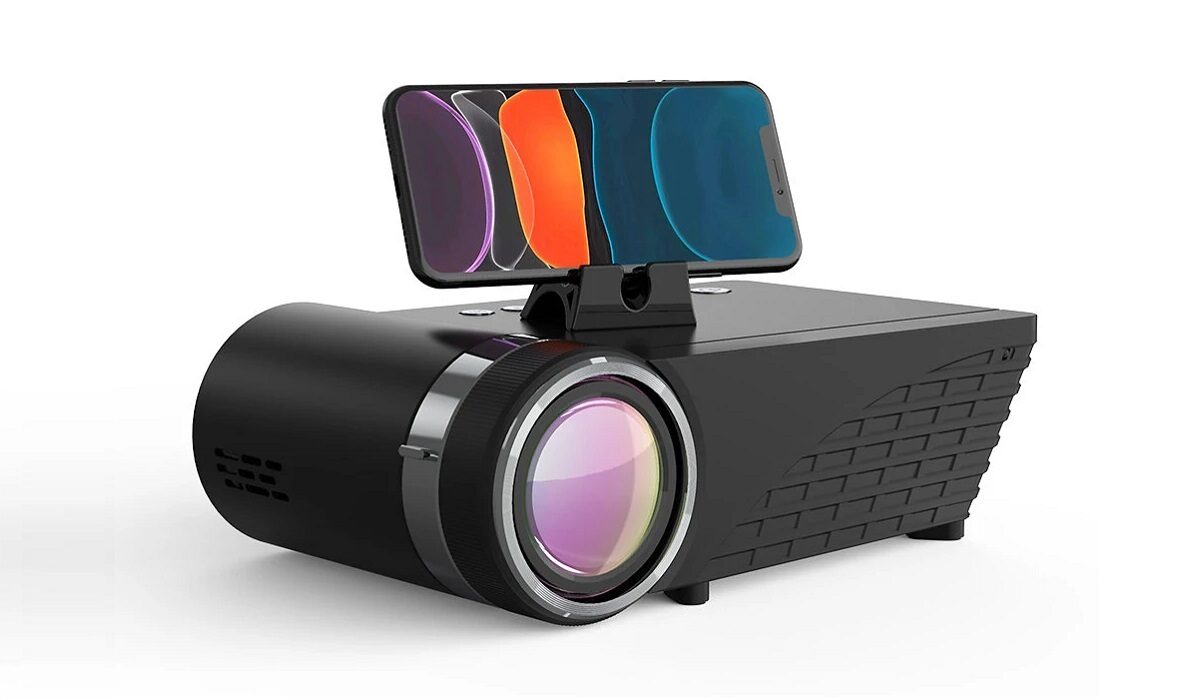
- Different ways to connect a phone to a projector wirelessly Chromecast Miracast Wi-Fi direct (for Android devices)
- How to connect a phone to a projector using a USB cable
- How to connect a phone to a projector using an HDMI cable
- Why is my device showing pictures or having no sound?
- Conclusion
Different ways to connect a phone to a projector wirelessly
Here are some of the ways you can connect connect a phone to a projector wirelessly:
Chromecast
Chromecast is a wireless display dongle. Using a Chromecast is one of the easiest and popular ways to connect your phone to a projector. This wireless device is compatible with all phones.
Steps
Turn on your projector
The Chromecast will be plugged into the Projector HDMI port
The power cable will be plugged into the USB port of the projector
Visit the Google Play Store and download the “ Google Home app ”
Launch the app
Tap on “Accounts” and input the necessary info.
Tap on the profile icon at the bottom of the screen, then choose “mirror device” (a warning might pop up notifying you that your device isn’t optimized for casting. Just tap on “OK”. Your phone will connect to the Chromecast regardless.
Tap on “cast screen/audio”.
Your mobile device will connect successfully and you can start showing the contents of your phone on the projector.
Miracast
This is also a media-streaming device just like Chromecast, but just a cheaper alternative to it. With this device, you will be able to cast all your phone contents onto the projector. For this to work without a hitch, your phone and the projector must support Miracast.
There is a high chance your phone will support it, so for the projector, you’ll need to get a Miracast receiver.
Steps
Turn on the projector
Find the HDMI port on the projector where the Miracast can be plugged into, then the power cord will be plugged into the projector’s USB port.
Download and install the Miracast app. Tap on “wireless display” settings and turn on the “screen sharing” function.
A list of devices will be shown, pick the Miracast adapter. An on-screen instruction will guide you on how to complete the remaining connection process.
If you’re getting confused or it isn’t connecting, you can use the adapter user manual for additional info on how to connect both successfully.
Wi-Fi direct (for Android devices)
If Wi-Fi direct can be used directly with your Android OS without having to download and install any third-party app, then you can use Wi-Fi direct to connect the projector to your device.
However, for this to work, Wi-Fi direct must also be supported on your projector. You can check the user’s manual to know if it supports it. If it does, then you are good to go.
Steps
Switch to mirroring setting Check your projector for a switch or setting that says “screen/device mirroring”, and switch to this setting.
Enable Wi-Fi direct
How Wi-Fi direct is enabled differs from phone to phone, but there is general navigation you can use as a guideline —
• Go to settings
• Tap on Connections or Network and Internet
• Tap on Wi-Fi and enable it
• Tap on Wi-Fi Preferences or Advanced Options
• Tap on Wi-Fi Direct prompt
Your smartphone will then search for nearby devices with Wi-Fi direct. When your projector is seen, tap on connect and follow any instruction that appears on your screen. When you’re done, your phone will be connected to the projector, and you can use it for what you want.
How to connect a phone to a projector using a USB cable
- Connect your phone to the projector
You will use a USB cord to connect your phone to the projector. A security prompt will appear on your phone, requiring you to confirm the connected device security. You will tap on “confirm”.
If you are using an iPhone, your contents will start showing on the projector screen. However, if it takes too long to synchronize your phone with the projector, press the source button on the projector. A connection option will appear, select it. This should synchronize both devices now.
If it is an Android phone, you will have to download the Ezcast app if it doesn’t automatically start showing on the projector screen, or if nothing happens after plugging the USB cord into the projector.
- Download the Ezcast app
You will get the Ezcast app from the Google Play Store. Download and install it.
- Launch it
You will launch the app and tap on the “connect” icon. A menu will appear, tap on “USB Debugging” then enable it.
- Confirm security
You will have to confirm the security. After confirmation, you will wait a bit for the projector to synchronize with your Android device.
How to connect a phone to a projector using an HDMI cable
There are some projectors that don’t have a USB port, what you will find is an HDMI port. Nevertheless, you can still connect your phone to them; you will just need an additional device known as an MHL.
Mobile High-Definition Link (MHL) is a device for connecting devices with varying ports to one another. It will connect the devices and allow them to transmit digital video and audio.
- Get the devices ready
You will need a micro USB cable and an MHL Micro USB to HDMI video converter.
- Turn on the projector
Connect the projector to the power source.
- Plug the devices
You will plug an HDMI cable into the adapter port, then the other end into the projector HDMI port.
The micro USB cable of the adapter will go into your phone’s USB port.
Power is now being supplied to all devices.
- Wait for synchronisation
Your phone screen should show the process of synchronization. Once it has successfully synchronized, you are good to go.
Note: make sure the adapter you buy has a USB cable that is suitable for your phone’s port. iPhone and Android USB ports are different, same as some Samsung devices, so get the MHL to HDMI adapter for the respective ports.
Why is my device showing pictures or having no sound?
If it is showing no picture, check the projector to ascertain if the lamp is on, and if it is in the correct input channel.
If the issue is no sound, check your phone and projector to ascertain that neither is muted, and it is at a reasonable volume that will make it very audible. After checking these and the issue persists, then there is a problem with the adapter. It means it might not be compatible with your phone.
To be on the safe side, if you want to get an adapter, state the brand of your projector and your phone, the attendants at the electronic store might have one or two pieces of advice to give you.
Also, the issue might be with the HDMI cable, especially if it is an old cable you have had around for a long time without using it. Just because it sizes the port of your projector doesn’t mean it is the cable for your signal type. You will need to get yourself a new cable and, and make sure to ask if it will work for the connection method and devices you want to use it on.
Conclusion
Before embarking on the methods shown in this article, make sure you do your research to know the suitable method for your projector and phone model; this is because some models tend to have wider adoption while others have limits. Just a quick search on Google will provide you with the answers you need.
