Add MobilityArena as a preferred source on Google
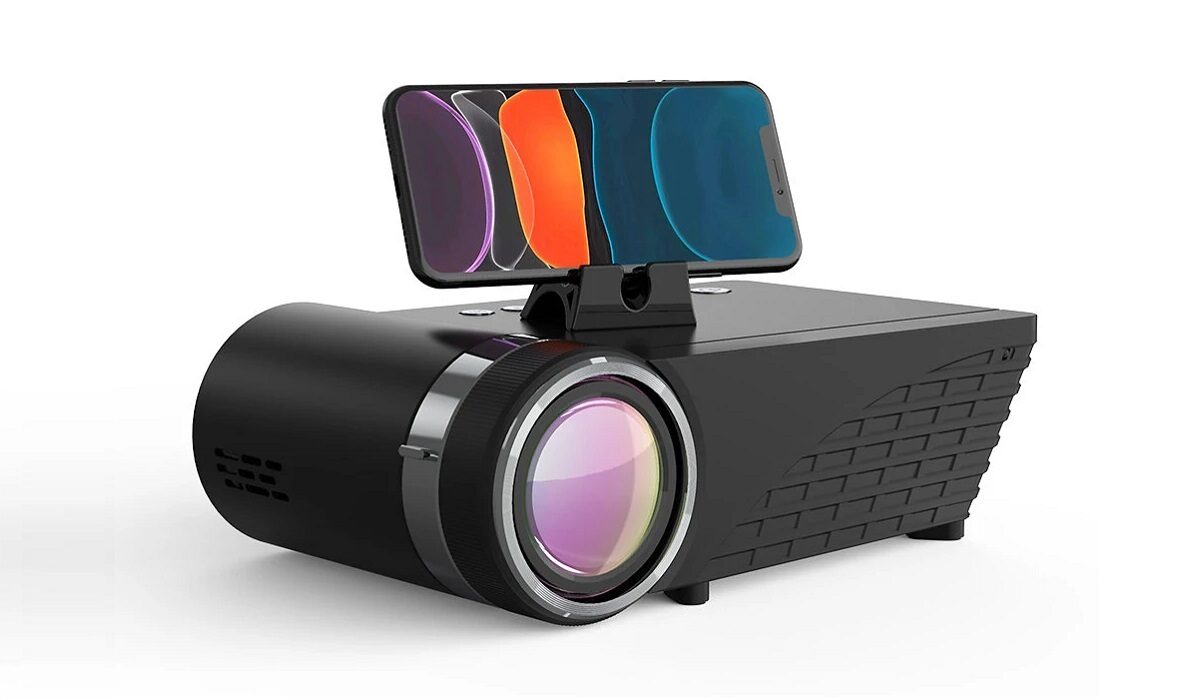
In the absence of a computer, you can use your phone as an alternative to cast your contents onto the projector screen. You can connect a phone to a projector wirelessly over Wi-Fi, as well as via an HDMI or a USB cable.
You will need a wireless display dongle to connect your phone to the projector wirelessly. It is an inexpensive device that can be got at any online store or electronics store. With a display dongle, you will be able to connect your phone to other devices like your TV, speakers, among others.
- Different ways to connect a phone to a projector wirelessly Chromecast Miracast Wi-Fi direct (for Android devices)
- How to connect a phone to a projector using a USB cable
- How to connect a phone to a projector using an HDMI cable
- Why is my device showing pictures or having no sound?
- Conclusion
Different ways to connect a phone to a projector wirelessly
Here are some of the ways you can connect connect a phone to a projector wirelessly:
Chromecast
Chromecast is a wireless display dongle. Using a Chromecast is one of the easiest and popular ways to connect your phone to a projector. This wireless device is compatible with all phones.
Steps
Turn on your projector
The Chromecast will be plugged into the Projector HDMI port
The power cable will be plugged into the USB port of the projector
Visit the Google Play Store and download the “ Google Home app ”
Launch the app
Tap on “Accounts” and input the necessary info.
Tap on the profile icon at the bottom of the screen, then choose “mirror device” (a warning might pop up notifying you that your device isn’t optimized for casting. Just tap on “OK”. Your phone will connect to the Chromecast regardless.
Tap on “cast screen/audio”.
Your mobile device will connect successfully and you can start showing the contents of your phone on the projector.
Miracast
This is also a media-streaming device just like Chromecast, but just a cheaper alternative to it. With this device, you will be able to cast all your phone contents onto the projector. For this to work without a hitch, your phone and the projector must support Miracast.
There is a high chance your phone will support it, so for the projector, you’ll need to get a Miracast receiver.
Steps
Turn on the projector
Find the HDMI port on the projector where the Miracast can be plugged into, then the power cord will be plugged into the projector’s USB port.
Download and install the Miracast app. Tap on “wireless display” settings and turn on the “screen sharing” function.
A list of devices will be shown, pick the Miracast adapter. An on-screen instruction will guide you on how to complete the remaining connection process.
If you’re getting confused or it isn’t connecting, you can use the adapter user manual for additional info on how to connect both successfully.
Wi-Fi direct (for Android devices)
If Wi-Fi direct can be used directly with your Android OS without having to download and install any third-party app, then you can use Wi-Fi direct to connect the projector to your device.
However, for this to work, Wi-Fi direct must also be supported on your projector. You can check the user’s manual to know if it supports it. If it does, then you are good to go.
Steps
Switch to mirroring setting Check your projector for a switch or setting that says “screen/device mirroring”, and switch to this setting.
Enable Wi-Fi direct
How Wi-Fi direct is enabled differs from phone to phone, but there is general navigation you can use as a guideline —
• Go to settings
• Tap on Connections or Network and Internet
• Tap on Wi-Fi and enable it
• Tap on Wi-Fi Preferences or Advanced Options
• Tap on Wi-Fi Direct prompt
Your smartphone will then search for nearby devices with Wi-Fi direct. When your projector is seen, tap on connect and follow any instruction that appears on your screen. When you’re done, your phone will be connected to the projector, and you can use it for what you want.
How to connect a phone to a projector using a USB cable
- Connect your phone to the projector
You will use a USB cord to connect your phone to the projector. A security prompt will appear on your phone, requiring you to confirm the connected device security. You will tap on “confirm”.
If you are using an iPhone, your contents will start showing on the projector screen. However, if it takes too long to synchronize your phone with the projector, press the source button on the projector. A connection option will appear, select it. This should synchronize both devices now.
If it is an Android phone, you will have to download the Ezcast app if it doesn’t automatically start showing on the projector screen, or if nothing happens after plugging the USB cord into the projector.
- Download the Ezcast app
You will get the Ezcast app from the Google Play Store. Download and install it.
- Launch it
You will launch the app and tap on the “connect” icon. A menu will appear, tap on “USB Debugging” then enable it.
- Confirm security
You will have to confirm the security. After confirmation, you will wait a bit for the projector to synchronize with your Android device.
How to connect a phone to a projector using an HDMI cable
There are some projectors that don’t have a USB port, what you will find is an HDMI port. Nevertheless, you can still connect your phone to them; you will just need an additional device known as an MHL.
Mobile High-Definition Link (MHL) is a device for connecting devices with varying ports to one another. It will connect the devices and allow them to transmit digital video and audio.
- Get the devices ready
You will need a micro USB cable and an MHL Micro USB to HDMI video converter.
- Turn on the projector
Connect the projector to the power source.
- Plug the devices
You will plug an HDMI cable into the adapter port, then the other end into the projector HDMI port.
The micro USB cable of the adapter will go into your phone’s USB port.
Power is now being supplied to all devices.
- Wait for synchronisation
Your phone screen should show the process of synchronization. Once it has successfully synchronized, you are good to go.
Note: make sure the adapter you buy has a USB cable that is suitable for your phone’s port. iPhone and Android USB ports are different, same as some Samsung devices, so get the MHL to HDMI adapter for the respective ports.
Why is my device showing pictures or having no sound?
If it is showing no picture, check the projector to ascertain if the lamp is on, and if it is in the correct input channel.
If the issue is no sound, check your phone and projector to ascertain that neither is muted, and it is at a reasonable volume that will make it very audible. After checking these and the issue persists, then there is a problem with the adapter. It means it might not be compatible with your phone.
To be on the safe side, if you want to get an adapter, state the brand of your projector and your phone, the attendants at the electronic store might have one or two pieces of advice to give you.
Also, the issue might be with the HDMI cable, especially if it is an old cable you have had around for a long time without using it. Just because it sizes the port of your projector doesn’t mean it is the cable for your signal type. You will need to get yourself a new cable and, and make sure to ask if it will work for the connection method and devices you want to use it on.
Conclusion
Before embarking on the methods shown in this article, make sure you do your research to know the suitable method for your projector and phone model; this is because some models tend to have wider adoption while others have limits. Just a quick search on Google will provide you with the answers you need.
Author:Mukhtar Sadiq
Add MobilityArena as a preferred source on Google
iPhone: For Use Morning, Noon and Night: Throughout a 24-hour period, our iPhones can provide us with entertainment and functionality. The iPhone can be used for 24 hours straight in order to carry us through the hours. Someone who works from their phone can actually work and play on the phone. Here are three uses for the iPhone from morning, noon, and night.
In the morning, you can get work done from your phone. In the afternoon, you can play on your phone and in the evening you can watch entertainment on your phone. Throughout an entire 24-hour day, you can use your phone to carry you through.
- Morning Work
- Afternoon Leisure
- Evening Entertainment
Morning Work
More and more people are shifting to working from their phones. This is a growing trend, especially as many sectors include customer service that can be done over the phone. People who work in the stock exchange, and just regular investors, can check the QS stock forecast on their phones. Still, others work as live chat representatives from the comfort of their smartphones. Certain individuals maintain sales jobs from their smartphones, conducting sales over platforms like Shopify and Instagram. In the morning time, the individual who works from his or her phone can do their work for the day.
Working from home from your phone involves good talking skills and also good typing skills. You need to know how to type if you are a live chat agent and how to speak on the phone if you are a phone customer service agent. You can use your phone to do jobs that involve customer service from the comfort of your own home. These jobs are more and more readily available on job platforms like Indeed.com and Snagajob.
These types of jobs became more popular as covid arose, but more and more people are sticking with working from home after they have discovered how comfortable it is. Working from home is a great thing, and it can be done from a laptop computer, desktop computer or your very own smartphone. It involves customer service skills and good communication skills.
Afternoon Leisure
After you finish your morning work on your phone, you could enjoy a workout with an exercise app. Also, It is possible to enjoy entertainment in the afternoon on your phone, as well. You may find that it is entertaining for you to read up on the news on your phone or to go on social media on your phone. You will find that the hours passed by quickly as you find entertainment on your smartphone. It is a good idea to read up on the news in the afternoon in order to stay up to date on what is going on in the world around you.
Evening Entertainment
During the evening, you can entertain yourself on your phone, too. You can either go on social media and check out what people have to say, or you can watch a movie on your phone. Watching a movie on your phone is one of the most entertaining things that you can do during your evening. You can choose classic movies, or you can choose a new movie. You may like to watch a television show on your phone too, and that’s perfectly acceptable.
For example, if you like to watch a specific TV show and pay for a subscription, you will get access to the most recent season, rather than two seasons ago. You will find that this is very worthwhile because you will be able to stay in the know about the most recent trends in your favorite TV shows. It is worth paying the subscription fee to get to know a bit more about your favorite TV shows and to be able to talk about them with other people on social media.
Author:MobileChic
That motivated, gadget-loving geeky chic who tries to stay on top of things. Unapologetic iFan.
