Add MobilityArena as a preferred source on Google
Today’s Wi-Fi networks almost universally require a password to access them. Even free Wi-Fi in public places is starting to be monitored. Many places you visit post their password inside the building to deter bandwidth thieves from the outside and protect data connections.
Fortunately, in order to increase convenience, manufacturers have developed a number of methods for a guest user to connect to a Wi-Fi network without having a password, but it’s not as easy as you might think. This article will help you though, because we’ve included instructions to show you how to connect to WiFi without a password.
How Can I Connect to WiFi Without a Password?
Please keep in mind that this article is solely for educational purposes; it’s rude and might even be illegal to access someone’s Wi-Fi network without that person’s permission. Make sure you have permission from the network owner before using any of the techniques listed below to connect to any Wi-Fi without a password.
Connect to a WiFi network without a Password using WPS
WPS is an abbreviation for Wifi Protected Setup. It is a feature that allows for simple wireless network setup and connection.
WPS connects a user to a wireless network by simply pressing a button on the router or entering a simple personal identification number (PIN) into the device to which they want to connect. The user will no longer be required to manually enter the network’s network name (SSID) and security key (password).
So how do you configure your phone to use the WPS feature? Follow the steps outlined here:
● Navigate to the “ Settings ” menu on your smartphone.
● Proceed from there to the “ Networks and Internet settings ” section
● Next, navigate to Wifi settings and click the “ Advanced Option ” button.
● Select “ Connect by WPS button ” from the drop-down menu.
● The WPS handshake protocol will be activated. A new dialogue box will appear, informing you that you have 30 seconds to press the WPS button on the router. The WPS handshake protocol will be deactivated after 30 seconds.
● Some Wi-Fi routers do not have a dedicated WPS button, but rather a WPS pin. In this case, select “ Connect by WPS button ” and then enter the WPS pin, which should be found on the router’s sticker.
● Afterward, your phone will connect to the Wi-Fi network without needing a password.
Please keep in mind that some of the steps outlined here may differ depending on the brand and manufacturer of your smartphone. Furthermore, Apple devices do not support WPS standards, so iPhone and Mac users will be unable to use this method.
Connect to Wi-Fi Without a Password on Android/iPhone Using DDP
Another method for connecting to a Wi-Fi network without a password for Android 10 and higher versions is to use DDP (Device Provisioning Protocol), also known as Wi-Fi Easy Connect.
See the instructions below to use this method to connect to Wi-Fi without a password on Android and iPhone
First, configure an Android 10+ device as a DPP/Wi-Fi Easy Connect Configurator.
● Navigate to Settings and select Network & Internet .
● Select Wi-Fi , then either choose your connected SSID or tap the Settings icon beside it.
● Select the Share option from the advanced dropdown menu.
● A QR code will display, the code can then be scanned by other Android devices or iPhones to connect to the Wi-Fi network without a password.
Next, using DDP, connect to Wi-Fi. On Android 10 and later devices:
● Navigate to Settings > Network & Internet
● After selecting Wi-Fi , scroll to the right side of the Add Network row to find the QR scan icon.
● You’ll come across a QR Code Scanner. You can scan any device with a Wi-Fi QR code when using a phone as the configurator.
If you’re using an iPhone:
● Open your phone’s camera.
● Scan the QR code displayed on the configurator (DPP/Wi-Fi Easy Connect device)
● Select Join Network .
Connect to WiFi without a password by scanning a QR code
The QR code method of connecting to Wi-Fi networks without a password involves some technical knowledge and can be a little complicated.
Some routers have a QR code on the back or bottom, usually near the SSID and default password. This method, however, only works with factory-set SSIDs and passwords. Furthermore, on newer routers, the QR code may be for DPP/Wi-Fi Easy ConnectTM connections rather than WPS.
Here’s how to use a router’s QR code to connect to Wi-Fi without a password:
● Open the camera app on your iPhone and navigate to “ Settings .” Make sure QR code scanning is enabled. For Android users, download a QR code scanner app.
● Scan the QR code on the back of the router with the QR code app for Android or the camera app for iPhone/iOS.
● To connect to the Wi-Fi network, you should receive a banner or notification.
● To connect, tap on the Wi-Fi SSID.
In conclusion , we hope that this guide has made it easy to understand how to connect to Wi-Fi networks without a password on your iPhone or Android device.
Author:Joan Agie
Add MobilityArena as a preferred source on Google
You can use any two apps simultaneously by splitting the screen on your Android phone. This action is quick and easy to enable on any smartphone running Android 7 or later, and it can significantly increase your productivity.
If you don’t know how to make a split screen on Android, this guide is for you. We’ve provided helpful instructions to successfully split your Android screen, so keep reading to find out.
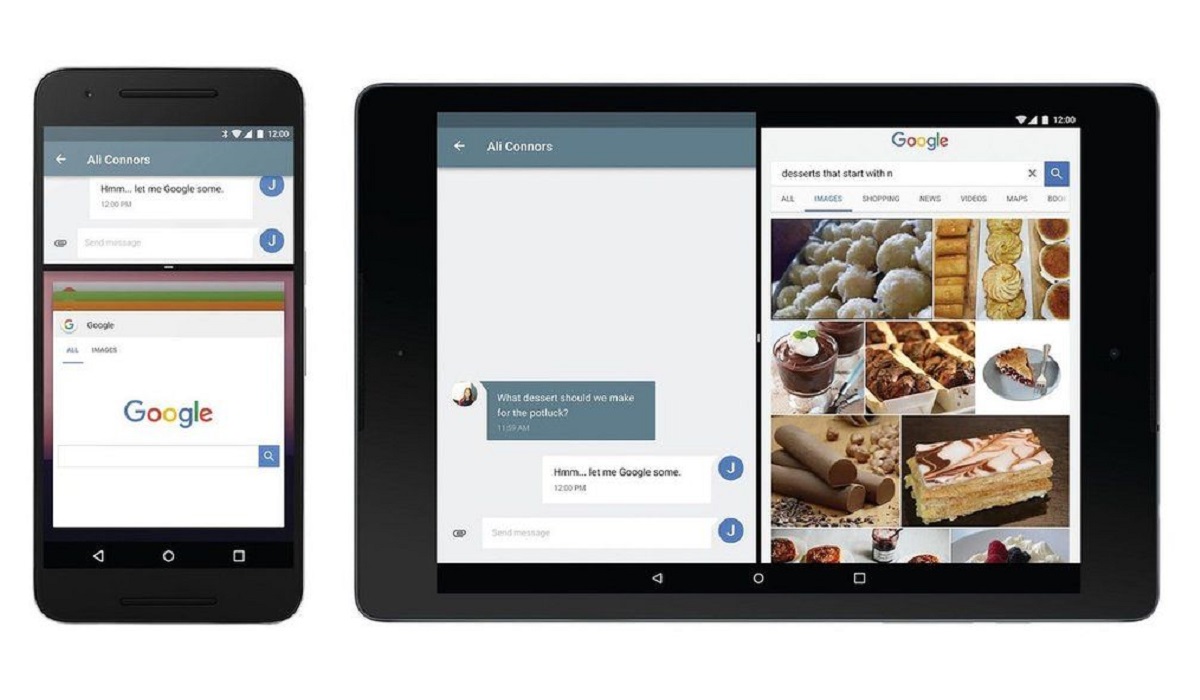
How Can You Make A Split Screen on Android phones?
The majority of modern Android phones from more than a dozen different manufacturers now allow users to run apps in split-screen mode, allowing you to use and view both screens simultaneously. However, not all Android devices support the split-screen functionality.
The instructions to make a split screen on an Android will most likely differ based on the brand, but the following should work for most Android devices:
● Tap the Recent Apps button on your Android home screen. You’ll find it at the bottom-left or right corner of your screen; it appears as three vertical lines on certain phones and as a rounded square on others.
● Locate the app you wish to use in split-screen mode on the Recent Apps page, then click on it and hold until a menu pops up.
● Select Split screen from the menu.
● The app you’ve chosen will momentarily take up the top portion of the screen and be divided from the bottom by a black bar. Tap the second app you wish to use in split-screen mode after that.
● Your apps will now show up in split-screen mode, and switching between them should be simple.
● Drag the black bar separating the applications in the direction of the program you want to close to terminate the split-screen view.
Note that you shouldn’t drag the black bar all the way to the top or bottom, though, since it will end the split-screen view. Instead, move it up or down if you’d like to give the top or bottom app more space on the screen.
How to make a Split Screen on Samsung Galaxy smartphones
It’s important to note that there is a small difference in how to make a split-screen on Samsung Galaxy smartphones. Follow these steps if you own one:
● Tap the Recent Apps button (the three vertical lines) in the lower-left corner of the Samsung Galaxy’s home screen.
● Locate the app you wish to use in split-screen mode in the Recent Apps panel, and then click on its icon at the top.
● Then, select Open in split-screen view from the menu that displays.
● The top half of the screen will display the app, divided in the middle by a blue bar. You’ll notice a selection of additional apps below the blue bar; all you need to do is tap on the app you want to occupy the screen’s bottom half.
● Now that each app is using its own half of the screen, you’ll be able to use them both without needing to close either.
● Drag the blue bar separating the applications in the direction of the app you want to close whenever you decide to end the split-screen view.
Now that you know how to make a split screen on your Android, don’t forget that the split-screen option can cause your battery to drain more quickly.
In addition, not all applications allow you to make a split-screen on Android; some, like games, demand full-screen functionality. You’ll find that some apps are better suited to split screens than others, especially if you frequently use apps in split screen mode.
For instance, using split screen mode on Android works well with apps like Netflix and YouTube because those programs have video capabilities and don’t require much interaction. On the other hand, if a player must pay close attention to the gameplay in a mobile game, using the split screen mode may not be a good option.
In summary , we hope this guide has taught you how to properly make a split screen on Android; just make sure to follow the instructions correctly for the right results.
