Add MobilityArena as a preferred source on Google
Congratulations on the purchase of your first Smart TV. Now, you want to connect it to the internet, after all what is the point of having a Smart TV without it being online? How do you Netflix and chill? In this step-by-step guide, we will walk you through how to connect your smart TV to the Internet in a few easy steps.
There are two key ways to connect your Smart TV to the internet. One is via a wireless connection, while the other is via a wired connection. We walk you through both ways in this article.
- Connect Your Smart TV Using A Wireless Connection
- Connect Your Smart TV Using A Wired Connection
- Everything You Wanted To Know About Smart TVs What is a smart TV? What is the difference between a smart TV and a regular TV? Do smart TVs have built in WiFi? Can a smart TV be used as a normal TV?
Connect Your Smart TV Using A Wireless Connection
Using a wireless connection means you can avoid messy wiring all over the place. Your Smart TV should have Wi-Fi support built in. So, you will need a hotspot. You can use a router, a mi-fi, or even the hotspot feature on your smartphone or tablet to share internet with your Smart TV.
If you are using your smartphone, make sure you have a reliable 4G connection or else you must be prepared to endure a lot of buffering and stuttering while using your TV.
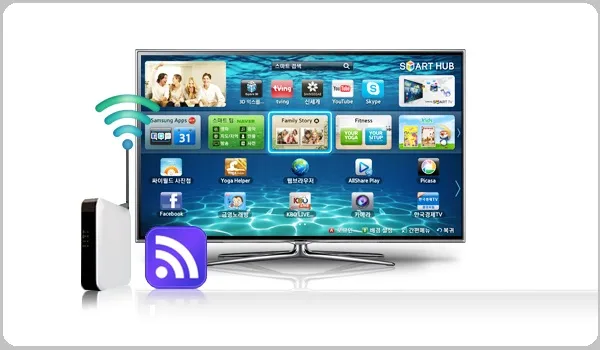
You can connect your Smart TV to the Internet using a wireless Connection
Here are the steps to connect your Smart TV to the internet via Wi-Fi. Note that depending on your Smart TV’s brand, the exact name and process may differ slightly, but will fit within these steps:
- Turn on your router/Wi-Fi/smartphone hotspot
- Press the Menu (or Smart ) button on your Smart TV’s remote
- Select Network and then Network Settings
- Your Smart TV Should attempt to connect to a wireless network. If it doesn’t find one, it will attempt to connect to your Wi-Fi. If it does, you are good to go and may skip the next steps. If it does not connect, proceed with the following steps.
- Select Set up a wireless connection
- Select your Wi-Fi wireless network name from the list of available hotspots
- Type your Wi-Fi password using your remote’s keypad.
- Your Smart TV should now be connected to your Wi-Fi and is internet-connected.
If you are using your smartphone’s Wi-Fi connection and your Smart TV is unable to see it i.e. your phone’s Wifi isn’t listed as an available hotspot, it is likely that your phone hotspot is not compatible with the Smart Tv’s WiFi radio.
To verify, you can go to your phone’s Settings -> Mobile hotspot, and find where you can change the AP band. Change it, save and try again to see if it is listed as available by the smart TV. If it isn’t still listed, then you may have to purchase a mifi or router to connect your smart TV to the Internet.
Connect Your Smart TV Using A Wired Connection
With a wired connection, you will need a LAN or Ethernet cable, with which you will connect your Smart TV to your router. The benefits of wired over wireless include faster Internet speeds and less interruptions.
Here is what to do:
- Find the LAN or Ethernet port on the back of your Smart TV (see the diagram below) You can connect your Smart TV to the Internet using a Wired Connection
- Plug the cable into the LAN/Ethernet port on your TV and then plug it into your router as well.
- Select the Menu or Smart button on your TV’s remote
- Select Network and then Network Settings
- Your Smart TV Should attempt to connect to a wireless network. If it doesn’t find one, it will attempt to connect to your Wi-Fi. If it does not attempt any connection, skip this step.
- Select the option to enable wired internet and click Start Connection
- Your Smart TV will automatically connect to your wired network and it is online.
Now that you have been able to connect your Smart TV to the Internet, it is time for you to get some popcorn and drinks, and invite friends over for an evening of streaming movies.
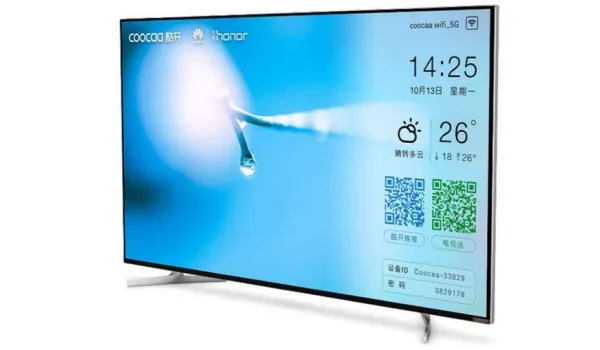
Everything You Wanted To Know About Smart TVs
Here is a quick guide answering the most commonly asked questions about smart TVs.
What is a smart TV?
A Smart TV is an Internet-connected television set. It has everything else a standard TV set has, plus integrated Internet and interactive Web 2.0 so you can stream video and music content and even browse the internet.
What is the difference between a smart TV and a regular TV?
The main difference between a smart TV and a regular one is that a smart TV can access the Internet – just like your PC, tablet, and smartphone. That Internet access is used to access video and audio on apps and services like Netflix, Hulu, Youtube, etc.
Do smart TVs have built in WiFi?
To connect your smart TV to the Internet, it requires an Internet connection. That connection is via WiFi. Smart TVs have built-in WiFi for connecting to the Internet. So, if you want to use one, you need a home router and Wifi or a mifi portable hotspot.
Can a smart TV be used as a normal TV?
Yes; a smart TV can be used to access regular TV channels as well.
Author:InfoDesk
Add MobilityArena as a preferred source on Google
A virtual SIM card is one that is built into the device and can be programmed over the network, so eliminating the need for a physical SIM card. Back in 2012, I wrote about how physical SIM cards would go away and give place to virtual SIM cards in the future.
In 2014, a UK-based company called MoVirtu implemented something that took us a step in that direction. MoVirtu’s virtual SIM card solution let users operate multiple lines and profiles on the same device without swapping physical SIM cards. The company has since been acquired by BlackBerry.
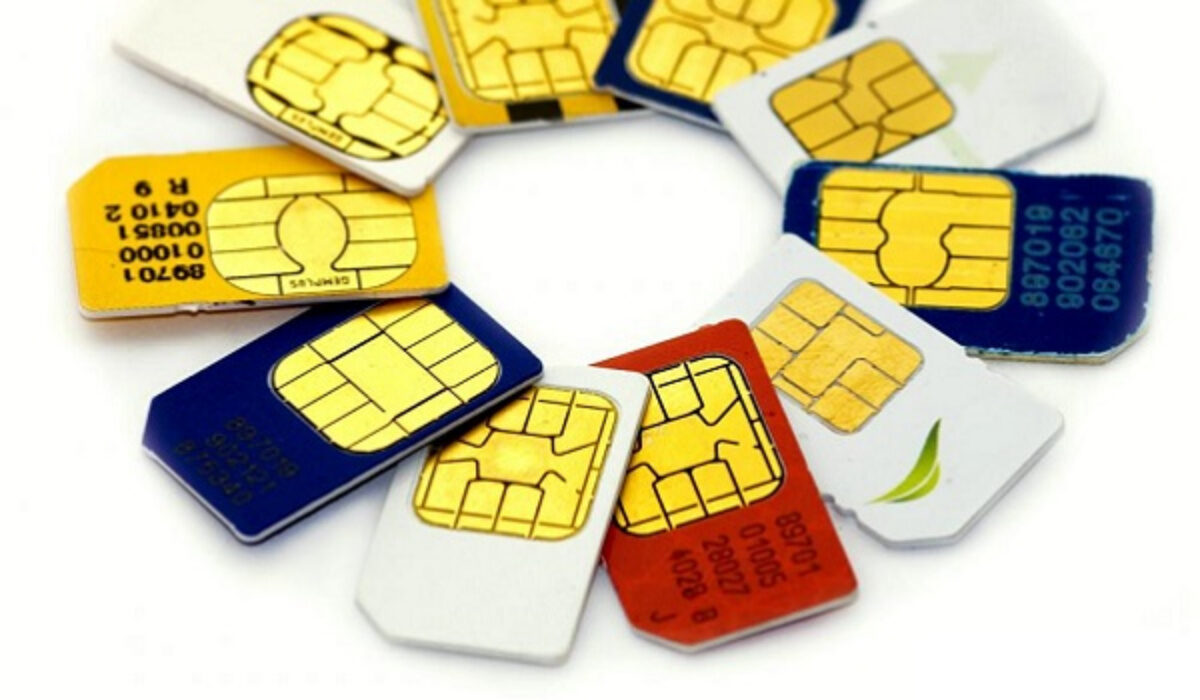
PS : Note that when we use the terms virtual SIM, eSIM, and digital SIM, we are referring to the same thing.
And now, Arm is pushing a virtual SIM card solution called the Integrated SIM (iSIM). Another digital SIM card technology company called Simless, also founded in 2014, believe that digitizing physical SIM cards is the way forward and are pushing Embedded SIM (eSIM) chips.
Do not let the lingo confuse you. Both iSIM and eSIM are different names that each vendor has chosen to call their implementation of the virtual SIM card. They are both not physical SIMs.
Benefits Of Virtual SIM Cards
The advantages of virtual SIMs are easy to see. Hardware makers can use the free-up space to put in bigger batteries or displays or anything else that needs to be put in their devices. Note that many new connected devices e.g. Internet of things (IoT) devices, are smaller in size, freeing up space is even more important.
Also, if you are travelling, you do not have to run around to find a store where you can purchase a physical SIM from on arrival.
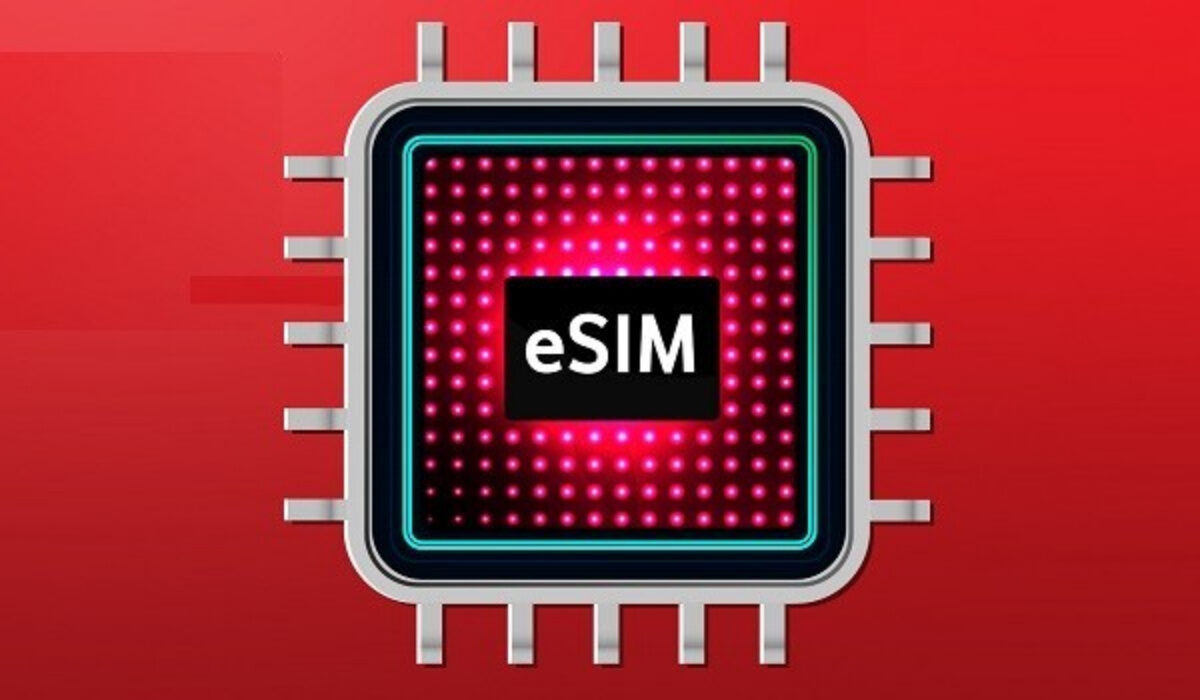
The Dark Past Of Virtual SIM Cards
A physical SIM card allows you to walk into a cell phone store, purchase a new prepaid cell phone or smartphone and start using it immediately without needing your carrier or network operator to make the switch. It is pure convenience and is a major attraction of GSM mobile technology.
Anyone who has used a CDMA network knows the pain that is often associated with switching to a new phone. Sometimes, you waited for days, and sometimes for weeks. If your mobile network operator was not quick on customer support, you were stuck. Sometimes you were stuck on the old phone, which is the better situation. Worse, you could get stuck in limbo – the old phone is already deactivated and the activation of your line on the new phone is pending, leaving you without a functional line for a while.
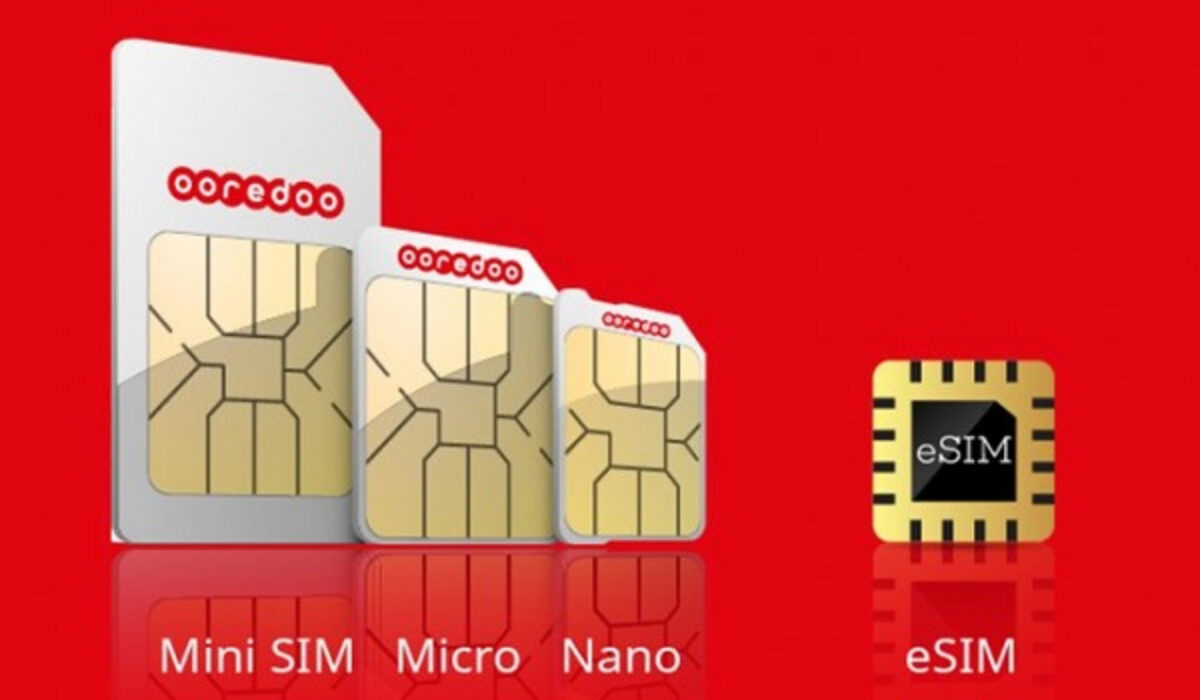
eSIM cards or Virtual SIM cards are here to stay
Going Forward With Digital SIMs
However it plays out, digital SIM cards are here and will not be going away again.
- Don’t miss our mobile phone reviews .
- Follow our news on Google News .
- Join our WhatsApp Group , to be notified of the most important articles and deals,
- Follow us on Instagram , Facebook , Twitter , and YouTube .
Author:Mister Mobility
Digital Skills and Communication Coach | Mobile Phone Connoisseur since 2001 | Tech Blogging since 2004
