Add MobilityArena as a preferred source on Google
PDFs present documents in an orderly manner, but a notable downside is that they can be challenging to edit. As such, when you want to edit a PDF, it’s common practice to convert it first.
Truly, there are numerous tools available to help convert PDF files to Word documents. However, why download apps you’re not even sure will work when Google Drive is a much better solution?
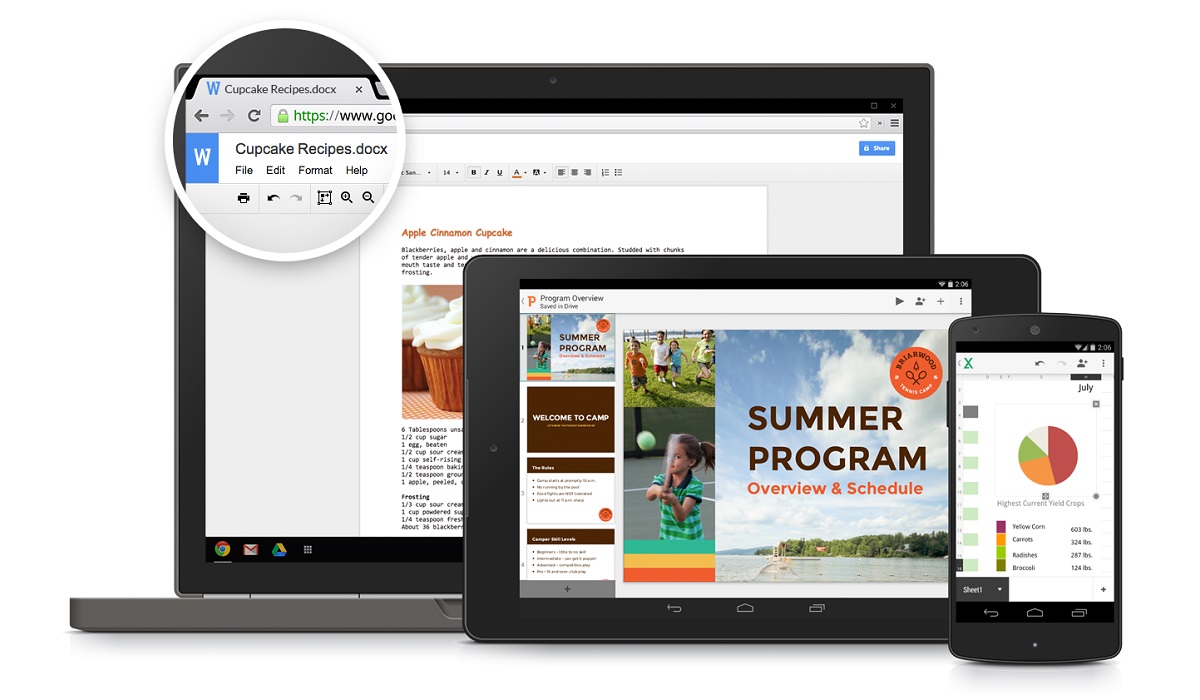
Anyone can easily convert PDF files to Word using Google Drive. This way, there would be no need for converter apps or websites. If you don’t know the steps involved, keep reading this guide to learn how to convert PDF files to Word using Google Drive.
How Can I Convert PDF Files to Word Using Google Drive?
It’s pretty easy to convert PDF files to Word with Google Drive, as long as you’re following the right steps. Note though that to convert PDF files to Word using Google Drive, you’d first need to convert the PDF file into a Google Doc before downloading it in a Word document.
Your conversion might be quicker if you convert your PDF into a Google Doc without keeping the document’s original formatting because if you transfer the original formatting, the conversion may take longer to complete. Below are the instructions you need to get it done:
Step 1: Save the PDF file
First, the PDF document you want to convert should be saved on your computer’s hard drive. To save a PDF, click the “ Save ” button located at the top-right corner of the PDF document.
When saving the file, ensure that to name it in a way that makes it easy for you to locate when you’re uploading it to your Google Drive account.
Step 2: Sign in to your Google Account
Next, log into your Google Drive account; you’ll need to do this before you start converting the PDF file to Word. You’ll be able to execute the conversion through your account, and you also get a location to save the converted file once you’re done.
Step 3: Upload the PDF file
Upload the PDF file to your Drive account after you’ve logged into your account. To do this, choose the “ New folder ” tab. After that, select the “ Upload files ” button.
Next, select the option to upload a document from your PC afterward. Look for the PDF file in question, then click on it to upload it to Google Drive.
Step 4: Open the file with Google Docs
Right-click the file once it has been uploaded to your Drive. You’ll then be given a drop-down selection of options. Choose “ Google Docs ” from the drop-down menu after clicking the “ Open with ” button.
When you click it, the process of converting the PDF file to Word with Google drive begins. Depending on the size of your document, this can take some time. For instance, very large documents could take several minutes. But after it’s done, you ought to have a text-editable version of your PDF.
Step 5: Check and Download the File
As soon as you’re done converting the PDF File to Word using Google Drive, it automatically downloads to your Google Docs account. It appears as an editable document in your Docs account. Verify your account to make sure the PDF is converted properly.
You could also choose to tidy up some of the document’s content. This method of converting PDFs to Word documents using Google Drive can sometimes produce odd outcomes, such as badly aligned texts or misspelled words. So if you prefer, you may manually tidy this up, or you can just leave it the way it is.
It’s okay to stop here if you prefer for the document to be a Google Doc rather than a Word document. You will need to download it, though, in order to use it offline. By selecting the desired file format under File > Download , you can download it easily. The .docx format is the one you should use if you intend to open the document with Microsoft Word.
In summary , the procedure to convert PDF files to Word using Google Drive is rather easy, you just need to make sure to follow the instructions correctly.
- Don’t miss our mobile phone reviews .
- Follow us on Instagram , Facebook , Twitter , and YouTube .
Author:Joan Agie
Add MobilityArena as a preferred source on Google
Google Drive is an excellent cloud storage service that is also available on a number of platforms, including macOS. The desktop app for Google Drive combines backups from Google Drive and Google Photos into a single app.
However, if you no longer want to use the Google Drive desktop app, it’s possible to uninstall it. If you’re not sure how to, this guide will walk you through the process to correctly and safely uninstall Google Drive from a MacBook computer.

How can I Safely Uninstall Google Drive from a Mac?
Many Mac users tend to have trouble uninstalling Google Drive, but if you encounter a similar problem, simply follow the instructions below to uninstall Google Drive completely from your Mac.
Disconnect Your Google Account
Google Drive for desktop typically syncs files on your Mac with your Google account automatically. Therefore, before you uninstall Google Drive from your Mac, it’s important to disconnect your Google account to stop data syncing and terminate all related processes.
To do this, follow these steps:
- From the menu bar , select the Google Drive icon.
- Select the Settings icon, then Preferences from the dropdown menu.
- In the dialogue box , click the Settings button.
- Choose the Disconnect Account option next to your email address.
- Click Disconnect , followed by Done.
Now you can safely uninstall the Google Drive app from your Mac after disconnecting your Google account from it.
Uninstalling Google Drive from your Mac
You’ll first have toclose Google Drive on your Mac before removing it. To do so, go to the menu bar , click the Google Driv e icon, then the Settings icon, and finally the Quit option.
It should now be easy to uninstall the Google Drive app on your Mac after quitting the application. There are several methods for uninstalling apps on a Mac, but the simplest is to drag them to the Trash.
Here’s what you should do:
- Launch the Application folder in Finder
- Control-click Google Drive and then choose Move to Trash . You could also just drag it to the Trash.
- Next, access Trash in the Mac’s Dock.
- Select the Delete Immediately option after control-clicking Google Drive.
Alternatively, you can Control-click on Trash and select Empty Trash to permanently uninstall Google Drive from your Mac.
Delete any Residual Google Drive files Using Finder
Even after uninstalling Google Drive from your Mac, it’s still important to remove the leftover files. If these junk files accumulate, they can harm your Mac in the long run.
So, to delete residual Google Drive files using Finder, simply follow these steps:
- Launch Finder and click Cmd + Shift + G.
- In the Go to Folder search box, type ~/Library/ .
- Now, to find Google Drive , use the Search bar in the top-right corner.
- To narrow your search, choose “Library” instead of “This Mac”
- Locate any files that match, and if you find any, move them to the trash.
Again, you’ll need toempty your Mac’s Trash so you can permanently delete these residual files from your Mac. However, be careful when deleting these unwanted files to prevent accidentally deleting other important files; double-check before clicking Delete .
Besides the Library folder, you can look for any residual files in the following subfolders:
- /Library/Preferences
- /Library/Caches
- /Library/Application Support
- /Library/LaunchAgents
- /Library/PreferencePanes
- /Library/Saved Applications State
- /Library/StartupItems
- /Library/LaunchDaemons
Uninstall Google Drive from a Mac Using App Cleaner & Uninstaller
App Cleaner & Uninstaller is a utility that uninstalls apps completely and easily on a Mac. You’ll also be able to use this tool to quickly uninstall Google Drive from your Mac, or backup and sync apps along with all of their service files.
Follow these steps to uninstall Google Drive on a Mac with App Cleaner & Uninstaller:
- Open the app cleaner and Uninstaller
- Choose the Google Drive app
- Click the option to remove Google Drive
- Confirm your decision
This action will completely uninstall Google Drive on your Mac, including all of its support files such as caches, containers, and preferences.
To uninstall Backup and Sync from Google, follow these steps:
- In App Cleaner & Uninstaller , select Backup and Sync
- Uninstall the app by clicking the option
- Confirm the deletion of Backup and Sync
In conclusion , you can use any of the above methods to safely uninstall Google Drive from a Mac.
- Don’t miss our mobile phone reviews .
- Follow us on Instagram , Facebook , Twitter , and YouTube .
