Add MobilityArena as a preferred source on Google
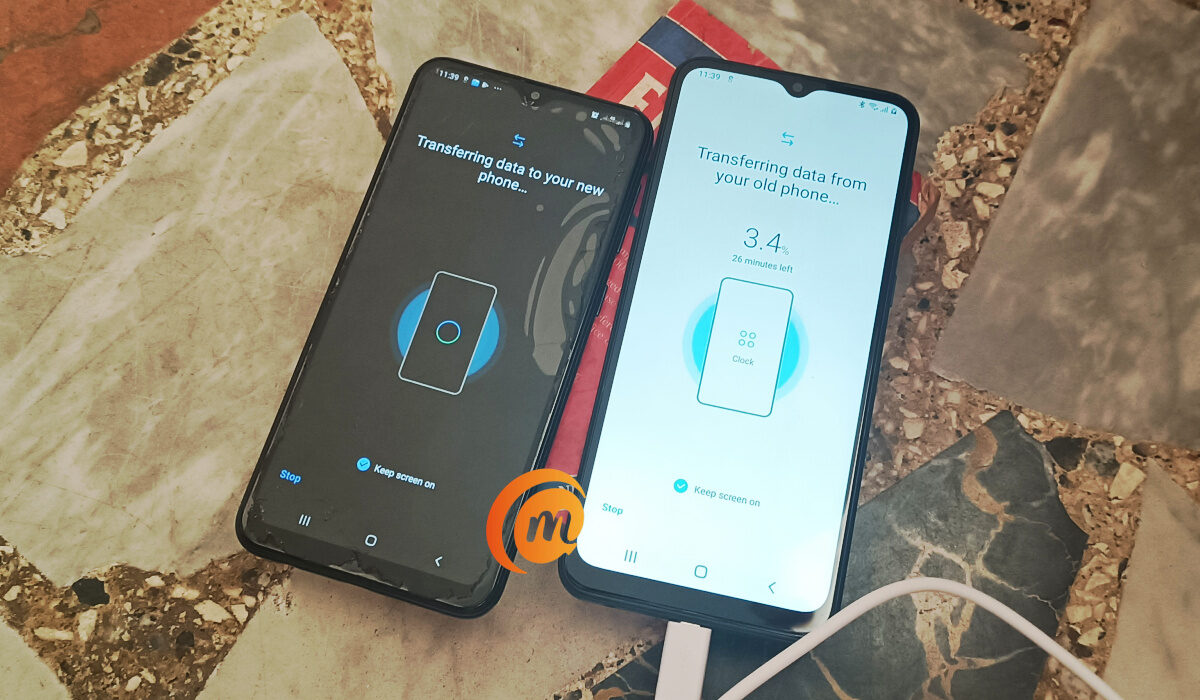
Moving data from an old android smartphone to a new one is most important when it comes to switching smartphones. You could have pictures, videos, documents, work-related data, account information, etc, that you will most definitely need. Transferring this data is relatively easy, and stressless, for the most part. You might have to do some waiting for the transfer to be fully complete.
Note that some brands have their own custom solutions to help you copy or transfer data from an old phone to a new one. Samsung is one of them and you can move files seamlessly with the Smart Switch app (see our Samsung Galaxy A03 Core review ).
- Things to note before you start the transfer
- How to transfer data from an old Android phone to your new one
- How to copy data from an old Android phone to your new one, manually
Things to note before you start the transfer
- Ensure that both devices are charged.
- Ensure that you can unlock both devices with whatever PIN, password, or pattern you have set (if there are any).
- Sign into your Google Account on your old account
- If you do not have a Google Account, create one on your old device.
- Backup your data.
- Ensure that you have a stable Wi-Fi connection.
How to transfer data from an old Android phone to your new one
Note that the steps on your phone might vary from the ones I am about to list but the same logic applies.
- Turn your new device on.
- Tap on “Start”.
- Ensure that you connect to a stable Wi-Fi network.
- Opt to copy data and apps from your old device.
You will be given the option of using a cable to connect both devices and another if you do not have a cable.
- If you do have a cable, follow the on-screen instructions to copy your data.
- If you do not have a cable, tap on the “No cable?” option.
- Tap “A backup from an Android phone”.
- Follow the on-screen instructions to copy your data.
How to copy data from an old Android phone to your new one,manually
If the steps above somehow cease to work, you can manually transfer and sync your data with both phones (old and new).
Copy your contacts
If you have your contacts saved on your Google Account, then they will automatically sync to your new phone when you sign into the account. If you don’t have them saved to your Google Account, you could simply transfer your SIM card from your old one to your new one.
Copy your Music
The same applies to your music as it does your contacts. If you have signed into your different music streaming services like YouTube Music, Spotify, etc, with your Google Account, or any account. Simply sign into the apps on your new phone and all of your music will sync automatically.
Copy photos, videos, files, etc.
Again, if you have all of these backed up with your Google Account, or Google Drive, they will automatically sync and show in their respective apps. You can find photos and videos in your Google Photos app, while you can find files and folders, in your Files app or on Google Drive.
Copy calendar events
If you already use Google Calendar, your calendar events will automatically display when you open the Calendar app.
- Don’t miss our mobile phone reviews .
- Join our WhatsApp Group , to be notified of the most important articles and deals,
- Follow us on Instagram , Facebook , Twitter , and YouTube .
Author:Flamez
Flamez loves basketball, art, gadgets and cars.
Add MobilityArena as a preferred source on Google
Apple’s iPads are among the best tablets on the market, but that doesn’t mean they’re without flaws. Like any computing device, they have their share of problems. One of the many issues that iPad users complain about is that their device keeps shutting down.
If your iPad continues to shut down for no apparent reason, don’t get too worked up. This article goes over some of the possible causes, as well as how to fix an iPad that keeps shutting down.

- Why Does My iPad Keep Shutting Down?
- How to Fix an iPad That Keeps Shutting Down
Why Does My iPad Keep Shutting Down?
Before you begin troubleshooting, you must first identify the source of the problem. There are several possible explanations as to why iPads shut down unexpectedly, some of them are:
- Your iPad is shutting down unexpectedly due to a software glitch.
- The battery in your iPad is either too hot or severely damaged and must be replaced.
- Your iPad has a hardware issue, such as a faulty logic board or another internal component.
- You may have accidentally altered a setting that is causing your iPad to keep shutting down
- Lack of storage space
Regardless of the cause, we’ve described different ways to fix an iPad that keeps shutting down in the next section.
How to Fix an iPad That Keeps Shutting Down
There are numerous solutions available to fix an iPad that keeps shutting down. Try any of these methods to solve the problem.
Examine the iPad’s battery
When your iPad keeps shutting down, the first thing you should do is check its battery health. iPads have large batteries that can last for years. The battery, on the other hand, degrades over time, causing it to drain faster and eventually die.
Here’s how to check the health of an iPad’s battery:
- Open the Settings app on your iPad.
- Now select Battery > Battery Health
- If the health of your iPad’s battery is less than 50%, you should consider replacing it, as this may help to fix an iPad that keeps shutting down.
Force Your iPad to Restart
Force restarting an iPad that keeps shutting down is the quickest way to fix it. An iPad is a tablet that functions similarly to an iPhone, and force restarting it can help with a variety of issues, including the problem of shutting down randomly.
The steps are as follows:
- Press the Power and Home buttons at the same time.
- Wait until the Apple logo appears on the screen.
- Wait for your iPad to reboot after you have released the two buttons.
- Check to see if these steps worked to fix the iPad that keeps shutting down.
If you have an iPad without a Home button (iPad Pro 2018 or later), you can force restart it by following these steps:
- Quickly press and release the Volume Up button. Do the same for the Volume Down button
- Finally, hold down the Power button until the iPad boots up.
- Check to see if this works to fix your iPad that keeps shutting down.
Update iPadOS to the most recent version
Also check that you have the most recent version of iPadOS installed on your device, as a software glitch could be causing the device to shut down randomly.
Go to Settings > General > Software Update to check for updates. Download and install any updates that are available for your iPad. Before you begin the update process, make sure you have a stable internet connection.
Declutter your iPad
One of the most common reasons your iPad keeps shutting down is a lack of storage. Regularly decluttering can fix an iPad that keeps shutting down by preventing it from running out of space
To clear the storage in order to fix an iPad that keeps shutting down:
- Navigate to Settings > General > iPad Storage .
- Now, iPadOS will show you a breakdown of how much storage each category, such as photos, apps, media, and messages, has consumed.
- Once you have a clear picture of your storage consumption, delete all unnecessary files to free up plenty of valuable space.
- With less cluttered storage, the iPad may finally be able to overcome the issue of unexpected rebooting.
Reset the iPad’s Settings
You may have unintentionally altered a setting that is causing your iPad to shut down. To find out if this is the case, you need to reset all settings to fix your iPad that keeps shutting down. This will not delete any of your data, but it will return all settings to factory defaults.
To clear all of your iPad’s settings, go to Settings > General > Transfer or Reset iPad and select Erase All Content and Settings . When prompted, enter your passcode and confirm that you want to reset your settings.
In conclusion , we hope at least one of the options in this guide worked to fix your iPad that keeps shutting down unexpectedly.
