Add MobilityArena as a preferred source on Google
Why would you want to create a blank Home Screen on your iPhone? For many people, less is more. Some people prefer the less complicated things in life, and this preference extends into how they use their mobile devices. Making your Home Screen blank is a good idea if you’re one of such people who’d prefer a simple iPhone background.
Sometimes, the iPhone’s Home Screen tends to get easily cluttered with app icons, which is not exactly relaxing to observe on the first page when you unlock your device. Thankfully, there’s an easy solution. This guide will review several ways to make your iPhone’s Home Screen empty. Since every step is simple and easy to follow, you can be sure that you’ll get the desired outcomes right away.
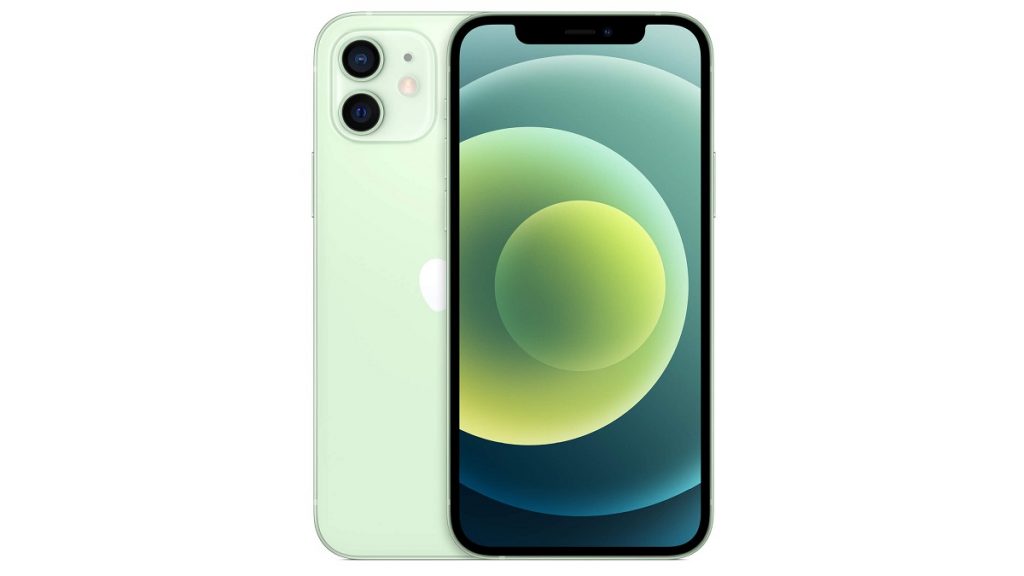
You can create an empty or blank Home Screen on your iPhone
Create Blank Home Screen on your iPhone: Move Apps Away From the Home Screen
Moving all of the apps on your iPhone’s Home Screen to the following page is the quickest way to generate a blank Home Screen. This is how to accomplish it:
- To edit the Home Screen, first long-click any app on the screen and choose Edit Home Screen . This ought to activate jiggle mode.
- Move the app icons from the first Home Screen to the next screen. Do this by dragging them sequentially to the iPhone’s right edge after jiggle mode has been activated.
- Your Home Screen should then be entirely empty, and you can now take advantage of the clear, uncluttered first view that your blank home screen will deliver.
Create Blank Home Screen on your iPhone: Use Invisible Icons on your Home Screen Page
Making invisible icons is another way to personalize your iPhone Home Screen and give it an empty appearance. You would have to screenshot an empty page, make empty icons, and then download the finished product as your wallpaper to accomplish that. In other words, you’re leveraging various portions of the screenshot you took to create app icons. As the wallpaper is made of the same material, the icons will appear to “disappear” into the background.
Here’s how to go about it:
- By holding down any icon on your iPhone’s Home Screen, you can turn on jiggle mode.
- When you reach an empty page, swipe right.
- Making use of the necessary buttons, take a snapshot of the blank page.
- Find a tool that creates empty iPhone icons and use it next. The next steps are instructions on how to use iEmpty , which we suggest due to its simplicity. As an alternative, you may also make invisible icons by using the Makeovr tool.
- Click on “Add Empty Icons” as you continue to scroll down the page.
- On the screen that displays next, tap Choose File to upload the initial screenshot you captured in the “Your screenshot” section.
- Select Send . Before sending the file, verify to ensure that you can get a preview of your snapshot.
- On the following screen, scroll down to the Options area and select the Bookmark option to create your icons.
- To view a grid of icons with your wallpaper as the background, scroll down. Any icon you choose from this list can be added to your Home Screen as a bookmark by using the share button. You can carry out this procedure as many times as you like for the icons on your home screen.
If you’re the type to change your wallpaper frequently, you might find this procedure to be a little laborious. This means you should consider using other methods we’ve suggested in this guide.
Create Blank Home Screen on your iPhone: Empty your Home Screen with Widgets
Using iOS 14, you may avoid the stress of downloading empty icons and uploading your wallpaper to specific websites. You can either employ a Siri suggestion or a transparent widget app in this situation.
You can use the Siri suggestions widget by following the instructions below:
- First, ensure that the Shortcuts app is installed on your iPhone. You can download it directly from the App Store if it isn’t
- Press down on an empty space on your current home screen, you’ll activate jiggle mode this way.
- When you get to an empty page, swipe right. Next, click or tap the addition sign (+) in the top left corner.
- Your Home Screen should now have three Siri suggestion widgets.
- Aim to tap on the dots above the dock while in jiggle mode.
- Deselect all pages but the one that contains the Siri recommendation widgets
- After you remove all three of the Siri suggestion widgets you created, tap Done to exit jiggle mode.
You’re all done! Your iPhone Home Screen should be empty now, allowing you to fully admire your wallpaper. You can download customized app icons if you wish to further customize your Home Screen. The drawback of this approach is that you can only have one Home Screen page. You’ll have to employ Spotlight search or use your iPhone’s App Library to get to your apps.
Create Blank Home Screen on your iPhone: Use Transparent Widgets
Here are the steps you need to follow for this approach:
- First, install TWid onto your device from the App Store
- Press down on a blank space on the Home Screen to enter jiggle mode.
- Right-click until the page is empty.
- Take a picture of the blank page.
- On your iPhone, launch the TWid app and choose the screenshot. It ought to show up in the app’s center.
- Go back to your Home Screen and enable jiggle mode again.
- Locate the TWid widget by tapping the addition (+) button in the top left.
- Using the modify widget option, you’ll be able to add widgets and change the images as needed
In summary , making your home screen blank is very achievable as long as you’re guided by the right instructions. Follow the ones we’ve provided for you in this guide and you should be able to set up a blank home screen in no time.
Author:Joan Agie
Add MobilityArena as a preferred source on Google
For streaming music, many music lovers agree that Spotify is a fantastic option. There are several possibilities for great music, as long as you’re connected to the internet. However, once you go offline, that’s it, the music stops.
If you like to enjoy music constantly, you may need to consider downloading music from Spotify to your mobile device. This will help you listen to music even while you’re offline, and you get to enjoy music nonstop.

The process is pretty easy, as long as you’re following the right instructions. We’ve therefore created this guide to show you how to download music from Spotify without any internet-related restrictions.
What Do I Need To Download Music from Spotify?
There are also two other conditions you need to be aware of. First, you must log on to Spotify with an internet connection at least once every thirty days to keep your music downloaded on your mobile device. This is a way for Spotify to determine whether your account still has Premium access. It’s important to remember that Spotify will automatically delete the songs from your device if you miss the deadline.
Secondly, you’ll only be able to download a total of 10,000 songs onto a maximum of five devices. Any prior downloads will also be lost if you download anything onto a sixth device. Spotify specifically deletes downloads from the device you haven’t used for the longest period.
That being said, keep reading to find out how to download your favorite songs from Spotify.
How Do I Download Music from Spotify to my Cell Phone?
Always ensure that you’re logged into a Premium account before attempting to download music from Spotify. If you’re using Spotify Free, you’ll not be able to see the download option at all. The instructions are as follows once you’ve logged in:
- Search for the album or playlist you would like to download.
- Tap the playlist or album.
- Click the Download toggle if you’re an Android user. Select the clear arrow if you are an iOS user.
- When your download is complete, a green arrow will appear.
Spotify will notify you when your music has finished downloading or show you the current download status in-app. Spotify will indicate that any playlists or albums that are waiting to download
How to Manage Music While in Offline Mode
You have the option to use Spotify’s Offline mode if you’d only prefer to listen to your downloaded music. Go to the home page and locate Spotify’s settings to access its Offline mode. Click the toggle button to enable Offline mode under Playback .
Spotify keeps you informed of the content you can access even when you’re offline. The app will typically bring up a notification telling you to go online if you select only an artist you’ve followed without liking any of their songs or albums.
When you browse artists, playlists, or albums that contain music that you haven’t ownloaded, those items will either be grayed out or remain hidden. Enable the Show unplayable songs option under Playback to reveal hidden songs.
You can still set up downloads in offline mode if you wish to get any unavailable tunes. To schedule a download, you touch the Spotify download button.
You’ll notice waiting-to-download notifications next to any in-queue playlists, artists, or albums in Your Library. Spotify will begin downloading your tracks automatically after you turn off the offline mode.
Managing Spotify revolves around its download button when it comes to categorizing currently downloaded songs. Click the toggle button (for Android devices) or the green arrow (for iOS devices) on any downloaded music to remove it if you need to free up space or if you’d like to re-download to another storage device. Redownloading is also as easy as tapping the appropriate button type once more
In summary , when you figure out how to download music from Spotify onto your phone, creating a great offline library becomes pretty easy. You’ll just need to keep in mind that in order to retain your music on Spotify, you must adhere to their rules.
