Add MobilityArena as a preferred source on Google
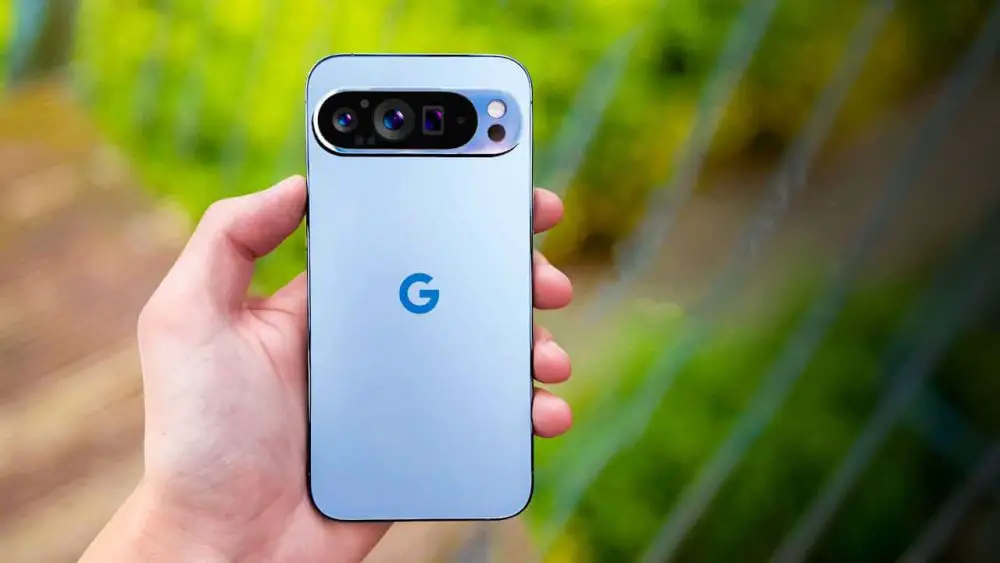
Google’s Material You UI Update makes personalization feel easier and more fun than ever — and the Pixel 9 is the perfect device to enjoy it on. With this update, your phone can match your personality, whether you’re into bold, vibrant colors that shout “tech chic” or prefer soft, calming tones that bring out your “minimalist zen.” The beauty of the Material You UI Update is how it adapts to your style effortlessly, turning your device into something that feels truly yours. If you’re looking to make the most of the Material You UI Update on your Pixel 9, here’s how to dive in and enjoy every bit of the customization magic.
- What’s the Big Deal About Material You UI Update?
- Step 1: Start with the Wallpaper
- Step 2: Customize Your Widgets — Because Size and Style Matter
- Step 3: Play with Themed Icons for a Cohesive Feel
- Step 4: Tweak the Quick Settings and Notifications
- Step 5: Experiment with Dark Mode and Its Accents
- Step 6: Customize Lock Screen Clock Styles
- Bonus Geeky Fun: Use Developer Options to Challenge Material You
- Conclusion
What’s the Big Deal About Material You UI Update?
Material You isn’t just a new wallpaper; it’s a design philosophy that extracts colors from your wallpaper and smartly applies them across system UI elements — think notifications, menus, widgets, and app surfaces — even third-party apps playing along. It’s like your phone gets a color-coordinated makeover every time you swap backgrounds without you breaking a sweat.
Step 1: Start with the Wallpaper
- Long-press on your home screen and select Wallpaper & style.
- Pick a wallpaper you adore. Material You will automatically sample colors from it and suggest palettes.
- Choose one of the color palette options or create a custom one by tapping More colors.
Try choosing playful or moody wallpapers to see how it changes the vibe of your UI. Warning: Some wallpapers might cause your Pixel to decide you’re running an art gallery.
Step 2: Customize Your Widgets — Because Size and Style Matter
- Long-press an empty area on your home screen and tap Widgets.
- Add the new Material You widgets like Clock, Weather, or Reminders that adapt to your palette.
- Resize them by dragging edges to better suit your layout or aesthetic.
- Use widgets for third-party apps that support Material You color theming for a seamless look.
Step 3: Play with Themed Icons for a Cohesive Feel
- Go to Settings → Wallpaper & style → Themed icons.
- Toggle it on, and watch your home screen apps magically recolor to blend with your chosen palette.
- Be warned: some app icons might look like they’re operating incognito.
Step 4: Tweak the Quick Settings and Notifications
- Swipe down twice from the top to fully expand Quick Settings.
- Tap the little pencil icon to add, remove, or rearrange tiles.
- Notice how the background tint and tile highlights match your palette for consistent style.
Step 5: Experiment with Dark Mode and Its Accents
- Head to Settings → Display → Dark theme.
- Enable or schedule it for times like “Night owl mode” or “Meeting mood.”
- Material You adjusts colors to soothed darker versions, still themed but easier on the eyes and battery.
Step 6: Customize Lock Screen Clock Styles
- From Settings → Lock screen tap Clock style.
- Choose modern, classic, or digital styles — all color-tuned for your wallpaper.
- Tip: Set different clock styles for lock and always-on display for that extra touch of finesse.
Bonus Geeky Fun: Use Developer Options to Challenge Material You
- Enable Developer Options by tapping your build number 7 times in Settings → About phone.
- Tweak Force enables color managed rendering or experiment with overlay colors on third-party apps.
- Warning: This is like giving your phone a sandbox — fun but proceed with caution!
Conclusion
At the end of the day, the Material You UI Update is more than a design refresh — it’s about making your Pixel 9 feel like it truly belongs to you. With wallpaper-based colors, themed icons, and flexible widgets, the Material You UI Update gives you endless ways to reflect your personal style. So don’t be afraid to experiment — each Material You UI Update is an opportunity to make your phone a genuine expression of who you are.
Author:Ifeoluwa Adeleke
Add MobilityArena as a preferred source on Google
Have a look at the lists of the top 5 thinnest smartphones and the top 5 thinnest foldable devices in the world in 2025. The lists include ultra-slim phones and foldable devices by TECNO, Infinix, Samsung Galaxy, Apple iPhone, Huawei, Xiaomi, OPPO, and Vivo.
Author:Mister Mobility
Digital Skills and Communication Coach | Mobile Phone Connoisseur since 2001 | Tech Blogging since 2004
