Add MobilityArena as a preferred source on Google
When you get notified that you’re running out of storage space, it might be time to consider deleting apps from your Android phone. Luckily, you only need to follow a simple procedure to delete any app from an Android device.
However, it’s worth noting that deleting apps doesn’t always follow the same process for all Android phones. That’s why we’ve created this guide to show you different ways to delete apps from your Android device.
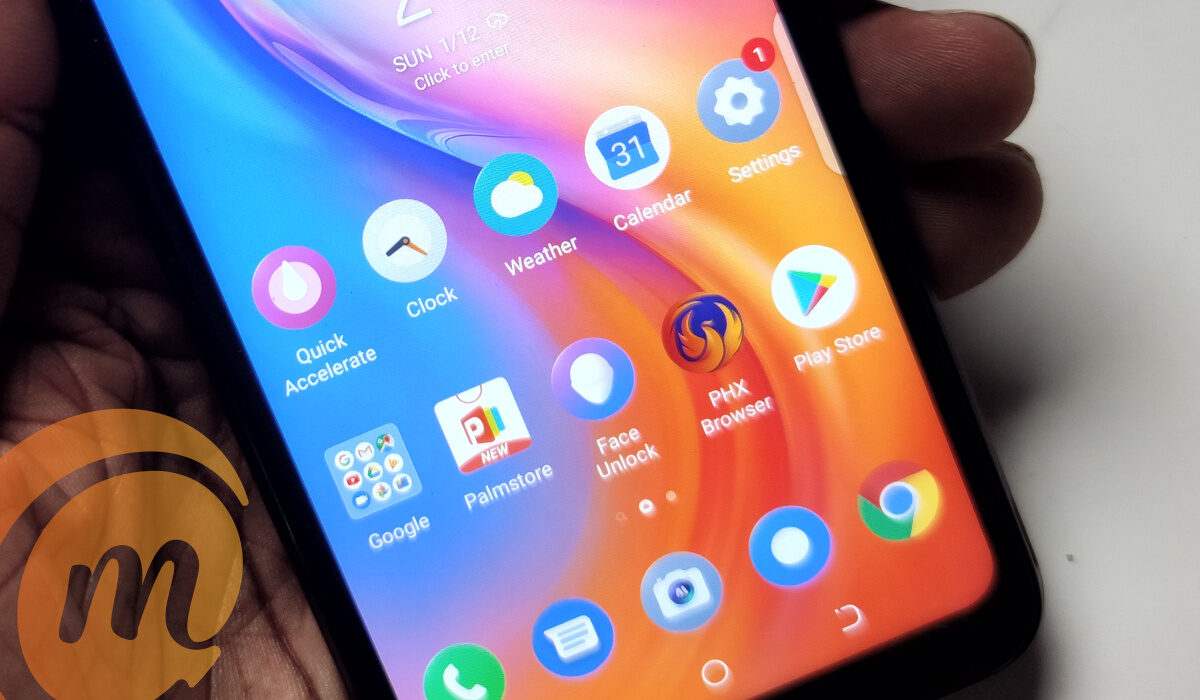
How Can I Delete Apps from an Android Device?
Since different Android manufacturers tend to incorporate various unique elements into their devices, there’s no one general way to delete apps from Android devices. However, at least one of the methods we’ve described below should help you successfully delete apps from your Android device.
Delete Apps from your Android’s Settings
Using the Settings app, it’s possible to delete any app of your choice from your Android device. To do so, follow these steps:
● On your device, go to Settings .
● Click on Apps .
● Click the option to See all apps .
● Locate and choose the app you wish to uninstall.
● Click Uninstall .
● Finally, click the OK button
As soon as you’re done deleting the app, you’ll be directed back to the Apps menu where you can repeat the procedure to remove other apps if necessary or desired.
Delete Apps from Google Play Store
Another option you have to delete any unwanted apps from your Android device is going to the Play Store and uninstalling the app(s) from there.
Here’s how to do it:
● On your smartphone, launch the Google Play Store app.
● Tap the picture of your user profile.
● Next, click the Manage apps & device option.
● Navigate to and select the Manage tab.
● Click on the app you wish to uninstall by checking the box next to it.
● Click on the trash can icon.
● Choose Uninstall .
Delete Apps on Android from the Home Screen or App Drawer
This is most likely the most straightforward and simplest method for deleting apps from an Android smartphone or tablet.
Unfortunately, however, this method is not compatible with older Android devices. As such, you should stick with one of the two solutions we described above if the one below doesn’t work for you. Follow these steps:
● On the home screen or in the app drawer of your Android device, tap and hold the app you’d like to delete.
● When the Uninstall section displays on the screen, drag the app there.
● As soon as the pop-up window appears, click OK .
● Activate the Home tab.
● Click on and hold on to any app you want to delete
● You’ll see a few options appear after you release the app. Select the option to Uninstall App .
● Finally, tap OK to confirm the action.
Deleting Pre-installed Apps on Android Devices
Many pre-installed apps are included with Android phones, and removing them frequently necessitates rooting, which may be time-consuming. If your device supports it, you can instead hide the system apps you don’t wish to use in the app drawer. The apps won’t be removed, but at least your app drawer won’t be cluttered.
Disabling pre-installed programs is another alternative. While it won’t actually delete them, doing this will prevent them from running in the background and make them disappear from your app drawer. Follow these steps:
● On your device, go to Settings .
● Click on Apps .
● Locate and choose the app you wish to disable.
● Click Disable
● Click Disable App
In summary , you can apply any of the methods described in this guide to delete apps from your Android device. Follow the instructions correctly for the right results.
Author:Joan Agie
Add MobilityArena as a preferred source on Google
Google Assistant has long supported multi-step routines that essentially let you perform multiple actions with a single voice command, such as turning off lights and changing the temperature on a thermostat.
If you’re not familiar with how to set up and use Google Assistant routines on their smartphones, here’s everything you need to know about it and how to make your devices perform multiple actions with a single command.
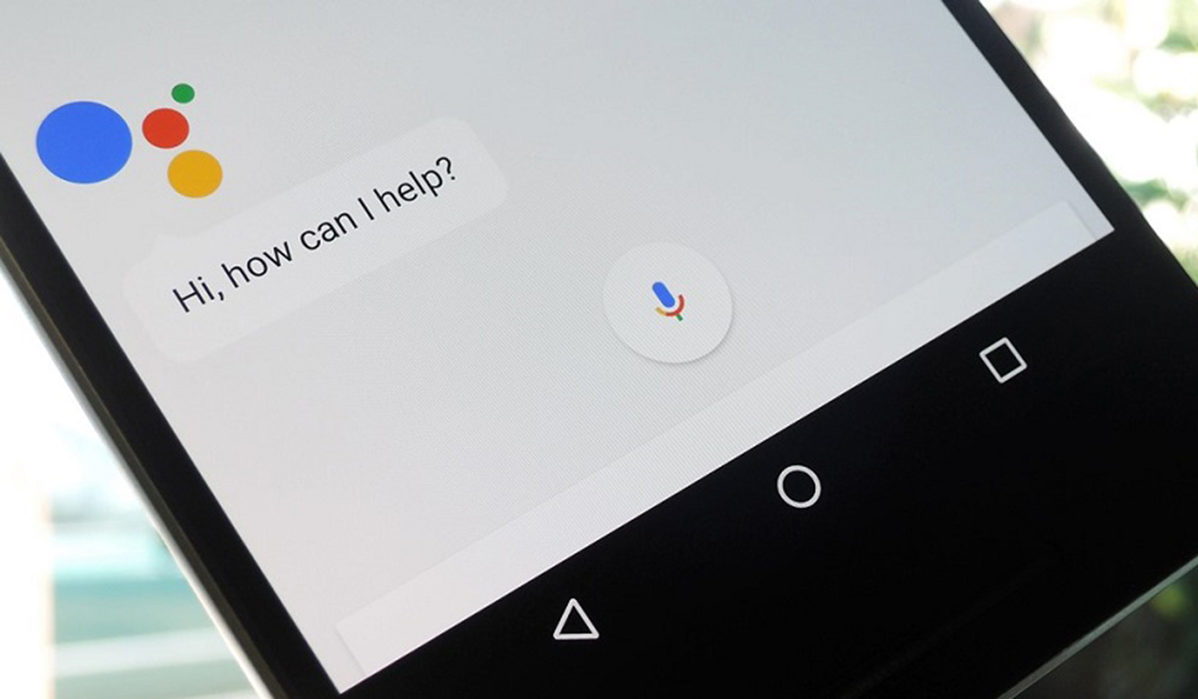
- How to Setup and Use Google Assistant Routines To Setup Google Assistant Routines on iPhone and iPad
- What are the Google Assistant Routines available?
- Google Assistant Customized Routines
- How Can I Set Up and Use a Customized Google Assistant Routine?
How to Setup and Use Google Assistant Routines
The process for setting up and using Google Assistant Routines differs depending on the device. We’ve included instructions for both device categories. It’s pretty easy to set up and use Google Assistant on an Android.
Follow these steps:
On your Android phone, press and hold the Home button or say “OK Google.”
Tap More > Settings at the top right.
Select Assistant > Routines .
Select the type of routine you want:
● Select Routine > There are six ready-made routines (discussed below): Choose an existing routine, then actions.
● For a custom routine: Tap Add , then select a command and action.
● To delete a custom routine, go to the top and select Delete .
● Optional : Tap Settings to change action.
● Select Done .
To Setup Google Assistant Routines on iPhone and iPad
If you’re trying to set up and use Google Assistant Routines on an iOS Device, follow these steps:
● On your iOS device, first, download Google Assistant.
● After successfully installing the app, open it. Sign in with your Google account.
● Next, grant the Assistant access to settings such as Additional Web & App Activity , Location History , Device Information , Voice & Audio Activity , and so on.
● Next, keep the switch turned on if you want to stay up to date on new features, apps, and offers for the Assistant.
● In the bottom right corner, tap Next .
● Then, in the top right, tap your profile picture or initials
● Select Assistant
● From there, navigate to Routines
● Then select ‘ Add a routine ‘ or select an existing routine; you can then add commands and actions, link specific media, or set a time and day.
What are the Google Assistant Routines available?
There are six pre-programmed Google Assistant routines that can be customized to your preferences. These Routines provide numerous customization options and can also be used as they are. All you have to do is select the options you want to activate or create your own Routine and name it whatever you want. Here are some of the pre-programmed routines and how to use them.
Good morning routine
When you say “Good morning” or “Tell me about my day,” Google Assistant can perform any of the following actions:
● Provide details about the weather.
● Provide calendar information.
● Mention any recurring reminders.
● Notify you if your phone’s battery is running low.
● Turn on the news.
Leaving Home Routine
When you say, “I’m heading out” or “I’m leaving,” Google Assistant can do the following:
● Adjust thermostats, door locks, and security systems, as well as lights, plugs, and other smart devices.
Bedtime Routine
Whenever you say “Goodnight” or “Bedtime,” Google Assistant can perform the following actions:
● Inquire as to what time the alarm should be set.
● Play some sleep sounds.
● You may also want to include actions such as turning down the volume, getting weather information for the next day, and turning off Google-compatible lights.
There are also three other pre-programmed routines available: the “ I’m home routine ,” “ Commuting to work routine ”, and the “ Commuting back home routine .” They perform different actions depending on the command, and you can learn about them here .
Google Assistant Customized Routines
You can set up and use customized Google Assistant routines if the default ones don’t suit your needs or don’t address a particular situation. You’ll be able to select the tasks you wish to start as well as the voice command phrase.
For instance, if you gym at home, a “ Start my workout ” command could put on your garage fan and lights, enable Do Not Disturb , and then stream a Spotify workout song and play it from your speaker.
How Can I Set Up and Use a Customized Google Assistant Routine?
If you’d like to set up and use completely new Google Assistant routine, here’s a step-by-step procedure to follow on Android devices:
● Launch Assistant, tap the menu icon in the bottom-left corner, then tap your profile image
● Navigate to Routines in the Google Assistant app and tap the New (+) icon in the top right corner of the screen.
● Tap New Routine on the next screen to give your routine a name.
● Click Add starter to select the trigger for this routine.
● After that, tap Add action to add new actions to your routine.
● When you’re finished adding actions, tap Save in the bottom right corner.
Users on iOS can access the same menu by installing the Google Assistant app and tapping on their profile photo.
To access your routines:
● Launch the Google Home application.
● Select the Routines icon to see a list of your routines
● Tapping on each routine will display the saved actions and allow you to add more.
● If you’re logging in via the Google Assistant app, tapping the account icon in the top right corner will display Routines .
In conclusion , following the guidelines above makes it simple to set up and use Google Assistant routines on Android and iOS devices.
