Add MobilityArena as a preferred source on Google
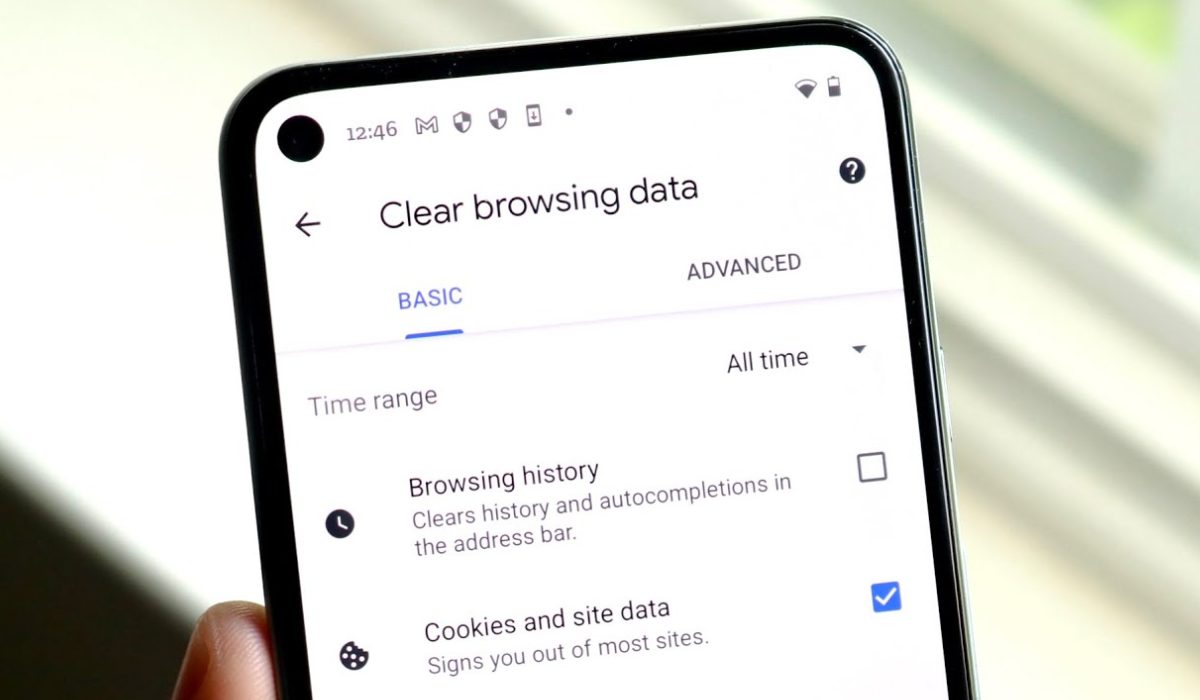
This article will show you how to delete cookies on Android in different browsers. How many times have you entered a website and seen the prompt “Accept cookies”? They’re not the fun yummy kind, in case you were not sure, and your phone stores them over time.
Truly, cookies can be useful to remember your preferences and provide you with a personalized experience. But they can also take up storage space and even compromise privacy and security. So, by the end of this guide, you’ll be able to protect your personal information and keep your device running smoothly.
How Can You Delete Cookies on an Android Phone?
Cookies are little text files saved on your device by websites to improve your browsing experience. Under normal circumstances, Android devices shouldn’t be at risk from cookies. However, cookies from untrusted sources or websites that are not encrypted can cause your device to slow down or expose your personal data.
You can resolve these issues by deleting cookies from the most popular Android browser you use. So here’s how to remove cookies from Android on Vivaldi, Opera, Firefox, Chrome, and Samsung Internet.
How to Delete Cookies on Android from Vivaldi
The steps below can be used to clear cookies on Android in a Vivaldi browser:
- In the URL bar, tap the Vivaldi icon.
- Select Settings .
- Choose Security and privacy .
- Then select Clear browsing data .
- Check the box next to Cookies and site data .
- Click on Clear data .
How to Delete Cookies on Android in Opera

The steps below will show you how to remove cookies from Android in Opera:
- Click the profile icon at the bottom right of the screen in Opera.
- In the tab that opens at the bottom, tap the settings cog .
- Click Privacy .
- Choose Clear data and then check the box next to Cookies and site data .
- At the bottom right of the screen, select Clear Data .
How to Clear Cookies on Android in Firefox
Follow these simple steps to delete cookies in Firefox for Android:
- Tap the three-dot menu button in Firefox’s bottom right corner.
- Select Settings .
- Choose Delete browsing data .
- Next to Cookies , choose the checkbox.
- Press Delete browsing data .
How to Delete Cookies on Android Phone in Chrome
Follow these instructions to delete cookies from the Google Chrome app for Android:
- Tap the three-dot menu icon in Chrome’s top-right corner.
- Select Settings .
- Choose Privacy and Security .
- Select Clear browsing data .
- Select the checkbox next to Cookies and site data .
- At the bottom right of the screen, tap Clear data .
How to Delete Cookies for Specific Websites in Chrome on Android
You may notice that certain websites cause problems on your phone from time to time. In this case, there’s no need to remove all cookies in such instances. You can just delete cookies from these websites causing you difficulties.
- Launch Chrome and navigate to the website that is creating the problems.
- Launch the three-dot menu and select the ( i ) icon.
- Select Cookies and site data , then click the Trash button.
- To delete cookies for this website, click the Delete button.
How to Clear Cookies on Samsung Internet

You’re probably using the built-in Samsung web browser if you own a high-end Samsung smartphone. Here’s how to remove cookies from your Android smartphone through the Samsung Internet browser.
- Open the Samsung Internet browser and select the menu option in the lower-right corners.
- Go to Settings and select Personal browsing data .
- Select Cookies and site data from the Delete browsing data menu.
- Click on the Delete data button and confirm.
To conclude, I hope this guide on how to delete cookies on your Android phone was helpful! By clearing your cookies, you can protect your privacy and security while also freeing up storage space and improving your device’s performance.
However, you must keep in mind that removing cookies will log you out of all of your online accounts on that browser and will also erase all saved login information and website preferences.
After deleting cookies, you’ll also have to manually sign in back into your accounts on various websites and set your preferences. If you need other useful Android tips, check out this category .
Author:Joan Agie
Add MobilityArena as a preferred source on Google
Nothing beats having an impressive music library on your iPhone. It’s great for easier access, especially if you tend to play music often. But if your collection is extensive and already stored on your computer, there are easy ways to move them to your iPhone.
In this article, I’ll show you how to transfer music from computer to iPhone via iTunes, iCloud, and other third-party apps. You’ll be able to listen to your favorite music on the go after reading this guide.
- How Can I Transfer Music From Computer to iPhone? How to Transfer Music from Computer to iPhone without iTunes Use a Cloud Service – Dropbox Use a Streaming app Use AirDrop How to Transfer Music from PC to iPhone with iTunes
How Can I Transfer Music From Computer to iPhone?
Did you know that you can easily transfer your favorite music from your computer to your iPhone? There are a few quick ways to do this, whether you’re using a Mac or a PC.
I’ve described different options below, so choose your preferred method to transfer music to put music on your iPhone from your computer.
How to Transfer Music from Computer to iPhone without iTunes
iTunes is one of the easier ways to transfer music from computer to iPhone. However, synchronizing will result in data loss on your device. That is why I recommend that you first try the method to transfer music to your iPhone without iTunes.
So, to spare you from unnecessary headaches, I’ve described below how to add music to iPhonefrom a computer using a cloud service or a streaming app.
Use a Cloud Service – Dropbox
You can try a cloud service such as Dropbox to transfer music from Windows to iPhone. With a cloud storage service, you get to save your files, including music, in the cloud and access them from any device that uses the same account.
You must ensure the following for Dropbox to function properly when you’re figuring out how to transfer music from computer to iPhone :
- Use the same account on both the PC and the iPhone.
- Your devices should have reliable and steady network connectivity.
- The music files must not exceed your account’s storage limit.
Now, here’s how to add music to iPhone from computer via Dropbox:
Install Dropbox on your Windows PC and iPhone (at the very least on the iOS device).
Sign in to Dropbox on all of your devices using the same account.
Since you need to transfer music from computer to iPhone, go to your PC and upload the music files to the cloud storage:
If you have Dropbox installed, open it and click “ Upload files ” to choose the songs you wish to upload.
If you do not have Dropbox installed on your computer, visit Dropbox.com and upload the items to Dropbox.
Wait for Dropbox to sync music across all of your devices.
Once it’s completed, open the Dropbox app on your iOS device to see the contents synced from your Windows computer.
Select the music and download them to your device’s internal storage.
It’s that simple! And if you like, you can use a streaming app like I’ve described below.
Use a Streaming app
Streaming services like Spotify, Apple Music, or Google Play Music offer another way to transfer music from a computer to an iPhone. However, you must make sure you have a subscription to the specific streaming app you want to use so that the transfer procedure is successful.
Since Apple Music is the official music streaming software for iOS, let’s use that. Follow these steps:
- On your PC, download and install the Apple Music app. Open the app and sign into your account after that.
- Then, from the Apple Music app, press Playlist and choose New Playlist .
- To add your preferred music files from your PC, click the add ( + ) button.
- After you’ve finished adding music files, you can add a description and save the playlist by clicking Done .
- Finally, open the Apple Music app on your iPhone and navigate to the newly created playlist to listen to the music.
Use AirDrop
If you’re trying to transfer music from a Mac to your iPhone, AirDrop is also a useful option. Here are the steps to follow:
On your iPhone:
- Open the Control Center
- Press down on the upper-left box and select AirDrop from the options here
- Click Contacts Only or Everyone to activate AirDrop
On Your Mac device:
- Launch Finder and select AirDrop. Also activate Bluetooth or Wi-fi while you’re at it
- Click the “Allow me to be discovered by everyone” option in the Airdrop window, then select your iPhone device.
- Choose the music files you want to AirDrop. Then simply drag and drop them from the Mac to AirDrop them to your iPhone.
- Now, you need to click the Accept option on your iPhone as soon as the prompt appears. This action will accept the music file and download it from the Mac.
How to Transfer Music from PC to iPhone with iTunes
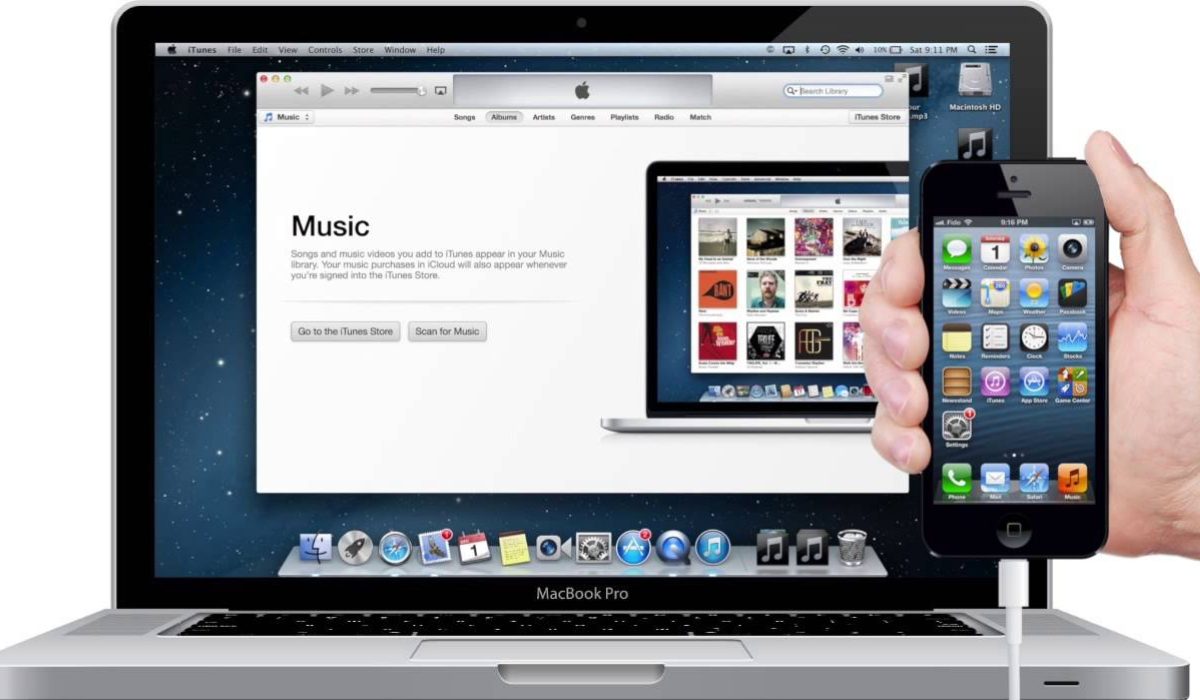
If the songs you wish to put on your iPhone are in your iTunes collection, you can transfer them directly from iTunes to your iPhone. Even if the music does not yet exist in the iTunes collection, it’s possible to transfer music from computer to iPhone using iTunes.
Before you begin, you should be aware that the newly added items will replace your iPhone’s existing music, TV series, movies, tones, and books. If you don’t want to lose these files, I’d say you should look into other methods for transferring music from Windows to iPhone.
Now, to transfer music from a PC to an iPhone using iTunes, follow these steps:
- Connect your iPhone to the computer and wait for iTunes to launch automatically.
- If the songs are already in your iTunes music library, move on to the next stage. If not, add music to iTunes by selecting File > Add File to Library .
- Press the device icon and select the Music option.
- When a popup window notifies you that the existing files on your iPhone will be replaced, select Sync Music and then select Remove and Sync .
- Click Apply > Sync after selecting the music you want to transfer.
- After using iTunes to sync music to your iPhone, check the files by going to Music > Library > Songs on your phone.
To conclude, music transfer from PC to iPhone doesn’t get any easier than this. As you can see, based on your preferences, you can transfer music from PC to iPhone via different options. You’ll be able to listen to your favorite music on the go if you follow these simple steps. Need other file transfer tips across various devices, check out this category .
