Add MobilityArena as a preferred source on Google
If you own an iPhone, whether it is an and have backup to iCloud active, you have 5 GB free storage from Apple, after which you have to pay a subscription for extra cloud storage. When you get a message from Apple saying, “Your iCloud storage is almost full”, it is time to decide whether you want to take up that paid subscription or you want to delete files from iCloud.
Your iCloud storage is used for iCloud Photos and to keep other things like WhatsApp backups, contacts, calendar, among others, stored and easily accessible. Backups are easily the biggest culprits behind your iCloud storage filling up quickly. Your WhatsApp backup, especially, is likely to be very heavy because of images and videos. If you want to delete files from iCloud to free up storage, I suggest that you look in that direction.
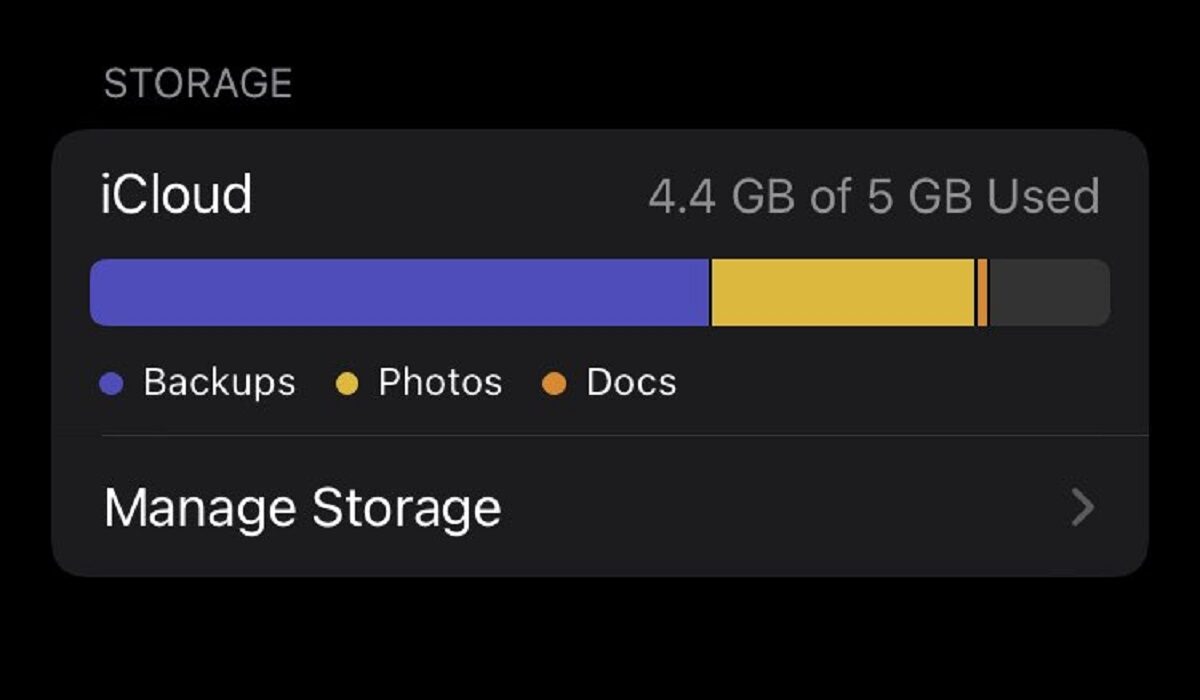
There are two ways to delete files from iCloud; one is to do it from a PC web browser, and the other is to do it from your iPhone.
How to delete files from iCloud using the iCloud website
- Open iCloud.com in a browser.
- Log in with your Apple ID.
- Click “iCloud Drive.”
- To delete a folder, select it and then click the Delete icon.
- To delete files, double-click a folder.
- Hold down CTRL while clicking each file.
- Select the Delete icon.
How to delete files from iCloud on your iPhone
- Go to Settings > [your name] > iCloud > Storage > Manage Storage.
- You will see options for Backups, Photos, and other items, as well as the size they have taken up and decide which you want to delete
- Tap on the option you want to delete from
- For each option under Backups, you have to disable the backup to delete it. Tap on Turn Off & Delete or Disable & Delete , as the case may be.
- Repeat the previous two steps for as many options as you wish.
However you choose to do it, being able to delete files from iCloud will free up some space for you buy you some time before you inevitably have to get more storage. Because, eventually, you will need more storage. Meanwhile, are you interested in the which iPhone has the best battery life?
- Don’t miss our mobile phone reviews .
- Follow our news on Google News .
- Join our WhatsApp Group , to be notified of the most important articles and deals,
- Follow us on Instagram , Facebook , Twitter , and YouTube .
Author:MobileChic
That motivated, gadget-loving geeky chic who tries to stay on top of things. Unapologetic iFan.
Add MobilityArena as a preferred source on Google
What is Windows 10 News and Interests? Windows 10 News and Interests is a feature that pops up from the right end of the Windows taskbar to display news and weather forecast updates. While it can be useful, if you have no use for the news and weather forecasts, this feature quickly becomes an irritation. The good news is that you can disable it. How do you disable Microsoft News & Interests? We lay the steps out below.
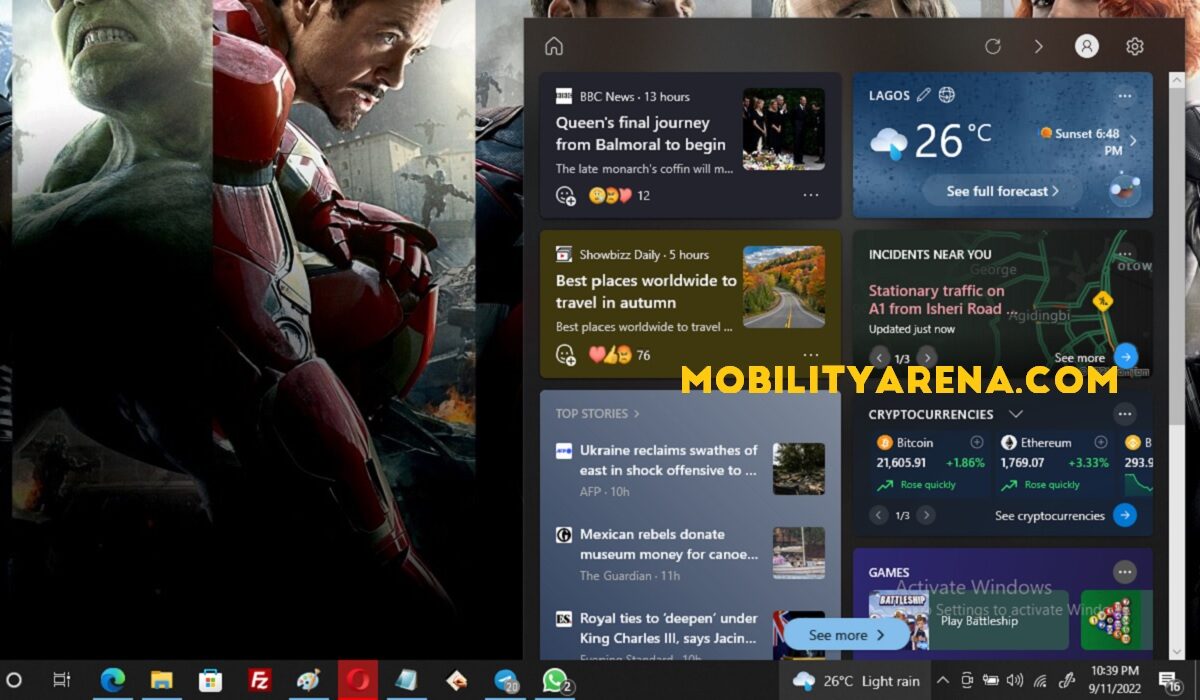
Yes; you can disable Microsoft News and Interests from Windows 10 Taskbar
Disable Microsoft News and Interests from Windows 10 Taskbar
- Login to your Windows 10 computer (desktop or laptop).
- Right click the Windows 10 taskbar, locate and click News and Interests .
- In the fly-out menu, select Turn off to .
- That immediately disables Microsoft News and Interests from Windows 10 taskbar
It will no longer pop-up when you mouse over that spot where its icon is on the taskbar, and you can now use your Windows computer with one less distraction.
- Don’t miss our mobile phone reviews .
- Follow our news on Google News .
- Join our WhatsApp Group , to be notified of the most important articles and deals,
- Follow us on Instagram , Facebook , Twitter , and YouTube .
Author:Mister Mobility
Digital Skills and Communication Coach | Mobile Phone Connoisseur since 2001 | Tech Blogging since 2004
