Add MobilityArena as a preferred source on Google
Threads is the Twitter alternative from Meta, the parent company of Facebook and Instagram. Launched in July 2023, it took off in a blaze of glory, acquiring 100 million users in its first five (5) days of existence. Like Twitter, it is a text-based social networking app, though you can also include images and videos in your Threads posts.
Threads and Instagram
Threads and Instagram are on the opposite ends of the spectrum in terms of focus. Instagram is focused on primarily letting you share media – images and video, while threads is focused on primarily sharing text. What Meta did, though is tie both of these apps together, such that you can login to Threads with your Instagram account. Existing IG users need not create a Threads account; simply login with Instagram and it will create a Threads account with the same username for you.
Also, for now, your accounts on the two platforms are so tied together that if you delete your Threads account, your Instagram account gets deleted, too. Meta has said that this will be addressed soon, such that you can manage the two accounts separately and be able to delete one without affecting the other.
How Threads Works
How does Threads work? It is a clone of Twitter, meaning that it pretty much works the same way. If you already use twitter, you already are familiar with how Threads works. Just sign in and start sewing or threading (which of these two words do you prefer to use?).
Steps To Share Threads Posts On Twitter

Share Threads Posts On Twitter, open the post and tap on theShareicon.
Step 1 : Ensure you are logged in to both Twitter and Threads apps, then launch the Threads app on your iPhone or Android phone.
Step 3 : Tap on the Share icon (that’s the icon circled in red in the screenshot above).
Step 4 : Select the Tweet option (follow the red arrow in the screenshot below) .
<img loading=“lazy” src=“https://mobilityarena.com/wp-content/uploads/2023/07/tweet-from-threads.webp" onerror=“this.onerror=null;this.src=‘https://blogger.googleusercontent.com/img/a/AVvXsEhe7F7TRXHtjiKvHb5vS7DmnxvpHiDyoYyYvm1nHB3Qp2_w3BnM6A2eq4v7FYxCC9bfZt3a9vIMtAYEKUiaDQbHMg-ViyGmRIj39MLp0bGFfgfYw1Dc9q_H-T0wiTm3l0Uq42dETrN9eC8aGJ9_IORZsxST1AcLR7np1koOfcc7tnHa4S8Mwz_xD9d0=s16000';" alt=“Tap the “Tweet” option to share a Threads post to Twitter. - 3”>
After tapping on theShareicon, select Tweet from the options presented to you.
Step 5 : You will be redirected to Twitter with all the contents of the Thread post. Simply tap on Tweet , and it gets posted to your Twitter account.
Sharing a post from Threads to Twitter is as simple as sharing an article from a Web page to Twitter. The processes are identical.
The above steps/process work the same way on both Android and iOS devices. Threads is currently available only as an app for both Android and iOS users. Perhaps at some time in the future, a Web desktop version will be released. In the meantime, enjoy sewing those threads and sharing them to Twitter.
Download Threads For Android and iOS
Author:Mister Mobility
Digital Skills and Communication Coach | Mobile Phone Connoisseur since 2001 | Tech Blogging since 2004
Add MobilityArena as a preferred source on Google
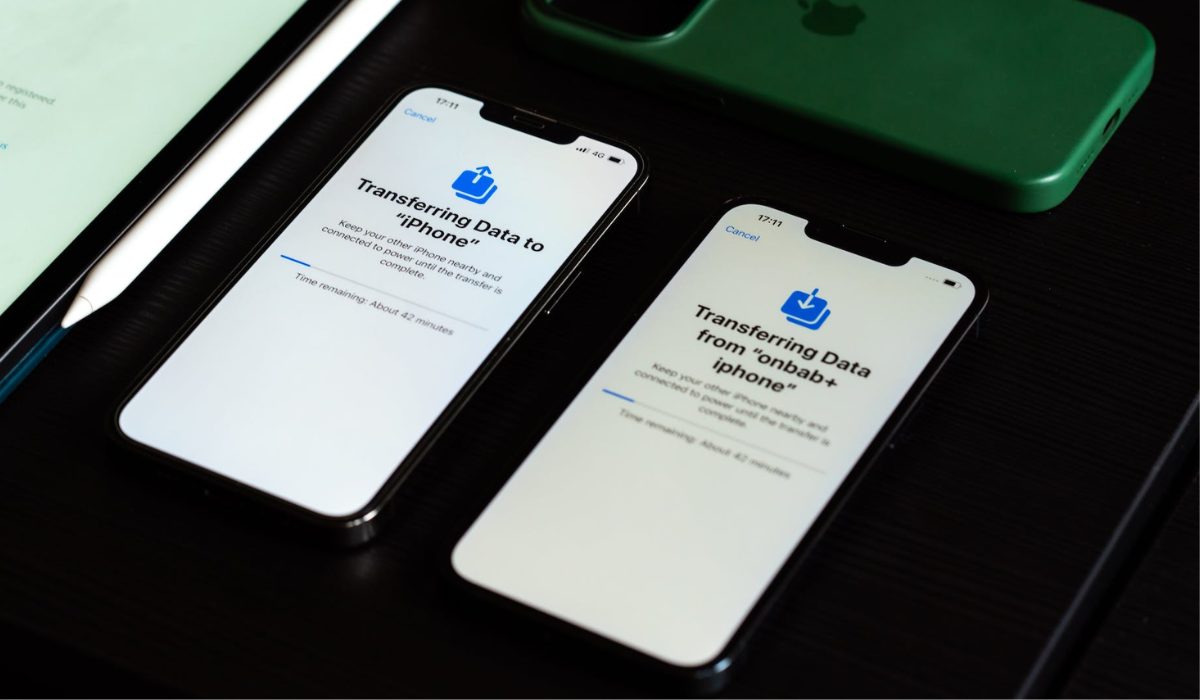
Sharing contacts between iPhones is essential for anyone who wants to keep their contacts up-to-date and accessible across all their devices. Whether you’re transferring contacts to a new iPhone or sharing contact information with your friends, family, or colleagues, there are several ways to do it.
In this guide, I’ll explore how to share contacts between iPhones through different effective methods. I’ll also show you how to use each of these methods step-by-step, so you can easily transfer contacts from iPhone to iPhone.
- How To Share Contacts Between iPhones Using iCloud Sync Using an iCloud Backup Using Airdrop Share iPhone Contacts via Mail or Message Use iTunes Using a Third-Party App
How To Share Contacts Between iPhones
Sharing contacts between iPhones is a simple process that can be done using a number of methods. Below are several ways you can share contacts between iPhones, try out anyone that works best for you.
Using iCloud Sync
If you have both your old iPhone and your new phone and they both work, it is simple to transfer your contacts to the new phone. To use this method, make sure your contacts from your old iPhone are backed up to iCloud first. To do this, go to Settings > Your Username > iCloud > iCloud Backup and press “ Back up Now ” on your old iPhone. Note that you’ll need to have enough free iCloud space to store the new backup.
Once you’ve backed up your contacts in iCloud following the above instructions, you can now transfer them to your new iPhone through the steps outlined below:
- Connect both phones to the same Wi-Fi network, then sign in with the same Apple ID on both.
- Open the Settings app on the old phone.
- Tap on your Apple ID profile (at the top of the Settings screen, your name and photo).
- Select iCloud .
- Toggle the switch next to Contacts .
- Tap Merge when the pop-up “ What would you like to do with existing local contacts on your iPhone? ” displays.
- Open the Phone app on your new phone.
- In the bottom menu, select Contacts .
- To refresh the contacts list, pull down from the top and release it.
This way, the contacts on both devices have synced through iCloud and you’ll be able to access them easily via either device.
Using an iCloud Backup
Keeping updated backups of your iPhone is essential, especially if you don’t want to lose track of contacts. If you have an iCloud backup of your iPhone, you can easily transfer it to a new device from that backup. Here’s how to use iCloud to transfer contacts from an iPhone backup to a new iPhone:
- Turn on the new iPhone and follow the on-screen instructions to connect to a Wi-Fi network.
- Tap Restore from iCloud Backup when the Apps and Data screen loads.
- Log in to your Apple ID with the same email address and password you used on your previous phone.
- Apple will send a passcode to any other Apple Device you own, or you can have it texted to you. Retrieve it and input it in the passcode-prompted pop-up.
- Tap Agree to accept the terms and conditions.
- Select the most recent backup from the backup list.
- Press Continue , and your contacts, along with everything else on the backup, will be installed. Depending on the size of the backup and the network’s speed, the procedure can take a while to finish.
- Finish setting up the new phone by following the next set of steps.
Quick tip: You can Reset the phone and then Restore it from an iCloud Backup if you’ve previously set up the newer phone or if it isn’t a new iPhone. Whatever method you use, it cannot be reversed unless you have another backup to load into the phone.
Using Airdrop
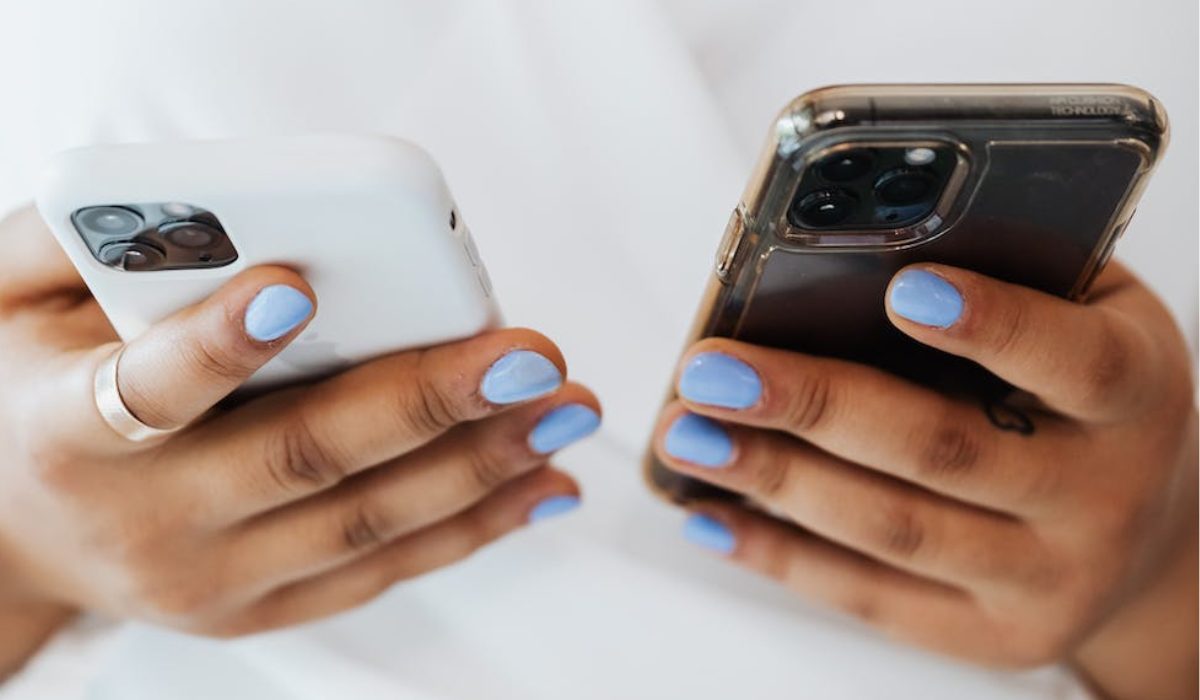
AirDrop is another quick and easy way to share contacts between iPhones that are in close proximity to each other. However, it can only transfer one file at a time, so if you need to transfer a large number of contacts, I’d advise that you use one of the other techniques in this guide.
Here’s how to transfer contacts from iPhone to iPhone using Airdrop:
- On both iPhones, enable Airdrop . You can do this by going to Settings > General > AirDrop > Everyone or by long-tapping the network group in the Control Center .
- Next, open the Contacts app on the iPhone that contains your contacts.
- Tap “ Share Contact ” after selecting a contact to transfer.
- Press Airdrop , and then select your target iPhone when it is detected.
- A notification will be sent to the target iPhone. Select the option to accept the contact file.
Accepting the contact file will store the contact in the target iPhone’s Contacts app.
Share iPhone Contacts via Mail or Message
Follow these steps:
- Launch the Contacts app on your iPhone, which contains your contacts.
- Locate and choose the required contact.
- Scroll down to “ Share Contact ” and select Mail .
- Enter the email address you intend to use on your new iPhone and press Send.
- Grab your target iPhone and open the email in the Mail app once you’ve sent your contact via email.
- Click the email’s attached vCard to download it. The contact will open in the Contacts app but won’t get added immediately to your contact list.
- Tap “ Create New Contact ” to save the contact to your iPhone. You can make changes to the contact here and then click “ Done ” when you’re finished.
Use iTunes
You can also use iTunes to sync contacts to your new phone. Follow these steps:
- Connect the new iPhone to your computer and launch the iTunes desktop app.
- In the top left corner of the screen, click the iPhone icon.
- Click Info on the left side menu.
- Select the Sync Contacts checkbox.
- In the bottom right corner, click Apply .
Using a Third-Party App
There is a wide range of third-party software that transfers contacts, usually quite quickly, such as Easy Backup and My Contacts Backups . For example, My Contacts Backups works by letting you email the contact list to yourself so that you can copy the contacts to your new iPhone. Simply open your new phone’s mail, choose the attachment, and import the list. There are several other apps available on the App Store that offer similar functionality, so feel free to test out any of them to see the features they offer.
Summarily, there are several ways to share contacts between iPhones like this guide has clearly explained. Regardless of the method you ultimately decide on, sharing contacts between iPhones should be straightforward as long as you follow the instructions correctly. If you need more useful tips to navigate your iPhone device, check out this dedicated category .

