Add MobilityArena as a preferred source on Google
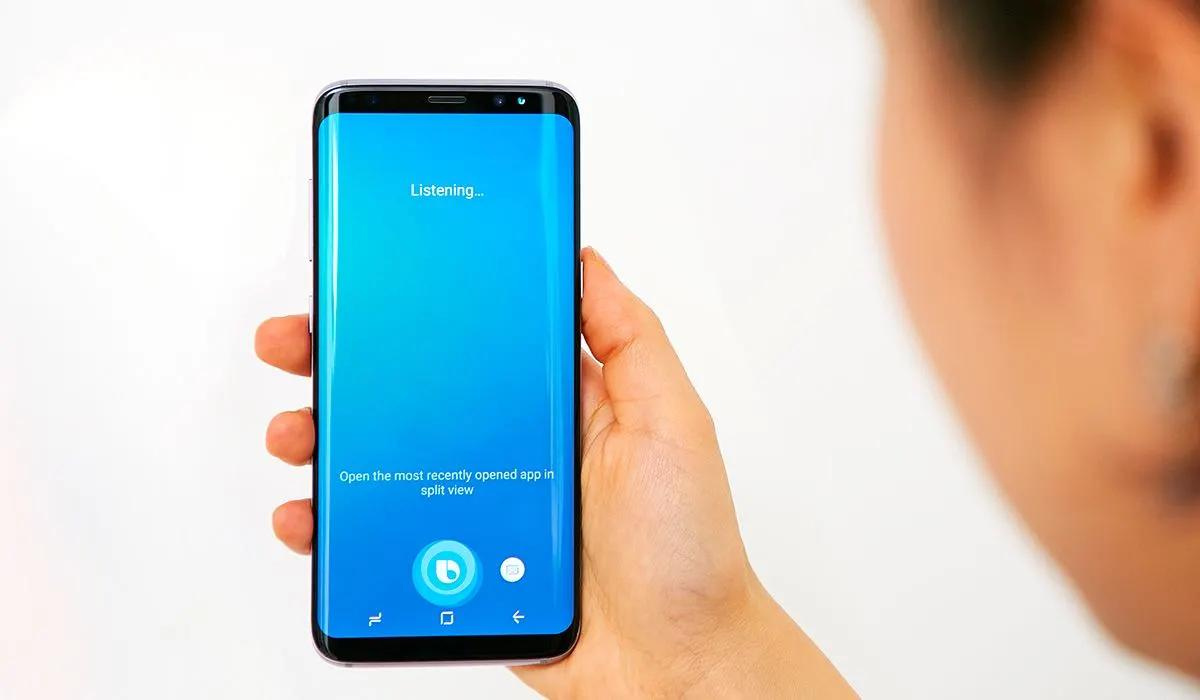
Bixby is Samsung’s intelligent virtual assistant, and all its modern devices have it installed to help Samsung users. You may find Bixby to be a useful assistant (it has some neat features, including the new Bixby text calling feature), but not everyone would agree — some may even want it entirely removed. Thankfully, it’s possible to disable Bixby on Samsung Galaxy phones through a few simple steps.
In this guide, I’ll show you how to disable Bixby on Samsung Galaxy phones, along with all of its features, such as Bixby Voice and Bixby Vision. If your phone has a Bixby button, I’ll show you how to change it to do something different.
- How Can You Disable Bixby on Samsung Phones? How to Disable Bixby on Samsung Galaxy Phones How to Hide the Bixby App from Your App List How to Turn Off the Bixby Side Key Shortcut How to Disable the Bixby Button on Older Samsung Galaxy Phones How to Turn Off Bixby Home/Samsung Daily/Samsung Free
How Can You Disable Bixby on Samsung Phones?
Since Bixby is a system program, it cannot be removed entirely from your device; you can only disable Bixby on Samsung Galaxy phones or just hide it. In order to stop using Bixby, you must disable the service and delete all of your personal information related to it. If you want to use Bixby again in the future, you can always enable it again.
There are two tasks you must first complete before you can disable Bixby on Samsung Galaxy phones. To begin, ensure that your Galaxy device is up to date so you can avoid inconsistencies in system navigation. Navigate to Settings > Software Update > Download and install , to check for available updates.
After that, turn off voice recognition to prevent Bixby from responding to your voice when you say the popular phrase “ Hi Bixby .” To do so, follow these steps:
- Navigate to Settings > Apps > Bixby Voice > Bixby Voice Settings .
- Select Voice wake-up , and then select Respond to my voice .
- Tap Delete voice wake-up recordings and confirm with Delete .
- Return to the previous screen and deactivate Voice Wake-Up .
How to Disable Bixbyon Samsung Galaxy Phones
When you say the hot word after carrying out the above actions, Bixby will no longer summon itself because it has forgotten your voice. So now, let’s look at how you can permanently disable Bixby on your device. Follow these procedures to disable Bixby on Samsung Galaxy phones:
- Navigate to Settings > Apps > Bixby Voice > Bixby Voice Settings .
- Scroll down and select Leave Bixby , then select Leave Bixby again and select OK .
- You’ll need to be certain that Bixby does not turn itself on again in the future, so return to its app info page and select Storage > Clear data > Delete . Then select Disable > Disable app .
At this point, you’ve been able to successfully disable Bixby Voice on Samsung Galaxy phones.
How to Hide the Bixby App from Your App List
As a system app, if you disable Bixby on Samsung Galaxy phones, it could cause other Samsung services to crash or stop functioning. To avoid experiencing this issue, you can hide rather than disable Bixby on Samsung Galaxy phones.
Follow these instructions to hide apps from your Apps screen, also referred to as the App Drawer:
- Navigate to Settings > Home Screen > Hide apps on the Home and Apps screens .
- From the list, choose Bixby and Bixby Vision . Bixby Vision is Samsung’s version of Google Lens, the built-in image recognition feature of the Google app and Google Photos.
- To confirm, tap Done .
Your phone’s Bixby and Bixby Vision apps should now be hidden.
How to Turn Off the Bixby Side Key Shortcut
On Samsung phones, holding the power button (also known as the side key) launches Bixby by default. This is inconvenient because the power button should be used to access the power-off menu, not to summon a voice assistant. So, to disable Bixby on Samsung Galaxy phones in this regard and prevent Bixby from waking up, navigate to Settings > Advanced Features > Side Key . Tap the Power Off menu beneath Press and hold .
You’ll now be able to shut down, restart, or enter emergency mode by holding down the power button to access the power-off option. This is one of the initial steps in configuring your Samsung phone.
How to Disable the Bixby Button on Older Samsung Galaxy Phones
The physical button used to launch Bixby on older Samsung smartphones, such as the Galaxy S8, S9, S10, Note 8, and Note 9, was disliked by users. You can’t completely disable Bixby on Samsung Galaxy phones that are older, but if you have one of these models, you can change the button to do something other than summon Bixby.
Below are the instructions you’ll need, but keep in mind that they are intended for older Galaxy devices with a dedicated Bixby button.
- Navigate to Settings > Advanced Options > Bixby Key . Before you can modify the settings here, you must log into your Samsung account if you aren’t already. If so, you must tap the Get Started icon that is located at the top. Once you’ve completed the process, go back to the settings page.
- Click the option to Double Press to open Bixby . Although this does not totally disable the Bixby button, it does reduce the likelihood of accidentally activating Bixby.
- Tap Use single press to remap the Bixby button for a different purpose.
- Next, switch the top toggle to On, then select either “ Open app ” or “ Run quick command .” You can now select the required app or command.
How to Turn Off Bixby Home/Samsung Daily/Samsung Free
A panel called Samsung Free can be found to the left of your home screen. If you don’t have the most recent Samsung device or One UI update, an alternative name for it can be Samsung Daily or Bixby Home.
The panel functions as a feed aggregator, displaying cards from various apps and services, similar to how Google Discover works. To avoid mistakenly swiping across to the panel (also known as the media page), you can disable it.
To accomplish this, navigate to Settings > Home Screen > Add Media Page to Home Screen and turn it off. As an alternative to turning off the feature, you can select “ Google Discover .”
To conclude, despite the stunning design and excellent user experiences of Samsung smartphones, many people consider Bixby to be a subpar alternative to Google Assistant. If this is you, follow the steps in this guide to successfully disable Bixby on Samsung Galaxy phones.
Author:Joan Agie
Add MobilityArena as a preferred source on Google
Being able to watermark the photos you take with your smartphone has its benefits. Like most phone brands, Samsung phones let you watermark your photos with the phone model name, date and time. I was able to do this on our Samsung Galaxy S23 review unit . Simply go to the camera settings and tap the Watermark toggle to enable it.
When you tap on “Watermark”, it also presents you with options to customise your watermark. You can change the text, choose whether to include a date in the watermark, choose a font, and select an alignment. But what do you do if you have taken some watermarked photos and you find that you need to remove the Samsung watermark from photos you have taken?
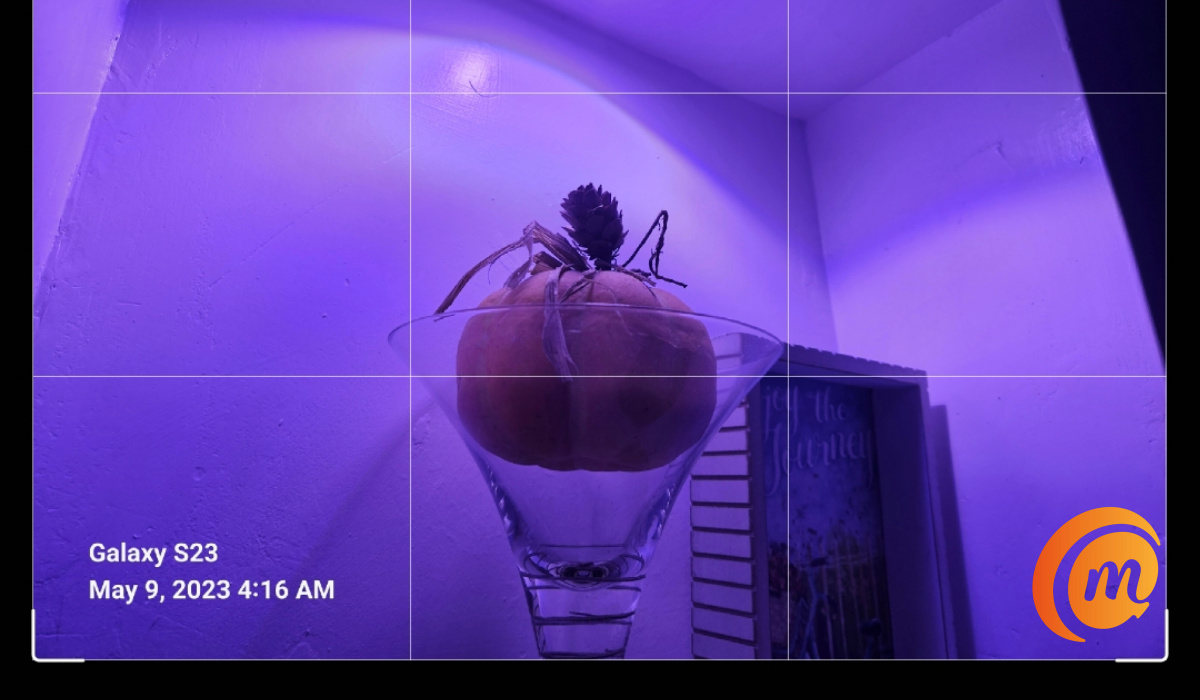
You can remove Samsung watermark from your pictures.
You do not need a third-party app to remove Samsung watermark from your photos. Neither do you need any complicated steps. I found that Samsung thought of this possibility that someone might need to remove those watermarks, and they made an easy way for it to be done.
- What to do to Remove Samsung Watermark from Photo
- To Stop Pictures from being Watermarked by your Samsung phone
What to do to Remove Samsung Watermark from Photo
Take the following steps to remove the Samsung watermark from any of your existing photos:
- Open the Samsung Gallery app.
- Select the watermarked photo that you want to modify.
- At the bottom of the screen, tap the edit icon (it looks like a pencil).
- At the top of the screen, you will now see “Revert” displayed. Tap on it.
- The app prompts you to confirm that you want to undo all changes and revert the image to its original version. Tap “Revert to original”.
- The watermark is immediately removed. Click “Save” at the top of the screen.
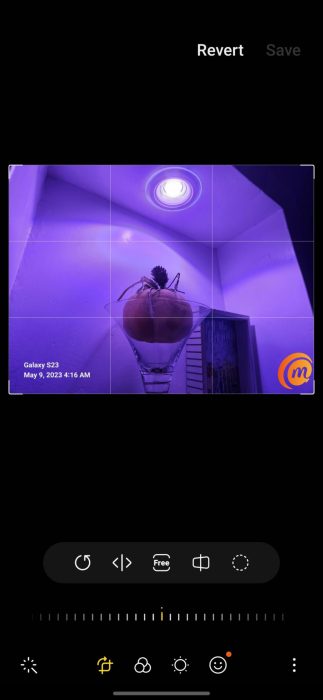
That is it: the image is now available without the Samsung watermark. You can now put it to use freely.
To Stop Pictures from being Watermarked by your Samsung phone
if you are removing watermarks from your existing photos, chances are that you no longer want your photos to be watermarked. Here is how to do that.
- Launch the Camera app.
- Go to camera settings (tap the wheel icon at the top of the screen).
- Tap on the Watermark toggle; it will grey out.
- Exit the camera settings. From now, any photos you take will no longer be watermarked.
Whether you are using a high-end Samsung Galaxy S23 or a lower-end Samsung A14 5G , you can add, edit, and remove the Samsung watermark from your photos.
Author:Mister Mobility
Digital Skills and Communication Coach | Mobile Phone Connoisseur since 2001 | Tech Blogging since 2004
