Add MobilityArena as a preferred source on Google
There are thousands of free programs available in the Mac App Store. The Mac App Store will typically have you covered for everything from work tools to gaming apps. However, even though Macs do come with a ton of wonderful applications that may help you do the majority of your tasks right out of the box, the time will come when you’ll need to add your own personal favourites to the Dock at the bottom of your screen.
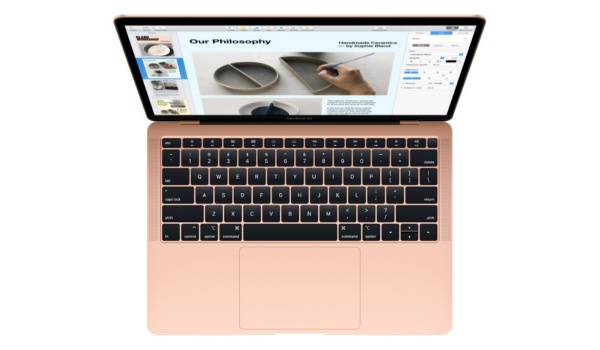
In this guide, we’ve provided instructions to help you download and install applications from the Mac App Store onto your Mac device, or directly from the website of the developer. So, feel free to take advantage of the helpful tips and instructions you’ll come across in this guide.
Downloading Apps from the Mac App Store
Once you’ve chosen an app you’d like to use on your Mac, you must download it from the App Store in order to use it. The basic procedures for downloading an app directly from the App Store have been outlined below.
Step 1: Opening the App Store is the first step in the procedure. One of the quickest methods to access the App Store is via the Dock or in Launchpad, however, you should note that there are other ways as well.
To open the app, click on the blue-background white ‘A’ that represents the App Store. As an alternative, you can launch the App Store using Spotlight Search. In the upper right corner of your screen, simply click the tiny magnifying glass symbol. Enter “App Store” and then click the icon to launch the application.
Step 2: If you haven’t previously, browse the options after accessing the App Store. You may also use the window’s search box to look for a specific app if you have one in mind.
There are thousands of free and premium apps available in the App Store. If you don’t currently have a payment method linked to your account, you’ll need to set one up if you wish to purchase an app.
By navigating the tabs on the window’s left side, you can browse particular app categories as well as featured apps.
Step 3: Click the app you want to download to launch it in the App Store window after you’ve made your selection. To download, click the “Get” button or the “Price” butto above the app’s description. The word “Get” stands for free apps, whereas the word “Price” stands for paid apps.
Let’s say you previously downloaded an app and later deleted it. The app will display a cloud with a downward-facing arrow in that case.
The button will turn green and say “Install” if you click the “Get” option. On the other side, the button will turn green and say “Buy App” if you click the price.
Step 4: The final step is to authenticate with TouchID or your Apple ID and password (this will typically depend on your MacBook Pro settings and model). This step must be finished before the software can start downloading.
Step 5: Once the download is finished, open the Finder and look in the Applications folder for the new program.
Simply launch Finder in the Dock and employ it to find the app. Next, select Applications from the window’s sidebar. Double-click the software to launch it after finding it.
As an alternative, Launchpad will also show the app in question. Start by launching the Launchpad app from the Dock if you choose to find the app using Launchpad. Search for the application in Launchpad, then click the icon to launch it.
Downloading Apps from Outside the Mac App Store
Although your Mac’s App Store has a sizable selection of apps, not all developers make their apps available there. The downloading and installing processes work in a different way in this situation. It’s important to be cautious when downloading programs from the internet. Apple inspects each software before placing it on the App Store to make sure it is free of viruses, spyware, and other harmful code, which is why it’s safer to download from the Mac App store.
We advise that you only download programs from reputable websites and businesses. You can download reputable programs and websites on your MacBook Pro, such as Slack, Microsoft, Asana, Wrike, Zoom, and Skype.
Once you’re on a website where you may download an app, follow these instructions:
Once you’ve located the program, click “Download Now” (or a similar button) to start the download. When the download has begun, a bar that has the app’s icon should appear at the screen’s bottom. It will be saved on your MacBook Pro as a “.dmg” file. Usually, it should end up in your Finder’s “Downloads” folder.
Step 2: The downloaded app will save to your Mac after it is done. There are several potential destinations for it. Once more, it should be saved to your “Downloads” folder, but if you change the location where your downloaded files save, the app might save somewhere else.
The name of the application will typically finish in “.dmg” and be a “Disk Image” file type. Another option is that it’ll have .zip at the end. This informs you that the file is a compressed Zip file, which downloads more quickly.
Step 3: To install the software after downloading it, click on it. If the file is a.zip, double-clicking it will unzip it; to install it, double-click it once more.
However, if the app ends in .dmg, it isn’t a zipped file and may simply be double-clicked to start the installation process.
Due to the fact that the file was downloaded from the internet, a window will appear when you double-click on it asking if you wish to access it. To confirm the installation, click Open.
In some circumstances, you might go through an installation wizard and be instructed by macOS to drag the application into the Applications folder. After dragging the application to the folder icon as directed, release the mouse button to complete the operation.
The download and installation status will be displayed in a tiny window. Depending on the size of the software, it may take a while.
You might be required to accept the terms of a licensing agreement when the installation is finished. If you want to move on with the process, click “Accept.”
Note that your MacBook Pro might prompt you to input your administrator password after downloading. It may appear before installation in certain circumstances or upon acceptance of the License Agreement in other circumstances (such as with Parallels Desktop).
Type in your password, then click “OK” when prompted to do so.
Step 4: Begin using your newly downloaded app after the installation is complete. To locate the app for use, adhere to the same instructions as above (for Dock, Launchpad, Finder, etc.).
In summary, it’s not difficult to download apps to your MacBook Pro, whether they are through the App Store or not. It’s true that downloading programs via the internet could involve a few extra steps, but overall it’s a simple procedure.
- Don’t miss our mobile phone reviews .
- Follow our news on Google News .
- Join our WhatsApp Group , to be notified of the most important articles and deals,
- Follow us on Instagram , Facebook , Twitter , and YouTube .
Author:Joan Agie
Add MobilityArena as a preferred source on Google
The vibration produced by phone keypads can be both useful and annoying. This is due to the irritating sound they make as well as the unusual movements they orchestrate under the fingertips. Which is why some users like to turn off vibration and keyboard sound.
Removing the vibration and sound can save us from an embarrassing situation at work, such as when you look at your phone during the workday or an important meeting and don’t want your bosses or colleagues to notice. On the other hand, when you receive a WhatsApp message and respond by making the same or more noise than when you received it, you end up disturbing the meeting.
How Do I Turn Off Vibration and Keyboard Sound on Androidphones?
To remove this function from the Android system’s default keyboards, follow these steps:
I. Open the CONFIGURATION menu on our Android-powered smartphone.
II. Look for the KEYBOARD AND LANGUAGES option under the PERSONAL submenu.
III. Once inside this section, click the CONFIGURATION button in ANDROID KEYBOARD.
IV. The boxes ” VIBRATE ON KEY PRESS ” and ” SOUND ON KEY PRESS ” are now checked.
In this way, the sound and vibration of the keypads would have been turned off.
Although the operating system of mobile devices such as Huawei, BQ, Xiaomi, Moto G, or Samsung is Android, the configuration menus or method for deactivating the sound may differ, or the terminal may have an installed format or one of its own created by the brand.
1. How to turn off vibration and keyboard sound inHuawei phones
Deactivating this option is a little more hidden in the case of Huawei, particularly the latest generation. However, we will reveal it to you:
I. Open the configuration or terminal settings by clicking on the gear icon located between the applications.
II. ADVANCED SETTINGS is one of the last options on this menu. Sign in to see your keyboard preferences. You can use the default, the gboard (provided by Google), or an installed one.
III. Click on the PREFERENCES option to access the option that is marked as in use.
IV. Once inside that screen, look for the option ” VIBRATE WHEN KEY IS PRESSED ” near the bottom. That’s all there is to it.
You will have to repeat these steps if you have multiple keyboard options.
2. How to turn off vibration and keyboard sound inBQ Phones
It is very similar to the Android system in use, and even to that of Huawei, in this device, though it takes a different path, which is as follows:
I. Navigate to the terminal settings.
II. Navigate to the SOUND AND NOTIFICATIONS tab.
III. Look for OTHER SOUNDS in this menu.
IV. Enter ” KEYBOARD TONES ” and then click ” VIBRATE WHEN TOUCHING “.
You’d save your battery by turning this feature off.
3. How to turn off vibration and keyboard sound inMotorola phones
Motorola’s interface is similar to Android in general, but the options are usually labeled differently. To summarize, deactivating vibration would be as follows:
I. Locate the SETTINGS icon.
II. Locate it under the LANGUAGE AND TEXT INPUT menu.
III. The various keyboards, such as the GBOARD, will appear (which is the one that these smartphones usually have active).
IV. Now all you have to do is uncheck the option ” VIBRATE WHEN YOU PRESS THE KEY “.
4. How to turn off vibration and keyboard sound inSamsung phones
The only difference between this process and Motorola is the names of the menus.
I. Look inside the APPLICATIONS icon for the SETTINGS menu.
II. Enter the SOUNDS AND NOTIFICATIONS option within it.
III. Click VIBRATIONS from the list of available options.
IV. Deactivate the “VIBRATION RESPONSE” option.
5.How to turn off vibration and keyboard sound in Google Gboard
GBOARD, Google’s intelligent keyboard system, is the default setting on most phones. It is one of the most comprehensive on the market because it allows you to write with one hand, insert emojis, and search for GIFs.
The Google keyboard is the default keyboard in the latest Xiaomi and iPhone models, so you must disable the sound or vibration through it. The steps are as follows:
I. First, launch an app that uses the keyboard, such as WhatsApp, Google Chrome, or the Google search bar.
II. Press to compose a message.
III. When the keyboard appears, press the distinctively colored G of Google.
IV. When the options are displayed, click on the three points at the end of the small bar. Press SETTINGS to see some new options.
V. Press PREFERENCES on the newly opened screen.
VI. Finally, deactivate the option ” TOUCH RESPONSE WHEN PRESSING THE KEYS ” and you’re done.
6.How do I disable keyboard vibration inSwiftKey?
The SWIFTKEY keyboard app is the most downloaded and used app after GBOARD, with over 2 million users having it on their devices.
SwiftKey is an advanced keyboard application that learns the user’s most frequently used phrases and suggests words before they are typed. This promotes more agile typing while also indirectly lowering battery consumption because the device will spend less time with the screen on.
Additionally, it analyzes your finger precision and corrects any deviations that the user may have. This app is currently the best because it allows you to adjust the duration of the vibration when you touch the keys, select the sound when you press the main keys, and toggle the sound on and off. To turn off vibration in SwiftKey, do the following:
I. Launch the SwiftKey app.
II. Select the WRITING option.
III. Uncheck the “SOUND AND VIBRATION” box here.
- Don’t miss our mobile phone reviews .
- Follow our news on Google News .
- Join our WhatsApp Group , to be notified of the most important articles and deals,
- Follow us on Instagram , Facebook , Twitter , and YouTube .
Author:Moses Udah
Creative, teacher, web content writer, copywriter, and student.
