Add MobilityArena as a preferred source on Google
Although Apple’s operating system for computers comes with a large selection of fonts, some users will undoubtedly desire (or need) more. Mac users have a tendency to care about design and optics, and this typically includes thinking about fonts. Additionally, some specialized fonts can be useful for disabled individuals.
Fortunately, adding custom fonts to Apple computers is rather simple for everyone who uses a Mac. You don’t have to be a tech whiz to manage the process of downloading, installing, and enabling the fonts you desire on a Mac. You’ll just need to follow a few easy instructions, and we’ve provided them for you in this guide.
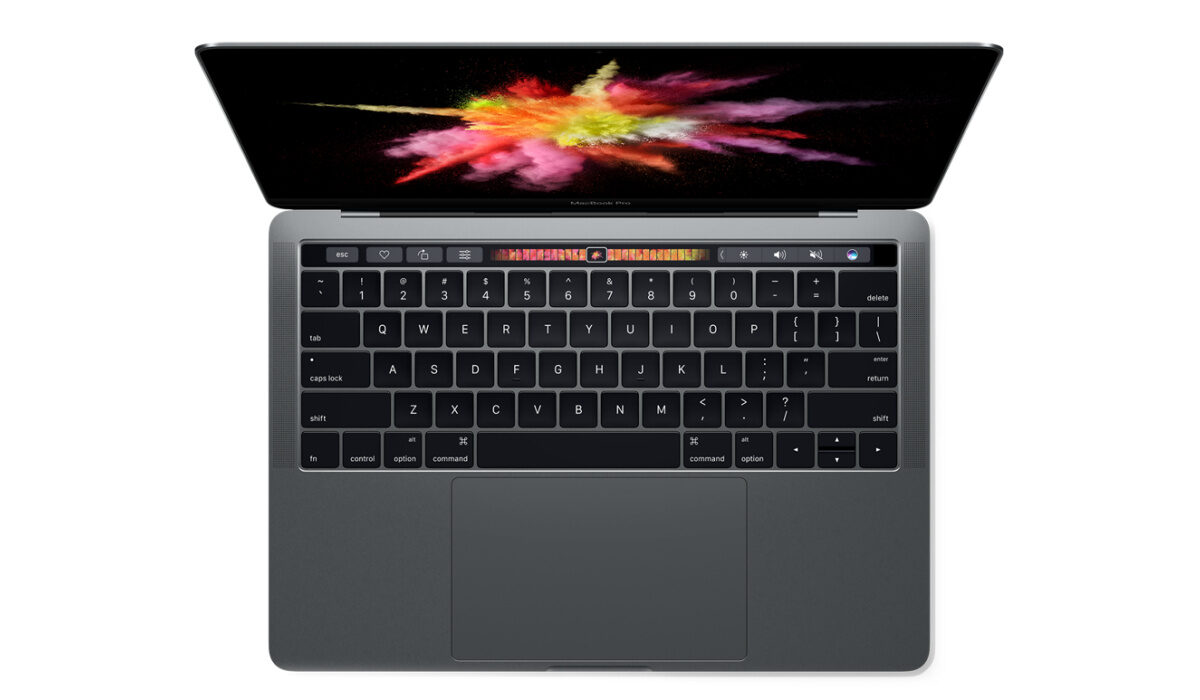
Installing Fonts on a Mac
We advise using Font Book as your starting point if you’re unsure how to install fonts to your Mac. It’s the simplest method to achieve this.
All Macs come with the free font management program Font Book pre-installed. You can use this software to install fonts for just your account, for all of the accounts on your Mac device, or for the entire network.
The procedure may vary significantly depending on what you require, and we will go over each one in this section.
Installing Fonts for only one Mac account
The instructions below should be followed if you wish to install new fonts just for your Mac account.
- Find the folder where your newly downloaded Mac typeface is located by opening Finder.
- Find a file in this folder that ends in “.ttf,” “.ttc,” or “.otf,” and double-click it.
- With this, Font Book will launch immediately for you.
- Click Install Font in the pop-up window to start.
It only takes these simple steps to add a new font to your Mac account.
Installing Fonts for All Accounts on a Mac
You will need to take a few more steps if your Mac device has more than one account and you want to apply the newly downloaded fonts to each of them.
The steps below will help you to install custom fonts throughout your entire Mac:
- Launch Spotlight or Finder
- Launch Font Book after searching for it.
- Select Font Book Preferences from the app’s menu bar at the top.
- To switch the default location from User to Computer , use the drop-down.
- Locate and browse the folder where the new font you wish to use is located.
- Double-click on a file in this folder that ends in “.ttf,” “.ttc,” or “.otf.”
- Click on the Install Font button located on the pop-up window of the Font Book.
Now that you’ve successfully added the new font to the Macintosh Fonts folder, you’ll be able to use it on your Mac from any account.
Installing Fonts for All Network Users
You must either be the network administrator yourself or ask someone who is to do it for you in order to install custom fonts for everyone on your network.
As a network administrator, you must perform the following actions:
- First, copy the required font files you’d like to install over the network
- Launch Finder and select the Go option from the top menu.
- In the drop-down menu, select Go to Folder and click it.
- Paste the font files into this folder after typing Network/Library/Fonts in the pop-up window and clicking Go .
After following these steps, all of the users on your network should now have access to the custom fonts.
Installing Fonts Manually
Mac font installation doesn’t always require Font Book. By manually copying font files to Library/Fonts, you can also accomplish this task quickly and easily.
Sadly, the Library folder and its subfolders are no longer visible to users as of OS X 10.7 Lion. Therefore, finding it will require some further work in the form of the steps below:
- Launch Finder and select the Go option from the top menu.
- From the drop-down menu, choose Go to Folder and click it.
- In the pop-up window, type /Library/Fonts and click Go
- You’ll see the Fonts folder there.
- All of the unzipped font files should be copied and pasted (or dropped) into the Fonts folder.
Using any of the methods described above, you’ll be able to download and install custom fonts easily on your Mac device depending on your needs.
Previewing Custom Fonts on Mac Devices
It can be challenging to select the ideal Mac font for your project because there are so many to choose from. When that happens, font preview becomes quite useful.
Using the Font Book program is the most effective approach for viewing installed fonts on a Mac; follow these steps:
- To discover and launch Font Book, go to Finder > Applications > Font Book or use Spotlight .
- Select the font by clicking it (fonts will be listed in the window’
- The right side of the window will display the preview.
- Click on the lines, grid, or letter-shaped buttons in the upper left corner of the window to transition between the various preview modes.
Disabling and Removing Fonts
As crucial as installing fonts is learning how to manage them efficiently on a Mac. We advise you to disable or totally uninstall the fonts you don’t use in order to reduce system clutter.
Fonts are easy to delete from a Mac, and this means removing them from the operating system. You will need to reinstall a removed one if you require it in the future.
Do this to remove fonts from a Mac:
- Open Font Book
- Select the font(s) you want to delete.
- Hold the Delete key down.
- Within the pop-up window, select Remove .
Disabling fonts on a Mac, on the other hand, results in their continued presence in your system although they’ll be removed from apps or the Fonts windows.
If this is what you’d prefer to achieve, follow these steps:
- Open Font Book
- Select the font(s) you want to turn off.
- Locate and select the Disable button at the top.
- On a pop-up window, click Disable .
In summary , we’ve provided all the instructions you’ll ever require to install and manage custom fonts on your device as needed. Make sure to follow them closely to achieve the right results.
If you know anyone else who might benefit from this helpful guide, don’t hesitate to share or recommend it to them.
- Don’t miss our mobile phone reviews .
- Follow our news on Google News .
- Join our WhatsApp Group , to be notified of the most important articles and deals,
- Follow us on Instagram , Facebook , Twitter , and YouTube .
Author:Joan Agie
Add MobilityArena as a preferred source on Google
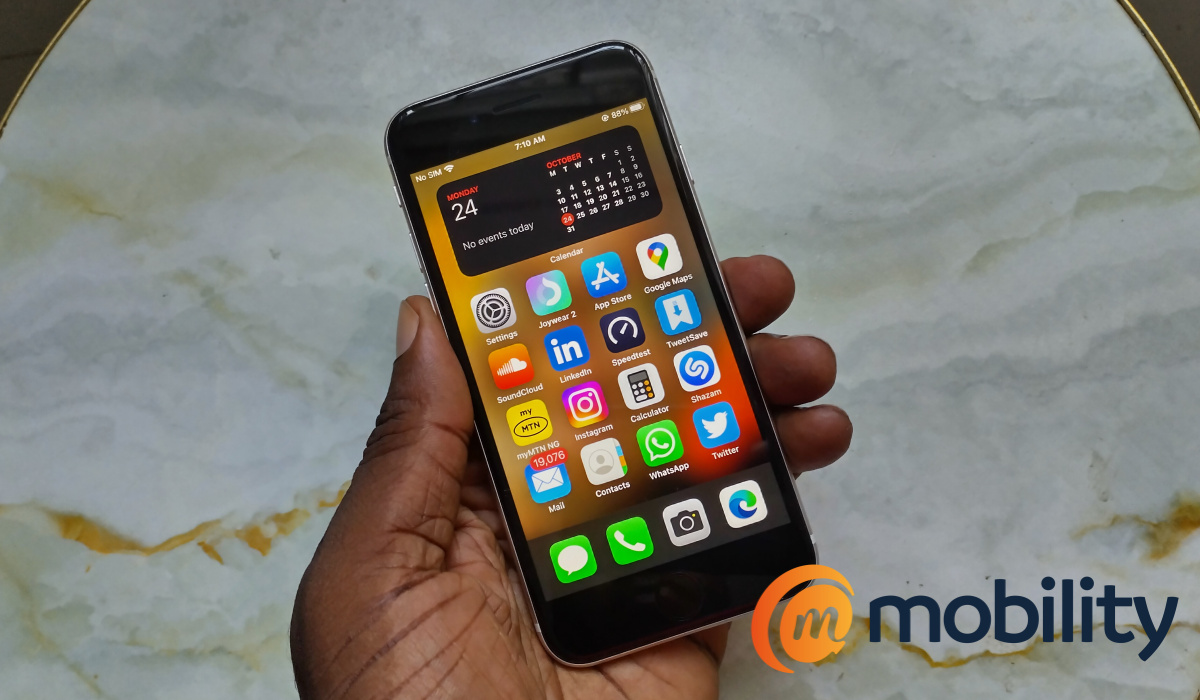
iPhone SE models are the budget line-up of Apple’s smartphones. They are not as affordable as most people would want, but they definitely do not cost an arm and a leg like the other iPhone models do. In this review, I share my experience with using the 2022 SE model as my daily driver for over a month. It has been quite a ride, and it isn’t all pleasant.
Our review unit is the 128GB variant (there are also 64GB and 256GB variants available, depending on your needs and how much cash you are able to shell out). The 64GB variant costs $379.99, the 128GB trim costs $449, while the 256GB variant has a price tag of $579.99. Apart from the differing built-in storage of these three variants, everything else about them are exactly the same, so information provided in this Apple iPhone SE 3rd Gen review is applicable to all of them.
- Quick Specs
- Pros And Cons
- In the box
- Hardware And Design
- Software
- Network And Telephony
- Display And Multimedia
- Photography & Video Apple iPhone SE 2022 selfie Photos
- Performance
- Battery life
- Should You Buy It?
- Don’t buy iPhone SE 2022 (3rd Generation) if…
- Other iPhone SE 2022 (3rd Gen) Resources
Quick Specs
Let’s have a quick look at the phone’s specifications to see what to expect.
- 4.7-inch IPS display
- iOS 15.4
- 7MP selfie camera
- 12MP main camera with LED light
- 2018mAh battery with 20W fast charging
- Apple A15 Bionic
- 4GB RAM
- 128GB internal storage
Pros And Cons
Before we dive into the review proper, starting with the major pros and cons of this device.
- 5G, 4G LTE, 3G, and 2G support
- Good physical build
- Good battery life
- Compact size
In the box
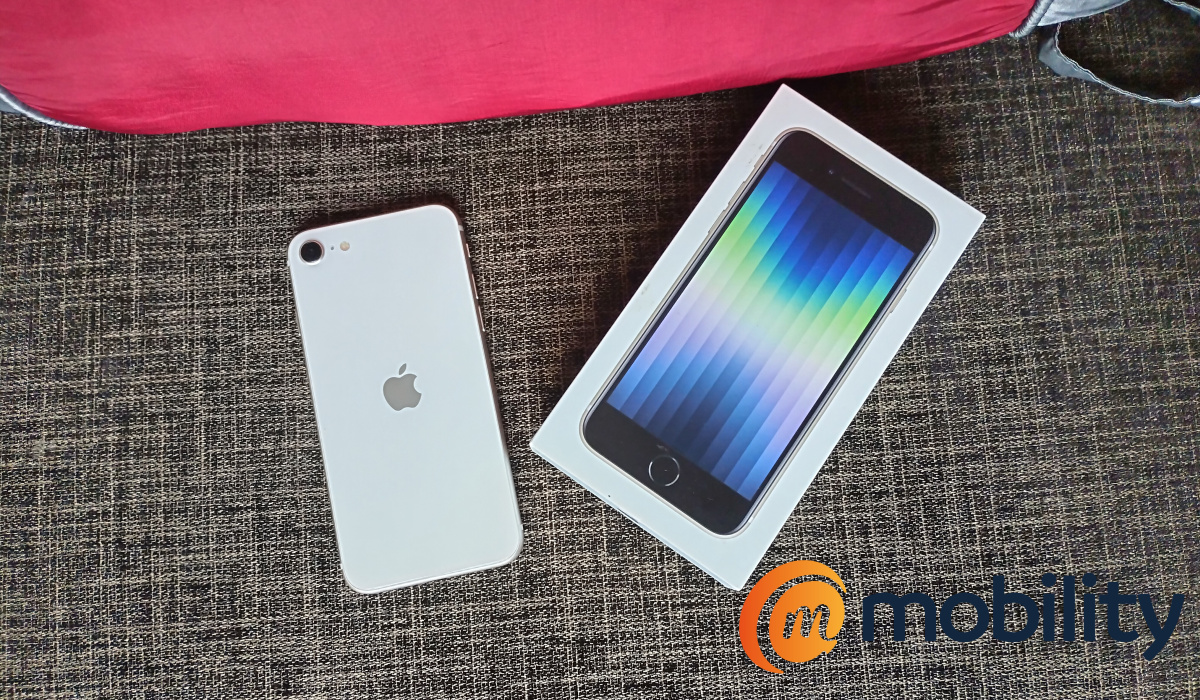
- Apple iPhone SE 3rd Gen phone
- SIM ejector tool
- Lightning cable
- Paper documentation
Hardware And Design
If you hate bezels, the design of the iPhone SE 3rd Gen will repulse you, and that is understandable. This is 2022, and the bezels on this gadget are from as far back as 2014. Unfortunately, it is the price to pay for a cheaper iPhone – at least till this year. Rumour has it that next year’s SE 2023 will have the design of the iPhone XR from 2018. Back to the SE 2022, which is another name it is called, the dated design does not take anything away from the build quality.
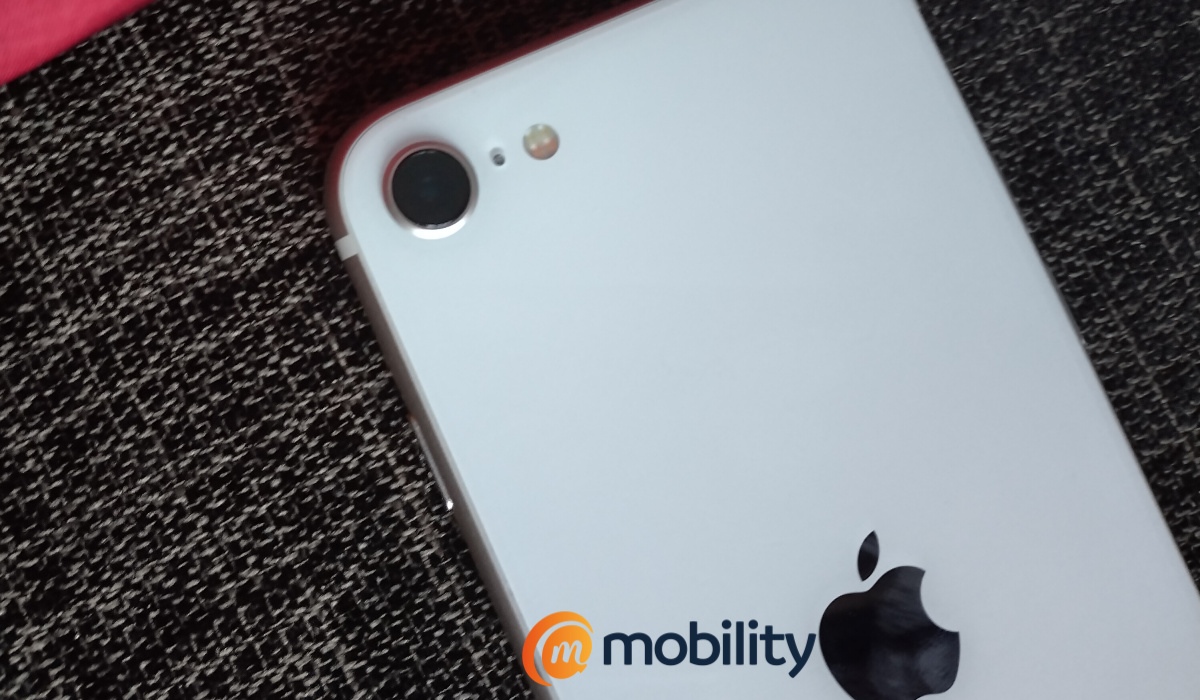
The iPhone SE 2022 is well built. The back side is made of glass and is susceptible to breaking should you let it keep an appointment with the concrete or tiled floor. The frame is made out of aluminium, It has a premium feel all round. In addition, thanks to the small 4.7-inch display, this is a rather compact smartphone. Many people will find it too small, as most phone users in the world clearly want bigger screens. Yet, lovers of compact smartphones will find it perfect, or at least good enough.
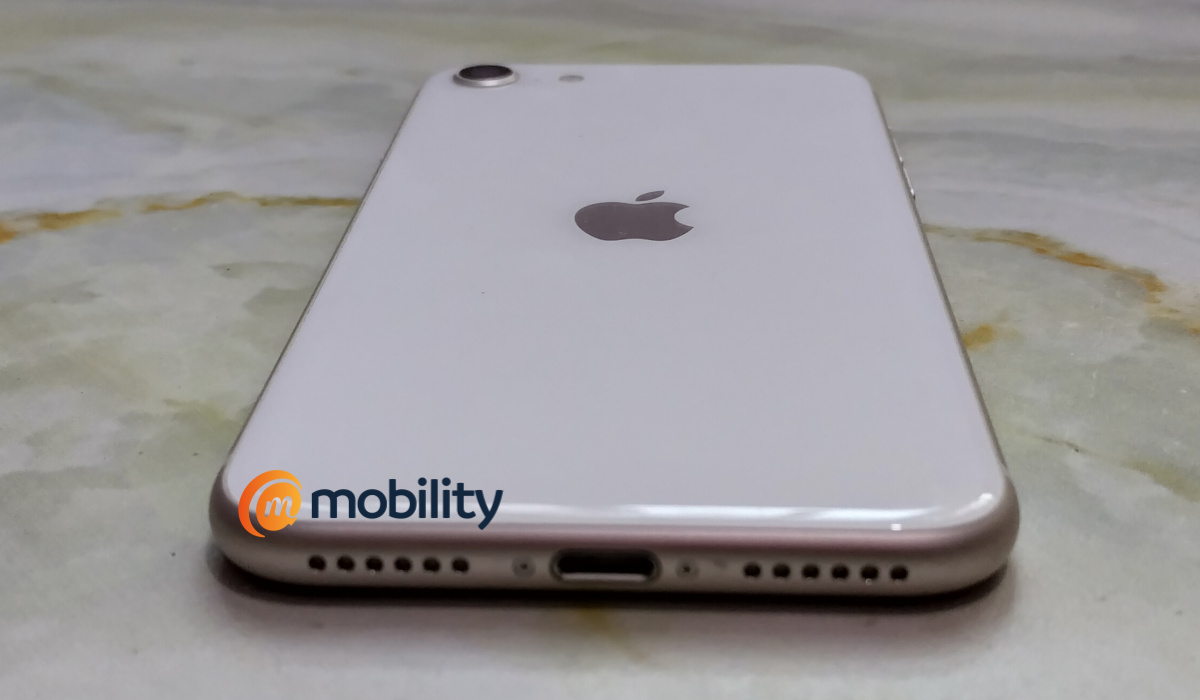
As already mentioned, the iPhone SE 3rd Generation model has the design of older iPhones. This means it is the only iPhone in Apple’s current lineup that has a fingerprint scanner, thanks to the Home button located below the display. There is no 3.5mm audio port here, though you can still use a headset with the phone, if you hook it up with an adapter. Lastly, the phone has an IP67 rating, providing dust and water resistance in depths of up to 1 metre for 30 minutes.
Software
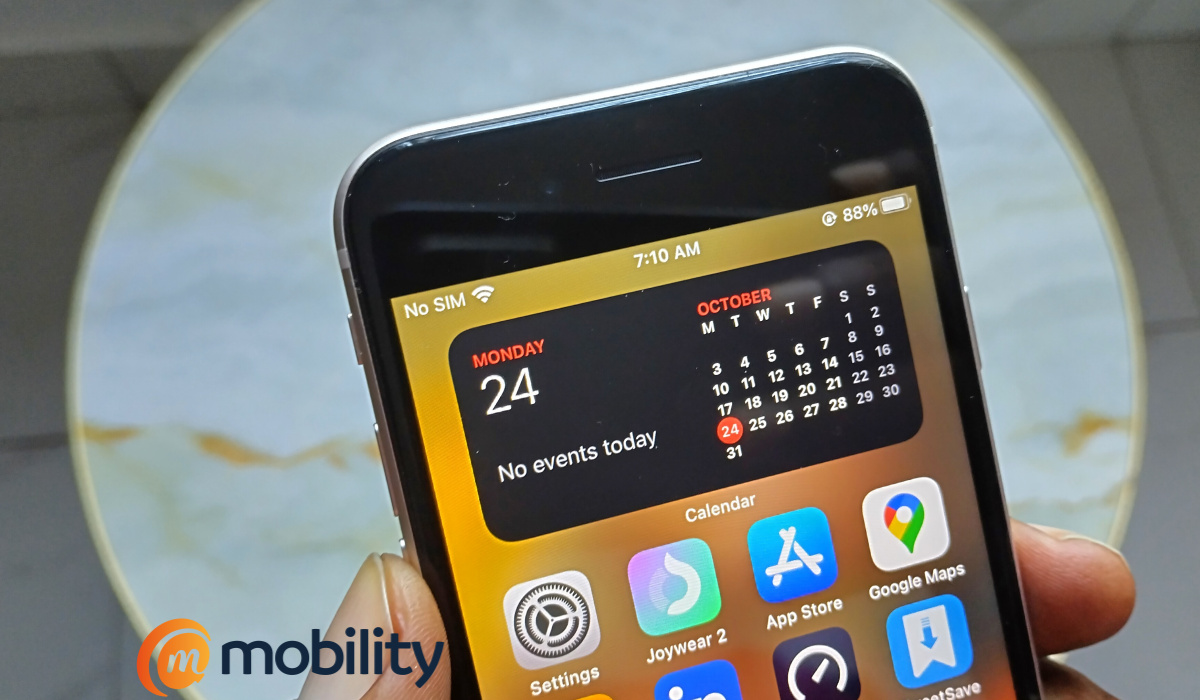
Out of the box, the iPhone SE 2022 runs iOS version 15.4. But iOS 16 was waiting for it and it was promptly upgraded. You can look at a detailed breakdown of iOS 16 features , to see what it brings to the table. At the core, the operating system and user interface have remained the same, so if you have used an iPhone before, you already know your way around, minus the minor changes to iOS 16.
One of the new features are lockscreen widgets. They are cool for keeping an eye on important information even when your iPhone’s screen is locked. We set up a few weather widgets and they worked fine. One of the big deals about iOS is the ability to seamlessly back up your iPhone with iCloud. It happens automatically in the background, and is a lifesaver if something happens and you lose the data on your device, lose the device itself, or want to switch to another iPhone.
Network And Telephony
In addition to 4G, 3G, and 2G networks, the iPhone SE 2022 supports Standalone (SA), Non-Standalone (NSA), and Sub6 5G networks. Phone call quality is not impressive. In many cases, it is disappointing. Telephone call audio breaks too often, for a phone that costs this much. Compared to the call quality on phones from other brands, the iPhone SE 3rd Gen is poor in telephone call quality.
When it comes to WiFi Internet access, though, the SE 2022 is problematic. If used in direct line of sight of a router, WiFi Internet works as expected. But if you move to another room with a concrete wall in between the phone and the router, the connection slows down badly, and online images and video take time to load. It is an unpleasant experience. We tested this with other devices, including multiple Android phone s and Windows laptops. None of them had this issue. I have discussed this issue in greater detail in another article .
Display And Multimedia
The display has basic resolution (a mere 750 x 1334 pixels), but it is a tiny 4.7-inch screen, so it doesn’t look bad at all. Also, there is no high refresh rate, but that doesn’t mess up anything. Viewing pictures and videos on the iPhone SE 2022 is a pleasant experience.
The stereo speakers on this smartphone are of good quality. You hear the bass and the timbre of music. It really is a pleasant experience. If you choose to use a wired headset, you need a 3.5mm adapter for that. The experience leaves a lot to be desired, though.
Photography & Video
Photography and video on the iPhone SE 2022 is quite good. It isn’t fantastic. Apple made sure to give you a reason to want the more expensive iPhone models. Photos are good, but often lack a measure of brightness. For example, the Google Pixel 3 camera does a better job with brightness. You will not find the camera disappointing. It is good; it just isn’t among the best, and that is understandable.
Apple iPhone SE 2022 selfie Photos
Performance
This is where this phone shines. It uses a top-end Apple A15 Bionic processor, after all. Performance is excellent. That chip paired with a small, 4.7-inch screen means that you get solid performance. The iPhone SE 3rd Gen may be tiny, but it is mighty.
Battery life
The iPhone SE 2022 has a smallish 2018 mAh, and if you were worried about how it would hold up, that would be a valid concern. iPhones had a reputation for poor battery life, until recently. So, we approached the SE 2022 with some concern – and we were proved wrong. On a full charge, the battery runs for a full working day. This is on a moderate use case – a few hours of web browsing, email, and the odd telephone call and SMS. It will take you home from work.
If used more intensively, the battery will empty much faster. Depending on how intense the usage, it can empty in 6 hours. Charging is via 20W standard. While it isn’t super fast, it got us a 50% charge in about 30 minutes. I would have loved to have 30W or 33W fast charging.
Should You Buy It?
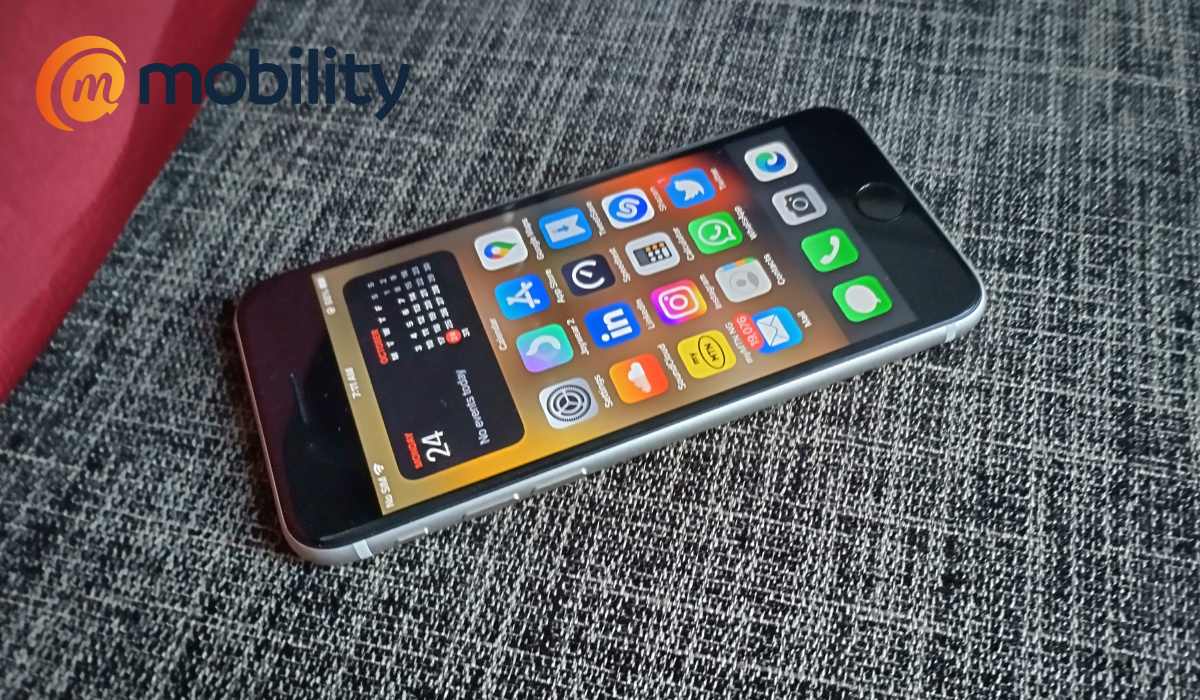
The iPhone SE 3rd Generation is a decent budget smartphone. I love that it has a fingerprint sensor, 5G support, and decent battery life, and fairly fast charging. The slow WiFi and poor call quality issues suck, though, and are sour spots on an otherwise excellent smartphone. You should buy it if you want an up-to-date iPhone without breaking the bank. You should buy it if you are comfortable with a small screen. This one is really small. From where I stand, those are the only reasons to get the iPhone SE 2022.
Don’t buy iPhone SE 2022 (3rd Generation) if…
If you prefer an up-to-date design or if you want a large screen, the iPhone SE 3rd Generation is not for you. This is an extremely compact smartphone with a 4.7-inch display.
Other iPhone SE 2022 (3rd Gen) Resources
- Apple iPhone SE 2022 specs
Copyright Notice : Reproduction of this article on any website, e-book, book, newspaper, magazine or other media without express written permission from MobilityArena is a violation of copyright rules and will result in appropriate action being taken.
Author:Mister Mobility
Digital Skills and Communication Coach | Mobile Phone Connoisseur since 2001 | Tech Blogging since 2004
