Add MobilityArena as a preferred source on Google
Every smartphone user needs or wants 3rd party apps on their devices. Three (3) different ways to download apps on a Windows Phone (Windows 10 Mobile too) .
Like all smartphone operating systems, Windows Phone and Windows 10 Mobile need apps. While every smartphone comes with pre-installed apps, we all want to be able to add functionality to our devices via 3rd party apps.
To download apps to your Windows Phone device is a straightforward process via the Windows Phone store, but there are other ways to get apps on your phone, just in case something goes wrong. Here are all the ways to go about it.
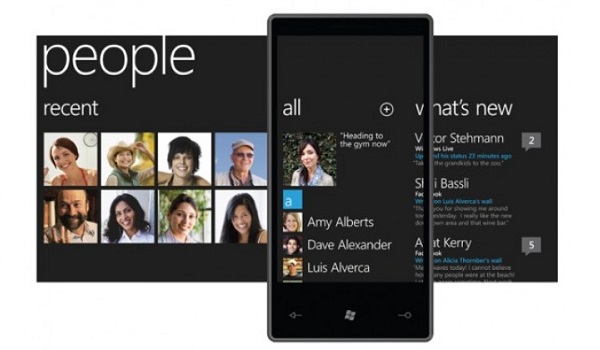
How do you download apps on a Windows Phone?
We start with the direct approach – how to download apps on a Windows phone via the app store
- On your phone’s Start screen, scroll down to ‘Marketplace’ (later renamed Microsoft store)..
- Locate the search button placed at the top of the screen and enter the name of the app you want e.g. Photoshop, or what the app does .e.g image editor
- Select the app to open its details page.
- Select Install .
- The app will ask for permission to access some information and functions in your phone. Tap Allow .
- The download will begin, and the app will be installed right after.
Once the download completes, you are good to go.

How to download apps on a Windows Phone 8 device without using the app store
If you need to download apps to a smartphone running Windows Phone 8, or higher, and it has an SD card slot, you will be able to .xap files to install manually. XAP files are native Windows Phone app format. Here is how to go about it:
- On your smartphone’s web browser, go to http://www.windowsphone.com/
- Locate the search button placed at the top of the screen and enter the name of the app you want e.g. Photoshop, or what the app does .e.g image editor
- Select the app to open its details page.
- Click the Download and install manually link down the bottom-left of the page.
- Copy the downloaded .xap file to root path your SD card.
- Reboot your phone and wait for 1-2 minutes.
- Open the store app on your phone and then tap SD card.
- Select the applications that you want to install.
This method is important because the Windows Phone 8.1 app store was shut down in December 2019, so this is perhaps the only way to get apps on them now. The limitation with this method is that you need a Developer Account for it to work.

How to download apps on a Windows 10 Mobile device using a Web browser
If you own a Windows 10 Mobile smartphone, you can also install apps to it using a Web browser. This one does not require a Developer Account, but you will need to sign in to your Microsoft account..
- On your smartphone’s web browser, go to http://www.windowsphone.com/
- Locate the search button placed at the top of the screen and enter the name of the app you want e.g., Photoshop, or what the app does .e.g image editor
- Select the app to open its details page
- Tap on the Get the app button
- Next, you will see a Get button. Tap on it.
- You might be required to sign in with your Microsoft account. If so, sign in with your username and password
- Wait for your app to download and install.
Once the installation is completed, you can launch the app to use it.
Windows 10 Mobile apps are on a lifeline
The Windows 10 Mobile app store is still alive, delivering updates to Microsoft’s own suite of productivity apps – Word, Excel, PowerPoint, and OneNote. However, it will likely be shut down in January 2021, when support for those apps end.
No new apps are being developed or accepted for Windows 10 Mobile any more, and all support for the platform, including security updates, hotfixes, ended in December 2019. Effectively, Windows Phone and Windows 10 Mobile are dead, and you should be looking to switch to an Android smartphone or iPhone at this point.
- Don’t miss our reviews .
- Follow our news on Google News .
- Join our WhatsApp Group , to be notified of the most important articles and deals,
- Follow us on Instagram , Facebook , Twitter , and YouTube .
Author:Mister Mobility
Digital Skills and Communication Coach | Mobile Phone Connoisseur since 2001 | Tech Blogging since 2004
Add MobilityArena as a preferred source on Google
Samsung’s Galaxy A series devices have been a big hit since the recent revamping. Last year threw up the A50 and A70 as very popular choices with smartpone buyers in many markets around the world. The Galaxy A71 is a follow-up to the A70 and hopes to gain the same appeal as its predecessor.
In this Samsung Galaxy A71 unboxing and hands-on review, we give you a quick glimpse of the device and share our first impressions.
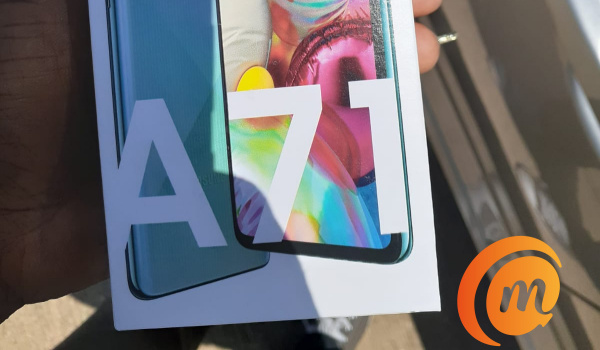
Samsung Galaxy A71 unboxing and hands-on review
Samsung Galaxy A71 Quick Specs
What we have is a 6.7-inch Super AMOLED display and Android 10 running under the hood. It has a 64 MP rear quad camera, a 32 MP selfie camera embedded in a centered punch hole, 8 GB RAM (there is a 6 GB RAM variant as well), 128 GB internal memory, and a 4500 mAh battery.
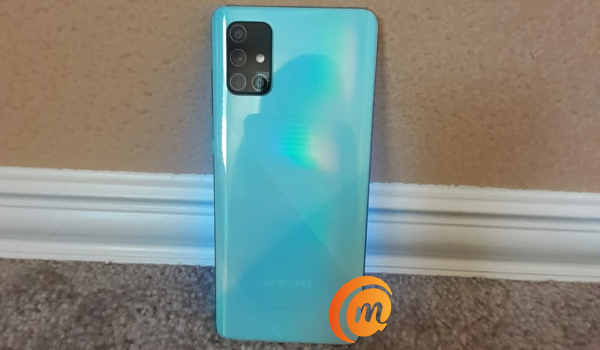
Its fingerprint scanner is embedded in the display and so won’t be found anywhere near the L-shaped camera island at the back.
Samsung Galaxy A71 Unboxing
In the box is the phone itself, a USB-C cable, fast charging adapter/brick, 3.5mm headset, a silicon case, as well as paper documentation. It is standard fare. There is nothing missing from the usual suspects.
The unit we got to play with is the Prism Crush Blue colour.
Setting up the Galaxy A71 was a smooth and straightforward experience. Samsung’s Smart Switch app helped a great deal in moving everything from an older phone – apps, videos, images, contacts, call logs, and SMS – over to it in a matter of minutes. It even carried over the active wallpaper from the old device. Every smartphone brand should have such an app.
Samsung Galaxy A71 First Impressions
The first time you power on the A71, the AMOLED display welcomes you in all its gorgeousness – sharp, bright, and punchy. Whether you like your displays that way or not, you can’t ignore it. It draws your attention anyway.
With the Samsung Galaxy A71 unboxing and setting up out of the way, it is time to share our first impressions of this budget smartphone.
Samsung’s A series are designed to offer some premium experience at lower price points, and the A71 pulls it off effortlessly. Picking it up in your hands, there is no doubt about the premium feel. Even better, it is quite lightweight in the hand as well.
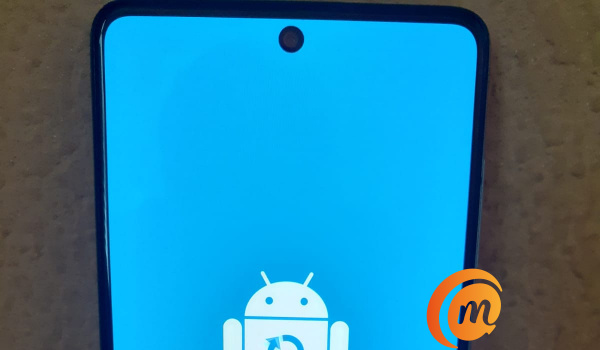
Here at Mobilityarena, there is a general disdain for the notch, especially those wide ones. Punch hole displays have been around for a while now and we are not sure yet what our position is. Perhaps we are indifferent about punch holes, as long as they are not big and bogus.
We will take a good selfie camera any day though, be it located in a notch, in a punch hole, or in a sliding mechanism. Just give us good photos. And the A71’s 32-megapixel selfie camera does that, so we are good.
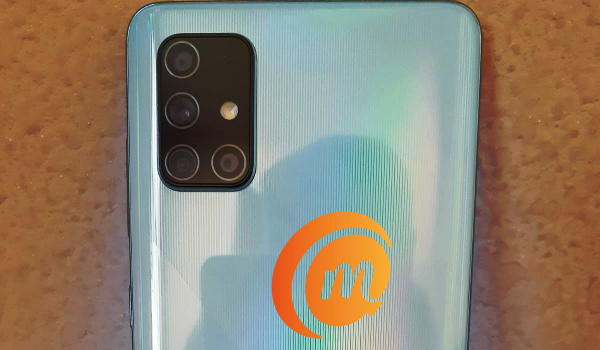
Rear camera modules have gotten ugly in the last one year though, whether L-shaped, vertical, horizontal, circular, or diamond shaped. As we have packed more and more lenses into those modules, things have kept going south.
We think the L-shaped island at the back of the Galaxy A71 is ugly as well, but if the quick sample photos we took with it is anything to go by, who cares? If a camera takes good photos, it can look as ugly as it likes.
That aside, the prism gradient pattern on the shell of the phone is a delight to see. That shell is plastic, not glass; and that is a good thing. Glass bodies are terrible fingerprint magnets, not to mention being highly prone to breaking.
Using the phone, One UI is a delight, and the version here runs on Android 10. In usage, the user interface is smooth and snappy, as we expected. The combination of Snapdragon 730 chipset, 8 GB RAM and 128 GB storage memory, in the Galaxy A71 makes for a jolly good show. It is smooth sailing all the way.
We did run into a snag with our unit: for some reason, the charging port stopped working. We had to send it back. Hopefully, that is an isolated case and not a common problem with the model.
PS : If you live in a region with active 5G networks, you might be interested in the A71’s 5G variant. There are two 5G variants targeted at two different regions,a nd so having different 5G network support, so be sure to ask for the model that is meant for your region.
As part of this Samsung Galaxy A71 unboxing and hands-on, we are including answers to some of the most common questions that we have been asked about the phone.
Does Samsung A71 support fast charging?
Yes; Samsung Galaxy A71 supports 25W fast charging standard, and a 25W charger is provided in the box.
Does Samsung A71 have Gorilla Glass?
According to the manufacturer, Samsung A71’s Super AMOLED display is protected by a layer of Gorilla Glass 3. No; we didn’t drop the phone to test it.
Does Samsung A71 have a headphone jack?
Yes; Samsung Galaxy A71 has a 3.5mm headphone jack and a headset is provided in the box.
How much is Samsung Galaxy A71?
The 8GB RAM variant does not seem to be officially available in Nigeria, but the 6GB RAM variant sells for about N180,000 at major retailers around the country, including on Jumia, Slot, Pointek, Jiji, and Konga.
