Add MobilityArena as a preferred source on Google
Apple has just released the latest version of its iOS software, and here’s how you can install it on your iPhone. As most smartphone brands do, Apple has just recently rolled out a new iOS update, the iOS 16. New software is usually rolled out yearly. This software drop has followed months of beta testing and is now available for download.
What iPhone models can the iOS 16 run on?
Most iPhone models can run the iOS 16 update. But Apple has discontinued support for the first iPhone SE model, iPhone 6s, and iPhone 7, following the release of iOS 16. It is also worth noting that the iPhone 14 series come with the iOS 16 preinstalled. So you do not have to go through the little trouble of updating your iPhone. That being said, the iOS 16 will run on the iPhone 8 through the iPhone 14 Pro Max.
How to download and install iOS 16
To update your iPhone to iOS 16, go to your settings, tap “General”, and then select “Software Update”. If “Automatic Updates” is enabled on your iPhone, it will, by itself, start to scan for possible new updates. You will then see the iOS 16 update available for download as an option.
Tap on the option, you will see some “terms and conditions” to download, and agree to them. The update will be requested and then eventually downloaded.
During the early stages of the release, most users will find that it takes quite a while to update. This is because of the amount of people looking to download the update. If you choose to download it a couple of days or weeks after the update release, It might not take as long, it will then depend on the speed of your Wi-Fi or data network. It is preferable and advisable to use Wi-Fi rather than your regular data network when you’re updating to iOS 16.
When the download is complete, you will see the “Install Now” option. The file will be scammed to see if there are no complications and it will be installed. When the process is done, your iPhone will restart and you will then be able to try out the new features of iOS 16.
Should you wait to download iOS 16?
Author:MobileChic
That motivated, gadget-loving geeky chic who tries to stay on top of things. Unapologetic iFan.
Add MobilityArena as a preferred source on Google
Why would you want to create a blank Home Screen on your iPhone? For many people, less is more. Some people prefer the less complicated things in life, and this preference extends into how they use their mobile devices. Making your Home Screen blank is a good idea if you’re one of such people who’d prefer a simple iPhone background.
Sometimes, the iPhone’s Home Screen tends to get easily cluttered with app icons, which is not exactly relaxing to observe on the first page when you unlock your device. Thankfully, there’s an easy solution. This guide will review several ways to make your iPhone’s Home Screen empty. Since every step is simple and easy to follow, you can be sure that you’ll get the desired outcomes right away.
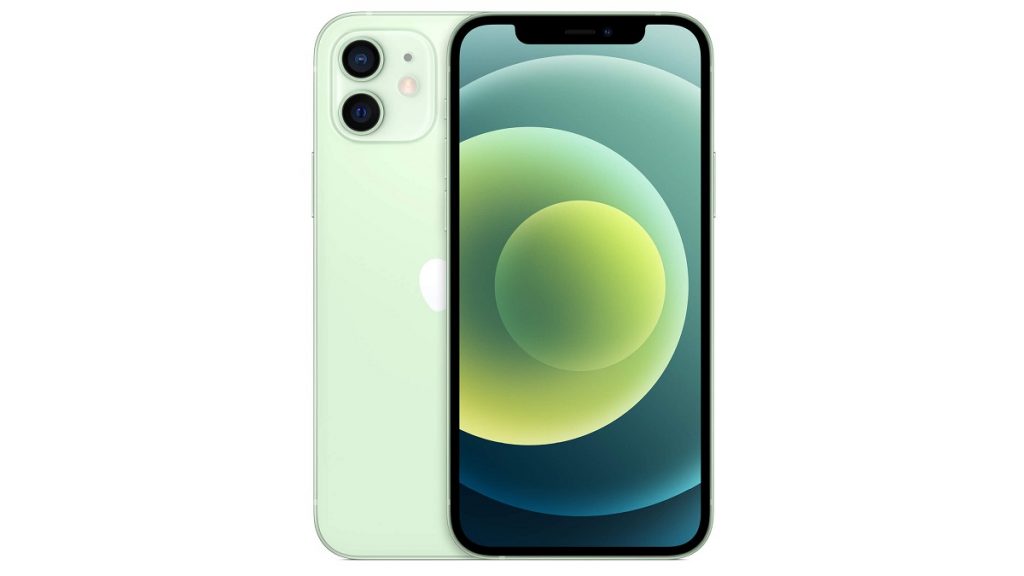
You can create an empty or blank Home Screen on your iPhone
Create Blank Home Screen on your iPhone: Move Apps Away From the Home Screen
Moving all of the apps on your iPhone’s Home Screen to the following page is the quickest way to generate a blank Home Screen. This is how to accomplish it:
- To edit the Home Screen, first long-click any app on the screen and choose Edit Home Screen . This ought to activate jiggle mode.
- Move the app icons from the first Home Screen to the next screen. Do this by dragging them sequentially to the iPhone’s right edge after jiggle mode has been activated.
- Your Home Screen should then be entirely empty, and you can now take advantage of the clear, uncluttered first view that your blank home screen will deliver.
Create Blank Home Screen on your iPhone: Use Invisible Icons on your Home Screen Page
Making invisible icons is another way to personalize your iPhone Home Screen and give it an empty appearance. You would have to screenshot an empty page, make empty icons, and then download the finished product as your wallpaper to accomplish that. In other words, you’re leveraging various portions of the screenshot you took to create app icons. As the wallpaper is made of the same material, the icons will appear to “disappear” into the background.
Here’s how to go about it:
- By holding down any icon on your iPhone’s Home Screen, you can turn on jiggle mode.
- When you reach an empty page, swipe right.
- Making use of the necessary buttons, take a snapshot of the blank page.
- Find a tool that creates empty iPhone icons and use it next. The next steps are instructions on how to use iEmpty , which we suggest due to its simplicity. As an alternative, you may also make invisible icons by using the Makeovr tool.
- Click on “Add Empty Icons” as you continue to scroll down the page.
- On the screen that displays next, tap Choose File to upload the initial screenshot you captured in the “Your screenshot” section.
- Select Send . Before sending the file, verify to ensure that you can get a preview of your snapshot.
- On the following screen, scroll down to the Options area and select the Bookmark option to create your icons.
- To view a grid of icons with your wallpaper as the background, scroll down. Any icon you choose from this list can be added to your Home Screen as a bookmark by using the share button. You can carry out this procedure as many times as you like for the icons on your home screen.
If you’re the type to change your wallpaper frequently, you might find this procedure to be a little laborious. This means you should consider using other methods we’ve suggested in this guide.
Create Blank Home Screen on your iPhone: Empty your Home Screen with Widgets
Using iOS 14, you may avoid the stress of downloading empty icons and uploading your wallpaper to specific websites. You can either employ a Siri suggestion or a transparent widget app in this situation.
You can use the Siri suggestions widget by following the instructions below:
- First, ensure that the Shortcuts app is installed on your iPhone. You can download it directly from the App Store if it isn’t
- Press down on an empty space on your current home screen, you’ll activate jiggle mode this way.
- When you get to an empty page, swipe right. Next, click or tap the addition sign (+) in the top left corner.
- Your Home Screen should now have three Siri suggestion widgets.
- Aim to tap on the dots above the dock while in jiggle mode.
- Deselect all pages but the one that contains the Siri recommendation widgets
- After you remove all three of the Siri suggestion widgets you created, tap Done to exit jiggle mode.
You’re all done! Your iPhone Home Screen should be empty now, allowing you to fully admire your wallpaper. You can download customized app icons if you wish to further customize your Home Screen. The drawback of this approach is that you can only have one Home Screen page. You’ll have to employ Spotlight search or use your iPhone’s App Library to get to your apps.
Create Blank Home Screen on your iPhone: Use Transparent Widgets
Here are the steps you need to follow for this approach:
- First, install TWid onto your device from the App Store
- Press down on a blank space on the Home Screen to enter jiggle mode.
- Right-click until the page is empty.
- Take a picture of the blank page.
- On your iPhone, launch the TWid app and choose the screenshot. It ought to show up in the app’s center.
- Go back to your Home Screen and enable jiggle mode again.
- Locate the TWid widget by tapping the addition (+) button in the top left.
- Using the modify widget option, you’ll be able to add widgets and change the images as needed
In summary , making your home screen blank is very achievable as long as you’re guided by the right instructions. Follow the ones we’ve provided for you in this guide and you should be able to set up a blank home screen in no time.
