Add MobilityArena as a preferred source on Google
For streaming music, many music lovers agree that Spotify is a fantastic option. There are several possibilities for great music, as long as you’re connected to the internet. However, once you go offline, that’s it, the music stops.
If you like to enjoy music constantly, you may need to consider downloading music from Spotify to your mobile device. This will help you listen to music even while you’re offline, and you get to enjoy music nonstop.

The process is pretty easy, as long as you’re following the right instructions. We’ve therefore created this guide to show you how to download music from Spotify without any internet-related restrictions.
What Do I Need To Download Music from Spotify?
There are also two other conditions you need to be aware of. First, you must log on to Spotify with an internet connection at least once every thirty days to keep your music downloaded on your mobile device. This is a way for Spotify to determine whether your account still has Premium access. It’s important to remember that Spotify will automatically delete the songs from your device if you miss the deadline.
Secondly, you’ll only be able to download a total of 10,000 songs onto a maximum of five devices. Any prior downloads will also be lost if you download anything onto a sixth device. Spotify specifically deletes downloads from the device you haven’t used for the longest period.
That being said, keep reading to find out how to download your favorite songs from Spotify.
How Do I Download Music from Spotify to my Cell Phone?
Always ensure that you’re logged into a Premium account before attempting to download music from Spotify. If you’re using Spotify Free, you’ll not be able to see the download option at all. The instructions are as follows once you’ve logged in:
- Search for the album or playlist you would like to download.
- Tap the playlist or album.
- Click the Download toggle if you’re an Android user. Select the clear arrow if you are an iOS user.
- When your download is complete, a green arrow will appear.
Spotify will notify you when your music has finished downloading or show you the current download status in-app. Spotify will indicate that any playlists or albums that are waiting to download
How to Manage Music While in Offline Mode
You have the option to use Spotify’s Offline mode if you’d only prefer to listen to your downloaded music. Go to the home page and locate Spotify’s settings to access its Offline mode. Click the toggle button to enable Offline mode under Playback .
Spotify keeps you informed of the content you can access even when you’re offline. The app will typically bring up a notification telling you to go online if you select only an artist you’ve followed without liking any of their songs or albums.
When you browse artists, playlists, or albums that contain music that you haven’t ownloaded, those items will either be grayed out or remain hidden. Enable the Show unplayable songs option under Playback to reveal hidden songs.
You can still set up downloads in offline mode if you wish to get any unavailable tunes. To schedule a download, you touch the Spotify download button.
You’ll notice waiting-to-download notifications next to any in-queue playlists, artists, or albums in Your Library. Spotify will begin downloading your tracks automatically after you turn off the offline mode.
Managing Spotify revolves around its download button when it comes to categorizing currently downloaded songs. Click the toggle button (for Android devices) or the green arrow (for iOS devices) on any downloaded music to remove it if you need to free up space or if you’d like to re-download to another storage device. Redownloading is also as easy as tapping the appropriate button type once more
In summary , when you figure out how to download music from Spotify onto your phone, creating a great offline library becomes pretty easy. You’ll just need to keep in mind that in order to retain your music on Spotify, you must adhere to their rules.
Author:Joan Agie
Add MobilityArena as a preferred source on Google
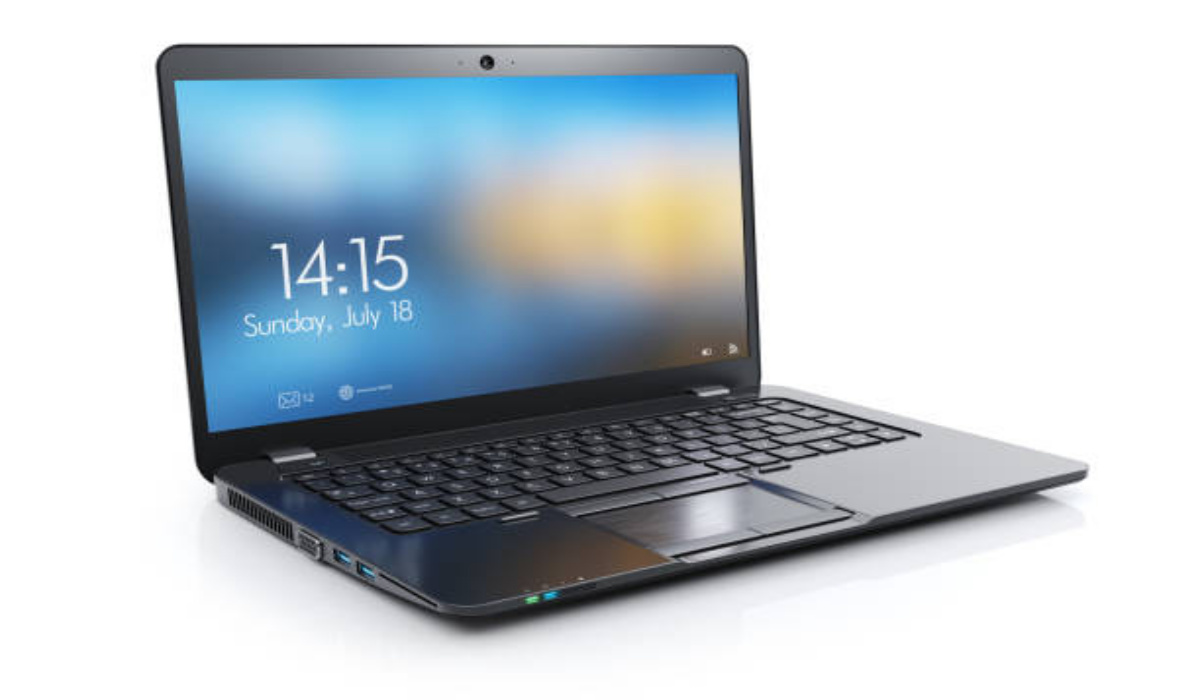
The most recent version of Windows, Windows 11, introduced arbitrary minimum requirements that effectively prevented many PCs made prior to 2017 from being upgraded. Long-time Windows customers were surprised by this, as Microsoft is often more accommodating.
Nevertheless, there are a few ways to get around Microsoft’s security measures and successfully install Windows 11 on your device if you’re using an older computer. We’ve created this guide to show you how to get this done effectively.
Can My PC Install Windows 11?
Before attempting any of the solutions in this guide, it’s smart to first confirm that Windows 11 is indeed incompatible with your computer. After all, if you can get your update directly through Windows Update, there may be no need to go through the extra stress.
Look through the minimum requirements first to verify that your PC satisfies them. If it’s a fairly recent PC, chances are high that you’ll meet all the requirements. We’ve listed them below:
- CPU: dual-core, 64-bit, 1 GHz at least
- RAM: 4 GB
- Storage: a minimum of 64 GB
- DirectX 12 compliant GPU
- TPM: 2.0
Your PC needs to be running Windows 10 from 2004 or earlier before you can install the upgrade. You should also exit S-mode if it is currently activated. You can use the WhyNotWin11 program to see if your PC is compatible as well. Your PC’s health will be indicated, and if not, what’s wrong will be explained.
You don’t need to take any action if everything looks fine from the assessment; simply wait until the update automatically downloads to your device. If your PC appears to be running Windows 10 for some reason, there’s no cause for alarm; the deployment is still in progress and will continue for the foreseeable future.
If not, look into what you can do to fix the situation. Before your PC is really listed as compatible, you may need to configure TPM and Secure Boot in the event of a TPM issue, for example. If it can’t be fixed, keep reading to find out other ways to install Windows 11 successfully.
How Can I Install Windows 11 If My Device is Incompatible?
There are two important steps in this process. Pay attention to the following:
Install a Windows 11 ISO
Installing an ISO is the simplest approach if you want to install Windows on a computer that is not supported. Microsoft decided to soften its new restriction in response to public criticism, allowing anyone with a suitable PC to install Windows 11 at their own risk. However, compared to a typical Windows installation, this will take a little more work.
Download the Windows 11 ISO file first. You can select here whether you wish to download the ISO file or the media creation tool directly. Both of these approaches are viable, but the media creation tool is probably preferable if you intend to put the installer on a boot drive or disc.
After reading the license conditions and selecting “Accept,” launch the media creation tool and select “Create installation media for another PC.” After clicking Next, choose the language, edition, and architecture for the Windows 11 installation.
Wait for the program to upload the installation to your drive after inserting your flash drive, which should have at least 8 GB of space.
Adjust the Registry to Prepare for Windows 11
You can’t install Windows 11 just yet, even if you’ve properly configured and set up the installer. You must first overcome a few roadblocks in the Registry Editor in order for the installer to work properly.
When the Registry Editor is launched (launch it by clicking Alt + R , typing “regedit,” and pressing Enter ), go to HKEY_LOCAL_MACHINE > SYSTEM > Setup > MoSetup . You’ll need to create a new value here. Allow your mouse to hover above “New,” then click “DWORD (32-Bit) Value.”
Put “1” as the value and “AllowUpgradesWithUnsupportedTPMOrCPU” as the name. Then press “OK.”
The Windows 11 installer should no longer indicate the absence of TPM 2.0 or your unsupported CPU as a result of this action. To be safe, restart your computer at this point.
You can then begin taking the update. Either retrieve the Windows installation directly from the flash drive or restart your computer and boot it onto the flash drive.
Note that this action is unsupported by Microsoft, so if you run into any problems, Microsoft may not offer any official support. As such, we advise you to carry out this update with caution because it’ll all be at your own risk.
In summary , installing Windows 11 on an older PC is as easy as following the instructions we’ve provided in this guide, so note them carefully.
- Don’t miss our mobile phone reviews .
- Follow our news on Google News .
- Join our WhatsApp Group , to be notified of the most important articles and deals,
- Follow us on Instagram , Facebook , Twitter , and YouTube .
