Add MobilityArena as a preferred source on Google
There are several reasons you could possibly need information about your smartphone. Whatever the reason, just keep in mind that this is not a hard task to accomplish in any way. Phone specs give us detailed information about what is in the phone and what features it has.
Now, even though finding out a phone’s specs is fairly easy, like we said, not everyone knows how best to do it. That’s why we’ve created this quick guide, to teach you the different ways by which you can find out the specifications for your device.
- Why should I check my phone’s specs?
- How to find out my phone’s specs
- Check the phone specs of Android devices
- Check the phone specs of iPhones and other Apple devices
- Check the Manufacturer’s Website for your phone’s specs
- Check Phone Specs on Third-Party Websites
- Use Third-Party Applications to find phone specs
Why should I check my phone’s specs?
The components that make up a smartphone are essentially its specifications. Knowing the components of our smartphones (or any phone, for that matter) helps us understand and make predictions about a variety of things, such as how fast the phone will be, how big a display to expect, how much storage the phone will offer its users, how long the phone’s battery will last, whether or not the phone will support multitasking, and whether the phone’s camera(s) will be sufficient for selfies on Instagram, Snapchat, and similar platforms.
Moreso, there are so many smartphones on the market right now that it is now more difficult than ever to select the one that best matches the demands of the typical smartphone user. This is where phone specifications come into play: they facilitate efficient device reviews and comparisons while also assisting users in making well-informed purchasing decisions.
Consequently, it’s important to get your hands on smartphone characteristics whether you’re planning to get your first smartphone or you’re looking for the best upgrade.
How to find out my phone’s specs
Even though your device would most likely only provide you with the most basic information, checking it is still a useful approach for learning what materials your smartphone is made from, and what degree of performance to expect from it.
Your device side, there are different methods you can employ to successfully discover your smartphone’s specifications. We’ve described the best ones below.
Check the phone specs of Android devices
On Android-powered smartphones, entering the “ Settings ” menu and selecting “ System ” will provide you with information about the setup of the phone’s display, CPU, RAM, ROM, rear and front cameras, and battery.
You may also be able to find more details about your phone, like its name, the version of its operating system, build number, serial number, legal information, and Android security patch level, among others. Just make sure to select “About Phone” from the System menu.
Check the phone specs of iPhones and other Apple devices
Similar to Android phones, the fundamental specifications list for iOS phones and tablets gives just basic information regarding storage capabilities, iOS version, phone type, and other factors. Open the “ Settings ” menu on your iPhone or iPad, select “ General ,” then “ About ,” and you’ll be able to access this information easily.
Check the Manufacturer’s Website for your phone’s specs
The complete specifications of every smartphone will typically be listed on the official websites of every OEM (original equipment manufacturer). All you have to do is enter the model name of your smartphone in the search bar on the manufacturer’s website.
This method provides even more in-depth information about any device of choice, including phone dimensions, weight, battery type, SIM types, display technology, network bands support, supported audio and video formats, available sensors, and much more, as opposed to checking your phone’s specs in the settings menu. You’ll also benefit from real-time tips on such websites that you might find useful.
For instance, visiting Samsung’s official website and using the search field to type “Note 8” will typically display all of the Samsung Galaxy Note 8’s specifications.
Check Phone Specs onThird-Party Websites
We’re sure you’ll agree that there is no better resource than the internet to learn about your smartphone and its specifications. You’ll be able to access all the information you require about your smartphone on a single webpage with the push of a button. There are several popular platforms that serve as the top suppliers of technical details for practically every smartphone sold worldwide.
Your phone’s name will appear in the search field of such third-party websites along with the device’s specifications. On some of these third-party websites, you may also be able to compare the specifications of two or more smartphones side by side. You can search out phone specifications here on MobilityArena . Simply type the phone’s name in the search field at the top of any page.
Use Third-Party Applications to find phone specs
There are third-party programs and benchmarking tools out there that can give you first-hand knowledge of your device’s specifications. With these apps, you’ll easily be able to find out information about your device’s CPU, camera, network, operating system, battery, GPU, and even sensors.
These apps are entire programs that provide exact specifications, even though they may take up some RAM and storage space on your device. Examples of these apps include DevCheck, CPU-Z, and My Device, and they are all mostly supported and available on Android-powered smartphones. They are also all accessible on the Google Play Store and will do no harm to your smartphone (although the adverts could irritate you, it just might be worth it).
In summary , there’s a lot to benefit from finding out your smartphone’s specifications, especially if you’d like to make a new purchase and ensure that certain characteristics will be in your new device (or not, it goes both ways).
Author:Joan Agie
Add MobilityArena as a preferred source on Google
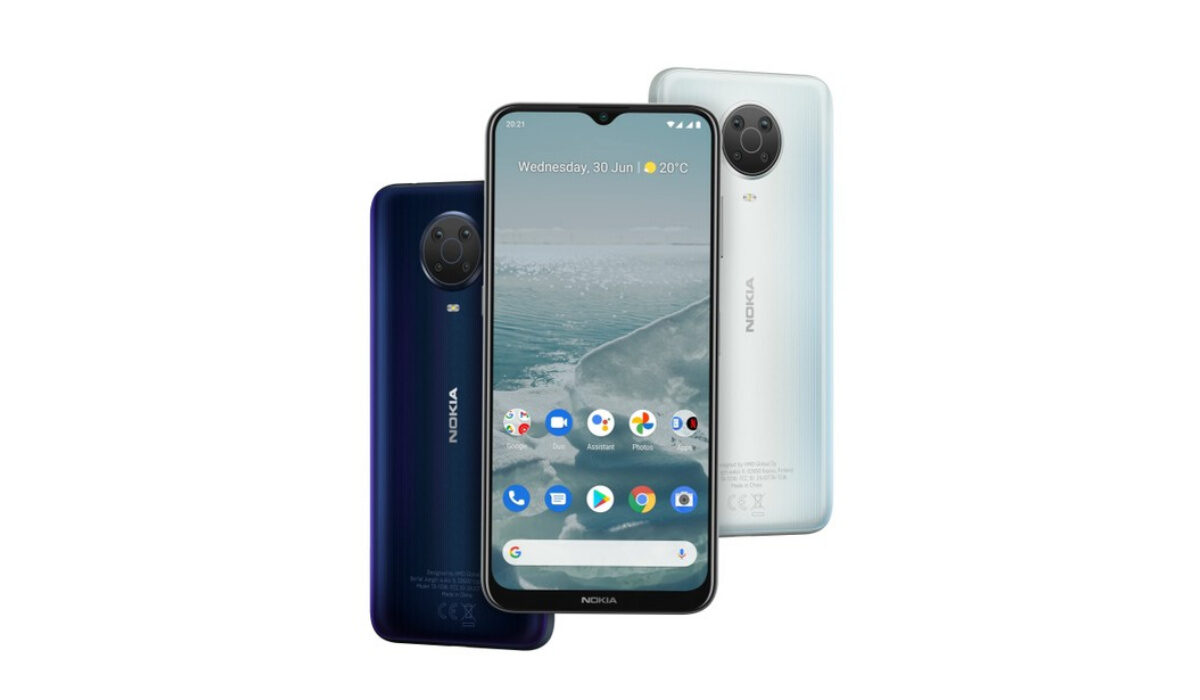
The Nokia G20 is an entry-level smartphone that was launched in July 2021, following the release of its predecessor, the Nokia G10. This smartphone sports 4GB RAM, and 64/128 GB internal storage. It is known to possess one of Nokia’s most durable and long-lasting batteries. According to tests, it can last up to 3 days. It’s pretty impressive, I know. It also has a front camera of 8MP and a rear camera with 48MP main + 5MP Ultrawide + 2MP Macro + MP depth. The Nokia G20 also has a 6.5″ display and an IPX2 rating.
Now, if you are looking to make your Nokia G20 run faster and smoother, here are some ways to make that happen.
Delete Unused apps
The benefit of owning a Nokia smartphone, the G20 included, is that they do not come with bloatware and unwanted apps. Any smartphone user would love to have all their desired apps installed. This might lead to large amounts of apps piling up on the device, over time. It is important to form a habit of uninstalling unused apps and games. Having lots of these apps will hinder and slow down the performance of your device.
Especially when you have some of them running in the background. They also become so many and have so much data on each one of them, that there is barely any storage space left for your device to run as smoothly as you may have liked.
Clear App Cache
Cleaning the cache of the app on your Nokia G20 is important in terms of sending up your phone. Clearing the cache of an app can make that particular app run faster and smoother than it did before, and reduce possible lag. Clearing cache is also very important for entry-level devices too to help them improve their performance. As they are not as powerful as high-end devices. You can clear the cache of any app by long pressing the app icon, selecting App info , and then Storage . There will be an option to Clear cache . Select that and you’re good to go.
Check for Software Updates
It is important to keep your Nokia G20 updated. This is because, with every new software update, there might be security enhancements (which are crucial) but there might also be performance improvements added to the update that can make your overall experience, and device speed, better.
Restartyour Device
It is well known that any device can perform faster and better simply off of a restart. The same holds for the Nokia G20. Doing this should address most of the performance issues, as it deletes temporary files to speed up the phone and clears the phone’s memory.
Use Lite Version of Applications
Lite versions of apps are the shortened versions of these said apps. Apps Tit Tok, Facebook, e.t.c. The lite versions are usually limited in comparison to the actual applications and don’t offer as many features. These lightweight apps, that do not work your device as hard as the main ones, are designed for entry-level smartphones and designed for users who want to keep their apps simple or use something simple. They help boost the performance of your device and lower your data and charges.
Hard Reset
If you are looking for a simple method on how to Make Nokia G20 Run Faster, it may be the most effective. If you do a hard reset on your Nokia G20, then all the phone data will be deleted, and the phone’s storage will be clean. At the same time, the random-access memory of your Nokia G20 will start working like new again. However, you need to back up all the data before performing a hard reset.
The main reason for this is a hard reset because all the data in your Nokia G20 storage will erase. This will increase the performance of your Nokia G20 phone compared to its previous state before the reset. But it bears too much of a cost for some. If you are fine with having all your data lost, you can go for this option. It will certainly improve the phone’s performance and feel like you just bought a new phone.
- Don’t miss our mobile phone reviews .
- Follow our news on Google News .
- Follow us on Instagram , Facebook , Twitter , and YouTube .
Author:Flamez
Flamez loves basketball, art, gadgets and cars.
