Add MobilityArena as a preferred source on Google
There are times when you might just have too many needs for a single phone number to handle. For instance, if you’re traveling for business or pleasure, you might wish to use several carriers. You might also need to be able to keep business and personal life separate at other times.
Only a few iPhone models allow you to utilize two SIM cards at the same time, unlike the countless Android devices that support dual SIM setups. Here’s everything you need to know if you’re thinking about having a dual SIM setup installed on your iPhone.
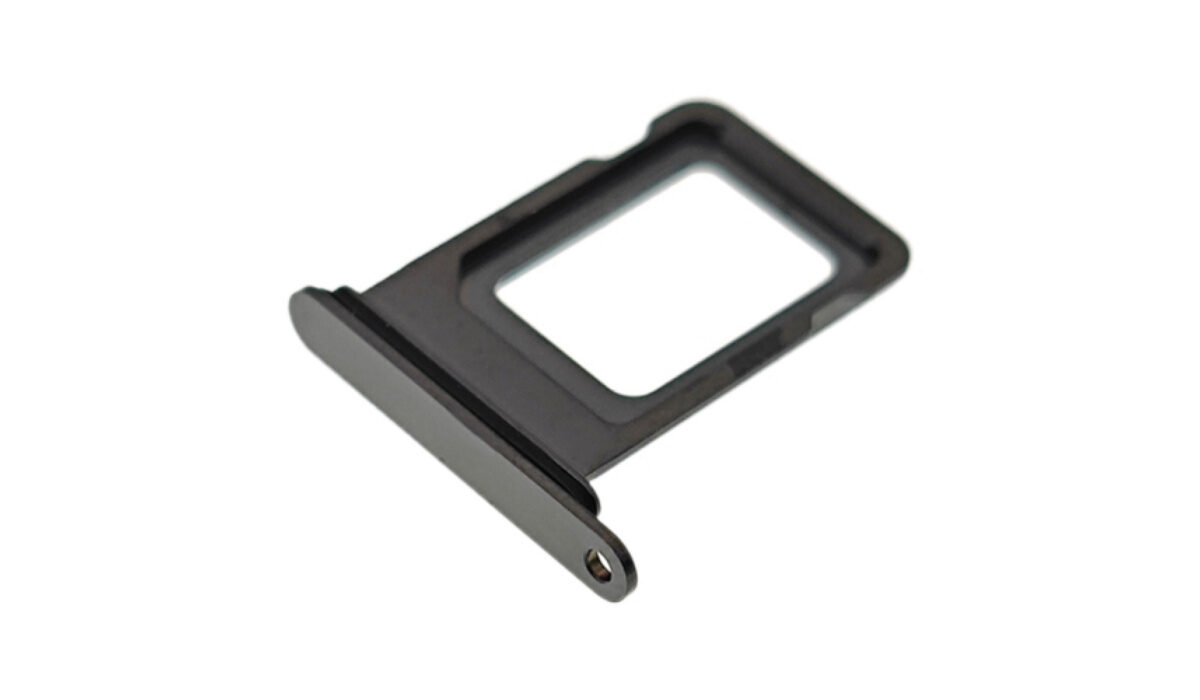
Dual SIM and Its Advantages
Simply put, a dual SIM setup is a relatively recent functionality that lets you use two distinct SIM cards on a single iPhone. The second SIM is actually a digital eSIM; if you’d want, you can have additional eSIMs. This enables you to switch your phone’s cellular plan from your contract provider.
As soon as you successfully set this up, you’ll have access to two separate phone numbers, which has a few benefits. Below are some of the benefits.
You don’t need to swap SIMs
The first benefit is rather obvious. You can avoid the inconvenience of having to physically switch SIM cards by having access to two SIM cards on the same device. Hand-swapping SIM cards isn’t exactly a fun thing to do, and the tiny SIM cards might even get easily misplaced. Using a dual SIM configuration instead could be a convenient way to save time if you frequently switch between multiple local providers.
Separate your Work from your Personal Life
Another major advantage of separating contacts is that neither private contact information nor the information of business connections or workers ends up in private apps. This is especially true if you have both personal and professional contacts.
Does my iPhone support a Dual SIM Set Up
Since the introduction of iOS 13 in 2018, all iPhones have enabled dual SIM, making dual SIM a supported feature since then. These are the following iPhones in particular:
- The iPhone X series: iPhone XS, iPhone XS Max, iPhone XR
- The iPhone 11 series: iPhone 11, iPhone 11 Pro, iPhone 11 Pro Max
- iPhone SE (2020)
- The iPhone 12 series: iPhone 12 Mini, iPhone 12, iPhone 12 Pro, iPhone 12 Pro Max
How Do I Set up Dual SIM on my iPhone?
Setting up a dual SIM on your iPhone is easy as pie! It’s important to keep in mind that an iPhone can only be connected to one cellular network at once. Only the iPhone 12, iPhone 12 mini, iPhone 12 Pro, or iPhone 12 Pro Max support 5G and dual SIM, which also requires iOS 14.5 or later.
To set it up:
- Scan the QR code your carrier gave to start the eSIM activation process.
- Open the Cellular Plan Detected message once it appears, then select “Add.” A confirmation code may be required of you at this point.
You can also use the app provided by your carrier. To do this:
- Get the related app first by going to the App Store.
- Your carrier may assign you a cellular plan after you have acquired the eSIM plan; all you need to do is install it. Click on the message that says “Carrier Cellular Plan Ready to Be Installed” to begin the installation procedure.
- At the bottom of the screen, click Continue . After entering the necessary data, you ought to be good to go.
Configuring your Dual SIM Setup
Make sure to label each of your plans when you configure your dual SIM. Among the labels available in iOS are “Primary,” “Secondary,” “Personal,” and “Business.” You’ll also have the option to enter a unique label.
Additionally, you should set the default line to use when calling or texting numbers that are not in your contacts. You can choose which phone number to give to each of your contacts separately. Additionally, you can select which mobile plans to use for FaceTime or iMessage from this page. You can select either one or both numbers if you’re using iOS 13 or later devices.
One carrier plan at a time is all that your iPhone can allow for cellular data usage. Follow these steps to change the cellular data plan you’d prefer to use:
- Open Settings and select Cellular Data .
- Click on the cell phone number you intend to use for data.
- You can also turn on “Allow Cellular Data Switching” here. When you have this turned on, your voice-only number automatically converts to using voice and data when you are on a voice call. This enables you to use the call for both voice and data.
Note that cellular data won’t function while you’re on the call if “Allow Cellular Data Switching” is disabled and you’re currently connected to a voice number that isn’t your allocated cellular data number.
When calling or messaging each of your contacts, you can choose which of your mobile plans to use. Of course, your iPhone will remember the number you used once you’ve phoned someone from your contacts.
Just adhere to these instructions to modify the number:
- Click on the contact
- Select Preferred Cellular Plan .
- To use a specific number for that contact, click the number.
If both of your numbers are configured to accept and make calls, you can do so with either of them. You can change the number you’ll be calling from before you make the call.
- Do not press the green phone button after entering the phone number you want to call.
- At the top of the screen, tap the current phone number (or label).
- Afterward, click on the number you prefer to use to make the call.
In summary , although you might not require a dual SIM device right away, you never know when the need might materialize. So, if you ever need to set up a dual SIM on your iPhone, these instructions will guide you to do it properly.
- Don’t miss our mobile phone reviews .
- Follow our news on Google News .
- Join our WhatsApp Group , to be notified of the most important articles and deals,
- Follow us on Instagram , Facebook , Twitter , and YouTube .
Author:Joan Agie
Add MobilityArena as a preferred source on Google
If you are hunting for an iPhone 13 wallet case with card holder is an indicator that you are willing to make good investment in securing your phone, while also enjoying some utility. There are different types of wallet cases, based on your preference e.g durability, style, simplicity and capacity. You need a case that can hold your money and cards conveniently, while still maintaining style and durability. So, we dug around to make you a few recommendations. Which is the best iPhone 13 wallet case with card holder for you?
The options include premium leather cases, others are designed to protect your iPhone from hard falls, while some offer a balance of class and affordability. Whatever your preferences and needs are, there is an iPhone 13 wallet case with card holder for you. Here is a list of some wallet cases I would recommend for your iPhone.
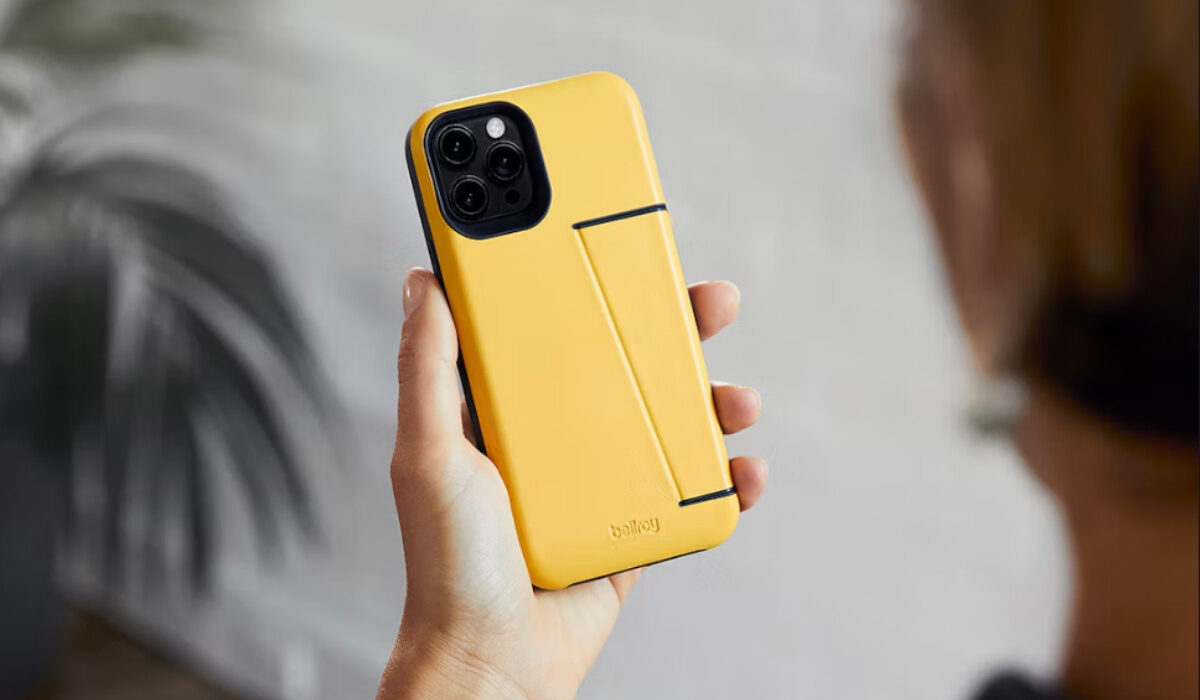
Which is the best iPhone 13 wallet case with card holder for you?
- Bellroy Wallet Case (the best iPhone 13 wallet case with card holder)
This minimalist case is made from premium leather and is eco-friendly. The Bellroy wallet case has a card holder compartment at the back of the phone case which can hold 2 or 3 cards. That compartment is tucked into the side of the case which is not very noticeable. The Bellroy wallet case is one of the best iPhone 13 wallet case with card holder and is priced at $79 on Bellroy’s official site.
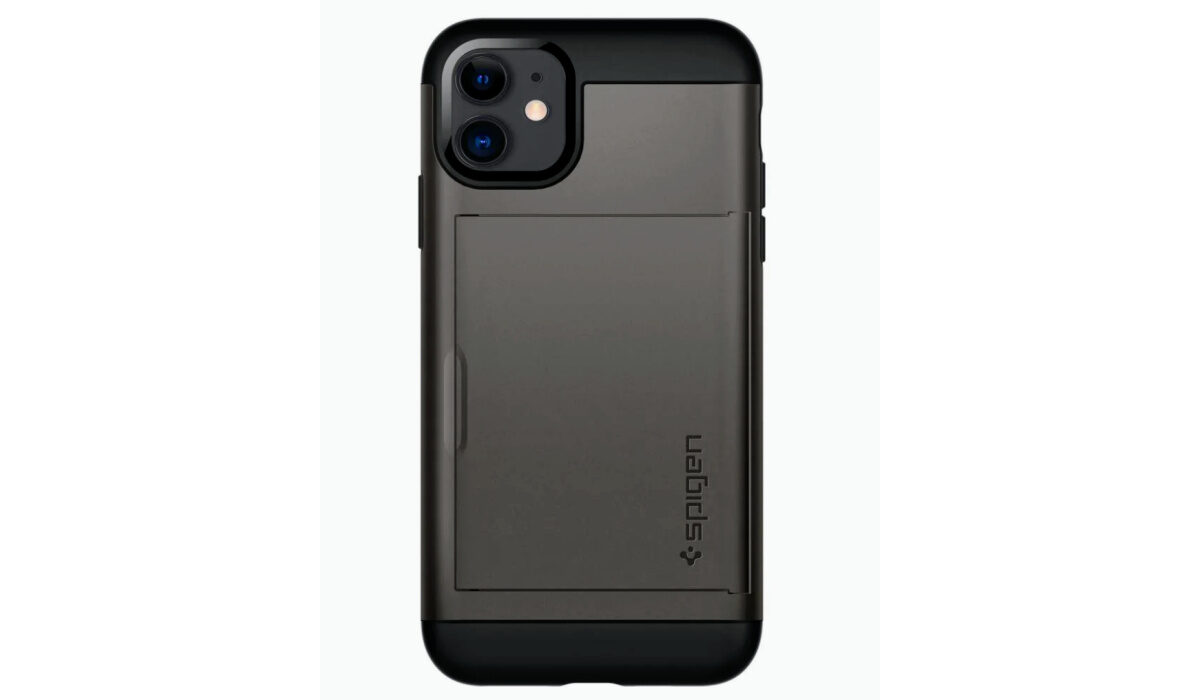
- Slim Armour CS (the best iPhone 13 wallet case with card holder on a budget)
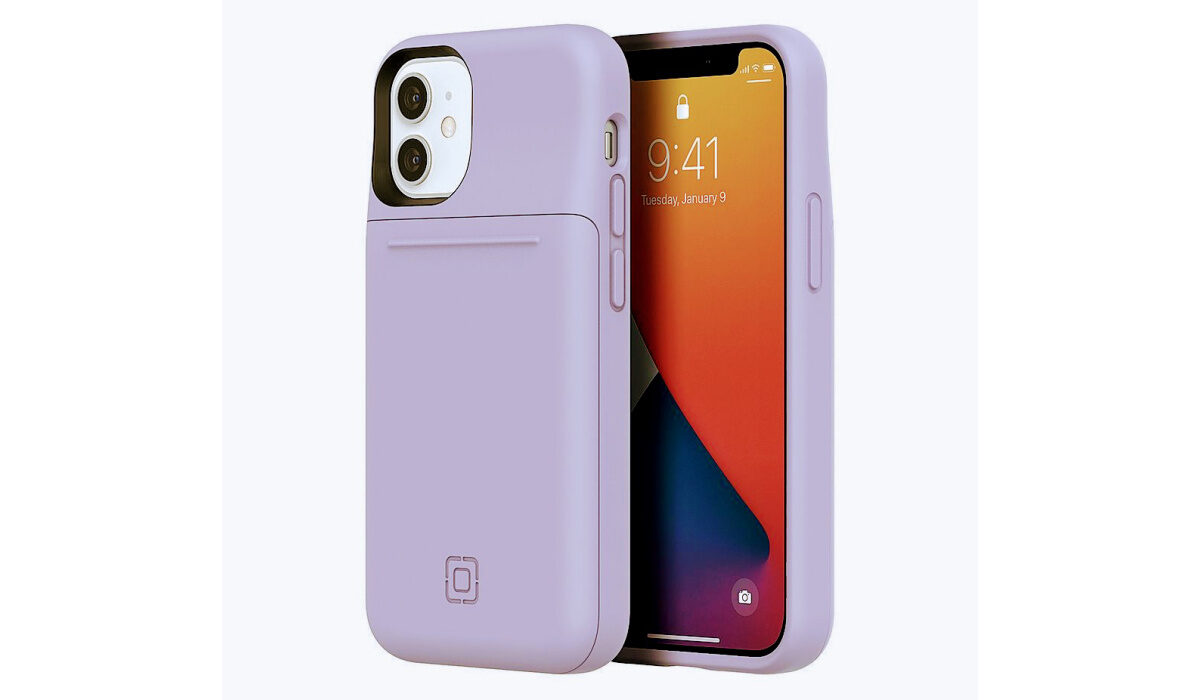
Slim Armour CS case for iPhone 13
- Stashbask case (the best iPhone 13 wallet case with card holder for ruggedness and durability)
Stashbask case for iPhone 13
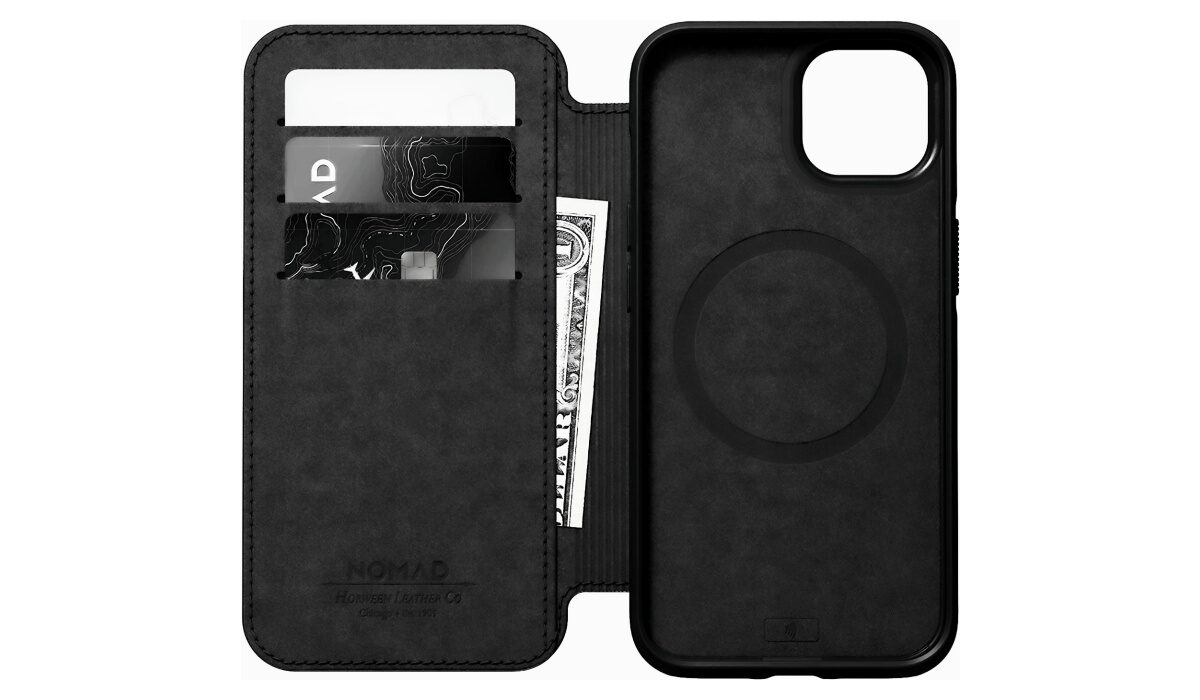
- Modern Leather Folio Case
Nomad’s Modern Leather Folio has a lot of space for cards and cash. It can store up to 3 cards and is also quite durable with 10 feet drop protection and is made from premium Horween leather. This case is compatible with MagSafe accessories and wireless charging. It is priced at $80 on Nomad’s official site.
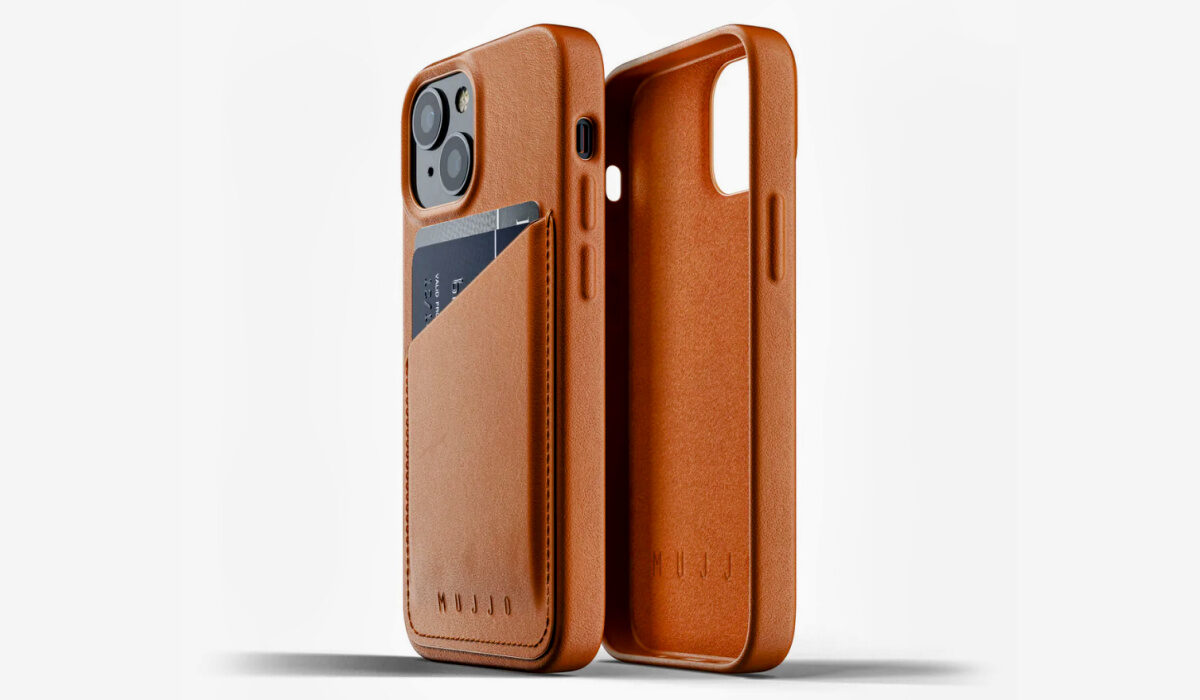
- Mujjo Phone Case
The Mujjo phone case is very stylish and minimalistic. This case is the definition of luxury and is made with tanned vegetable leather and a microfiber lining. The card holder compartment is located at the back of the case and can hold 3 cards. It is priced at $40 on Mujjo’s official site.
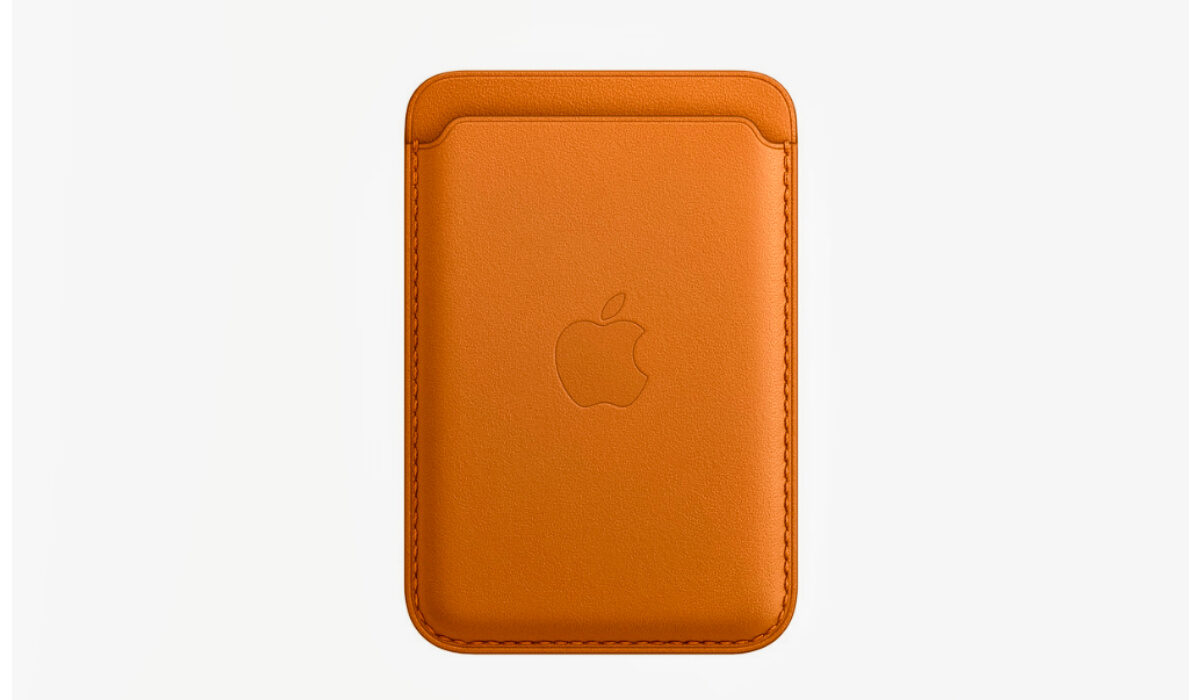
- Apple’s Magsafe Leather Wallet Case (the best best iPhone 13 wallet case with card holder from Apple)
Apple’s magsafe case is compatible with some magnetic accessories and Apple’s ‘Find My’ which helps you track the case and your iPhone. It is made from European leather and can hold up to 3 cards. It has in-built magnets which snaps in place on the back of your iPhone. It is priced at $59 on Apple’s official site.
- Don’t miss our mobile phone reviews .
- Follow our news on Google News .
- Join our WhatsApp Group , to be notified of the most important articles and deals,
- Follow us on Instagram , Facebook , Twitter , and YouTube .
Author:Dun
Dun enjoys reading and writing, and is always on her smartphone. She currently uses a Google Pixel 3.
