Add MobilityArena as a preferred source on Google
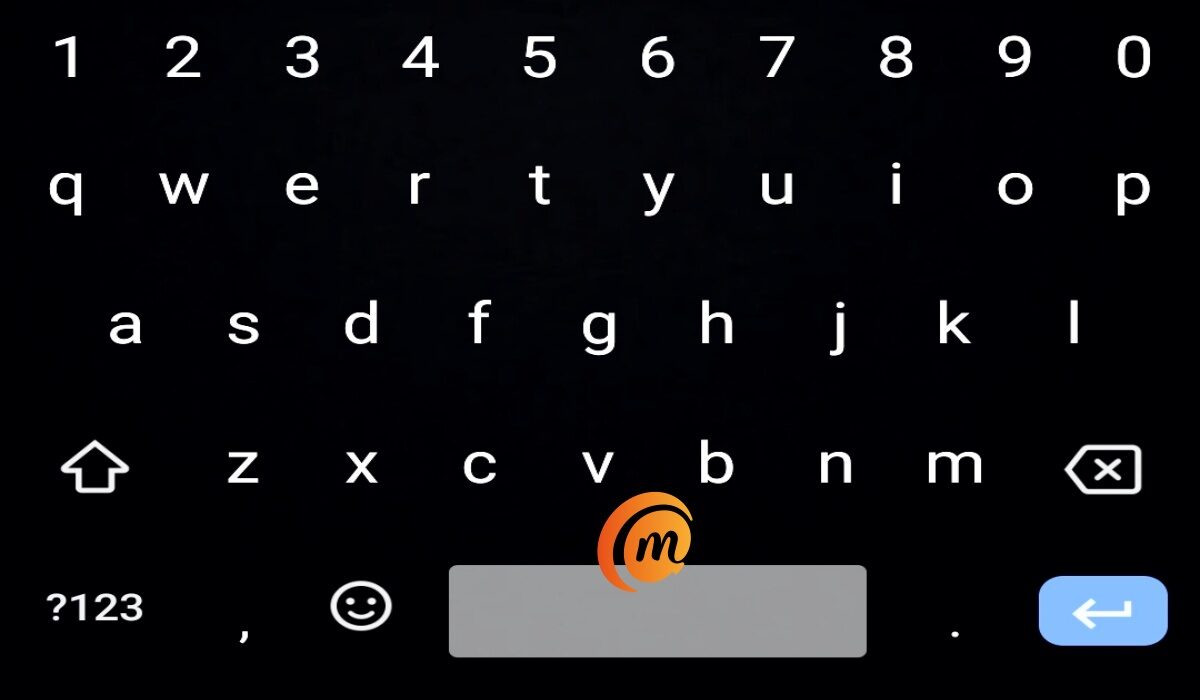
If you spend a good part of your day texting, emailing, or chatting, you know typing can sometimes feel like a chore. Emojis help, but they only go so far — especially when autocorrect has its own wild ideas. That’s where the new AI Writing Tools in Gboard come in. Google’s latest update makes it easier (and way more fun) to say exactly what you mean without the hassle. From drafting quick replies to polishing up your tone, the AI Writing Tools in Gboard save time and keep your conversations flowing. And if you’re all about creative flair, the updated Emoji Kitchen lets you mash up emojis like an artist. Put it all together, and you’ve got a smarter, faster, more playful way to chat. So, ready to try the AI Writing Tools in Gboard and take your texting game to the next level?
- What’s New with the AI Writing Tools in Gboard and Emoji Kitchen?
- Step 1: Update and Enable Gboard
- Step 2: Accessing AI Writing Tools
- Step 3: Using Enhanced Emoji Kitchen
- Why It’s Important
- Conclusion

What’s New with the AI Writing Tools in Gboard and Emoji Kitchen?
- AI Writing Tools: Powered by Google’s cutting-edge Gemini Nano AI (right on device, no cloud snooping!), these tools help you proofread, rephrase, elaborate, or even change the tone of your messages — whether friendly, professional, or stylishly elaborate.
- Emoji Kitchen Enhancements: Mix and match emojis creatively with fresh mashups, newly supported emoji combos, and contextual suggestions that make your reactions pop.
- Multimodal Support: Beyond text, Gboard can now interact with images and audio to assist messaging when you want to describe or upload content quickly.
Step 1: Update and Enable Gboard
- Head to the Google Play Store and update Gboard to the latest version.
- Set Gboard as your default keyboard: Go to Settings → System → Languages & Input → On-screen keyboard → Manage keyboards and enable Gboard.
- Open any messaging app to get started.
Step 2: Accessing AI Writing Tools
- When typing, look for the Magic Wand icon or the Writing Tools icon near the suggestions bar.
- Tap it to open AI writing options.
- Options include: Proofread: Quickly catch spelling or grammar errors. Rephrase: Say the same thing with a tone shift — more casual, formal, or even “emoji-fied.” Elaborate: Add detail and clarity to short messages. Style changes: Choose friendly, professional, or elaborate tones.
Step 3: Using Enhanced Emoji Kitchen
- As you type or message, relevant emojis will automatically appear as suggestions.
- Tap an emoji to see creative mashups combining that emoji with others — like a taco with flames for spicy food or a cat with heart eyes plus party hat for super enthusiastic celebration.
- You can also long press any emoji to see its fusion options.
Why It’s Important
- AI writing tools work entirely on-device for privacy and speed — no one’s peeking at your texts.
- You can draft impeccable, classy, or fun messages without leaving your keyboard or juggling apps.
- New emoji combos add personality and flair beyond traditional emoji sets.
- Multimodal abilities hint at a smarter, more intuitive keyboard future.
Conclusion
With the new AI Writing Tools in Gboard, everyday messaging just got a whole lot easier and more fun. From quick replies to polished emails, and even playful chats with friends, the AI Writing Tools in Gboard help you say what you mean faster and smarter. So go ahead — update your keyboard , try out the magic wand, and let the AI Writing Tools in Gboard turn you into a more confident, expressive texter.
Author:Ifeoluwa Adeleke
Add MobilityArena as a preferred source on Google
If you’re using the Samsung Galaxy S25 and want to unlock its full gaming potential, Samsung Game Booster is your go-to tool. With the help of AI-driven optimizations, Samsung Game Booster fine-tunes performance so your games run smoother, look sharper, and stay free of annoying distractions. Whether you’re after higher frame rates, longer playtime, or just a more immersive experience, Samsung Game Booster is designed to make your phone feel like a true gaming machine. Let’s walk through how to turn it on and customize it to fit your play style.

- What Is Samsung Game Booster?
- How to Activate Game Booster on Your Galaxy S25
- Customize Game Settings for Each Title
- AI-Enhanced Features You’ll Love
- Set Up Gaming Routines for Distraction-Free Sessions
- Bonus Tips for Epic Performance
- Conclusion

What Is Samsung Game Booster?
Game Booster is Samsung’s built-in performance optimizer for gaming sessions. It manages CPU, GPU, and RAM resources intelligently, boosts frame rates, minimizes battery drain, and blocks pesky distractions like calls and notifications. Plus, thanks to AI, it learns your gaming habits to customize performance for each title you play.
How to Activate Game Booster on Your Galaxy S25
- Open Gaming Hub: The Galaxy S25 comes with the Gaming Hub app pre-installed — your one-stop shop for all things gaming.
- Tap the Menu: Inside the Gaming Hub, tap the three-dot More options icon.
- Select Game Booster : You’ll see options for game optimization settings, performance modes, and customizations.
- Set Performance Mode: Choose between Performance, Balanced, or Battery Saver depending on your current mood (and battery level).
Customize Game Settings for Each Title
- Go to Game Booster → Customizations for individual games.
- Pick your favorite game and adjust: Optimization level Frames per second (FPS) Screen resolution Frame booster toggle to smooth animations
Save your settings, and you’re ready to game like a pro.
AI-Enhanced Features You’ll Love
- Smart Cooling: Game Booster tracks device temperature and adjusts performance to prevent overheating (because no one wants their phone melting mid-boss fight).
- Game Sound with AI Mute: Automatically reduces notification sounds or mutes calls during gameplay, so your focus stays razor-sharp.
- System Monitoring: Keep tabs on FPS, CPU, GPU, and RAM usage in real-time with an optional floating menu.
- Game Controller Support: Connect your favorite Bluetooth controller seamlessly for console-like gameplay.
Set Up Gaming Routines for Distraction-Free Sessions
- Go to Settings → Modes and Routines → Game.
- Choose when Game mode activates automatically — like when you launch your favorite game.
- Customize Do Not Disturb and other actions to silence calls, disable alarms, and block notifications.
Bonus Tips for Epic Performance
- Use a 120Hz refresh rate for ultra-smooth visuals.
- Keep your phone cool with external fan accessories during marathon sessions.
- Update your games and system software regularly to get the latest optimization patches.
Conclusion
With Samsung Game Booster, your Galaxy S25 becomes more than just a phone — it’s your personal gaming powerhouse. Samsung Game Booster fine-tunes performance, keeps your device cool, and blocks distractions so you can stay locked in on the action. Whether you’re chasing ranks or diving into open-world adventures, Samsung Game Booster helps you play harder, smarter, and longer — giving you the edge to rise to the top.
