Add MobilityArena as a preferred source on Google
You must have been hearing about Dark Mode. That is a feature that changes the appearance of apps and software to a black or dark background. System-wide dark mode is available on smartphones running Android 10 or iOS 13 . If you want to enable Google Calendar Dark Mode in these new devices, it is a piece of cake.
But what if you own a smartphone running an older version of Android OS e.g. Android 8 Oreo or Android 7 Nougat? Is it doable? The good news is that it is. The process to enable Dark Mode in Google Calendar is the same and we walk you through below.
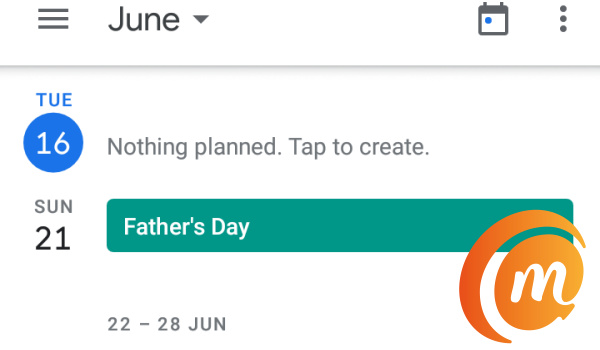
Google Calendar in Light Mode
- Enable Google Calendar Dark Mode on Android
- Enable Google Calendar Dark Mode on iPhone
Enable Google Calendar Dark Mode on Android
Here is how to enable Dark Mode in Google Calendar on an Android phones. Note that if you are using a phone that has an older version of Android OS, you need to update the Google Calendar app first from Google Play Store. This is to ensure that you get the version of the app that has Dark Mode option in it.
After updating your Google Calendar app, follow these steps:
- Open the Google Calendar app.
- Press the hamburger menu in the top-left corner of the screen.
- Scroll down and tap Settings , then select General .
- Tap Theme to open the Choose Theme dialog.
- Select one of the following available options:
- Light – selecting this keeps Google Calendar with a white background and black text
- Dark – select this to enable Dark Theme in Google Calendar
- System Default – this option is available only on Android 10 and newer phones; selecting it enables Dark Mode based on your system-wide choice
- Set by Battery Saver – this enables Dark Mode in Google Calendar only when Battery Saver is activated on your phone.
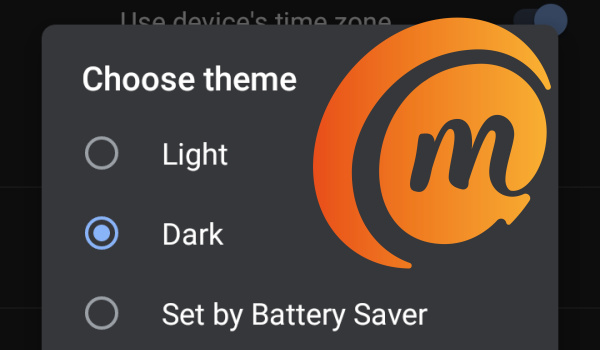
Select Dark to enable dark mode, and Google Calendar immediately gets a dark background or theme. The highlighted colors may be different, the background and navigation bar will now be dark grey. With dark mode on, you will now increase your battery life and reduce eye strain.
Enable Google Calendar Dark Mode on iPhone
Enablin dark mode for Google Calendar on an iPhone is just as easy, if not easier. Note that you need an iPhone running iOS 13 or later.
To enable dark mode in Google Calendar and all other apps on your phone, you have to activate system-wide dark theme in your phone Settings. Here are the steps to follow:
- Open Settings ,
- Tap Display & Brightness ,
- Select Dark .
Once you have done that, you can open the Google Calendar app and you will find that it now has a dark background. Easily done.
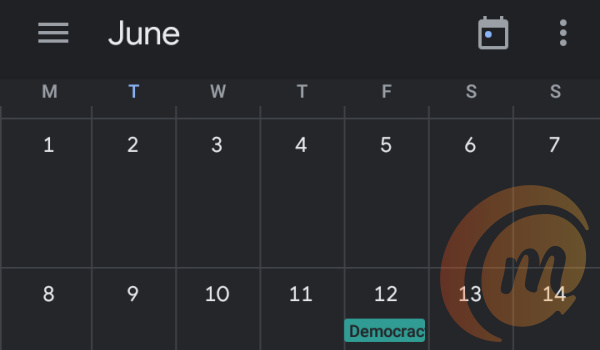
What are the benefits of dark mode? For one, it reduces the strain on your eyes, especially when using your phone in the dark. It also improves readability. If your smartphone has an AMOLED display, using dark mode will also have an impact on battery drain. AMOLED displays consume less power when using a black or dark background.
Note that after you enable Google Calendar Dark Mode, it does not change how the app works or any of its functionality. All previous functionality remain the same. With dark mode enabled, you can continue to use Google Calendar as you always have – to set reminders, appointments, and generally schedule your work and life.
Author:InfoDesk
Add MobilityArena as a preferred source on Google
The Xiaomi Mi 10 has received the official Android 11 Beta 1 build, making it the first Xiaomi device to have the Beta build available for download. The new software build, similar to the one released on a number of Google Pixel devices a while ago, is meant for testing and is not yet ready for end-users.
This new build does not have the Xiaomi MIUI skin on top of the next-gen Android version. This implies that Xiaomi Mi 10 users can test the new update in its vanilla form with no specific custom changes. The new build is not for users who have the Xiaomi Mi 10 as their daily driver, meaning that this release is specifically for developers who want to help out with testing.

Xiaomi made it known last week that the Mi 10 and Mi 10 Pro would be seeing the new update, meaning that we should expect the Mi 10 Pro to get something similar anytime soon. The Mi 10 Android 11 Beta 1 build is currently available for download from the company’s site . This build only supports the Mi 10 hardware, meaning that you should not attempt installing it on other models.
If you are interested in getting the new build, you will need to erase your data to flash the new release and you will also need a Windows computer to install the Android 11 Beta 1 release on your Mi 10.
References
- Source ;
- Source .
Author:Alfa Baye
Staff Writer
