Add MobilityArena as a preferred source on Google
If you’re using an iPhone and a website requires you to view content in a pop-up window but your browser won’t let you, this guide is for you. This article will show you how to enable or block different browser pop-ups on the iPhone in order to access a website’s content.
How to Enable or Block Pop-Ups in Your iPhone’s Browser
Safari is the iPhone’s default web browser, but you can also download and use a variety of other browsers from the App Store.
Most browsers include a built-in pop-up blocking feature that by default, blocks all pop-up windows. This feature, however, is optional, and you can turn it off to see website content in pop-up windows.
The steps you must follow to enable or block browser pop-ups on iPhone may differ depending on the browser you use. Nonetheless, we have covered the procedures for the most widely used browsers.
How Can I Enable or Block Pop-Ups in Safari on the iPhone?
Enabling or blocking pop-ups in Safari on the iPhone is simple, and you can do so directly from the Settings app.
You should do the following:
● Navigate to the Settings menu.
● Scroll to the bottom and select Safari .
● The toggle switch for Block Pop-ups can be found under General . It can be used to enable or disable pop-up blocking.
Return to Safari and reload the website that requested pop-up access. It should now be able to display the content in a new pop-up window in Safari.
How to Enable or Block Pop-ups in Chrome on the iPhone
Chrome, like Safari, by default blocks pop-ups. However, you can enable pop-ups in Chrome on iPhones by following these steps:
● Open Chrome.
● Select Settings by tapping the ellipsis button in the bottom-right corner of the screen. Swipe left on the quick-access tabs at the top if it isn’t visible.
● Select Content Settings from the drop-down menu.
● On the next screen, tap Block Pop-ups and use the toggle next to Block Pop-ups to either enable or disable them.
How to Enable or Block Pop-Ups in Edge Browser On the iPhone
The Microsoft Edge browser, which also by default blocks all pop-ups, is quite popular among Windows users who also own iPhones. Here’s how to enable or block pop-ups in Edge on the iPhone:
● On your iPhone, launch Edge .
● Select Settings from the menu after clicking the ellipsis button at the bottom of the page.
● On the next screen, tap Privacy & Security and then Block pop-ups .
● Click on the Block Pop-ups toggle to enable or disable them.
How to Enable or Block pop-ups in Brave Browser on the iPhone
Those who value their privacy more than others frequently use the Brave browser. If you use it on your iPhone and want to enable or block the browser’s pop-ups, follow these steps:
● On your iPhone, launch Brave .
● Select Settings from the ellipsis button at the bottom.
● Under Features , select Brave Shields & Privacy , and then scroll to the Other Privacy Settings section.
● Turn off the button that blocks pop-ups. Alternatively, you can turn it on to stop pop-ups from appearing whenever you decide otherwise.
How to Enable or Block pop-ups in Opera Browser on the iPhone
If you are using Opera, you can block or enable pop-ups and allow websites to show content in pop-up windows by following these steps:
● Launch Opera .
● Choose Settings from the hamburger menu.
● To enable or block browser pop-ups, go to Ad Blocking and use the toggle next to Block Pop-ups .
How to Enable or Block pop-ups in Firefox browser for iPhone
Finally, if you use Firefox, you can allow it to display pop-ups on the iPhone by following these steps:
● Launch Firefox .
● Select Settings from the hamburger menu in the lower-right corner.
● Block pop-up windows can be enabled or disabled by using the toggle switch under General .
In conclusion , the process for enabling or blocking browser pop-ups on an iPhone is straightforward. The same steps apply regardless of the browser you use, and once you’ve finished accessing the necessary content, you can toggle the switch to disable pop-ups again.
Author:Joan Agie
Add MobilityArena as a preferred source on Google
IP Ratings are things you see in the specifications of top-end smartphones, as well as some smartwatches and fitness trackers. Some common ones include IP68, IP67, and IP53. So, what are IP ratings? IP stands for “Ingress protection”. IP ratings indicate the level of water and dust resistance that is built into a device. IP Ratings come in the format “IP” followed by two numbers, e.g., IP53.
Dust-resistance : The first number represents the level of protection provided against dust and other solid particles, and ranges from 0 (the lowest) to 6 (the highest). An X is used, e.g. IPX6, when there is no official data about the degree of protection available.
Water-resistance : The second number represents the level of protection against water and other liquids, and ranges 0 (the lowest) to 9 (the highest). Again, where there is no official data about the degree of protection available, an X is used. E.g., IP6X.
Example: IP69 refers to the highest degree of dust resistance (6) and the highest degree of water resistance (9). IP06 refers to the lowest degree of dust resistance and a water resistance of 6. device rated IP69 has the highest level of Ingress protection available now.
But that is not all, we need to look at what those degrees of protection translate to in usage. For example, having the highest degree of protection does not mean you can go scuba-diving in deep waters with your smartphone. There are limitations for each rating that you must be aware of.
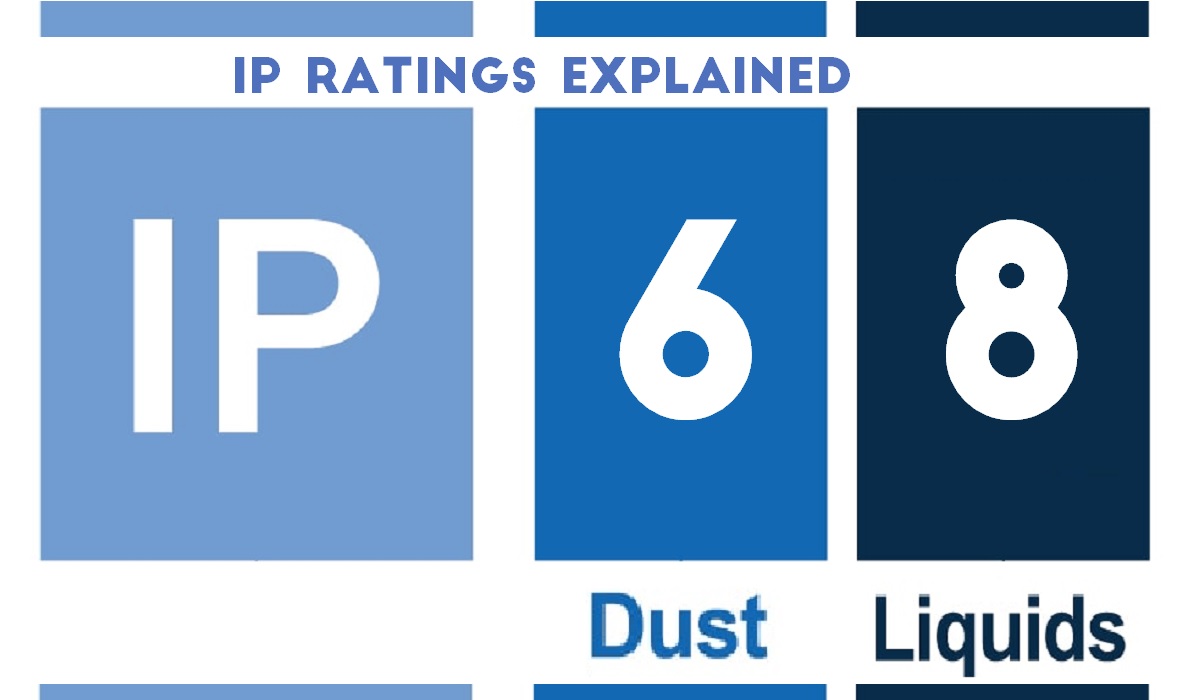
IP stands for “Ingress protection” and specifies what level of dust and water protection is available for an electronic device.
- Common IP Ratings Explained
- Understanding IPX3
- Understanding IP52
- Understanding IP53
- Understanding IP54
- Understanding IP64
- What is IPX5 waterproof rating?
- Understanding IPX7 waterproof rating
- Understanding IP67
- Understanding IPX8
- Understanding IP68
- Understanding IP69
- Difference Between IP69 and IP69K
- Types of mobile devices that have IP ratings
Common IP Ratings Explained
Below are some of the most common Ingress protection or IP ratings in use for electronic devices, and what they mean.
Understanding IPX3
IP stands for ingress protection, and the X means that the solid particle (e.g. dust) protection is not specified. The last digit, 3, means that the device is protected against spraying water. This means that water sprayed at an angle of up to 60 degrees from the vertical will not harm the device. However, IPX3 does not mean that the device is waterproof. It is still vulnerable to damage from high-pressure water jets or immersion.
Understanding IP52
An IP52 rating means that the device has limited protection from dust, such that some dust may get into it but will not affect the performance of the device, while it is also protected from water spray that is less than 15 degrees from vertical.
Keep IP52 devices away from high pressure water jets and from dropping into water.
Understanding IP53
IP53 is a code that indicates the level of protection that a device has against dust and water.
The first digit, 5, means that the device is dust-protected. This means that some dust may enter the device, but it will not interfere with its normal operation.
The second digit, 3, means that the device is protected against spraying water. This means that water sprayed at an angle of up to 60 degrees from the vertical will not harm the device.
However, IP53 does not mean that the device is waterproof or dustproof. It is still vulnerable to dust intrusion and damage from high-pressure water jets or immersion.
Simply put, an IP53-rated device is partially protected from contact with dust and light sprays of water when the device is tilted at an angle up to 60 degrees.
Understanding IP54
IP54 is another IP rating that indicates the level of protection that a device has against dust and water.
The first digit, 5, means that the device is dust-protected. This means that some dust may enter the device, but it will not interfere with its normal operation.
The second digit, 4, means that the device is protected against splashing water. This means that water splashed against the device from any direction will have no harmful effects.
However, IP54 does not mean that the device is waterproof or dustproof. It is still vulnerable to dust intrusion and damage from high-pressure water jets or immersion.
Understanding IP64
The first digit, 6, means that the device is dust-tight. This means that no dust can enter the device and it is completely protected against dust.
The second digit, 4, means that the device is protected against splash water from any direction. This means that water splashed against the device from any angle will not harm the device, but only limited ingress is permitted.
However, IP64 does not mean that the device is waterproof or dustproof. It is still vulnerable to damage from high-pressure water jets or immersion.
An IP64-rated device has full protection from dust and from water sprays and splashes from all directions. So, you can use this in light rain and scenarios where water is being splashed.
What is IPX5 waterproof rating?
An IPX5 waterproof rating indicates that a device has no dust resistance but can withstand water jets without being damaged.
To obtain an IPX5 rating, a device must have been sprayed with a water jet for at least one minute from a distance of 3 meters and remain undamaged. As such, an IPX5 rated device can handle sprays from rain or even a garden hose.
Understanding IPX7 waterproof rating
The X means that the solid particle protection is not specified. The last digit, 7, means that the device is protected against immersion in water up to 1 meter deep for up to 30 minutes. This means that the device can withstand accidental drops in water, rain, shower, or washing under tap water. However, IPX7 does not mean that the device is waterproof. It is still vulnerable to damage from high-pressure water jets, steam, or deeper or longer immersion.
An IPX7-rated device has not been officially rated for protection from dust but is protected from immersion in water with a depth of up to 1 meter or 3.3 feet for no more than a period of 30 minutes.
Understanding IP67
The first digit, 6, means that the device is dust-tight. This means that no dust can enter the device and it is completely protected against dust.
The second digit, 7, means that the device is protected against immersion in water up to 1 meter deep for up to 30 minutes. This means that the device can withstand accidental drops in water, rain, shower, or washing under tap water.
However, IP67 does not mean that the device is waterproof. It is still vulnerable to damage from high-pressure water jets, steam, or deeper or longer immersion.
An IP67-rated device is fully protected from dust and also from immersion in water with a depth of up to 1 meter or 3.3 feet for no more than a period of 30 minutes.
Understanding IPX8
The X means that the solid particle protection is not specified. The last digit, 8, means that the device is protected against continuous immersion in water up to 1.5 meter deep for up to only 30 minutes. This means that the device can withstand accidental drops in water, rain, shower, or washing under tap water.
However, IPX8 does not mean that the device is waterproof. It is still vulnerable to damage from high-pressure water jets, steam, or deeper or longer immersion.
An IPX8-rated device can survive being submerged in water, then, but it hasn’t officially been rated for any protection from dust.
Understanding IP68
An IP68-rated device is fully protected from dust and from immersion in water of no more than 1.5 meter depth for no more than 30 minutes.
Should you take your IP68 smartphone or smartwatch swimming? That is not advisable. Here is a video in which I share what happened when I took my IP68 smartwatch swimming.
Understanding IP69
IP69 is a code that indicates the highest level of protection that a device has against dust and water.
The first digit, 6, means that the device is dust-tight. This means that no dust can enter the device and it is completely protected against dust.
The second digit, 9, means that the device is protected against high-pressure, high-temperature jet sprays, steam-cleaning, or washdowns. This means that the device can withstand harsh cleaning methods that are commonly used in environments that require frequent and intense sanitation, such as food processing, medical equipment and certain industrial settings.
However, IP69 does not mean that the device is completely waterproof. It is still vulnerable to damage from deeper or longer immersion in water.
Difference Between IP69 and IP69K
No, IP69 and IP69K are not the same. IP69 is a rating that indicates the level of protection that a device has against dust and water according to the international standard IEC 60529.
On the other hand, IP69K is a rating that indicates the level of protection that a device has against high-pressure, high-temperature jet sprays according to the international standard ISO 20653.
Both ratings mean that the device is completely dust-tight and can withstand immersion in water up to 1 meter deep for up to 30 minutes. However, IP69K also means that the device can withstand washdown at pressures of 80 to 100 bar/1,160 to 1,450 PSI, in phases of 14 to 16 l/min, and at temperatures up to 176°F/80°C.
IP69K is a more stringent rating than IP69, and it is mainly used for devices that are exposed to harsh cleaning methods in environments that require frequent and intense sanitation, such as food processing, pharmaceutical applications, and certain industrial settings.
An IP69K-rated device is fully protected from dust and high temperature, high pressure water e.g. hot water from a nozzle. This is usually for devices used in an industrial setting.
Types of mobile devices that have IP ratings
Usually, premium flagship smartphones have an IP rating, though some models have been known to not have. As such, if you are shopping for a premium flagship phone, check the specs to see what IP rating is available for it. It does not hurt to have some measure of Ingress protection for a phone that costs that much.
Also, rugged smartphones and feature phones, designed for tough usage scenarios, are another category of mobile devices that have IP ratings specified. Rugged devices tend to have the highest level of Ingress protection possible.
Usually, if a device has no IP rating at all, IP ratings are totally excluded from its specs. It won’t be labelled as IP00. The IP rating is only included in the specs information when an official ingress protection is available.
PS : Here is everything you need to know about the dream Tesla Pi Phone .
Author:Mister Mobility
Digital Skills and Communication Coach | Mobile Phone Connoisseur since 2001 | Tech Blogging since 2004
