Add MobilityArena as a preferred source on Google
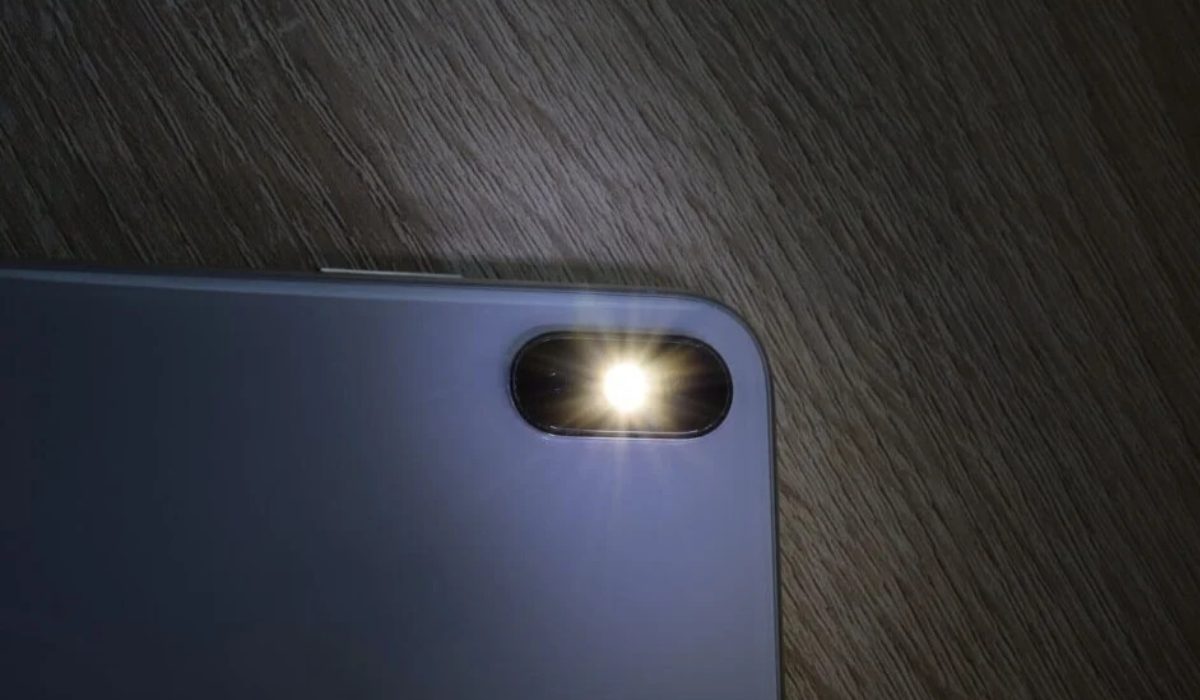
The flashlight is one of the most useful phone accessories, it comes in handy in different situations. You can enable or disable the flashlight on your Android and iPhone through different methods, but not all smartphone users are aware of these options.
In this article, I’ll show you different ways to enable or disable your phone’s flashlight whether you use an Android or iPhone. Some are well-known, but you might be surprised by a couple of the tips I’ve suggested in this guide.
- How Can You Enable or Disable Your Phone’s Flashlight? How to Enable or Disable Your Phone’s Flashlight: Android Using Quick Settings Using OEM Shortcuts and Gestures Using Google Assistant How to Enable or Disable Your Phone’s Flashlight: iPhones Through the Lock Screen Using the Control Center Using the Back Tap gesture Using Siri
How Can You Enable or Disable Your Phone’s Flashlight?
You may not always need the flashlight function your phone offers, but it’s a lifesaver when you do. Below are different ways to enable or disable your phone’s flashlight.
How to Enable or Disable Your Phone’s Flashlight: Android
There are various ways to enable or disable your phone’s flashlight, especially if you own an Android device.
Using Quick Settings
- Swipe down from your lock screen or home screen to open the Quick settings panel.
- There will be a flashlight icon there. Click on it.
- Your phone’s flashlight will be enabled. To turn off the flashlight, just tap it again.
You might need to swipe left or right to see more icons if you can’t see the Flashlight toggle. If you want to make the flashlight toggle more visible, hit the Edit (pencil) icon and drag the title to a more handy position.
Depending on your hardware manufacturer and Android version, this menu will vary. But once you figure it out, it’s much easier to enable or disable your phone’s flashlight.
Using OEM Shortcuts and Gestures
A lot of Android OEMs provide quick ways to enable or disable your phone’s flashlight. If you have a Samsung, Motorola, or OnePlus handset, you can use the following flashlight shortcut:
On Samsung phones
On Samsung devices (only One UI and later versions) do the following to enable or disable your phone’s flashlight:
- Navigate to the Settings app.
- Swipe down and select Optional Features .
- Press the Side Key .
- Tap Open App under the Double Press menu.
- Choose Torch .
- You can now turn on your flashlight by pressing the power key twice. To turn it off, press the power key just once.
On OnePlus devices
You can enable off-screen gestures to enable or disable your phone’s flashlight if you use a OnePlus smartphone.
- Click to the Settings app.
- Swipe down to access Buttons and Gestures . The Alert slider, navigation bar & gestures, and quick gestures are all available here.
- Click on quick gestures . System gestures and the screen off gestures section should both be visible. Navigate to screen off gestures .
- Press any of the settings Draw an O, a V, an S, an M, and a W.
- Select the flashlight option.
- Then, set your phone to sleep. Draw any letter when the phone is in sleep mode to turn on the flashlight, which will turn on even with the always-on display. Click the power key to turn it off.
On Motorola phones
Motorola offers a fantastic function called double chop to access the flashlight. It is also referred to as the fast flash. Here’s how it functions:
- Navigate to the Moto app in your app drawer.
- Scroll down to Moto Actions and then click on it.
- You should now be able to see the fast torch , enable it.
- Now, all you have to do to enable the flashlight when your phone is in sleep mode is shake it twice in a chopping motion. To turn it off, repeat the motion.
Using Google Assistant
The following method is perhaps the simplest to enable or disable your phone’s flashlight. All you have to do is use Google Assistant through the steps below:
- Hold down the power key or say the words “ Hey Google ” to activate the Google Assistant.
- Say “ Turn on the flashlight ” as soon as the Assistant pops up.
- Your phone’s flashlight should come on after this command.
- Next, summon Google Assistant once more and say “ Turn the Flashlight off “.
Also, you can turn to using a flashlight app on Android if you don’t like either of the previously described techniques for some reason. It’s also a good option if you’re using an outdated Android phone. On the Google Play Store , there are many of them, but you must be careful when choosing one.
How to Enable or Disable Your Phone’s Flashlight: iPhones
It’s easy to enable or disable your phone’s flashlight if you’re in the Apple ecosystem. The iPhone’s flashlight is accessible with ease through iOS, as you might expect.
Through the Lock Screen
This is the simplest method to enable or disable your phone’s flashlight. Long-press the flash icon on the bottom left side of your lock screen until you feel the phone vibrate, and the flash will turn on as soon as you let go. To turn off the flashlight on your iPhone, long-press and release the icon once more.
Using the Control Center
To open the control center when on the home screen, slide down from the top right corner. To turn on the flashlight, tap the torch icon (tap once again to turn it off). If you press and hold the icon for a few seconds, you’ll see a slider that allows you to adjust the brightness of the flashlight.
Using the Back Tap gesture
You can also enable or disable your phone’s flashlight using the back touch gesture on iPhones running iOS 15. Here is how it works:
- Launch the Settings app.
- Select Accessibility .
- Press Touch .
- At the bottom of the page, tap Back Tap .
- Click on Double tap .
- In the Options menu, select Flashlight or Torch .
- You can now turn on your flashlight by double-tapping the back of your iPhone, and turn it off by double-tapping it again.
This shortcut allows you to easily enable or disable your phone’s flashlight without waking up the screen.
Using Siri
This is another simple way to enable or disable your phone’s flashlight if you use an iPhone.
- Summon Siri on your iPhone by tapping the power/home button or just saying “Hey Siri”
- Then say “ Turn on the flashlight “.
- Afterward, say “Turn off the flashlight” to Siri once more to turn off the flashlight.
To conclude, using the aforementioned tips, you should be able to easily enable or disable your phone’s flashlight. Just be careful not to leave the light on for too long because doing so may severely drain your battery. You can try some useful tips to preserve your iPhone and Android battery, if necessary.
Author:Joan Agie
Add MobilityArena as a preferred source on Google
I enjoy a good drive – especially long road trips. I am also an advocate of safety while at the wheels. The truth is that smartphones have become our greatest source of distractions everywhere – including when we are driving. From my experience of years of driving hundreds of kilometres, I have drawn up a list of some essential smartphone accessories for safe driving.
Safe driving is primarily about giving the road and the car your full attention. Taking your eyes off the road and taking your hands off the steering wheel are the two easiest ways to get into an accident. Have a look at my list of phone accessories that can help you stay safe while driving.
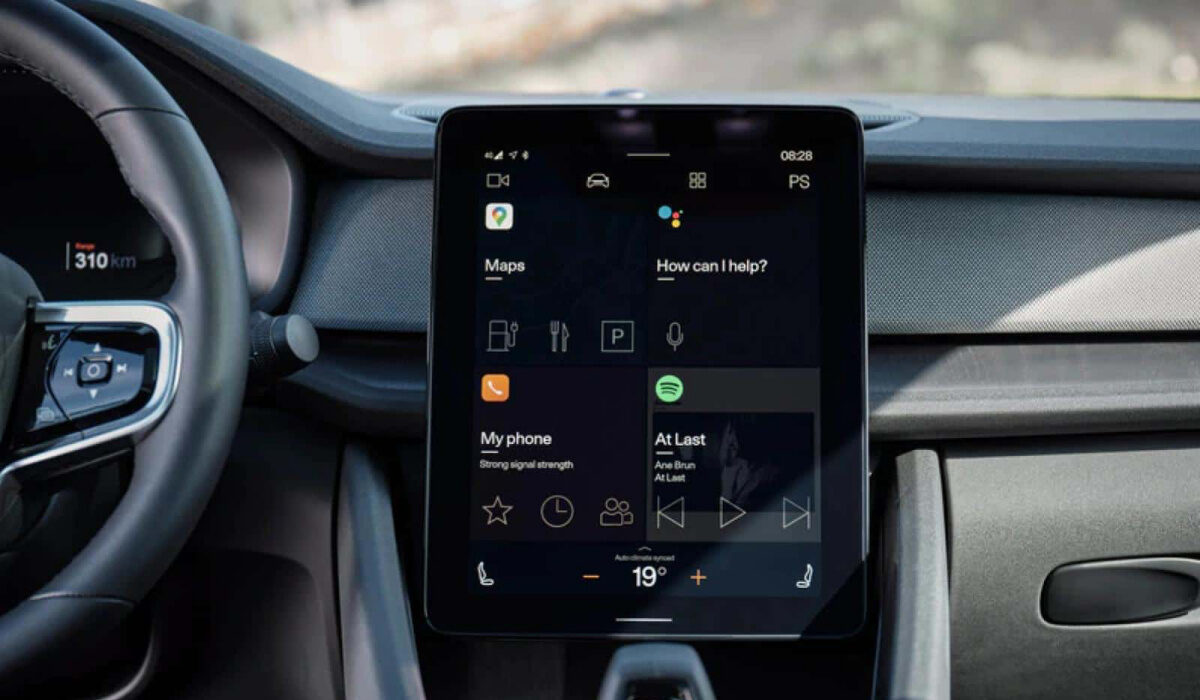
Embrace using smartphone accessories for safe driving.
- Phone Mount
- Bluetooth Headset or Speaker
- USB Car Charger
- Some other things you can do for safe driving Use a Voice-Activated Assistant Use Do Not Disturb mode
Phone Mount
First on my list of essential smartphone accessories for safe driving is a smartphone mount. A phone mount is an essential car accessory, as it allows you to keep your smartphone in a secure and visible location while driving. A mount that attaches to the dashboard or windshield is ideal, as it keeps your phone within easy reach and allows you to keep your eyes on the road.
Bluetooth Headset or Speaker
A Bluetooth headset or speaker is one of the most essential smartphone accessories for safe driving. It allows you to take calls hands-free, which can help prevent distracted driving.
You really should avoid taking calls while driving, if possible. That is the best way to give undivided attention to the road and to other road users. But should you have to, please use a hands-free system, so you can keep your hands on the steering wheel.
Many newer cars come equipped with a built-in entertainment system with Bluetooth connectivity. Mine does. But if your car doesn’t have this feature, a Bluetooth headset or speaker is a good alternative to invest in. Your safety comes first.
USB Car Charger
A USB car charger allows you to keep your phone charged while driving, which is important for using GPS or music apps. If there is one feature that drains my smartphone battery fast when I am driving, it is Google Maps. As such, having a charger handy is important.
Look for a charger that can charge multiple devices at once, so you can keep your passengers’ devices charged as well. Also, I recommend that you get a charger with at least 18W fast charging that is compatible with your smartphone’s fast charge technology. In my experience, a regular charger will not top up your smartphone if you are using Google Maps or some other navigation alternative. It is as useless as not having a charger. If your smartphone has fast charging, buy a compatible fast car charger for use with it.
Some other things you can do for safe driving
This are not exactly accessories, but since this article is about safety practices while driving, I am mentioning them here.
Use a Voice-Activated Assistant
Many phones have a voice-activated assistant, such as Siri or Google Assistant, which can be used to make calls, send texts, and get directions hands-free. This can be a useful tool for safe driving, as it allows you to use your phone without taking your hands off the wheel. If your vehicle does not have built-in voice controls, use your phone’s voice assistant.
Use Do Not Disturb mode
Lastly, many smartphones also have a “Do Not Disturb” mode, which can be enabled while driving to prevent notifications from distracting you. This mode can be set to automatically turn on when you’re driving, or you can manually turn it on before you start driving.
Don’t forget it: whether you are driving a gasoline engine car, an electric car , or a hybrid vehicle , staying safe and alive and keeping other road users from harm is of utmost importance. Get these three essential smartphone accessories for safe driving.
Author:Mister Mobility
Digital Skills and Communication Coach | Mobile Phone Connoisseur since 2001 | Tech Blogging since 2004
