Add MobilityArena as a preferred source on Google
Android users can be considered lucky in the smartphone world in the sense that they frequently have a wide range of alternatives, especially when selecting the hardware and software additions that truly personalize and distinguish smartphones.
However, messaging and video conferencing with their pals who are Apple fans has been a sore spot. These people still like using FaceTime and iMessage despite the fact that there are many excellent alternatives.
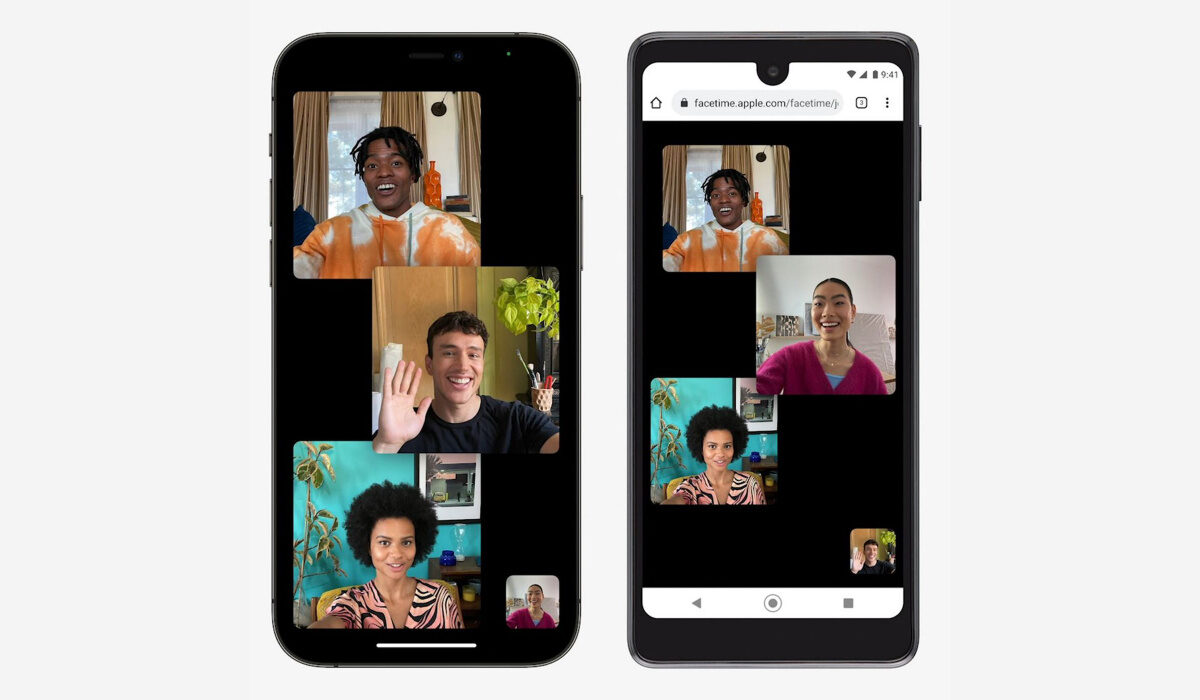
The good news is that Android users will no longer be excluded from FaceTime calls. If you don’t already know how to participate in FaceTime calls as an Android user, we’ve created this article for you. So, follow this guide to learn how to initiate a FaceTime call on an Apple device and how to join the call on an Android phone.
Since when can Android devices use FaceTime?
FaceTime was introduced for iOS users as a dependable way of video chatting. It’s not unusual to see owners of iPhone, iPad, or Mac devices using FaceTime without limitations, so when you own any of these devices, you can sometimes take the FaceTime app for granted. However, users of Android devices don’t have the luxury because of FaceTime’s exclusivity to iOS devices.
Users of Android devices are typically unable to download the FaceTime app or initiate their own FaceTime chats, which is a bummer. However, anyone can join a FaceTime call nowadays, even Android device owners, and we think this is a rather exciting development.
This development is thanks to the release of iOS 15, iPadOS 15, and macOS 12 Monterey, and with the quality of FaceTime calls, it’s superb that Android users are no longer left out totally from participating in FaceTime calls.
Joining FaceTime Calls from Android Devices
FaceTime calls still cannot be initiated by Android users. But you can join calls that others make as long as you have Google Chrome. On the majority of Android smartphones, Google Chrome is pre-installed.
FaceTime calls must first be initiated by an Apple device user. For this, they will require:
- iPhone with iOS 15 or later
- an iPad with at least version 15 of iPadOS
- a Mac with at least macOS Monterey installed.
The steps below should help Android users use FaceTime:
- Open the FaceTime app on the Apple device and click on Create Link from the menu at the top of the app.
- The Apple user must then decide in the pop-up whether they want to share the link using Mail, Messages, AirDrop, Snapchat, or another app. Whichever approach you choose, all the Android user needs is the link.
- The Android user must launch Google Chrome after receiving the link to facetime.apple.com.
- The Android user should type their name and click Continue .
- Once connected, ask the Android user to tap the floating pop-green up’s Join button. Additionally, they might need to grant FaceTime access to their microphone and camera.
- The Apple user must then approve their request to join.
- Once the call has begun, both participants will have the same options, including the ability to mute themselves, reveal or conceal their camera, end the conversation, and more.
Remember that while some FaceTime capabilities will typically not be available for Android devices, the basic features do work. You can use full-screen mode, mute your microphone and turn off your video, and swap between your front- and back-facing cameras with this web version. The configuration of the call participants can also be altered. Advanced features, like SharePlay, which enables you to stream video with peers using FaceTime, are, however, still exclusive to Apple products.
In summary , Apple’s decision to include Android users in the FaceTime experience is undeniably great. Now you can enjoy interesting conversations with your Apple-loving friends as an Android user.
You should also keep in mind that there are several FaceTime alternatives that are excellent for your Android device if this version of FaceTime is insufficient for you or if you’d prefer to use an Android app that is similar to FaceTime.
One of such apps is Google Duo, which is a program that comes closest to FaceTime for Android devices. Although it’s not an all-in-one messenger, some people like its simplicity. If your iPhone-owning pals don’t mind downloading another app, Duo is also accessible on iPhone and the web, making it simple for them to call you.
We’re sure you’ve found this article helpful, so don’t forget to share it with your friends and loved ones so that they can also benefit from it.
- Don’t miss our mobile phone reviews .
- Follow our news on Google News .
- Join our WhatsApp Group , to be notified of the most important articles and deals,
- Follow us on Instagram , Facebook , Twitter , and YouTube .
Author:Joan Agie
Add MobilityArena as a preferred source on Google
Microsoft, like many other tech companies, collects information about you, such as what you do in Windows and online, where and how you use your devices, and the kinds of data and content you mostly access.
Tech businesses often claim that they are gathering this data to give you a more specialized and individualized experience. In truth, some form of data gathering is required if you want to make the most of specific Windows functionalities. However, it’s normal to start getting concerned about how much of your private information these companies have access to.

If you’re having privacy concerns with using Windows devices, it’s easy to put some settings in place to soothe your worries. We’ve created this guide to help you accomplish this, whether you believe Microsoft’s operating system violates your privacy or simply want to make sure you safeguard as much of your private life as you can.
So, keep reading to find out the top options you have to safeguard your privacy on Windows 10 devices.
Disable Ad Tracking
- Go to Privacy > General in the Windows 10 Settings program (by pressing the Start button in the lower-left corner of your screen, followed by the Settings symbol that resembles a gear).
- Under the heading “Change privacy options,” you’ll find a series of options, the first of which manages the advertising ID.
- You’ll need to move the slider from On to Off at this point. Your interests won’t be recorded anymore, and generic adverts rather than customized ones will still be served to you.
Go to the Ad Settings area of Microsoft’s Privacy Dashboard to be completely sure you aren’t tracked online while using Windows 10 and to turn off any other methods by which Microsoft will typically use your information to target adverts.
To do this:
- In the top right corner of the page, sign in with your Microsoft account
- Switch the slider from On to Off in the “See adverts that interest you” box at the top of the page.
Disable Location Tracking
Everywhere you go, Windows 10 is aware of your presence. Some people don’t mind this because it enables the operating system to provide you with pertinent information, such as the weather in your area, nearby dining establishments, and so on. However, you can instruct Windows 10 to cease tracking your location if you don’t want it to.
Open the Settings app, then select Location > Privacy . Click Change , then shift the slider from On to Off on the screen that displays under “Allow access to location on this device.” By doing that, you can stop location monitoring for all the users of the PC.
You can disable location tracking in individual apps rather than making it an all-or-nothing decision. Make sure location tracking is enabled and scroll down to the section that reads “Choose apps that can use your precise location” if you only want some apps to be able to use your location and not others.
Every Windows 10 app that can access your location will be listed for you to see. For the apps that you wish to enable to use your location, such as Weather or Maps, move the slider to On ; for the apps you don’t, move it to Off .
You should note that desktop programs are not covered by this setting. In order to allow desktop programs to access your location after you enable location tracking, click that option. A list of desktop applications that use location tracking appears once you do that. For each app you wish to use your location, slide the slider to On ; for each app you don’t, slide it to Off .
Restrict Cortana
Cortana is a voice-activated intelligent personal assistant, much like Apple’s Siri and Google’s creatively called Google Assistant. By using the Bing search engine of Microsoft, it can respond to questions and understands natural voice commands.
In addition to conducting searches, Cortana can store and access personal data including contacts, calendar dates, calendar reminders, and more.
The Cortana assistant’s ability to index and retain your data both locally and on the cloud is a significant downside. Also, Cortana can now synchronize data between all of your Microsoft devices.
It’s easy to restrict Cortana’s access to your personal information and modify its functionality so that it behaves more like the original Windows search bar.
You can stop it from logging information about your handwriting, speech, and previous text entry habits. Additionally, you have the option to disable the assistant’s sharing of your usage data among all of your Windows-based devices.
To limit Cortana’s access:
- Start the Cortana app by tapping the Cortana icon on the taskbar, and then select the menu button in the top-left corner of the Cortana window to access the settings.
- You’ll find a “Privacy” menu choice in the “Account” section of the Settings screen. Touch that.
- The Privacy settings screen will appear next. Here, you may check the information that Cortana has on you, manage her access to your calendar and email, delete all of her data, and delete her chat history.
You may also regulate Cortana’s access to information, what she knows about you in the cloud, and what information she can get from other services. You can also decide whether or not Cortana listens constantly for your summoning word.
Summarily , these settings will typically help you control your privacy, and some other methods you should consider trying include:
Controlling your camera and microphone access
Controlling app access to your contacts and account information
Limiting the usage data and feedback that gets sent to Microsoft
Don’t miss our mobile phone reviews .
Follow our news on Google News .
Join our WhatsApp Group , to be notified of the most important articles and deals,
Follow us on Instagram , Facebook , Twitter , and YouTube .
